View and Search Inventory
The Inventory overview displays all tracked ingredients and their current stock levels, giving you a quick snapshot of what's on hand across your dairy. From here you can search, filter, and sort the list, and drill into any ingredient to view detailed inventory information including recent transactions.
Searching and Filtering
Use the options at the top of the screen to find specific ingredients in your inventory.
From PULSE (Web)
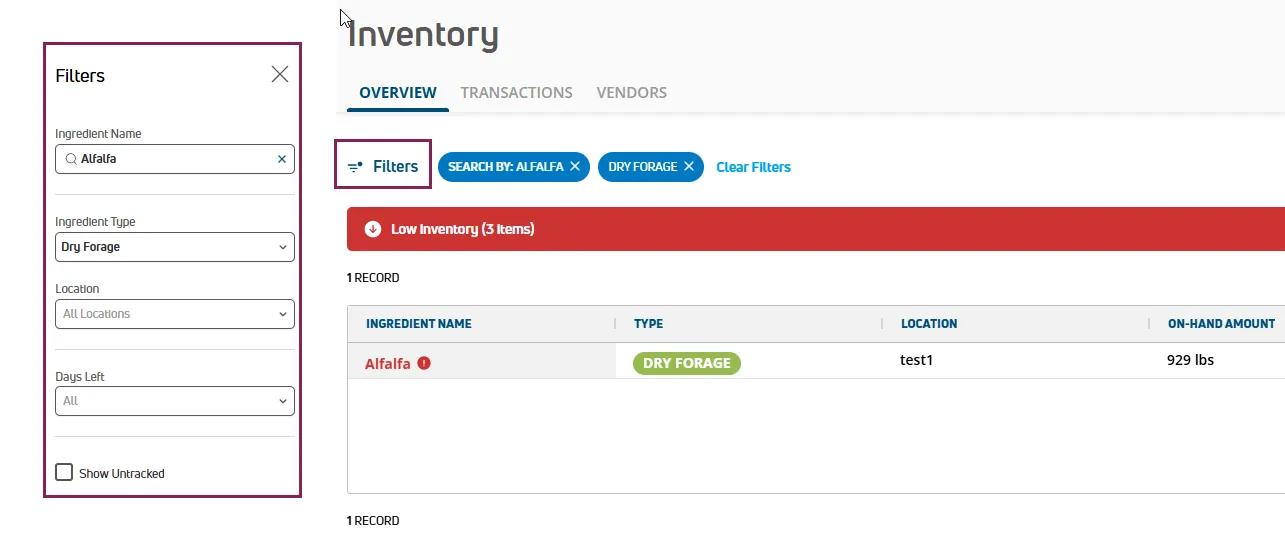
Select Filters at the top left of the page to open the Filters side panel. The following filter options are available:
- Ingredient Name: Type text to search by name.
- Ingredient Type: Select one or more types to limit the list. You can also type directly in the field to search.
- Location: Select one or more locations to limit the list. You can also type directly in the field to search.
- Days Left: Select an option to limit the list to inventory that will run out within a specific number of days.
- Select Clear Filters to reset all applied filters.
💡TIP: If any ingredient has less than 14 days remaining, a Low Inventory banner displays at the top of the page. Select Filter on the banner to quickly limit the list to lower inventory items.
From the Mobile App
Use the search field above the ingredient cards to filter the list by name.
To view only low inventory items, tap the Low Inventory banner on the Inventory/Vendors screen. The banner displays the count of items running low (e.g., "Low Inventory (13 items)") and opens a scrollable list of just those items.
Sorting and Organizing (PULSE Only)
PULSE provides two views for the inventory list — Table and Cards — each with its own way of organizing ingredients.
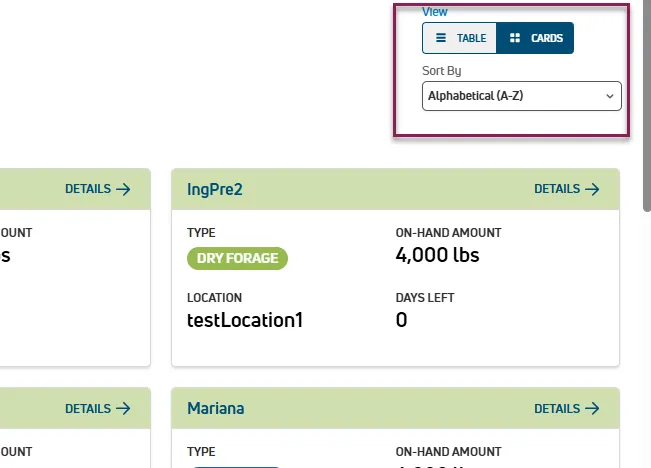
- Table view: Select a column header to sort the list by that column.
- Cards view: Select an option in Sort By at the top right of the page to change the sort order.
Use the toggle to switch between views.
Viewing Inventory Information
Inventory information is displayed at two levels: a summary view showing key details at a glance, and a details view with the full picture including recent transaction history.
From PULSE (Web)
Navigate to FeedComp > Inventory and select the Overview tab. The Overview tab displays a summary of each tracked ingredient's current stock levels.
- Cards view: Displays ingredient information as individual cards.
- Table view: Displays ingredient information in a list format with sortable column headers.
Each ingredient entry shows:
- Ingredient Name: Displayed at the top left of the card.
- Type: Shown as a color-coded label.
- Location: The storage location where the ingredient is kept.
- On-Hand Amount: The current amount available in inventory.
- On-Hand Tons: The on-hand amount converted to tons (or metric tons, depending on dairy settings). This is displayed alongside the On-Hand Amount column (which shows in the base unit like lbs or kg), giving users a quick view of both measurements without having to calculate.
- Days Left: The estimated number of days before the on-hand amount is depleted. See Days Left for more information.
- Tracked: An indicator showing whether inventory tracking is active for that ingredient-location. A checkmark (✓) means tracking is active. This is the visual equivalent of the "Track this Location" toggle — only tracked ingredients have their inventory actively managed in FeedComp.
- DM%: The dry matter percentage.
- AF Cost/Ton: The as-fed cost per ton.
- Recent Transactions: A summary of delivery and usage amounts, as-fed cost per ton, and dry matter percentage over the past 7 days.
Ingredients are color-coded to indicate supply levels — green (more than 30 days), yellow (less than 30 days), or pink (less than 15 days).
From the Mobile App
Navigate to Adjustments > Inventory. On this screen, a Low Inventory banner displays at the top showing the count of items running low (e.g., "Low Inventory (13 items)"). Tap the banner to view a scrollable list of just those items. Below the banner are two options — Inventory and Vendors.
Tap Inventory to view your tracked ingredients. Ingredients are displayed as cards with a search field above them for filtering by name. The mobile app does not offer a table view.
Tap a card to view its details. The details screen shows the ingredient's location, on-hand amount, and a Past 7 Days Overview summarizing recent inventory activity. For a full list of inventory fields and their descriptions, see the PULSE section above.
At the bottom of the details screen, two options are available:
- Physical Inventory Adjustment — Tap to record a manual adjustment to the ingredient's on-hand amount.
- Create Transaction — Tap to record a delivery or pickup.
See Create a Transaction for full instructions on both.
Important Considerations
Keep the following points in mind when viewing inventory.
- Only ingredients with location tracking enabled are included in your Inventory. See Manage Ingredient Locations to learn more about enabling tracking.
- Amounts are displayed in pounds or kilograms based on the unit of measure specified in your Dairy Info and User Account settings.
- For definitions of transaction types, low inventory indicators, and Days Left, see Inventory.