Recipes
Recipes define what each animal group is fed and in what amounts. In FeedComp , a recipe brings together ingredients, quantities, and mixing behavior to create a consistent feed mix for a specific pen.
You can add, edit, and manage recipes in both the FeedComp mobile app and FeedComp on PULSE. The same recipe‑related tasks—such as updating ingredients, adjusting quantities, and reviewing mixing order—are available in both interfaces, so you can work from the app or the web without switching workflows.
On PULSE, the Recipes page displays all recipes as cards or in a list view, providing a clear overview of available feed mixes.
In the FeedComp mobile app, the Recipes page is designed for quick, on‑the‑go access. Recipes are displayed as cards in a grid layout, allowing you to quickly scan and select a recipe.
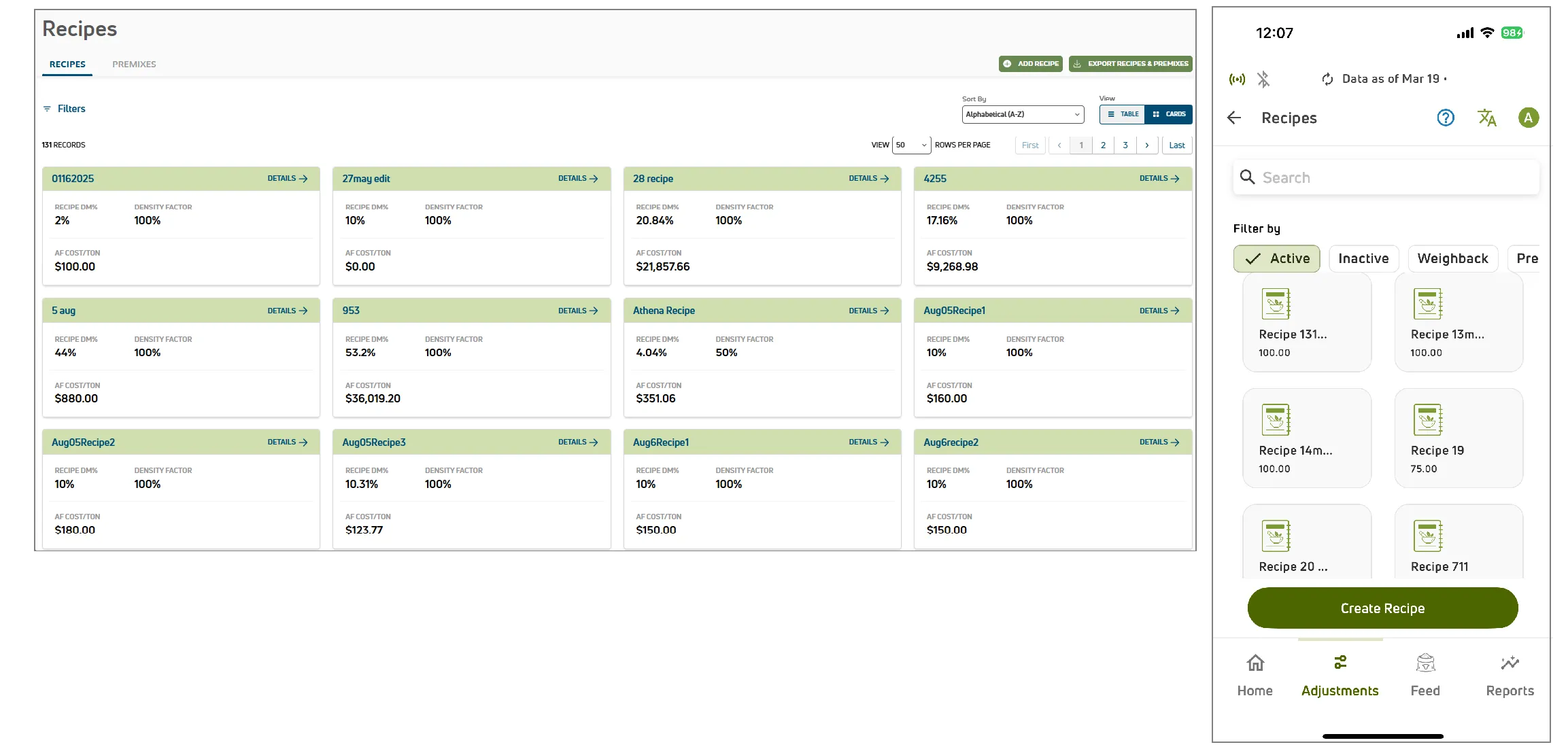
Recipes in FeedComp are made up of key components that affect how feed is loaded, mixed, and delivered. Understanding these pieces makes it easier to build and adjust recipes correctly:
- Ingredients: Individual feed items such as forages, commodities, or supplements that make up a recipe; each ingredient is added in a specific order and assigned a location so FeedComp knows where it's loaded from during feeding.
- Premixes: Multiple ingredients combined into a single, reusable component that functions like a standard ingredient. These are typically used for items always fed together, such as minerals or supplements.
- Density Factor: Determines equipment loading capacity based on ingredient weight and bulk. Use lower values for light, bulky items and higher values for denser materials.
- Dry Matter (DM) and As‑Fed (AF): Recipes track ingredients using both Dry Matter (nutrient weight) and As‑Fed (total weight including moisture) to ensure accurate calculations for feed amounts and costs
- Ingredient Order and Mixing: Ingredients are loaded in sequence to ensure proper blending. Use mixing delays to pause the process for ingredients that require specific mixing time before others are added.
To add a recipe using PULSE on the web or the mobile app:
- Go to Recipes and select Add Recipe (PULSE) or Create Recipe (mobile).
The recipe builder will guide you through the loading and mixing setup.
- Enter a Recipe Name and Density Factor for the recipe.
The density factor determines loading capacity based on ingredient weight and bulk; use lower values for bulky items and higher values for denser materials.
To create a premix, select the Create as Premix option when adding a recipe. This groups ingredients—like minerals or vitamins—into a single, reusable unit to simplify ration creation and ensure consistency.
When setting up a premix, define a Load Tolerance to set the acceptable variation for loading.
- Tighter tolerances are best for high-precision ingredients.
- Wider tolerances allow for practical variations where small differences won't impact the ration.
- In the Add Ingredient area, select the recipe ingredients.
Ingredients are added in loading order. To rearrange the sequence for proper mixing, select an ingredient and drag it into position.
NOTE: You can add premixes to the recipe just like regular ingredients.
Add weighback ingredients just like any other but ensure they are the first item in the loading sequence. If it is not the first ingredient selected, it will not be available when creating a filler load.
- For each ingredient, select the Location it will be loaded from.
Some ingredients may be stored in more than one location. Choosing the correct location ensures FeedComp loads the ingredient from the intended bin or storage area.
- Enter the Dry Matter and As-Fed amount for each ingredient.
These values are used for feeding targets and cost calculations.
- Dry Matter (DM) is entered in pounds and represents the nutrient amount.
- As‑Fed (AF) represents the total delivered weight, including moisture.
- Adjust ingredient order and mixing delays (optional).
Review the sequence and drag ingredients to the desired position. Use Time Delay to pause loading and allow ingredients to blend before the next item is added.
- Add an Alternate Recipe (optional).
Define an alternate recipe to ensure feeding continues if an ingredient is unavailable or to include weighback ingredients to reduce waste.
See Alternate Recipes to learn more.
- Select Add Recipe (PULSE) or Create Recipe (mobile) to save.
The recipe is now available for use in feedings and can be edited later if adjustments are needed.
On the web (PULSE) and in the FeedComp mobile app, you can quickly search, view, and update recipes as feeding needs change.
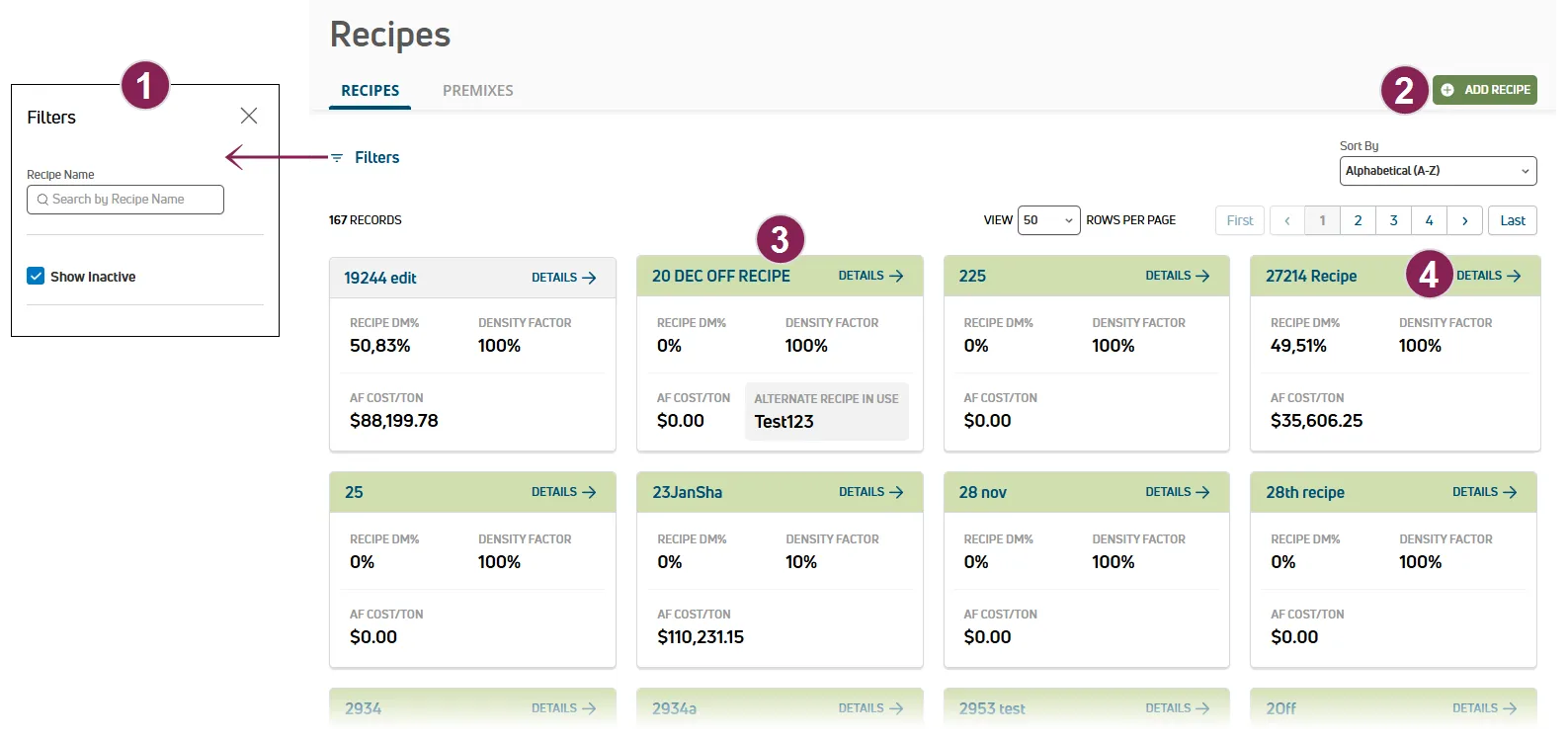
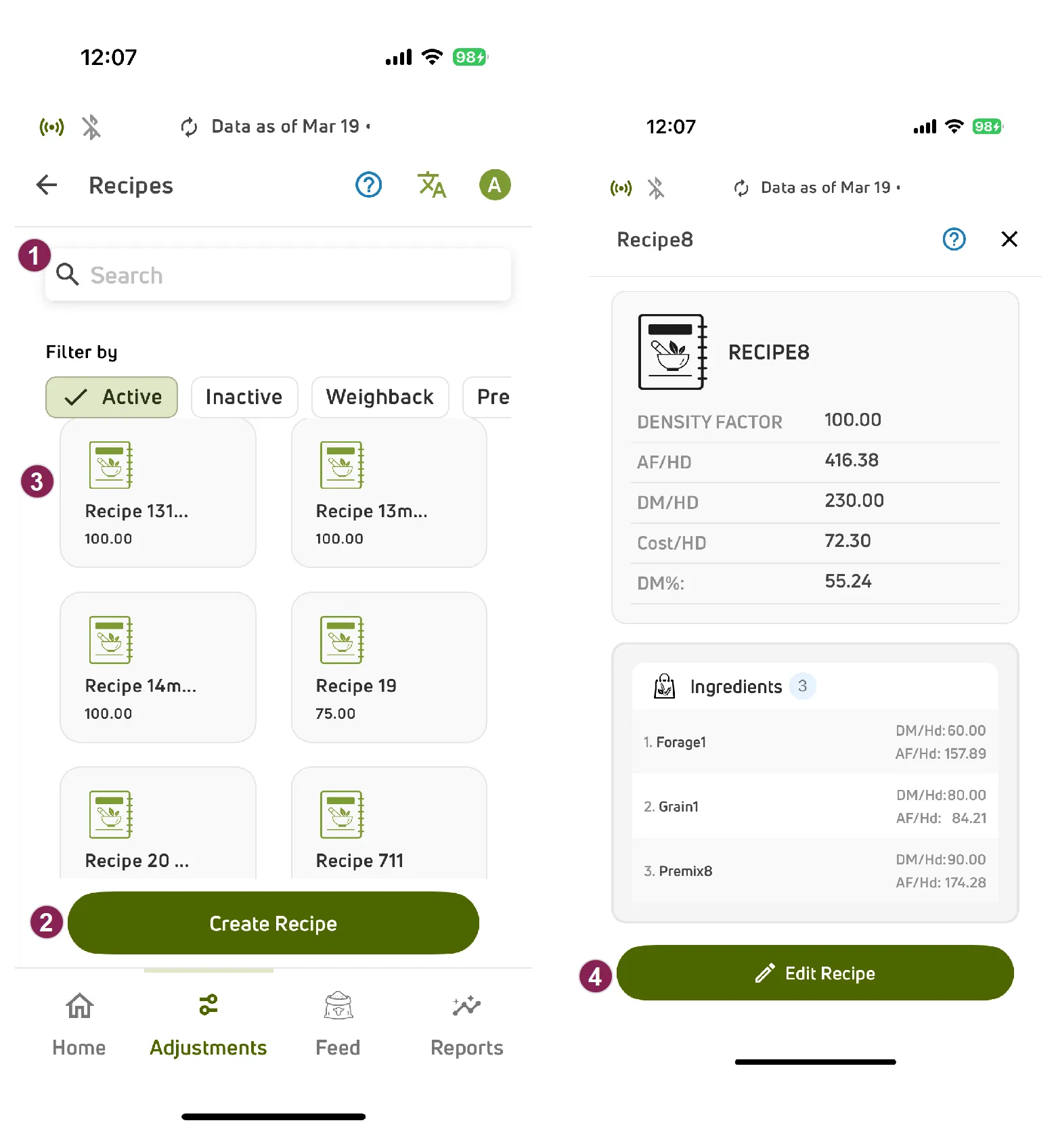
Search, sort, and filter the recipes list:
Options to search, sort, and filter the recipes list are available at the top of the screen:
- PULSE Only: Select Filters at the top left of the page to open the Filters side panel.
- Use the Search field to find recipes by name.
- Active recipes are shown by default. Use filter options to include inactive recipes in the list.
Add a new recipe:
To create a new recipe, select Add Recipe (PULSE web) or Create Recipe (mobile). See Add a Recipe to learn more.
View recipe cards:
Recipes are displayed as cards that provide a quick visual overview and access to recipe details.
- A green card indicates the recipe is active and available to add to a feeding.
- A gray card indicates the recipe is inactive and cannot be added to a feeding.
NOTE: Recipes can also be viewed in a list on PULSE.
View or edit recipe details:
Open a recipe to review its details or make changes:
- PULSE Only: Select Details in the top right corner of the recipe card.
- Mobile Only: Select a recipe card, then choose Edit Recipe.
From the recipe details, you can update ingredients, density factor, and other parameters. See Add a Recipe for more about the displayed fields.
You can activate or deactivate a recipe at any time. Deactivating a recipe means the recipe is no longer available to add to a feeding. Existing feedings are not affected, but the recipe cannot be selected for new feedings until it is reactivated.
- Open the Recipes page.
- (Optional) To view inactive recipes, select Filters in the top left and select Show Inactive.
- Locate the recipe you want to update.
- Select Edit Recipe in the top right of the recipe card. The Edit Recipe side panel opens.
- Use the Active Recipe toggle to update the recipe status:
- Turn off the toggle to deactivate the recipe.
- Turn on the toggle to reactivate the recipe.
- Select Save.
- Open the Recipes page.
- (Optional) To view inactive recipes, tap Inactive at the top of the page.
- Tap the recipe you want to update.
- Tap Edit Recipe at the bottom of the screen.
- Update the recipe status:
- Tap Deactivate (top right) to deactivate the recipe.
- Tap Reactivate (bottom of the screen) to reactivate the recipe.
TIP: Don’t see the recipe? Make sure the Inactive filter is selected.