View Reports
Use FeedComp reports to review feeding history, monitor errors, track ingredient usage, and analyze feed performance across your dairy. These reports help you verify completed feedings, identify trends, and spot issues that may impact accuracy, cost, or efficiency.
Use the Feed History report to view historical information and other relevant details for your feedings, including missed amounts, feeder names, aborts, and acknowledge amounts.
While high-level feeding statuses and summaries are available across platforms, the web report provides full visibility into feeding lifecycles and step-level operator actions — such as skips, ignores, manual advances, and overnight pauses — to help distinguish between operational decisions and system errors.
💡 Tip: Check the "Reset Time" Gap
If you completed loads offline yesterday but didn't sync until after your farm's "Reset Time""Reset Time" (e.g., 1:00 AM), those loads might not appear on today's dashboard immediately after syncing.
Before troubleshooting a "Missing" load:
- Go to Reports -> Feeding History.
- Check the date the feeding actually occurred.
- If the data is there, your load is safe! The web dashboard may just need additional time to reconcile the offline data with the current date's report.
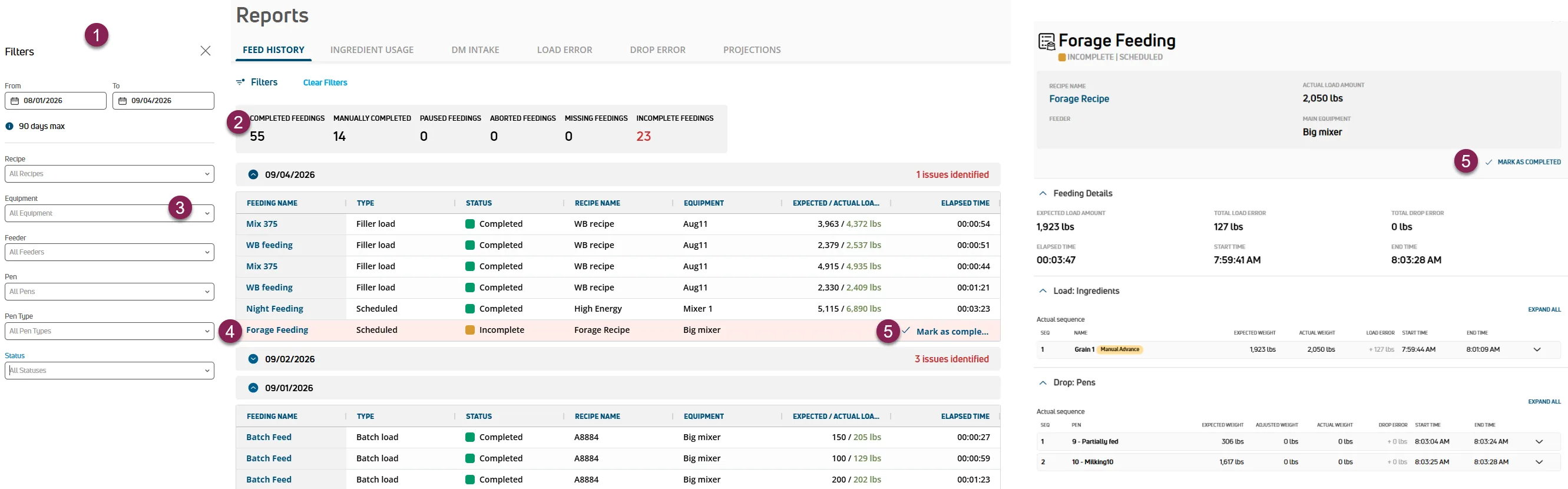
Options to search and filter the Feed History report are available at the top of the page. Follow the guidelines below when working with the Feed History report:
- Click Filters at the top left of the page to limit the data that is displayed. The Filters side panel opens.
- Use the From and To filters to only view data from that range.
- Select a Recipe to limit the report to a specific recipe. You can type text directly in the field to search for recipes by name.
- Select Equipment to limit the report to specific equipment. You can type text directly in the field to search for equipment by name.
- Select a Feeder to limit the report to a specific feeding technician. You can type text directly in the field to search for feeding technicians by name.
- Select a Pen to limit the report to a specific pen. You can type text directly in the field to search for pens by name or number.
- Select a Pen Type to limit the report to a specific type of pen. Multiple types can be selected. You can also type text directly in the field to search for pen types by name.
- Select a Status to limit the report to a specific feeding status. Multiple statuses can be selected. You can also type text directly in the field to search for feeding statuses by name.
- Click the Clear Filters option to clear all of the filters currently applied.
- Share URL Deep Links: The browser URL automatically updates whenever you select a feeding or apply filters. You can copy and share the direct URL to open the exact filtered view or feeding detail drawer.
An overall summary is displayed in a GRAY bar at the top left of the page based on the current Filters:
- Completed Feedings: The total number of feedings that were completed as scheduled with all required loads and drops finished or intentionally ignored.
- Manually Completed Feedings: The total number of feedings that were completed manually.
- Paused Feedings: The total number of feedings that were paused. This applies to overnight loads where the operator selected "Resume Tomorrow."
- Aborted Feedings: The total number of feedings that were aborted by the operator, or automatically due to an overnight load that was never resumed.
- Missing Feedings: The total number of feedings that were missed.
- Incomplete Feedings: The total number of feedings that were started but failed to complete due to processing errors, unhandled sync issues, or missing required loads.
Click the down arrow  to expand a row and view all feedings that were scheduled on that day. All of your dairy’s current feedings scheduled on the date expanded are listed on the report, and the following information is displayed for each feeding:
- Feeding Name: The name of the feeding. You can click the name of the feeding to open the Feeding Details side panel and view more information. See View Feeding Details to learn more.
- Type: The feeding type.
- Scheduled: Indicates that the feeding was a scheduled feeding.
- Batch Load: Indicates that the feeding was a batch load. A batch load is an unscheduled feed drop to one or more pens. See Batch Feedings for more information.
- Premix: Indicates that the feeding was a premix. A premix is the same as a scheduled feeding, except you'll select a load size instead of selecting pens. A premix isn't like a normal recipe mix that is dropped to a sequence of pens; instead, a premix is batched for use in other recipes. See Recipes and Batch Feedings to learn more.
- Filler Load: Indicates that the feeding was a filler load. A filler load is type of weighback collection that reuses leftover feed from the previous day and adds it into a scheduled feeding for the current day.
- Status: The current status of the feeding. Feedings requiring attention are color-coded in the table: red indicates aborted feedings, and orange indicates incomplete feedings. (Missing feedings are not highlighted.).
- Completed: Feeding finished successfully; all required ingredient loads and pen drops were completed or intentionally ignored.
- Incomplete: Feeding was partially executed without an end time, encountered a processing or sync failure, or had an expected amount greater than zero but an actual amount of zero or less without being marked ignored.
- Paused: Feeding was paused during an overnight load when the operator selected "Resume Tomorrow."
- Aborted: Feeding was explicitly aborted before completion by the operator, or an overnight load was not resumed on its scheduled feed date.
- Missing: A scheduled feeding that was never started before the farm's daily reset time.
- Manually Completed: A feeding that was originally Missing, Incomplete, or Aborted, and was subsequently completed by a user. This fills in missing values without overwriting recorded historical data.
- Recipe Name: The name of the recipe used for the feeding.
- Equipment: The name of the equipment used for the feeding. When more than 2 pieces of equipment are assigned to a feeding, a number is displayed that indicates how many additional pieces of equipment are assigned to the feeding. Hover over the number to see the additional pieces of equipment assigned.
- Expected/Actual Load Amount: The target and actual amounts loaded into the mixer for the feeding in pounds or kilograms (based on the unit of measure specified in your Dairy Info and User Account ). The actual amount displays in green for quick reference. Zero or negative loaded amounts are highlighted in orange.
- Elapsed Time: The total amount of time spent on the feeding (for completed feedings only).
- Mark as Completed: Click
 Mark as Completed to set the status of the feeding to Manually Completed. Available for incomplete, missing or aborted feedings. See Mark a Feeding as Completed to learn more.
Click the down arrow to expand a row, and then click on a Feeding Name in the table to open the side panel and view its details. Follow the guidelines below when viewing feeding details:
NOTE: Rows highlighted in red identify aborted feedings, while rows highlighted in orange identify incomplete feedings. Missing feedings are not highlighted. Amounts are displayed in pounds (lb) or kilograms (kg) based on the unit of measure specified in your User Account (in the mobile app, this is determined by your Dairy Info settings).
Amounts are displayed in pounds or kilograms based on the unit of measure specified in your User AccountUser Account (in the mobile app, this is determined by your Dairy InfoDairy Info settings.
- Status/Type: The current status and type of the feeding are displayed at the top of the side panel. See feeding statuses or feeding types to learn more.
- Side Panel Navigation: Click Expand All or Collapse All at the top of the side panel to open or collapse all load and drop step sections at once.
- Recipe Name: The name of the recipe used for the feeding.
- Expected/Actual Load Amount: The target and actual amounts loaded into the mixer for the feeding.
- Mark as Completed: Click Mark as Completed to set the status of the feeding to Completed (for incomplete feedings only). See Mark a Feeding as Completed to learn more.
- Feeding Details: This section includes detailed information about the feeding, the equipment load, and the pen drops.
- Load Amount: The expected weight of the load after all ingredients are loaded.
- Total Load Error: The total load error amount for the feeding.
- Total Drop Error: The total drop error amount for the feeding.
- Elapsed Time: The total amount of time spent on the feeding.
- Start Time: The time when the feeding began.
- Stop Time: The time when the feeding was completed.
- Load: Ingredients: This section details all ingredient loading steps. Items are listed in the actual execution order in which they were loaded, while preserving their assigned recipe sequence (Seq) numbers. Missing steps for aborted feedings are highlighted in red.
- Seq: The original sequence number assigned to the ingredient in the recipe. (The rows in the list reflect the actual order in which ingredients were loaded.)
- Name: The name of the ingredient loaded into the equipment.
- Expected Weight: The target ingredient weight from the recipe.
- Actual Weight: The actual weight loaded. Zero or negative amounts are highlighted in orange.
- Load Error: The difference between the expected and actual loaded weight.
- Start / End Time: Precise start and end timestamps, including seconds, for each ingredient load.
- Feeder: The feeding technician who performed the load.
- Equipment: The mixer or feeding equipment used.
- Advance Method: Indicates how the step was completed:
- Auto: The app automatically advanced to the next step once the target weight was reached.
- Manual: The feeder manually tapped to advance to the next step before or after reaching the target.
- Action Indicators: Visual tags displayed next to ingredients to indicate operator actions:
- Skipped (blue): The ingredient was moved to the end of the loading queue.
- Ignored (red): The ingredient was explicitly omitted from the load.
- Manually Advanced (orange): The feeder manually advanced the loading step.
- Aborted (red): Displayed on the last loaded ingredient when a feeding is explicitly aborted.
- Combined: Multiple actions can display together, such as Skipped + Manually Advanced or Skipped + Ignored.
- Drop: Pens: This section details all pen drop steps. Items are listed in the actual execution order in which feed was delivered, while preserving assigned pen drop sequence (Seq) numbers.
- Seq: The order the mix was dropped at the pen during the feeding.
- Pen: The pen number and name for each pen assigned to the feeding.
- Expected Weight: The original target drop weight defined for the pen.
- Adjusted Weight: The recalculated target drop weight based on the actual ingredient weights loaded into the mixer.
- Actual Weight: The actual weight dropped at the pen.
- Drop Error: The difference between the expected/adjusted weight and the actual dropped weight.
- Start / End Time: Precise start and end timestamps, including seconds, for each pen drop.
- Feeder: The feeding technician who completed the drop.
- Equipment: The equipment used for the drop.
- Advance Method: Indicates whether the drop advanced automatically (Auto) or manually (Manual).
- Action Indicators: Visual badges indicating operator drop actions (Skipped, Ignored, Manually Advanced, or Aborted).
IMPORTANT: Make sure you sync the app data before manually completing a feeding from the Feed History report. Some feedings may display Incomplete until the data is fully synced. This helps prevent losing or overwriting data that is already saved in the app.
You can mark feedings complete directly in the report table or when viewing feeding details in the side panel. When you manually mark a feeding as complete, the following occurs:
- Actual amounts are updated: For any ingredient or pen with an actual amount of zero, the system sets the actual amount to match the target amount.
- Status changes: The feeding status updates to Manually Completed. Manually completing a feeding fills in missing values for reporting purposes without altering any recorded historical data. See feeding statuses to learn more.
💡TIP: To avoid losing data, always sync the FeedComp mobile app before manually completing a feeding. This ensures any data already saved on the device is uploaded to the system first.
- From the report table: Click the down arrow to expand a row, and then click Mark as Completed to set the status of the feeding to Completed.
- From the side panel: Click on a Feeding Name in the table to open the side panel, and then click Mark as Completed to set the status of the feeding to Completed.
Tap  Feeding History, and then select the Date for the report. Options to filter the report are available at the top of the screen.
The mobile app tracks operator actions both online and offline, including skips, ignores, manual advances, aborts, exact start/end times (with seconds), actual delay times waited, and overnight pause markers
-
 Indicates that the feeding was completed as scheduled.
-
 Indicates that the feeding was started but not completed.
-
 Indicates that the feeding was missing (not started before the daily reset).
If your dairy runs feedings that span across midnight (starting one day and finishing the next), you may notice a delay in how the feeding is included in this report:
- Visibility: The Feeding History report defaults to the current calendar day, so a load that spans the overnight reset will be included in the next day's report.
- Paused Status & "Resume Tomorrow": When an operator selects "Resume Tomorrow" during an overnight load, the feeding is assigned a Paused status.
- Overnight Pause Separator: In the feeding details drawer, a visual separator labeled "SCHEDULED - OVERNIGHT LOAD" marks the exact point where feeding was paused.
- Finding the load: o view an overnight load, set your date filter to the feeding's scheduled feed date. The load displays under its original feed date once completed and synced. If an overnight load is not resumed on its scheduled feed date, its status automatically updates to Aborted.
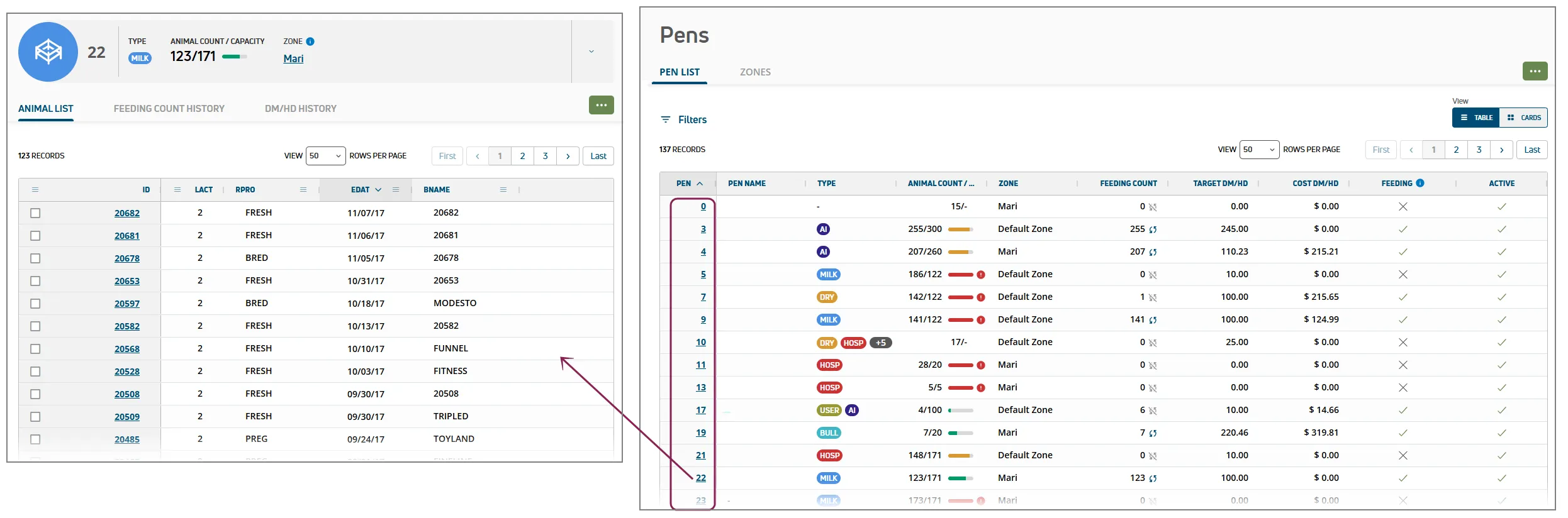
Use the Pen History reports to view historical feeding count and DM/HD details for your pens, along with a summary of the pen selected. To access the Pen Feed History reports, select the pen from the Pens list.
Tap  Pen Feed History, select a pen, and then select the Date Range for the report. Options to view the report by Pen Count History or DM History are available at the bottom of the screen
Feeding Count History
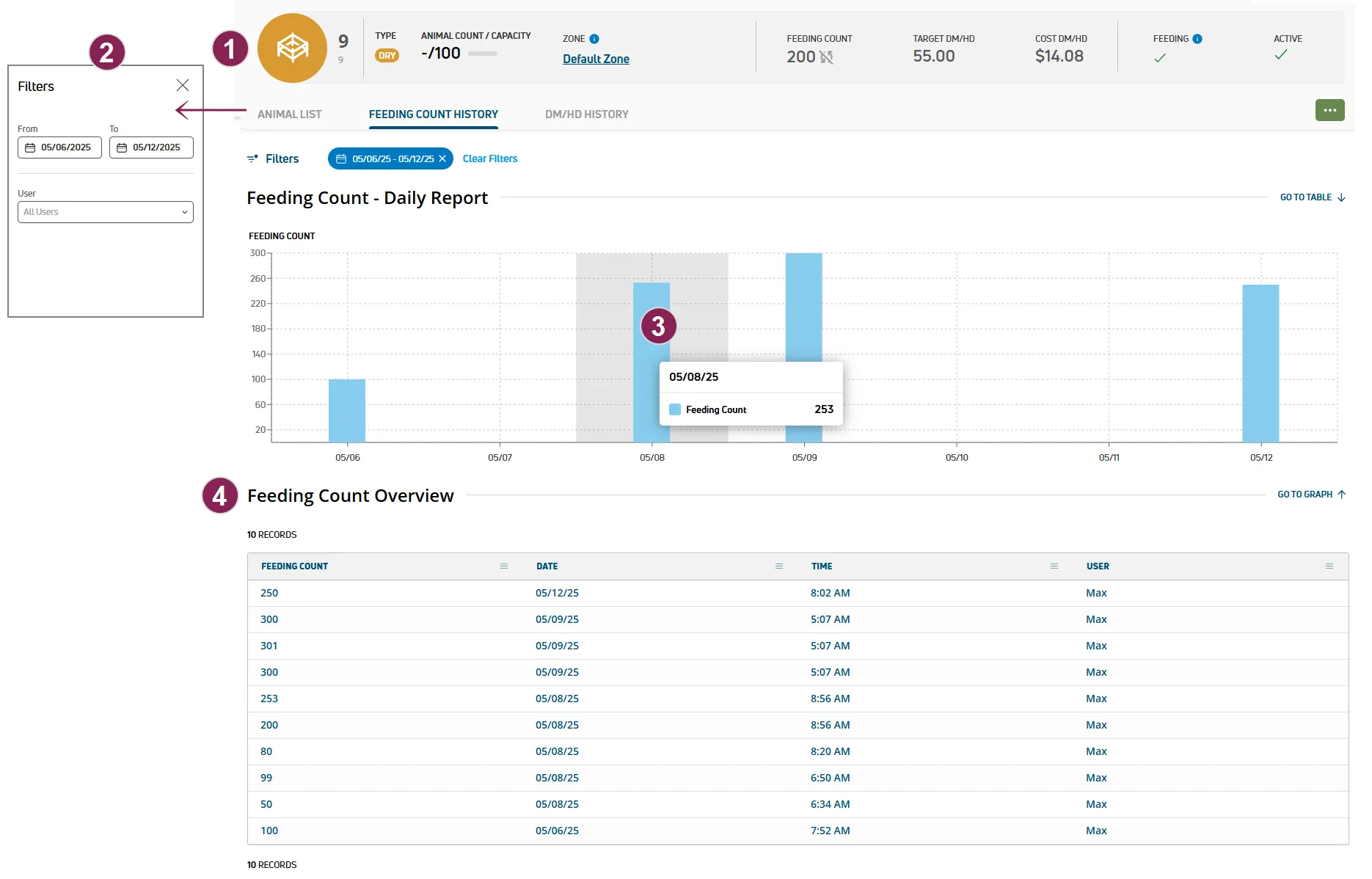
View the summary at the top of the page for pen information. See Pens to learn more about available pen settings.
Options to search and filter the Pen History report are available at the top of the page. Follow the guidelines below when working with the Feeding Count History report:
- Click Filters at the top left of the page to limit the data that is displayed. The Filters side panel opens.
- Use the From and To filters to only view data from that range.
- Select a User to limit the list to a specific feeding technician. You can type text directly in the field to search for feeding technicians by name.
Check the graph for changes in pen feeding counts for the selected time frame. PULSE shows the last month of data by default. Hover over the graph to view details about pen feeding counts by date.
Scroll down to view the graphed data in a table format. The table lists changes to the pen feeding counts for the selected time frame, as well as the user who made the change. You can also customize the items shown in the list. See Customize Table Columns to learn more.
DM/HD History
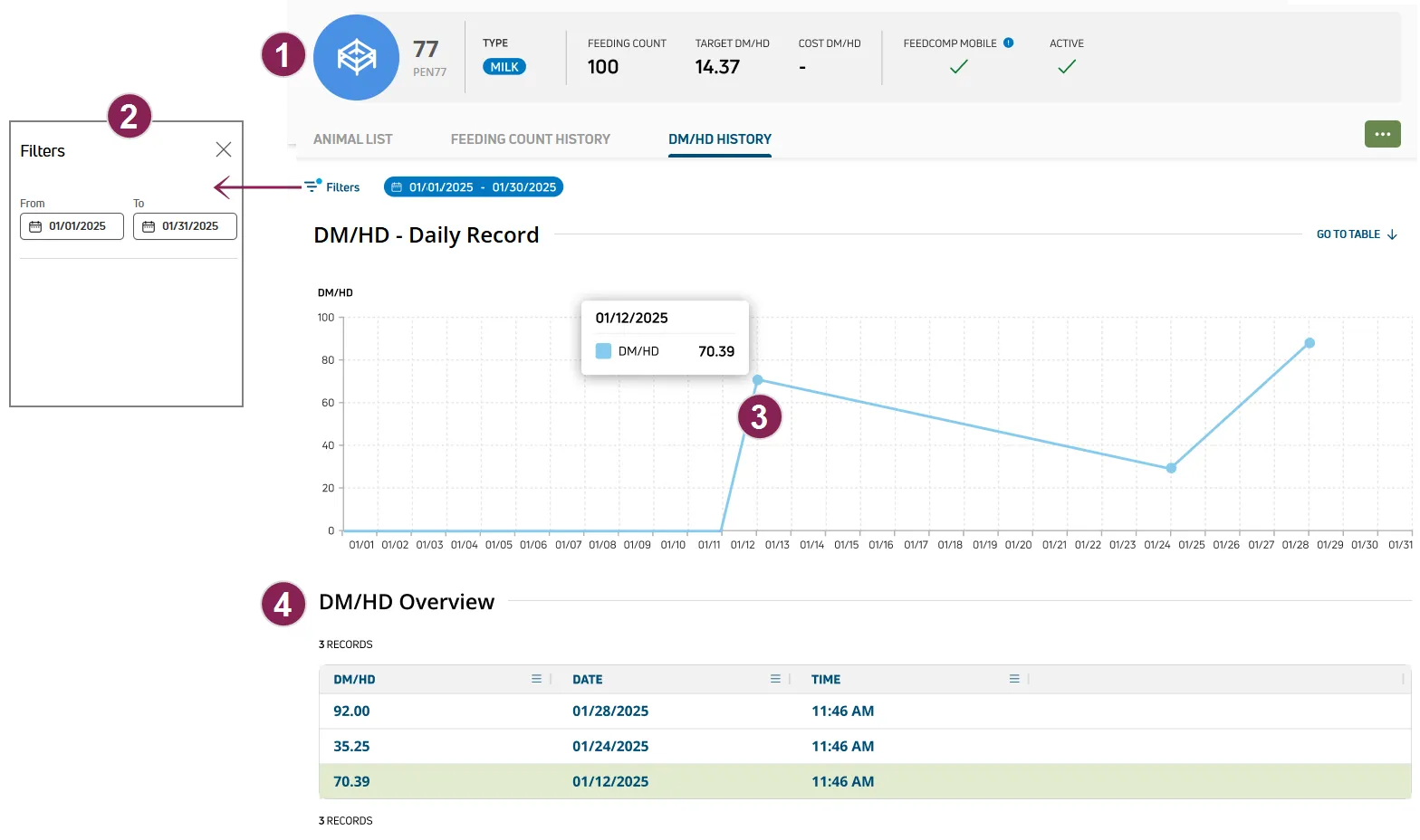
View the summary at the top of the page for pen information.
Options to search and filter the Pen History report are available at the top of the page. Follow the guidelines below when working with the Feeding Count History report:
- Click Filters at the top left of the page to limit the data that is displayed. The Filters side panel opens.
- Use the From and To filters to only view data from that range.
Check the graph for changes in pen DM/HD for the selected time frame. PULSE shows the last month of data by default. Hover over the graph to view details about pen DM/HD by date..
Scroll down to view the graphed data in a table format. You can also customize the items shown in the list. See Customize Table Columns to learn more.
Use the Ingredient Usage report to view historical usage data for ingredients to track and analyze the ingredients used to feed your animals.
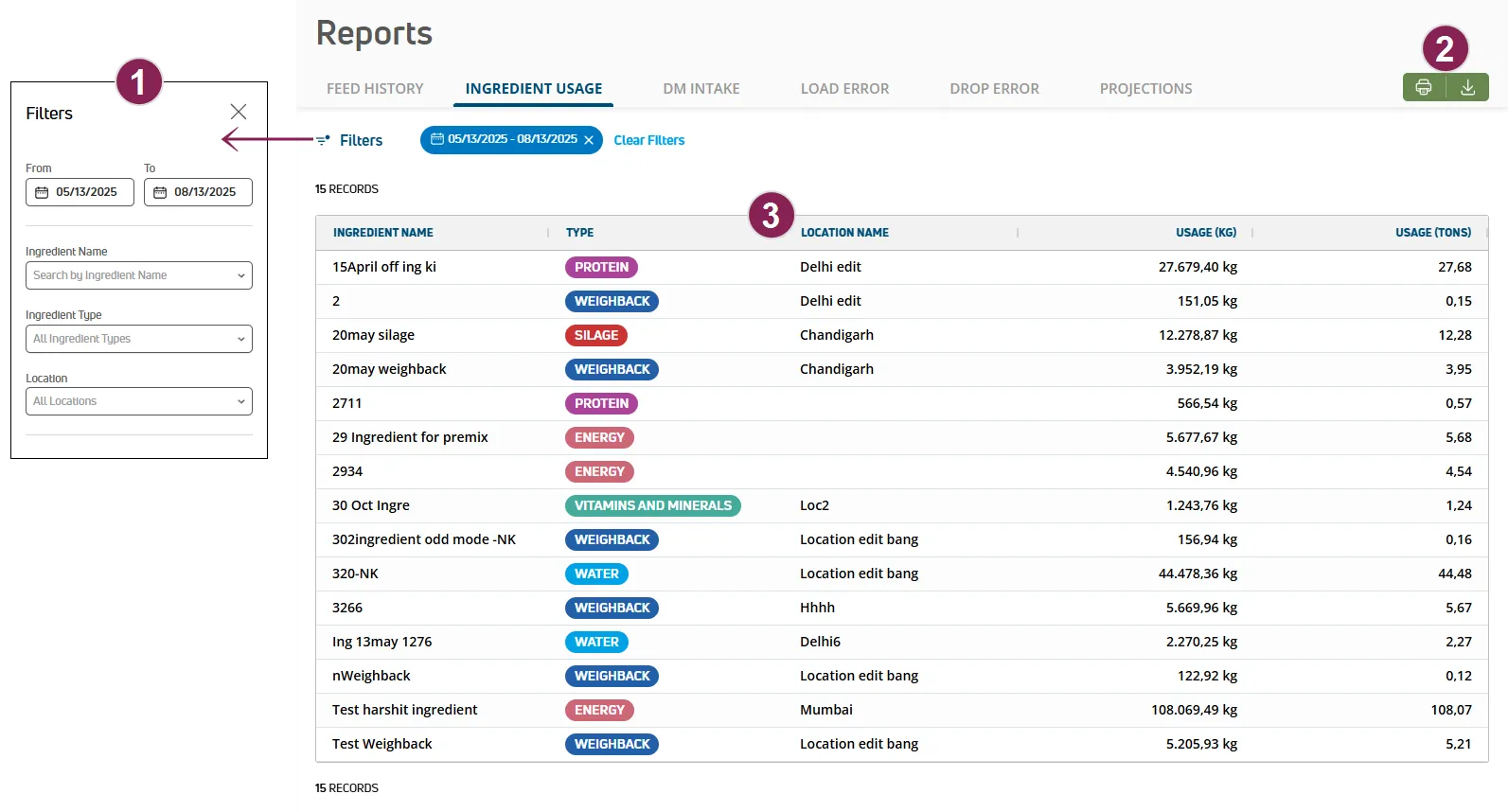
Expand the sections below to learn more:
Options to search and filter the Ingredient Usage report are available at the top of the page. Follow the guidelines below when working with the Ingredient Usage report:
- Click Filters at the top left of the page to limit the data that is displayed. The Filters side panel opens.
- Use the From and To filters to only view data from that range.
- Select an Ingredient Name to limit the report to a specific ingredient. Multiple ingredients can be selected. You can also type text directly in the field to search for ingredient by name.
- Select an Ingredient Type to limit the report to a specific type of ingredient. Multiple types can be selected. You can also type text directly in the field to search for ingredient types by name.
- Select a Location to limit the report to a specific location. You can type text directly in the field to search for locations by name.
- Click the Clear Filters option to clear all of the filters currently applied.
Click the green Export as CSV button  at the top right of the page to save the data as a CSV file. Or, click Print
  to send your parlor data to the printer. If you applied filter(s), the data will print or export with the current filter(s) applied.
Follow the guidelines below when viewing report details:
- Ingredient: The name of the ingredient.
- Type: The ingredient type in a color-coded label.
- Dry Forage: Vegetative material, such as stems, leaves, and stalks of plants, in a dried state that is used for feed.
- Fresh Forages: A crop of cultivated plants or plant parts that are grazed or harvested as feed.
- Silage: Preserved forage for feed, like pasture grass, alfalfa, grains, and corn, that is produced by fermenting plant matter.
- Energy: High-calorie feed, such as corn, sorghum, barley, and wheat.
- Protein: High-protein feed, such as soy and canola.
- Vitamins and Minerals: Supplements added to feed to prevent deficiencies in dairy cows that can impact health and milk production.
- Additives: Products added to feed to enhance feed quality, make the feed more digestible, and improve health and performance.
- Weighback: Feed leftover from a prior feeding that can be added to a recipe and help reduce waste.
- Water: Water added to a feed mixture to improve daily milk yield.
- Location Name: The name of the location where the ingredient is currently stored.
- Usage (Units): The total ingredient amount used during the time frame currently selected in the From and To filters in pounds or kilograms based on your User Account and Dairy Info settings.
- Usage (Tons): The total ingredient amount used during the time frame currently selected in the From and To filters in tons.
Tap  Ingredient Usage, select the Date Range for the report, and then select an Ingredient Type. Click here to learn more about ingredient types.
Use the DM Intake report to view dry matter (DM) and as-fed (DM) amounts delivered to the pens at your dairy.
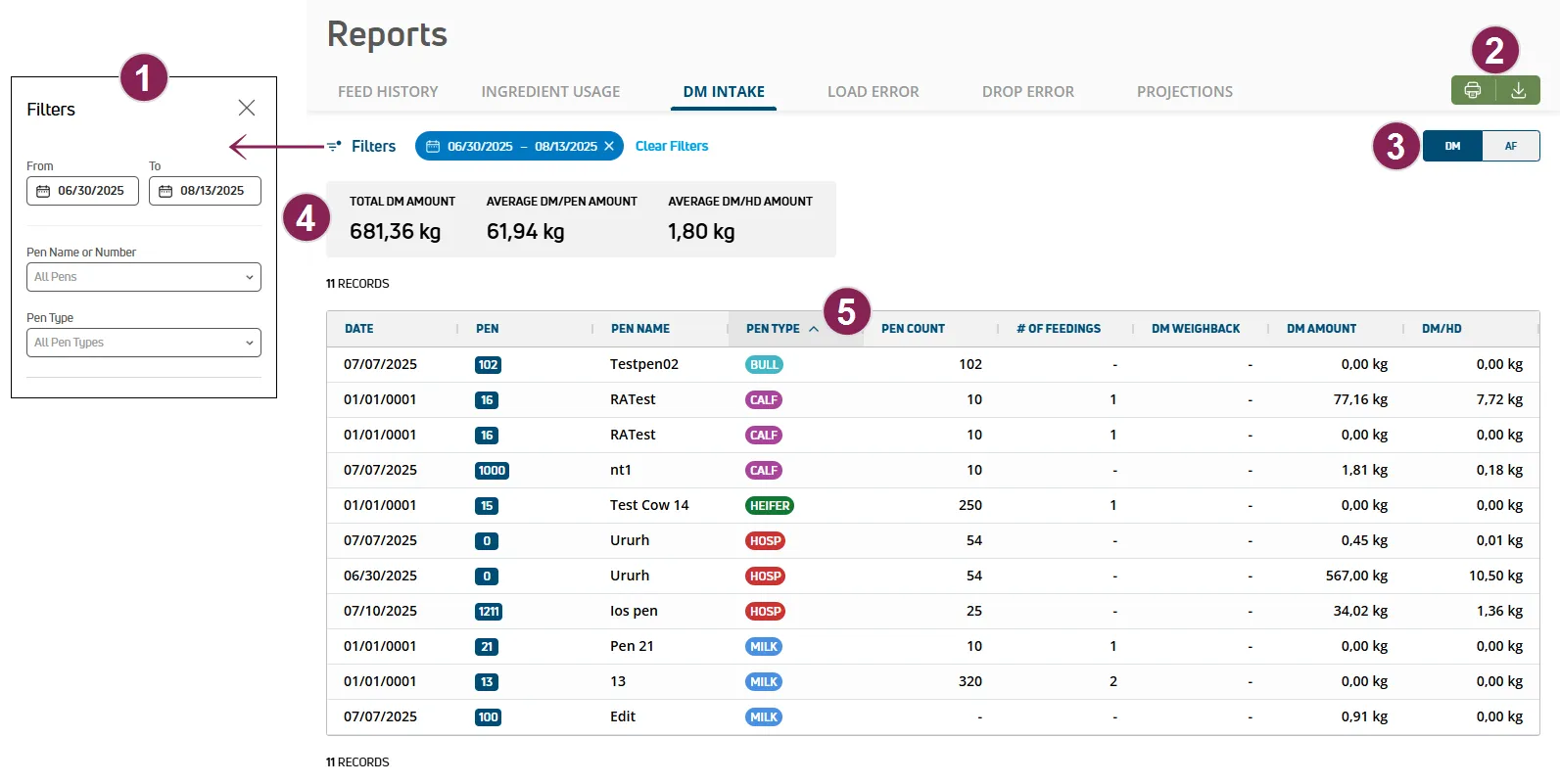
Expand the sections below to learn more:
Options to search and filter the DM Intake report are available at the top of the page. Follow the guidelines below when working with the DM Intake report:
- Click Filters at the top left of the page to limit the data that is displayed. The Filters side panel opens.
- Use the From and To filters to only view data from that range.
- Select a Pen Name or Number to limit the report to a specific pen. Multiple pens can be selected. You can also type text directly in the field to search for pens by name or number.
- Select a Pen Type to limit the report to a specific type of pen. Multiple types can be selected. You can also type text directly in the field to search for pen types by name.
- Click the Clear Filters option to clear all of the filters currently applied.
- Select an option in Sort By at the top right of the page to change how the page is sorted.
- Select an option in View Rows Per Page to change how many records are displayed on the page, and click the navigation options to jump to a specific page.
Click the green Export as CSV button at the top right of the page to save the data as a CSV file. Or, click Print to send your parlor data to the printer. If you applied filter(s), the data will print or export with the current filter(s) applied.
Select the preferred view for the report at the top right of the page:
- Click DM to view dry matter data on the report.
- Click DM to view as-fed data on the report.
TIP: Amounts are displayed in pounds or kilograms based on the unit of measure specified for your User Account and Dairy Info.
An overall summary is displayed in a GRAY bar at the top left of the page. The information available is based on the option selected at the top right of the page:
- Dry Matter Summary: When the DM option is selected, the following data is displayed:
- Total DM Amount: The total dry matter (DM) amount for all pens.
- Average DM/Pen: The average dry matter (DM) amount per pen.
- Average DM/HD: The average dry matter (DM) amount per head.
- As-Fed Summary: When the DM option is selected, the following data is displayed:
- Total DM Amount: The total as-fed (AF) amount for all pens.
- Average DM/Pen: The average as-fed (DM) amount per pen.
- Average DM/HD: The average as-fed (DM) amount per head.
TIP: Amounts are displayed in pounds or kilograms based on the unit of measure specified for your user account.
Follow the guidelines below when viewing report details:
- Date: The date of the feeding.
- Pen: The pen number. You can click the number of a pen to open the Pen Details page and view more information.
- Pen Name: The pen name set by your dairy.
- Pen Type: The pen type. Pen types are color-coded for quick identification.
When more than 2 pen types are assigned to a pen, a number is displayed that indicates how many additional types are assigned to the pen. Hover over the number to see the additional types assigned. The default colors for pen types are as follows:
AI
BULL
CALF
DRY
HEIFER
HOSP
MILK
USER
- Pen Count: The number of animals in the pen.
- # of Feedings: The number of times the pen was fed.
- DM or DM Weighback: The total dry matter (DM) or as-fed (DM) weighback amount.
- DM or DM Amount: The total dry matter (DM) or as-fed (DM) amount.
- DM or DM/HD: The total dry matter (DM) or as-fed (DM) amount per head.
Tap  DM Intake, select a Date for the report, select a Pen Type. Options to view the report by DM or AF are available at the bottom of the screen.
Use the Load Error report to view load error amounts for feedings to monitor and help prevent load errors made during feedings.
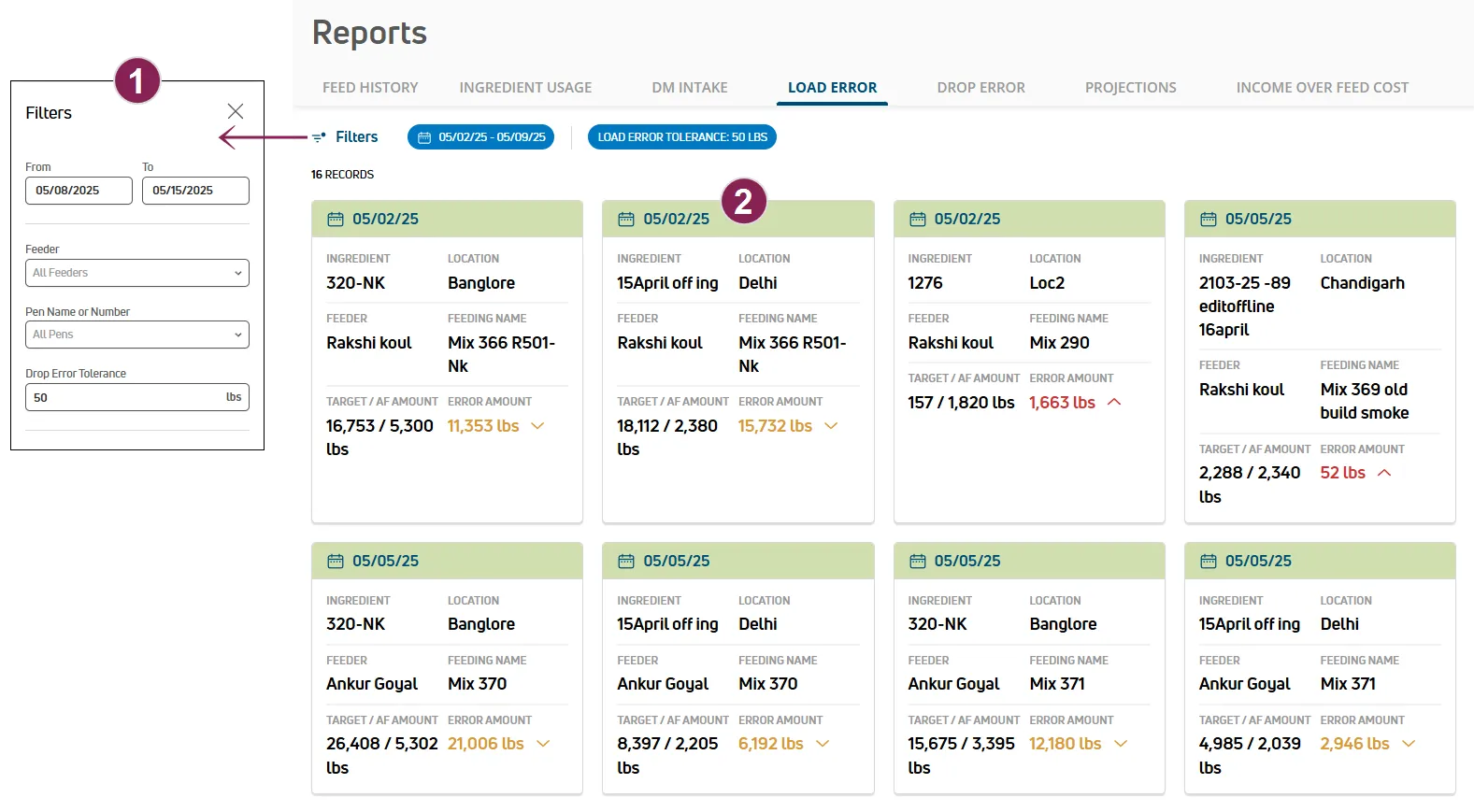
Expand the sections below to learn more:
Options to search and filter the Load Error report are available at the top of the page. Follow the guidelines below when working with the Load Error report:
- Click Filters at the top left of the page to limit the data that is displayed. The Filters side panel opens.
- Use the From and To filters to only view data from that range.
- Select a Feeder to limit the report to a specific feeding technician. Multiple feeding technicians can be selected. You can also type text directly in the field to search for feeding technicians by name.
- Select an Ingredient to limit the report to a specific ingredient. Multiple ingredients can be selected. You can also type text directly in the field to search for ingredients by name.
- Select a Location to limit the report to a specific location. Multiple locations can be selected. You can also type text directly in the field to search for locations by name.
- Enter the preferred Load Tolerance Error. The error tolerance sets the minimum error amount to include in the report. For instance, if you set the error tolerance to 100, the report includes errors of 100 pounds and more (or kilograms based on the unit of measure specified in your Dairy Info and User Account ).
- Click the Clear Filters option to clear all of the filters currently applied.
TIP: Amounts are displayed in pounds or kilograms based on the unit of measure specified in your Dairy Info and User Account ).
Follow the guidelines below when viewing feeding cards:
- Date: The date of the feeding is displayed at the top left of the card.
- Ingredient: The name of the ingredient used in the mix.
- Location: The name of the location where the ingredient was stored when the feeding was mixed.
- Feeder: The name of the feeding technician who loaded the ingredients into the mixer.
- Feeding Name: The name of the feeding.
- Target / AF Amount: The target and the total as-fed amounts for the feeding.
- Error Amount: The total load error amount for the ingredient.
- Red: Amounts displayed in red indicate that the weight of the ingredients loaded for the mix was at least 50 pounds (or 20 kilograms) higher than the load tolerance threshold allowed for the feeding.
- Orange: Amounts displayed in orange indicate that the weight of the ingredients loaded for the mix was at least 50 pounds (or 20 kilograms) lower than the load tolerance threshold allowed for the feeding.
- Black: Amounts displayed in black indicate that the weight of the ingredients loaded for the mix was within the load tolerance threshold allowed for the feeding.
Tap  Load Error, select the Date Range for the report, select a Feeder, enter the Load Error Tolerance (lbs), and then tap Submit at the bottom of the screen.
NOTE: The error tolerance sets the minimum error amount to include in the report. For instance, if you set the error tolerance to 100, the report includes errors of 100 pounds and more (or kilograms based on the unit of measure specified for your user account).
Use the Drop Error report to view drop error amounts for feedings to monitor and help prevent drop errors made during feedings.
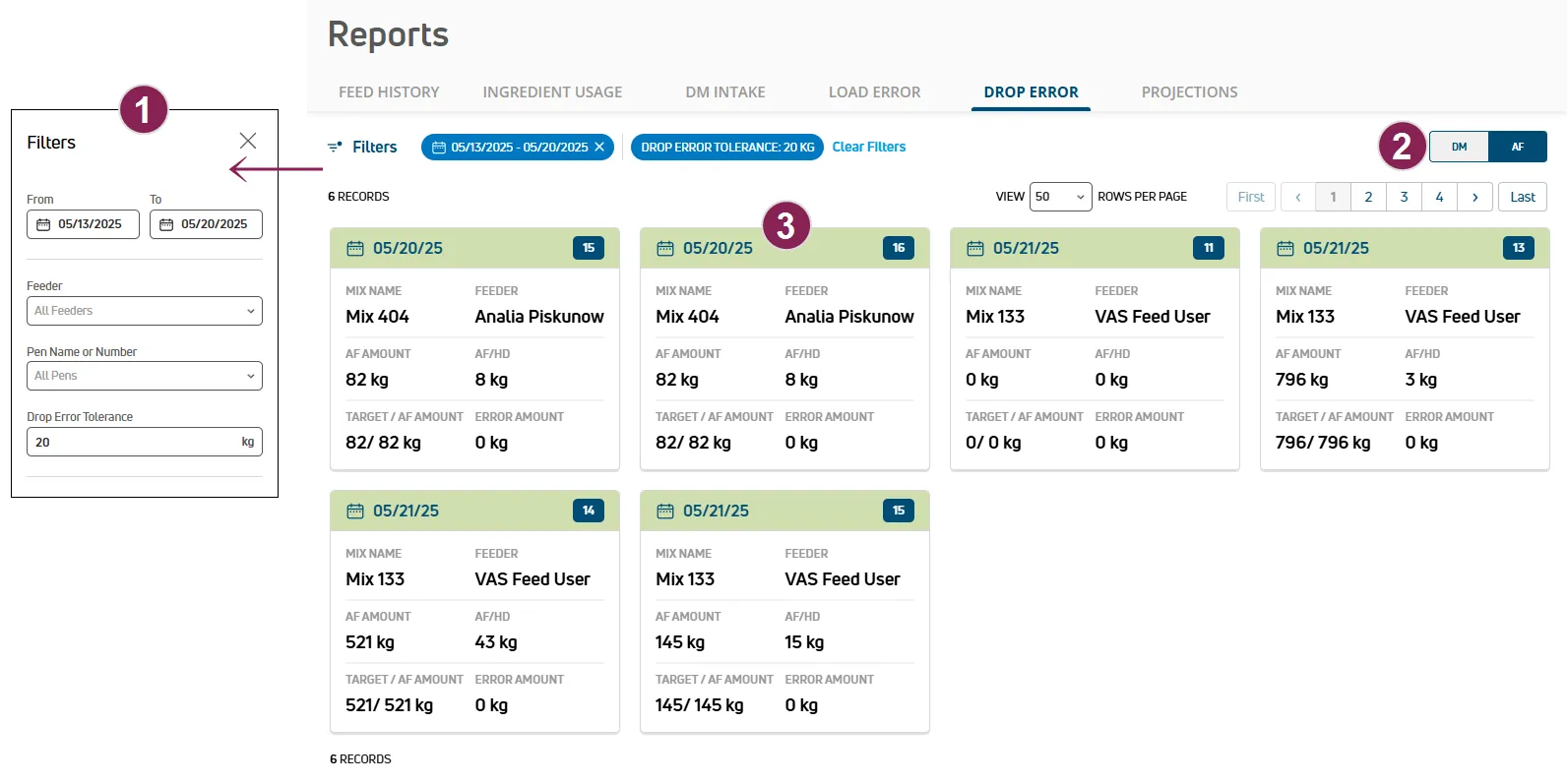
Expand the sections below to learn more:
Options to search and filter the Drop Error report are available at the top of the page. Follow the guidelines below when working with the Drop Error report:
- Click Filters at the top left of the page to limit the data that is displayed. The Filters side panel opens.
- Use the From and To filters to only view data from that range.
- Select a Feeder to limit the report to a specific feeding technician. Multiple feeding technicians can be selected. You can also type text directly in the field to search for feeding technicians by name.
- Select a Pen Name or Number to limit the report to a specific pen. Multiple pens can be selected. You can also type text directly in the field to search for pens by name or number.
- Enter the preferred Drop Tolerance Error. The error tolerance sets the minimum error amount to include in the report. For instance, if you set the error tolerance to 100, the report includes errors of 100 pounds and more (or kilograms based on the unit of measure specified in your Dairy Info and User Account ).
- Click the Clear Filters option to clear all of the filters currently applied.
- Select an option in Sort By at the top right of the page to change how the page is sorted.
- Select an option in View Rows Per Page to change how many records are displayed on the page, and click the navigation options to jump to a specific page.
Select the preferred view for the report at the top right of the page:
- Click DM to view dry matter data on the report.
- Click DM to view as-fed data on the report.
TIP: Amounts are displayed in pounds or kilograms based on the unit of measure specified in your Dairy Info and User Account .
Follow the guidelines below when viewing feeding cards:
- Date: The date of the feeding is displayed at the top left of the card.
- Pen Number: The pen number where the mix was dropped is displayed at the top right of the card in a color-coded label.
- Mix Name: The name of the feeding.
- Feeder: The name of the feeding technician who dropped the mix at the pen.
- DM or DM Amount: The total dry matter (DM) or as-fed (AF) amount.
- DM or DM/HD: The total dry matter (DM) or as-fed (DM) amount per head.
- Target / DM or DM Amount: The target and total dry matter (DM) or as-fed (DM) amounts.
- Error Amount: The total drop error amount for the ingredient.
- Red: Amounts displayed in red indicate that the weight of the mix dropped at the pen was at least 50 pounds (or 20 kilograms) higher than the load tolerance threshold allowed for the feeding.
- Orange: Amounts displayed in orange indicate that the weight of the mix dropped at the pen was at least 50 pounds (or 20 kilograms) lower than the load tolerance threshold allowed for the feeding.
- Black: Amounts displayed in black indicate that the weight of the mix dropped at the pen was within the load tolerance threshold allowed for the feeding.
Tap  Drop Error, select the Date Range for the report, select a Feeder, enter the Drop Error Tolerance (lbs), and then tap Submit at the bottom of the screen.
NOTE: The error tolerance sets the minimum error amount to include in the report. For instance, if you set the error tolerance to 100, the report includes errors of 100 pounds and more (or kilograms based on the unit of measure specified for your user account).
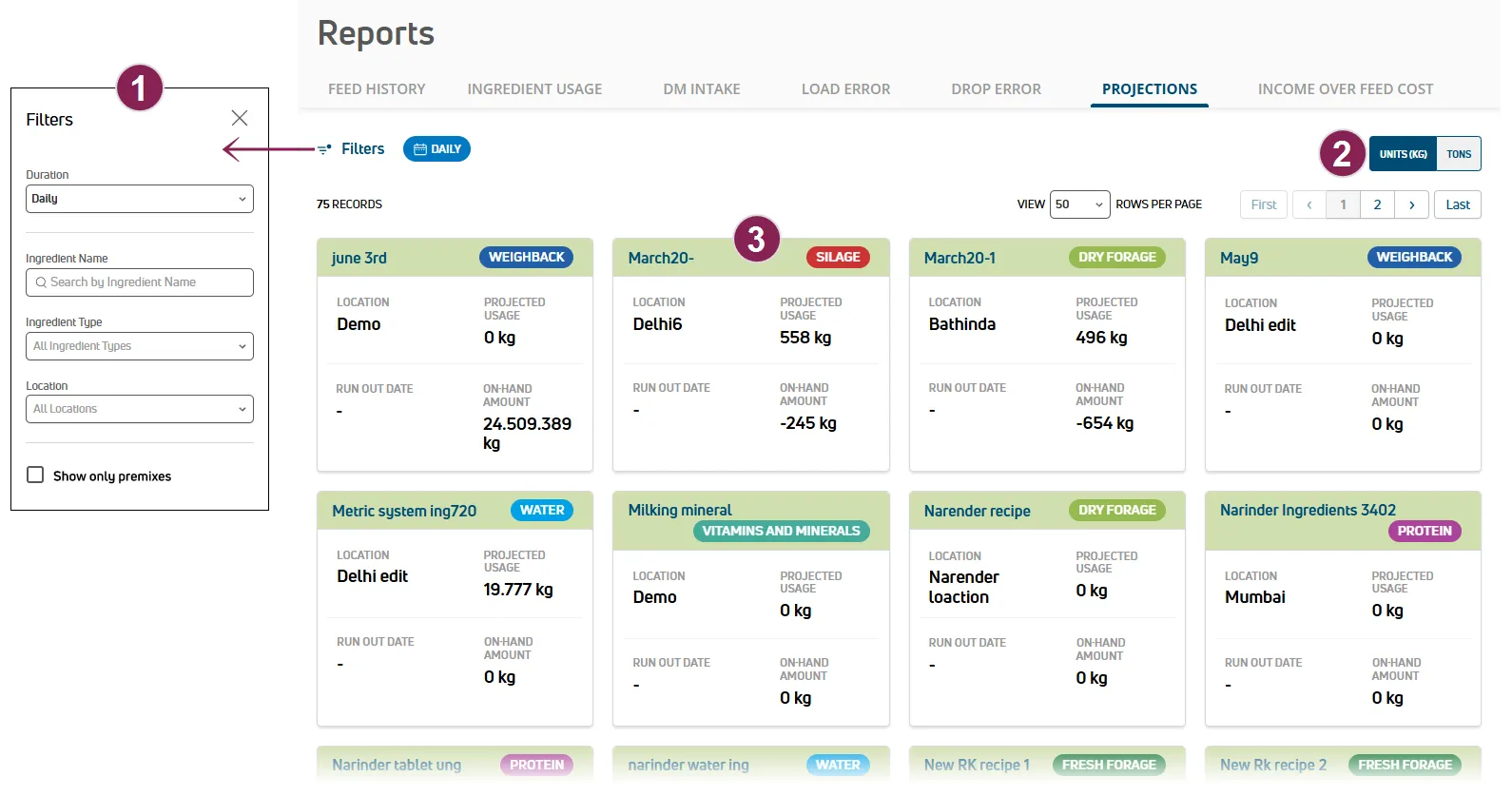
Use the Projections report to view on-hand and future amounts of ingredients needed to accommodate upcoming feedings. Set the Duration to view projected ingredient amounts needed for feedings during the selected time period (daily, weekly, monthly, etc.), or check individual ingredients for upcoming Run Out Dates.
Expand the sections below to learn more:
Options to search and filter the Projections report are available at the top of the page. Follow the guidelines below when working with the Projections report:
- Click Filters at the top left of the page to limit the data that is displayed. The Filters side panel opens.
- Select a Duration to view data for a specific time frame.
- Type text in the Ingredient Name field to search the list of ingredients by name.
- Select an Ingredient Type to limit the report to a specific type of ingredient. Multiple types can be selected. You can also type text directly in the field to search for ingredient types by name.
- Select a Location to limit the report to a specific location. Multiple locations can be selected. You can also type text directly in the field to search for locations by name.
- Check the Show only premixes box to limit the report to premix recipes. See Premix Recipes to learn more.
- Click the Clear Filters option to clear all of the filters currently applied.
- Select an option in Sort By at the top right of the page to change how the page is sorted.
- Select an option in View Rows Per Page to change how many records are displayed on the page, and click the navigation options to jump to a specific page.
Select the preferred view for the report at the top right of the page:
- Click Units to view report data in pounds or kilograms (based on the unit of measure specified in your Dairy Info and User Account ).
- Click Tons to view report data in tons.
Follow the guidelines below when viewing ingredient cards:
- Ingredient Name: The ingredient name is displayed at the top left of the card.
- Type: The ingredient type is displayed at the top right of the card in a color-coded label.
- Dry Forage: Vegetative material, such as stems, leaves, and stalks of plants, in a dried state that is used for feed.
- Fresh Forages: A crop of cultivated plants or plant parts that are grazed or harvested as feed.
- Silage: Preserved forage for feed, like pasture grass, alfalfa, grains, and corn, that is produced by fermenting plant matter.
- Energy: High-calorie feed, such as corn, sorghum, barley, and wheat.
- Protein: High-protein feed, such as soy and canola.
- Vitamins and Minerals: Supplements added to feed to prevent deficiencies in dairy cows that can impact health and milk production.
- Additives: Products added to feed to enhance feed quality, make the feed more digestible, and improve health and performance.
- Weighback: Feed leftover from a prior feeding that can be added to a recipe and help reduce waste.
- Water: Water added to a feed mixture to improve daily milk yield.
- Location: The name of the location where the ingredient is currently stored.
- Projected Usage: A projection of the total ingredient amount needed to feed your animals over the Duration filter currently selected.
- Run Out Date: The projected date when a tracked ingredient will run out. If the ingredient is not tracked, a "-" (dash) is displayed. If a feeder uses too much/little of an ingredient or the inventory is not accurate, this date may be incorrect. Be sure to check your actual inventory if this date seems unreasonable.
- On-Hand Amount: The current ingredient amount available for feeding at your dairy. If the ingredient is not tracked, "Not tracked" is displayed.
TIP: See Track Ingredients at a Location to learn more about tracking locations at your dairy.
Tap  Projections, select the Duration, select Lbs or Ton to specify the Units for the report, and tap an ingredient to check the projected Run Out Date and other details.
Use the Income Over Feed Cost report to see profit or loss per animal per day ($/head/day). This helps you spot costly pens, confirm ration changes with your nutritionist, and adjust milk price assumptions.
NOTE: The Income Over Feed Cost report is only available on PULSE.
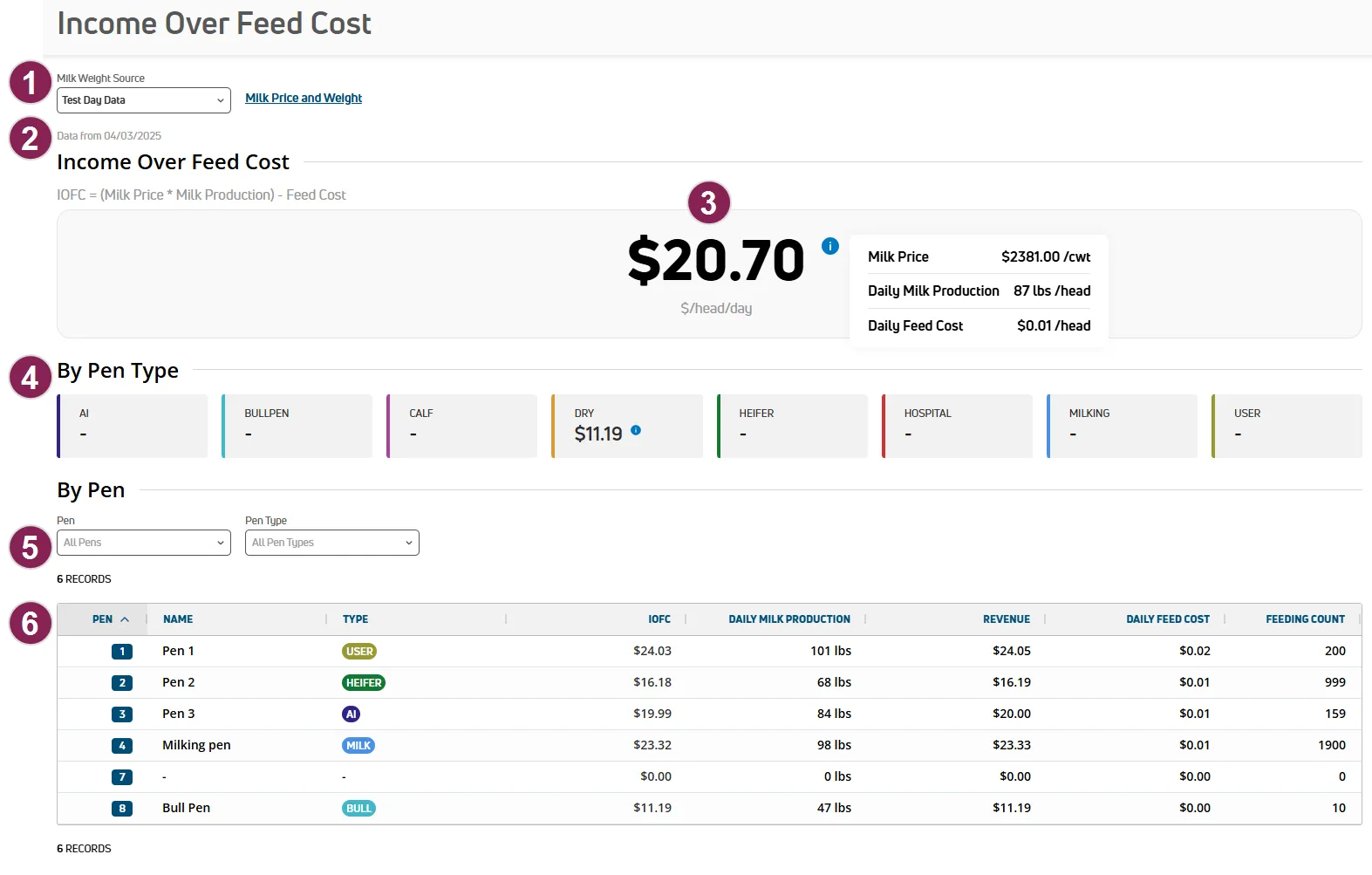
Milk Weight Source: Choose Daily Milkings, Test Day Data, or Manual for the source of milk weights for the IOFC calculation. If necessary, click the link to manually enter bulk milk weight data in PULSE Insights SettingsInsights Settings.
- Daily Milkings: Choose this data source to use the milking data from DairyComp. Your parlor must be equipped with milk meters or other hardware for daily milking data to be available.
- Test Day Data: Choose this source if you'd like to use the values from your milk testing partner. See Testdays to learn more about PULSE test day details.
- Manual Weight: If your dairy does not have daily milk weights or test day data available, or if you prefer to enter your bulk tank weights manually, use the PULSE Insights SettingsInsights Settings to enter your milk weights.
Data from: Identifies the date the report is based on.
Income Over Feed Cost: The current average income (or loss if negative) of feeding each animal in the herd per day. This value includes feeding non-milking animals, such as calves, bulls, and heifers. The calculation for this value is (Milk PriceMilk Price * Daily Milk Production) - Feed Cost, per animal.
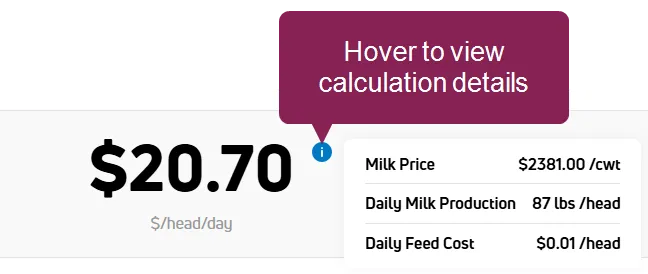
TIP: For the most up-to-date IOFC value, enter your latest Milk PriceMilk Price before running this report. PULSE will update the price for the IOFC calculation in the next data refresh, which occurs every 24 hours.
To view the current milk price being used for the IOFC calculation, hover over the info icon next to the IOFC value  :
:
By PenType: Quickly view the cost of feeding animals by pen type. This is helpful because feed rations and vary based on animal status, age, and sex. Filter to pens with unexpectedly low IOFC and compare to similar pen types. Investigate rations and ingredient costs with your vet and nutritionist.
Pens with multiple types are counted under the highest priority type to avoid double-counting.Pen type priorities are as follows:
- Milking
- Bullpen
- AI
- Dry
- Hospital
- Calf
- Heifer
- User
For example, if a pen is both an AI and Heifer pen, it will be included in the AI pen type calculation.
By Pen: Use the Pen and Pen Type drop-downs to limit the report to specific pens.
IOFC by Pen: View feed cost and milk production details in a table format:
- IOFC: Daily income for the pen. This calculation is based on the current Milk Price setting, Daily Milk Production, and pen Feed Cost data from FeedComp. Non-milking pens have a negative value.
- Daily Milk Production: Volume of milk produced by the pen per day. The source for this data is controlled by the Milk Weight Source option at the top of the report.
TIP: For the most accurate IOFC value, use your herd's daily milk values or test day data as the basis for this report.
Revenue: Income from milk production for the pen. This calculation is based on the current Milk PriceMilk Price setting and Daily Milk Production. Non-milking pens have $0 revenue.
- Daily Feed Cost: Cost of feed for the pen from FeedComp, which is based on the Actual Loads Amount and Ingredient costs for completed Feedings. See Feed History Report to learn more.
- Feeding Count: Total number of animals being fed in the pen.