Pre-Installation Checklist
While our support team configures your feed database in VAS PULSE Platform, use this checklist to prepare for your FeedComp install. Completing these checks now ensures that your install won't be delayed by hardware gaps, connectivity issues or missing credentials.
💡TIP: Print this Page!
If you'll be completing these steps on-site without easy access to a browser, consider printing this page beforehand. A printed copy makes it easier to follow along and check off items as you go.
Team Prep and Credentials
Email Management: Confirm every feeder, manager, and nutritionist (those you would like to access FeedComp) has their own email address and that they are set as a FeedComp user in PULSE. Provide a list of non-PULSE users to the install tech if your data sheet has already been submitted.
🗒️ NOTE: Email addresses per feeder are only needed once to connect them to Pulse if users won’t log in individually. A shared email can be kept in the tractor cab so anyone can log in using it with their own PIN.
Steps to verify user status in PULSE (Owner level is required).
- Login to VAS PULSE Platform.
- Click on the Dairy tab.
- Click on User Management.
- Click on Users.
⚠️ IMPORTANT: New users should be listed under Users, not Access Pending. If a user is still listed under Access Pending, they have not accepted the invitation sent to their email.
Training: Ensure all feeders have reviewed the FeedComp training materials:Your First Feeding (Mobile App) and FeedComp Training.
Scheduling: Schedule your install date when feeders are available and allow for additional time that day.
Recommended Hardware and Devices
New mobile devices (Android or iOS) to run FeedComp if needed. See the link below for required device specifications.
Backup mobile device (recommended).
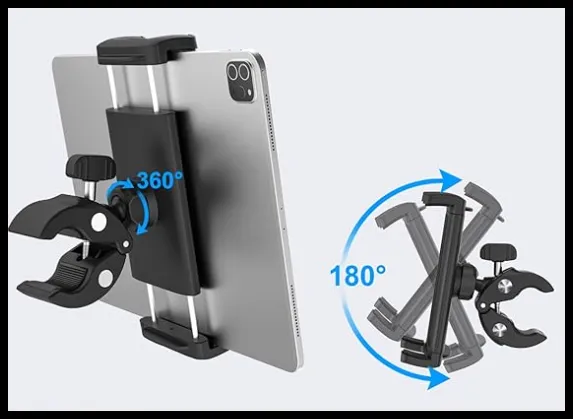
Mounting brackets (holders) for the mobile device in each mixer and loader.
Charging cables for each mobile device to use in the mixer as devices may lose their charge during the feeding.
⚠️ IMPORTANT: Review required device specifications: https://vas.com/technology-specifications/#FeedComp
Preparing Feeding Devices
App Downloads
Search the Google Play store (Android devices) or the App Store (iOS devices) to download apps.
Download FeedComp on each device.
Download the app associated with your scale indicator on the primary device for each mixer. This will be used to adjust scale settings. For example, POINT scales use the Scale-Tec POINT app.
Download TeamViewer Quick Support on each device. Include the TeamViewer Add-on when prompted on an Android device.
Enable FeedComp auto update
Android: Open the Google Play Store, search for FeedComp, tap on the FeedComp app icon, then tap the three‑dot menu in the top-right corner to enable auto updates.
iOS: Go to Settings, scroll down and tap App Store, then select Automatic Downloads to turn on App Updates (green).
⚠️ IMPORTANT:
- For best auto update chances:
- Devices need adequate charge to update.
- Devices need to be connected to internet (wi-fi or cellular data)
- For iOS devices:
- You cannot enable auto‑updates for a single app.
- When App Updates are turned on, all installed apps update automatically.
- iOS may also delay auto updates.
Device Settings
Set your device's screen timeout to the maximum amount (or Never).
Android: Go to Settings > Display > Screen Timeout and set to the maximum value (or Never).
iOS: Go to Settings > Display & Brightness and select the maximum timeout setting in Auto-Lock.
Configure Android Location permissions for scale connectivity (Android only):
Go to Settings > Apps > FeedComp > Permissions > Location.
Set to Allow only while using the app (or Allow all the time).
⚠️ Do not select Ask every time or Only this time / Allow once, as Android will revoke access when the app closes, breaking scale auto-reconnection.
Turn Use precise location to ON.
On the main FeedComp App Info screen, turn Remove permissions if app is unused (or Pause app activity if unused) to OFF
Check for OS updates.
Android: Go to Settings > Software Updates > Check for new update.
iOS: Go to Settings > General > Software Updates.
Set automatic OS updates times.
Androids: Go to Settings > Software Updates > System Update Preferences > Preferred Update time and select a non-feeding time.
iOS: Turn off auto-updates as iOS typically auto-updates during early morning hours and does not allow for scheduling.
Power Strategy
Confirm your charging location has internet access.
Confirm all devices are fully charged ahead of your installation.
🗒️ NOTE: Low battery levels and power saving modes can impact app performance.
Scale and Hardware Verification
NOTE: These verifications are shared to help prevent unexpected situations that may delay the next feeding. If replacing the current scale, plan to start the process immediately after the last feeding to allow extra time.
Wiring Audit
If removing the current scale, are the current wire connections easily removeable? If not, please contact your install technician if you expect delays.
Do new wires need to be run to the weigh bars? If yes, please contact your install technician if you expect delays.
For new scale installations, ensure existing connections are compatible prior to removing the old scale on the scheduled installation day.
Scale-Tec POINT Scales
If using a previously owned POINT scale, ensure old devices are unlinked. Call POINT support to deactivate the previous device.
See Scale-Tec POINT Scale for steps to configure and connect.
Verify count values are set to 1 to prevent data errors.
Use the Scale-Tec POINT app to check for any firmware updates and calibrate the scale (the device must be connected via Bluetooth to the scale).
Topcon Digi-Star Scales
See Topcon Digi-Star Scale for steps to configure and connect.
Feedings Settings
Feeding Reset Window: Confirm no feedings occur during the automatic schedule reset, which is set to midnight by default. See Feeding Schedule Reset to learn more. Contact your install technician if there is a timing conflict.
Recipe Audit: Adjust for any recipe changes made after the Feed Data Sheet was submitted to VAS.
⚠️ IMPORTANT: Review Final Checks for a Successful First Feeding list before your Go-Live date.