Pens
You can add, edit, and manage pens in both the FeedComp mobile app and FeedComp on PULSE on the web. Core tasks, such as creating pens, FeedComp viewing pen details, and managing animals, are available in both interfaces, so you have the flexibility to manage feedings.
In PULSE, the Pens page provides a full management view, including feeding-related settings, pen capacity, and historical data. PULSE is typically used during initial setup and configuration.
In the FeedComp mobile app, the Pens page is designed for quick, on‑the‑go access. Pens are displayed as cards, allowing you to quickly view pen status and work with animals while on the farm.
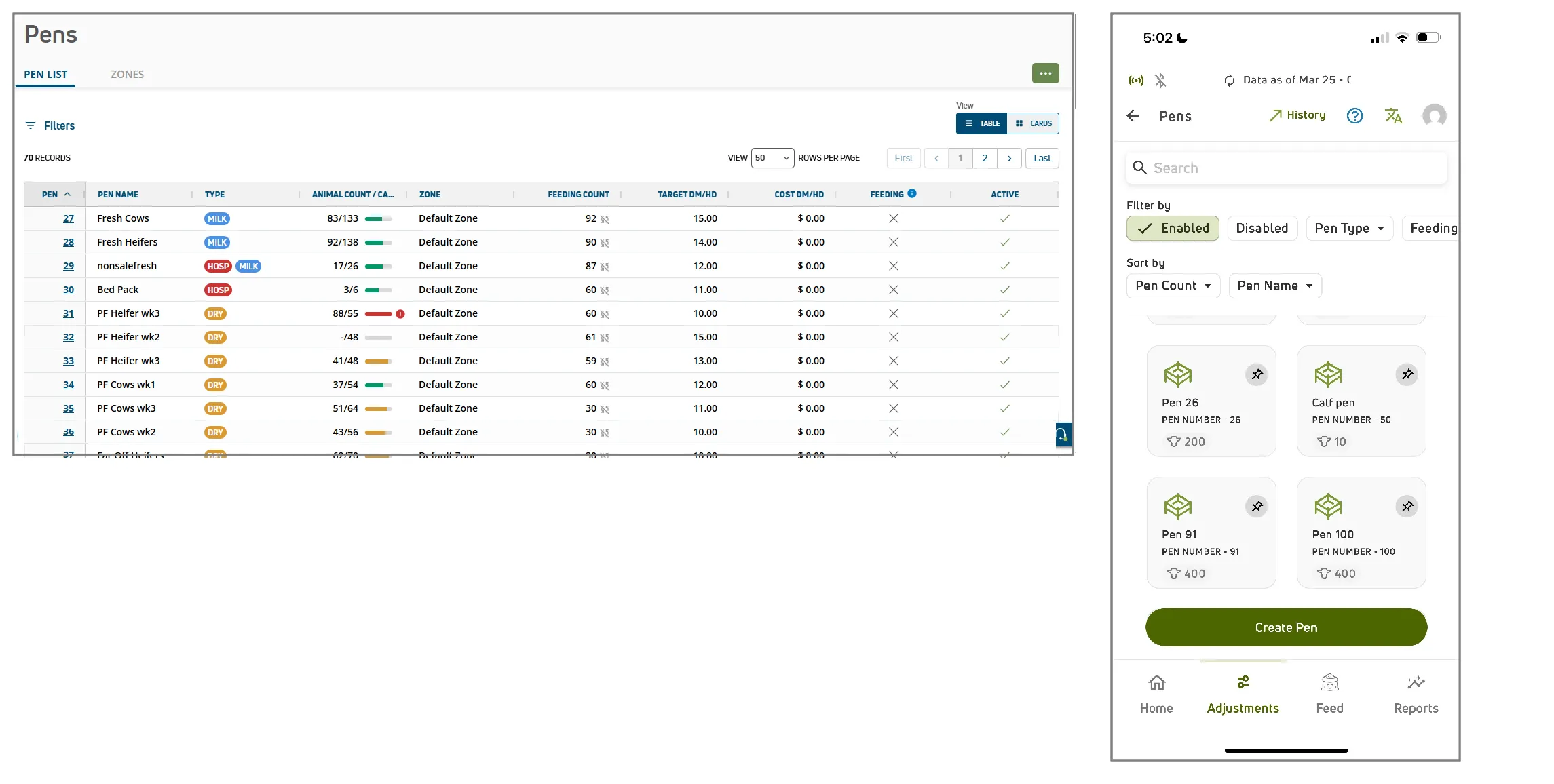
On the web (PULSE) and in the mobile app, you can quickly search, view, and update pens.
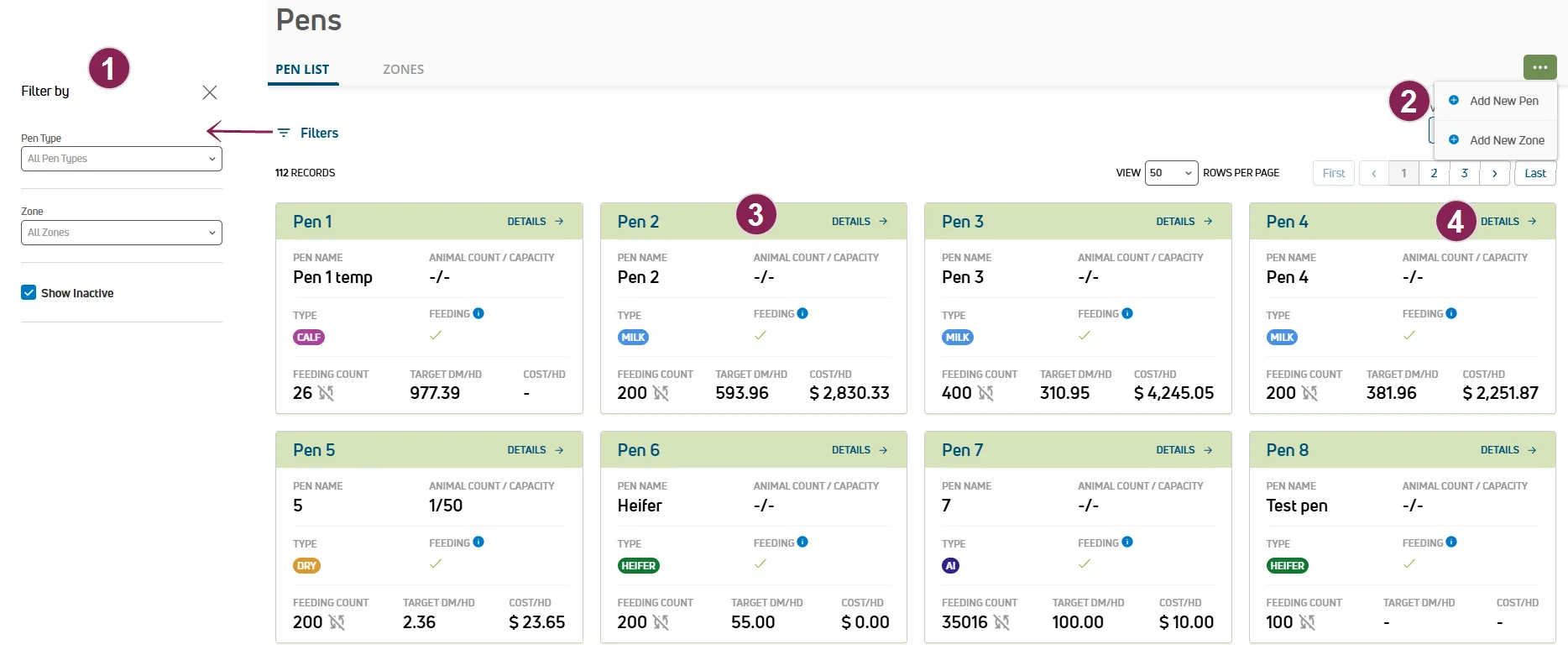
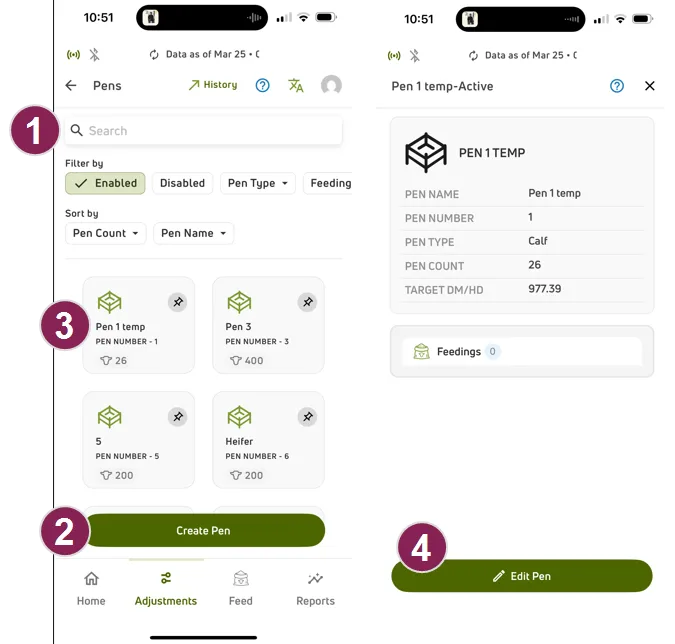
Search, sort, and filter the pens list:
Options to search, sort, and filter pens are available at the top of the page:
- Web Only: Select Filters at the top left of the page to open the Filters side panel.
- Use the Search field to find pens by name.
- Active pens are shown by default. Use filter options to include inactive pens in the list.
Add a new pen:
To create a new pen, select Add New Pen (web) or Create Pen (mobile). See Add or Edit a Pen to learn more.
View pen cards:
Pen cards provide a visual overview of key details like name, number, and capacity. While both platforms show these basics, the PULSE web interface displays additional pen data on each card.
NOTE: Pens can also be view in a list on PULSE.
View or edit pen details:
Open a pen to review information or make changes.
- Web Only: Select Details in the top right corner of the pen card. Or, if viewing pens in list format, select the pen number.
- Mobile Only: Select a pen card, then choose Edit Pen.
See Pen Building Blocks to learn more about the fields shown when viewing pen details.
You can activate or deactivate a pen at any time. Deactivating a pen removes it from feeding workflows and prevents it from being selected for new feedings. Existing pen data and history are retained, but inactive pens are not available for feeding until they are reactivated.
- Open the Pens page.
- (Optional) To view inactive pens, select Filters in the top left and enable Show Inactive.
- Select the pen to update:
- In Table view, select the pen number.
- In Cards view, select Details on the pen card.
- Select the Options button
 in the top right, then choose Edit Pen.
The Pen Details side panel opens.
in the top right, then choose Edit Pen.
The Pen Details side panel opens.
- Use the Active Pen toggle to update the pen status:
- Turn off the toggle to deactivate the pen.
- Turn on the toggle to reactivate the pen.
- Select Save.

When pens are enabled for auto‑updates from DairyComp, FeedComp automatically adjusts the Feeding Counts, Total DM and Total AF values based on the pen changes recorded in DairyComp. If synchronization is turned off for specific pens, the Feeding Count is managed solely within FeedComp. Understanding how pen synchronization timing and automatic batch recalculations work helps ensure accurate counts, correct feeding amounts, and proper interpretation of feed targets as pen populations change.
Important Considerations
- FeedComp itself doesn’t move animals; it reacts to pen moves recorded in DairyComp and updates the Feeding Count and feed targets accordingly.
- Sync Feeding and Animal Counts is a setting linked to each individual pen, not all pens.
- When pen Sync Feeding and Animal Counts is toggled ON, Feeding Count is read‑only and follows the DairyComp pen counts.
- Pens with zero animals will not show in FeedComp.
- It's best practice to keep DairyComp updated to help maintain proper communication with PULSE.
- Avoid using dummy or placeholder pens for daily feeding. Connecting FeedComp to your DairyComp pens ensures cow counts, dry matter, and weighbacks are updated automatically — no manual math required.
IMPORTANT: Allow at least 15 minutes for pen changes made in DairyComp to show in FeedComp.
Types of Entries that Trigger Pen Changes
- MOVE event entries
- PEN number changes
- Test Day pen changes (PEN=TPEN)
- EVENT entries linked to automatic pen changes built inside the EVENT or in protocols.
- Entries coming from mobile devices, such as PCC (Pocket CowCard) and DC on Mobile. PCC entries must be delivered to DairyComp on the same day.
IMPORTANT: Pen changes made in PULSE do not change pen counts directly in FeedComp as the pen changes must be sent to DairyComp first, then DairyComp sends the changes back to PULSE.
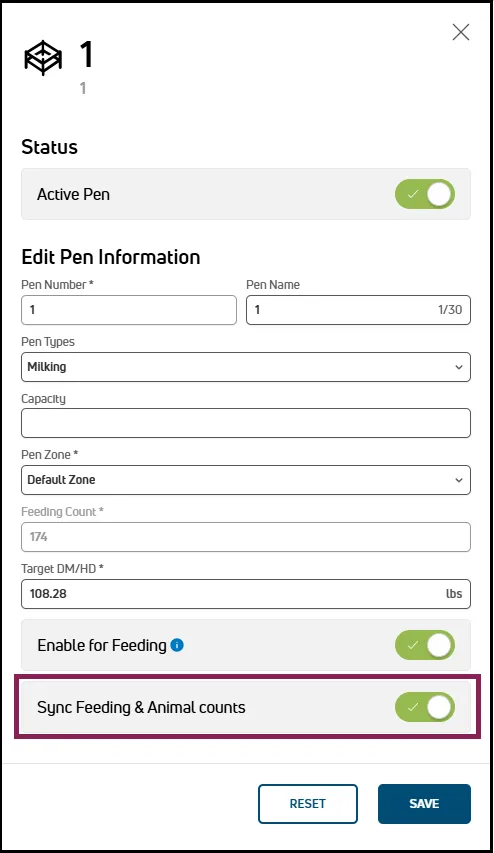
Turning on Sync Feeding and Animal Counts (PULSE)
- On PULSE under FeedComp, select Pens.
- Select a pen to edit.
- Click on the Ellipse (3 dots).
- Select Edit Pen.
- Toggle on Sync Feeding & Animal Counts.
- Select SAVE.
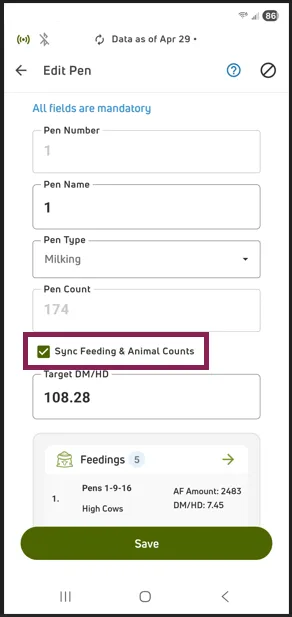
Turning on Sync Feeding and Animal Counts (Mobile App)
- Under Adjustments, select Pens.
- Tap the applicable pen card.
- Tap Edit Pen.
- Select Sync Feeding & Animal Counts.
- Select SAVE.
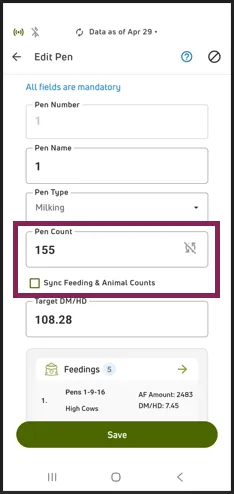
Turning off Sync Feeding and Animal Counts
You should turn off automatic pen updates under the following conditions:
- Internet is down and PULSE is not refreshing from DairyComp.
- When moving cows later in the day after feeding has finished. Manually adjust the pen counts to reflect future pen changes.
💡TIP: If cow counts will change later today (such as dry-offs or pen moves), turn off Sync Feeding & Animal Counts for the affected pen and manually adjust the pen count before starting the load. Remember to re-enable sync once the actual pen moves are recorded in DairyComp.
- Pens receiving incoming animals, such as heifers returning from a raiser and the pen changes have not been entered into DairyComp.
- Groups of cows got mixed up.
- If using a "dummy" pen that has a zero count in DairyComp.
To turn off automatic pen updates:
- Toggle off Sync Feeding & Animal Counts.
- Enter the new Pen Count.
- Select SAVE.
IMPORTANT: Adjust the Pen Count manually until "Sync Feeding & Animal Counts" is turned back on.
Identify Auto Update Pens
In PULSE , view the pens list and check for the refresh icon next to the Feeding Count.
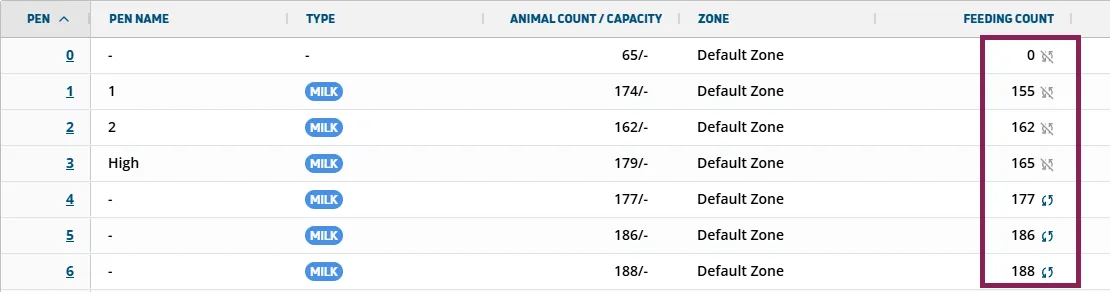
In this example:
- Pens 0-3 are not refreshing automatically (refresh icon is grey with a line through it).
- Pens 4 and 5 are refreshing automatically (refresh icon is blue and no line through it).
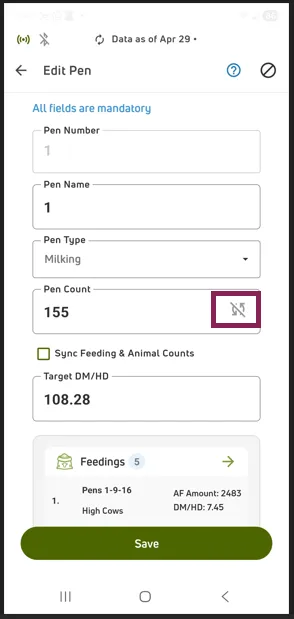
In the FeedComp mobile app, select Edit a Pen and check the refresh icon next to Pen Count.