Equipment
Equipment represents the mixers and scales used to prepare feedings in FeedComp. This typically includes mobile mixers with a known capacity and the scales mounted on those mixers, such as the Scale-Tec POINT scale or Topcon Digi-Star scale. FeedComp must be connected to a supported scale for feedings to function correctly.
From the Equipment area, you can create and manage equipment records, track which feedings are associated with each piece of equipment, and move feedings as needed. This article explains how to manage equipment in FeedComp on both web and mobile.
You can manage FeedComp on PULSE equipment on the Settings page.
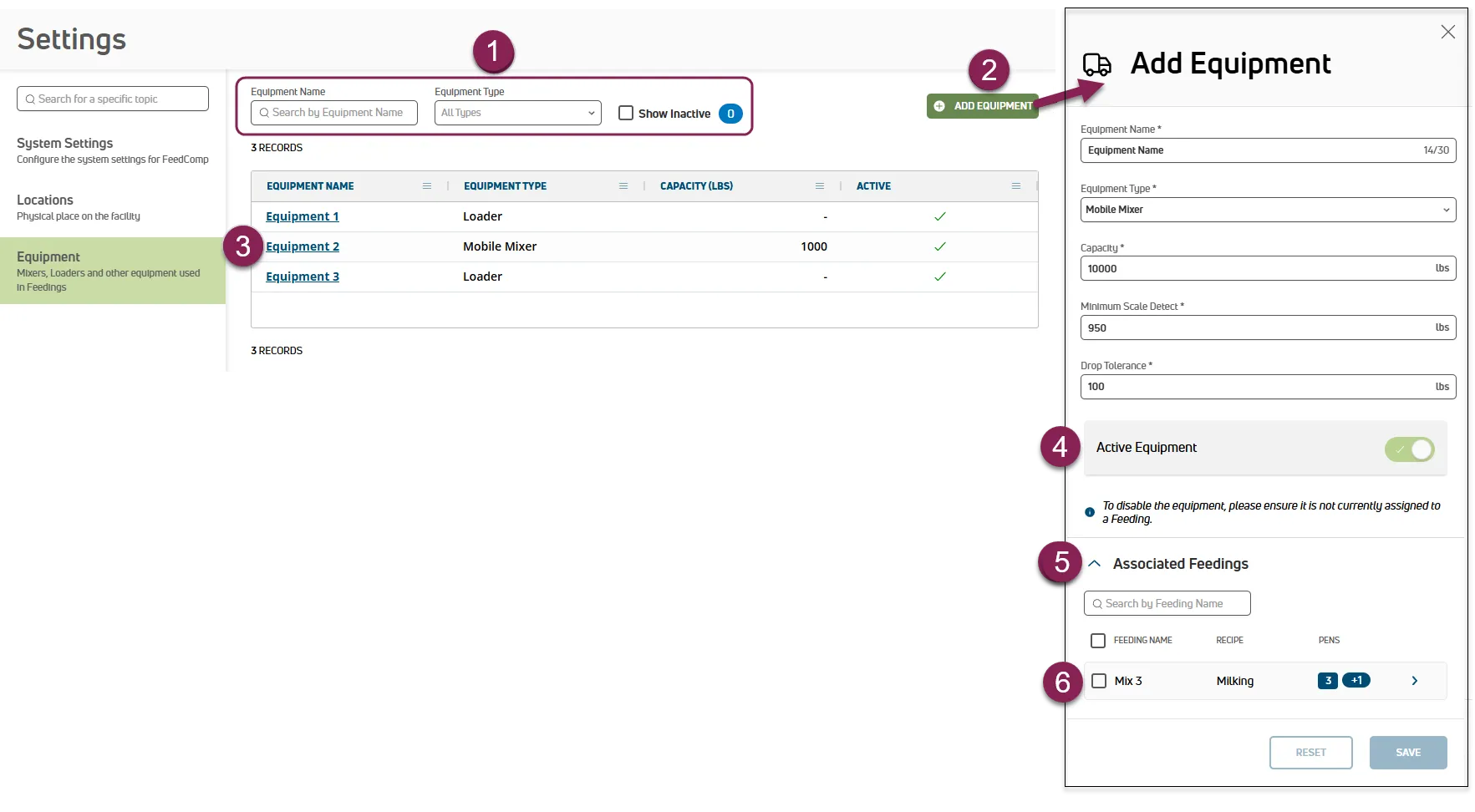
Expand the sections below to learn more:
Options to search, sort, and filter the equipment list are available at the top of the page. Follow the guidelines below when working with the equipment list:
- Type text in the Equipment Name field to search the list of equipment by name.
- Active equipment is displayed by default. Check the Show Inactive box to view all available equipment in the list. Icons indicate whether the equipment is active
 or inactive
  .
.
- Click the Clear Filters option to clear all of the filters currently applied.
- Select an option in View Rows Per Page to change how many records are displayed on the page, and click the navigation options to jump to a specific page.
- Click Add Equipment at the top right of the page to open the side panel and enter the following information:
- Equipment Name: It must be unique and cannot match the name of existing equipment.
- Equipment Type: Select Loader or Mobile Mixer.
- For mobile mixers only, enter the following information:
- Capacity: Enter the maximum weight capacity of the mixer.
- Minimum Scale Detect: Enter the minimum weight the scale can reliably detect. If an ingredient amount falls below this threshold while mixing a recipe, FeedComp displays an alert, FeedComp won't advance to the next ingredient until the alert is acknowledged. This helps ensure small ingredient additions are recorded accurately.
- Drop Tolerance: Enter the remaining weight threshold used to determine when a pen is complete. When the remaining weight falls within this threshold and FeedComp recognizes that motion has slowed or stopped in the mixer, FeedComp advances to the next scheduled pen or completes the load if it is the final pen.
- After adding the required information, click Save.
Click the name of the equipment to edit its details. You can deactivate or reactivate it, view feedings associated with equipment, or transfer feedings to other equipment.
TIP: Don't see the equipment? Be sure to click the Show Inactive filter at the top of the page.
Deactivate Equipment
- Click the name of the equipment to inactivate. The Equipment side panel opens.
- Click the Active Equipment toggle to deactivate the equipment.
- Click Save.
NOTE: Equipment assigned to a feeding cannot be deactivated, but you can move the feeding to other equipment and then deactivate it. See Transfer Feedings to Other Equipment for more information.
Reactivate Equipment
- Click the Show Inactive box at the top of the page to view all available equipment in the list. Icons indicate whether the equipment is active or inactive .
- Click the name of the equipment to activate. The Equipment side panel opens.
- Click the Active Equipment toggle to activate the equipment.
- Click Save.
- Click the name of the equipment to view. The Equipment side panel opens, and all feedings associated with the equipment are displayed under Associated Feedings.
- Click the arrow button > on the right side of a feeding to view the feeding's details on the Feedings page.
TIP: Need to move feedings to other equipment? See Transfer Feedings to Other Equipment for more information.
- Click the equipment from which the feeding needs to be moved. The Equipment side panel opens, and all feedings associated with the equipment are displayed under Associated Feedings.
- Check the box for one or more feedings to transfer. Or, check the Feeding Name box to select all feedings.
- Click Transfer Feeding(s)
 . The Edit Feeding side panel opens.
- Select the new equipment, and then click Save.
You can manage FeedComp equipment on the Adjustments screen. Active equipment is displayed by default. Tap the Inactive filter to see more.
Expand the sections below to learn more:
Tap Create Equipment at the bottom of the screen.
- Enter the following information for loaders and mixers:
- Equipment Name: It must be unique and cannot match the name of existing equipment.
- Equipment Type: Select Loader or Mixer.
- Audio Trigger Weight: Enter the scale weight that activates a sound notification. These sounds notify your technician when a specific ingredient weight is reached while mixing or a load of feed is almost done dropping at a pen. Sounds allow technicians to feed more efficiently because they won't need to look at the scale and/or mobile device while feeding.
- Audio Settings: Tap + Add Sound to select the sound that plays when the scale reaches the Audio Trigger Weight and configure its playback settings. See Enable Sounds to learn more about adjusting the settings.
- For mixers only, enter the following information:
- Equipment Capacity: Enter the maximum weight capacity of the mixer.
- Minimum Scale Detect: Enter the minimum weight the scale can reliably detect. If an ingredient amount falls below this threshold while mixing a recipe, FeedComp displays an alert and won't advance to the next ingredient until the alert is acknowledged. This helps ensure small ingredient additions are recorded accurately.
- Drop Tolerance: Enter the remaining weight threshold used to determine when a pen is complete. When the remaining weight reaches this threshold and FeedComp detects that mixer activity has slowed or stopped, it automatically advances to the next scheduled pen or completes the load if it is the final pen.
- Click Save to add and activate the equipment.
Tap the equipment, and then tap Edit Equipment at the bottom of the screen to update its details.
Tap the equipment to inactivate.
Tap Edit Equipment at the bottom of the screen.
Tap Deactivate  at the top right of the screen.
NOTE: If a Feeding Schedule is associated with the equipment, it is removed when the equipment is deactivated.
- Tap the equipment to activate.
- Tap Reactivate at the bottom of the screen.
TIP: Don't see the equipment? Be sure to tap the Inactive filter at the top of the page.
FeedComp can play helpful sounds when while adding ingredients to the mixer or dropping loads at pens. These sounds notify your technician when a specific ingredient weight is reached while mixing or a load of feed is almost done dropping at a pen. Sounds allow technicians to feed more efficiently because they won't need to look at the scale and/or mobile device while feeding.
- Tap the equipment to update.
- In Unit Amount under Audio Trigger Weight, enter the scale weight that will activate a sound.
- Tap + Add Sound at the bottom of the screen.
- Tap
 to preview each sound available, and then tap the preferred sound to enable it.
- Tap Add at the bottom of the screen.
- Under Audio Settings, tap to play the sound selected. If it is too loud, tap and drag on the Volume bar to change the volume. Or, tap Mute Sound to turn the sound off.
- Tap Save at the bottom of the screen.
Options to search and filter the equipment list are available at the top of the screen.