Start Here: Better Feeding Made Simple
FeedComp includes a wide set of capabilities designed to help you get more value from your feeding workflow—often in ways that go well beyond what you’d expect at first glance. Once you’re familiar with what FeedComp can do, you can use it to support more flexible, real-world feeding scenarios while still keeping your process consistent and trackable.
What FeedComp Offers Your Farm
On day one, FeedComp establishes a "single source of truth" for your farm. FeedComp helps move your operation to a simple, repeatable feeding system:
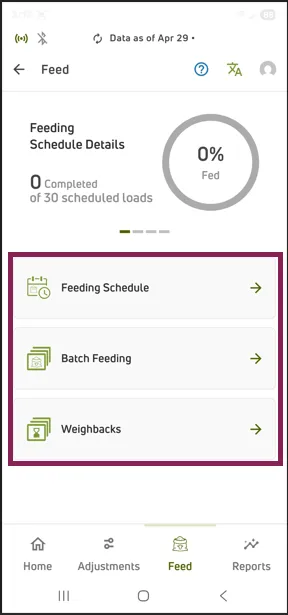
- Plan feedings and set a feeding schedule
- Complete loads and drops step-by-step in the mobile app
- Know what happened with clear target vs actual records (and inventory impact when enabled)
This builds consistency and confidence without forcing your farm to change everything at once.
Basic Feeding Flow
Use these steps to start feeding with the fewest decisions.
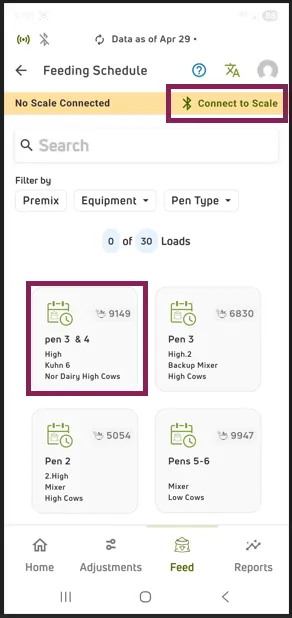
- Check today’s feeding schedule. Confirm the pens/groups, ration/recipe, and target amounts.
- Open the mobile app and pick the next feeding. Your worklist shows what’s planned for today.
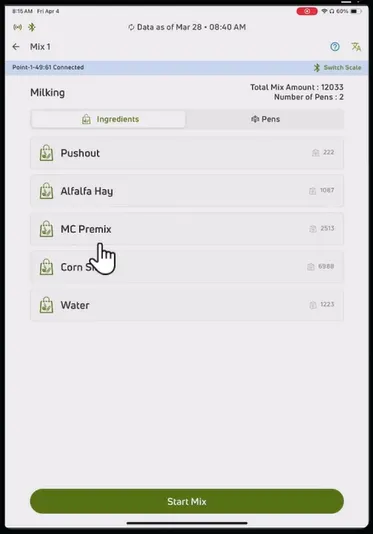
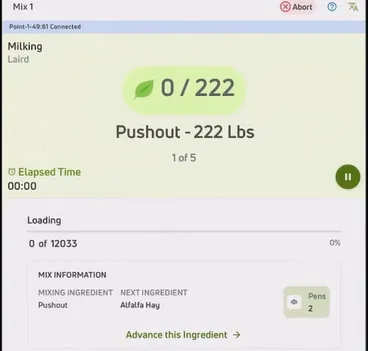
- Load/mix as directed. Follow the ingredient list and target amounts in the mobile app.
- Deliver to the assigned pens/groups. Deliver the load to the planned locations.
- Complete the feeding. FeedComp records what was fed so you can review and improve over time.
See Your First Feeding below to learn more.
Batch Feeding for Unscheduled Feedings
Batch feeding is used for ad‑hoc feedings outside the main feeding schedule. It supports unplanned or one‑off feeding needs while keeping feed data accurate and consistent.
Batch feedings are created and completed in the FeedComp mobile app using existing recipes and equipment settings, so unplanned feedings follow the same standards as scheduled ones.
Use batch feeding when feed is needed outside the planned schedule and you need to record what was fed.
- Create a batch feeding in the mobile app. Select a recipe and add one or more pens.
- Load and mix the feed. Follow the ingredient targets shown in the app using the connected scale.
- Deliver feed to each pen. Drop the mix at each selected pen. You can advance, skip, or ignore pens as needed.
- Complete the batch feeding. Finish the batch to record what was fed and capture a summary.
See Batch Feedings to learn more.
Advanced Options for Real‑World Scenarios
FeedComp's advanced features help your farm stay flexible—without losing control—as daily conditions change.
Premixes to Increase Feeding Accuracy
Premixes let you define and manage blends (such as mineral or supplement mixes) as reusable building blocks inside your recipes. Instead of recreating the same combination of ingredients in multiple rations, you can set it up once as a premix and use it wherever it’s needed. This makes it easier to standardize nutrition and keep recipes clean and consistent.
See Premix Recipes to learn how to create, edit and mix a premix recipe.
Handle Changes without Restarting the Plan
Alternate recipes let you switch to a pre-configured option when ingredients, availability, or plans change, without rebuilding the schedule. See Alternate Recipes to learn more.
Manage Leftovers
For farms that currently adjust pen counts to “absorb” leftovers, FeedComp provides dedicated tools that keep data accurate instead.
- Filler loads incorporate leftover feed into a planned load with full traceability.
- Weighbacks record and manage leftover feed picked up from pens.
Support Overnight and Cross‑Day Operations
Overnight workflows are especially useful when feeding runs late or starts early, but they work best when they match how your farm defines a feeding day.
- Overnight loads allow you to start a load late in the day and then resume and finish it the next day (after the schedule resets).
- Feeding schedule reset defines the feeding day so schedules align with your routine.
TIP: If your farm feeds across midnight, confirm reset settings before relying on overnight loads.
Match Schedules to Real Feeding Practices
If your farm moves animals during the day or feeds ahead of time, automatic pen count updates don’t always reflect how feed is actually delivered. FeedComp lets you control when pen counts are applied to the schedule so planned feedings stay consistent with your routine.
Many farms start with stable pen counts and make manual adjustments as needed, then refine how and when counts sync as the team becomes more comfortable.
Managing Pen Counts
When pens are enabled for auto‑updates from DairyComp, FeedComp automatically adjusts the Feeding Counts, Total DM and Total AF values based on the pen changes recorded in DairyComp. If synchronization is turned off for specific pens, the Feeding Count is managed solely within FeedComp. Understanding how pen synchronization timing and automatic batch recalculations work helps ensure accurate counts, correct feeding amounts, and proper interpretation of feed targets as pen populations change.
See Pens to learn more about managing pens and Sync Feeding & Animal Counts.
Getting the Most Value, Quickly
If you’re new to FeedComp, a few simple habits can make a big difference. Recording feedings accurately from the start helps ensure that your feeding reports capture what actually happened on the farm and allows you to see value sooner.
Start with these practical patterns:
- Feed to real pens or groups whenever possible. FeedComp is most effective when feedings are recorded where animals actually live, keeping results, reports, and totals meaningful over time.
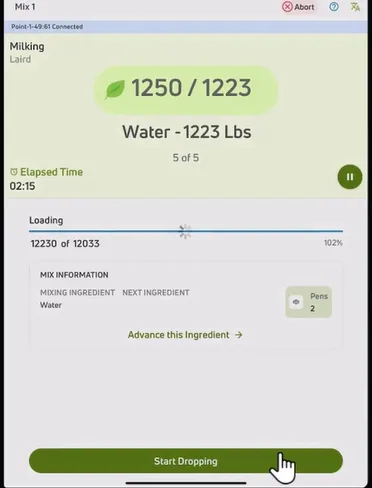
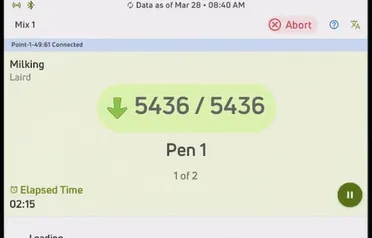
- Take your time on the drop screens. Complete each step of a drop before moving on so actual drop amounts are captured accurately instead of skipped or estimated.
- Use a basic schedule and app-driven workflow to guide daily feeding and reduce guesswork.
- Batch feed common routes to cut down on stops and improve efficiency.
- Switch to alternate recipes when weather, ingredients, or conditions change.
- Use filler loads and weighbacks to handle leftovers cleanly and keep totals accurate.
TIP: For more information about the concepts discussed on this page, see the Feed GlossaryGlossary. You can also check out FeedComp TrainingFeedComp Training to learn more.
Your First Feeding (Mobile App)
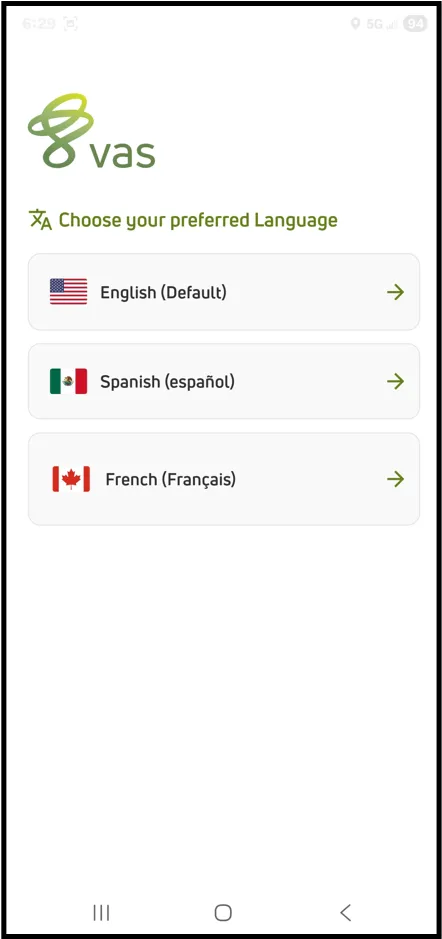
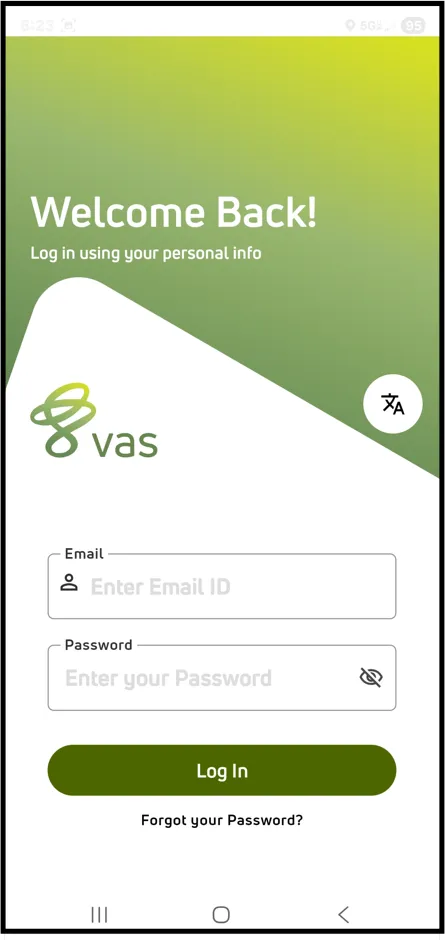
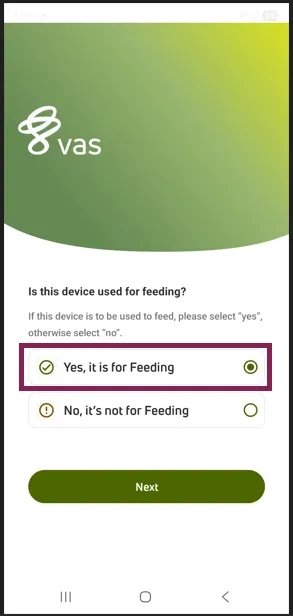
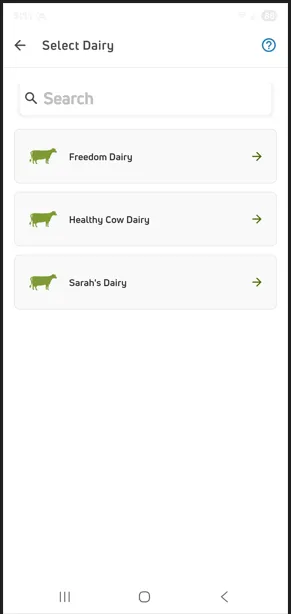
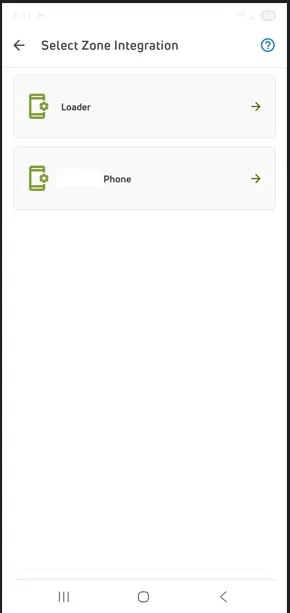
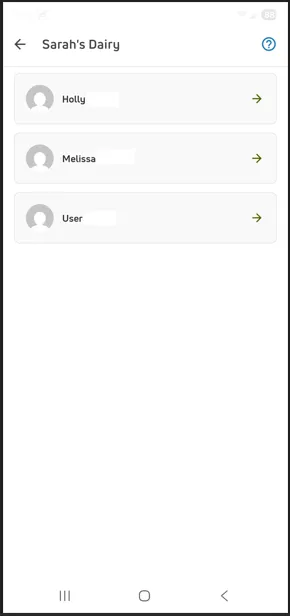
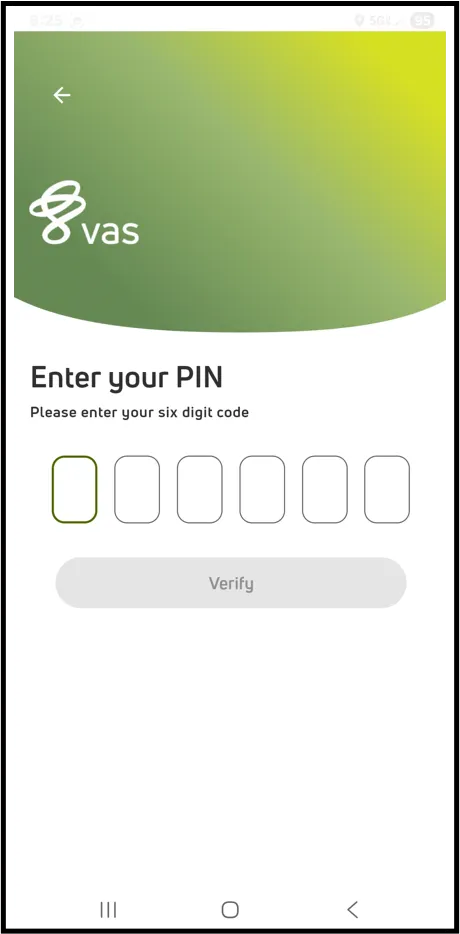
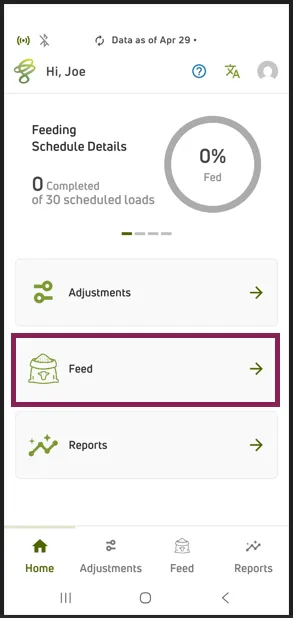
If you’re new to feeding with FeedComp, this article walks you through the basic steps to log in and complete your first feeding using the mobile app. You’ll learn how to sign in, select the correct device and feeding type, and move through the feeding workflow from mixing to dropping.
⚠️ IMPORTANT: Before you begin, make sure you have:
- A dedicated email address
- A password
- User permissions that allow you to mix feed in FeedComp
- A device with FeedComp installed that is NOT set to lock
If you do not have these, contact the farm owner or feed manager before continuing.
Also, before completing your first feeding, make sure the mobile app has been configured correctly. See Configure Mobile App Settings for setup instructions.