Premix Recipes
Premixes let you define and manage blends (such as mineral or supplement mixes) as reusable building blocks inside your recipes. Instead of recreating the same combination of ingredients in multiple rations, you can set it up once as a premix and use it wherever it’s needed. This makes it easier to standardize nutrition and keep recipes clean and consistent.
NOTE: A premix's dry matter (DM%) and cost roll up from its ingredients and are used when the premix is added to other recipes.
Creating a Premix in PULSE
Follow the procedure below to create a premix recipe that can be used as an ingredient in other recipes.
NOTE: Premixes can be created and edited from PULSE the FeedComp mobile app..
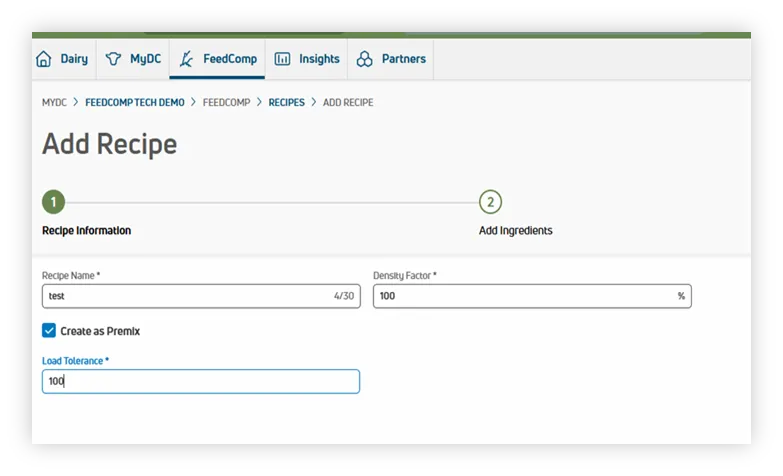
- In PULSE open the FeedComp tab, select Recipes, and then select Premix.
- Enter a Recipe Name.
- Enter the Density Factor.
- The density factor indicates how much of the recipe can be loaded into the equipment based on weight and bulk.
- Values greater than 100% allow you to mix more than the stated mixer capacity.
- Enter the Load Tolerance.
- Load tolerance defines the acceptable weight range around the target ingredient amount that the system treats as “close enough” to zero, allowing it to automatically advance to the next step.
- The unit of measure (pounds or kilograms) is based on your PULSE account settings.
- Select Next to continue.
NOTE: Select Create a Premix (under the recipe name) to prompt for load tolerance and convert the recipe into an ingredient that can be added to other recipes.
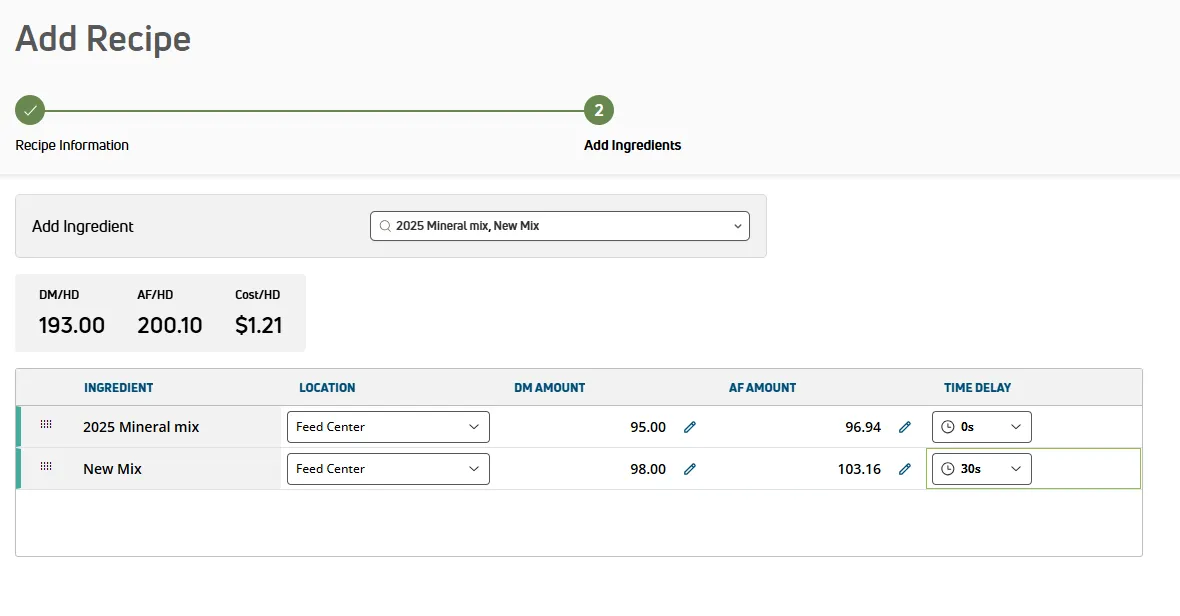
- Add ingredients to the premix.
a. Select the required ingredients from the dropdown menu.
b. If more than one location is available, select the ingredient location.
c. Enter either the DM Amount or AF Amount.
- The system automatically calculates the corresponding value.
d. If needed, enter a Time Delay.
- The time delay specifies how long FeedComp waits before advancing to the next ingredient or completing the mix after the final ingredient is added.
e. Drag ingredients up or down to adjust the mix order.
f. Select Add Premix when finished.
Editing a Premix in PULSE
To edit an existing premix in PULSE, follow the steps below to update its settings or adjust its ingredient composition.
- In PULSE open the FeedComp tab, select Recipes, then select Premixes.
NOTE: Premixes can also be found by selecting Ingredients.
- Select the premix to be edited from the premix list.
- Select Edit Premix to:
- Change the Premix Name.
- Adjust the Density Factor.
- Deactivate (toggle off) the premix.
- Select Edit Ingredients to:
- Add or remove an ingredient.
- Adjust the location, DM% or time delay.
Creating a Premix in the Mobile App
To create a premix using the FeedComp mobile app, follow the steps below to define the recipe and add ingredients from your device.
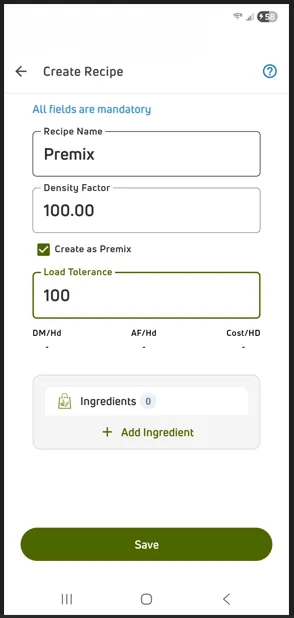
- Under Adjustments, select Recipes, then Create Recipe.
- Enter the Recipe Name, Density Factor, check "Create as Premix" and enter the Load Tolerance.
- Select +Add Ingredient.
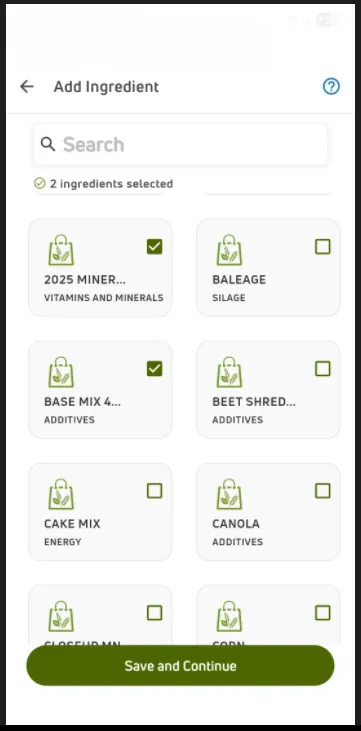
- Tab on the box in the top right corner of each ingredient card needed for the premix.
- Select Save and Continue.
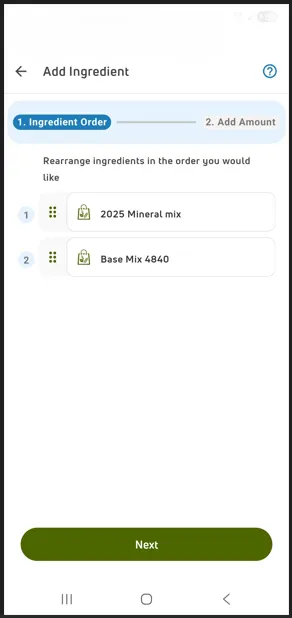
- Drag the ingredients into the proper mix order, then select Next.
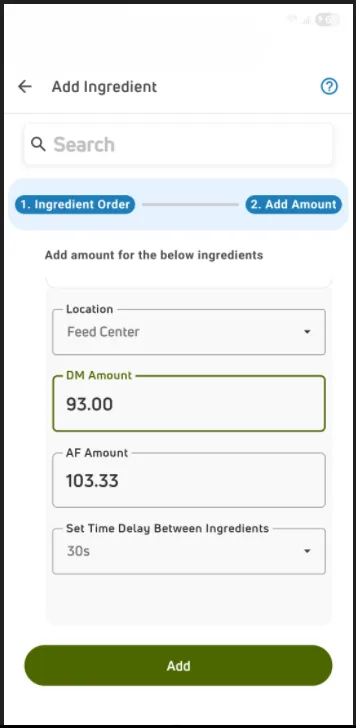
- Select the Ingredient Location, DM Amount (or AF Amount) and set a Time Delay if applicable.
Users may need to scroll down to see other ingredients.
- Select Add when finished.
Editing a Premix in the Mobile App
To modify an existing premix in the mobile app, use the steps below to update recipe details, ingredients, and mix settings.
- Under Adjustments, select Recipe, then tap on the premix to edit.
- Tap on Edit Recipe.
- Edit the Recipe Name, Density Factor, Load Tolerance.
- Tap on +Add/Edit Ingredient, then tap on the ingredient card to add or remove ingredients, then click on Save and Continue.
- Adjust the mix order if needed, then click Next.
- Adjust the Location, DM Amount (or AF Amount) and Time Delay, then click Add.
Making Premix Loads (Batching)
Batching a premix allows you to prepare and store commonly used blends in advance, ensuring consistent inclusion rates and reducing time spent during daily feeding. Premix loads are typically mixed ahead of periods of high usage or immediately after ingredient deliveries, helping keep production on schedule while maintaining accurate and standardized additive inclusion.
Mixing a Premix batch
To mix a premix batch, follow the steps below to load ingredients in the correct order and complete the batch using the FeedComp mobile app.
- From the FeedComp mobile app, select Feed, then Batch Feeding, then tap on the premix card.
- Choose the Load Size and Equipment; follow the loading order and time delays
- Complete the batch.
NOTE: Premixes can be added to scheduled feedings for daily mixing, and completing a premix batch adds inventory to the assigned location, from which feedings are automatically deducted.
Add a Premix Inside Another Recipe
To use a premix as an ingredient in another recipe, follow the steps below to add the premix and define its target amounts and loading location.
- In PULSE open the FeedComp tab, then Recipes. Or select Adjustments, then Recipes on a device.
- Add a new recipe or edit a current premix (recipe).
- Add Ingredient: Select the premix from the ingredient list.
- Enter DM% or AF target amounts and select the Storage Location for loading
- Save when finished.
IMPORTANT: Avoid circular references. If Premix A contains Premix B, do not add Premix A inside Premix B. The system blocks or warns against loops because they break calculations.
Reporting
You can review premix‑related reports either in PULSE or in the mobile app, depending on where you are working.
- In PULSE, open the FeedComp tab and select Reports.
- In the mobile app, select Reports from the bottom‑right.
Ingredient Usage
Use the Ingredient Usage report to review actual historical consumption for a premix over a selected date range. This report helps you understand how much of a premix was used and where it was consumed. Usage can be broken down to show direct inclusion in recipes versus use during premix preparation.
Projections
The Projections report shows current on‑hand inventory, estimated daily demand, and projected run‑out dates for premixes. You can also use the Expand premix ingredients option to view underlying ingredient demand rolled up across recipes and premixes, without double counting.
Quality Control, Safety, and Troubleshooting
The following best practices and troubleshooting steps help ensure premix accuracy, maintain safety and traceability, and quickly resolve common issues during setup, batching, and use.
- Lock formulas after QA review. Use a versioned name when making significant changes to maintain traceability.
- Set reasonable Load Tolerance values so crews can meet targets without excessive rework.
- Audit high‑potency additives regularly. Verify scale accuracy and mixer timing to ensure correct inclusion rates.
- Train crews on the difference between premix recipes and final‑feed recipes to prevent misloads.
If issues occur:
- Confirm the premix is Active and that a premix ingredient exists or is properly linked. Refresh the recipe editor after creating or reactivating the premix.
- Verify the premix ingredient has a default location assigned and that feedings use the same location.
- Open the premix details and validate each ingredient’s DM% and cost. Recalculate or save to refresh. Ensure the destination recipe uses the linked premix ingredient and no duplicate ingredients.
- Identify and update feedings that reference the premix. Remove the premix from those feedings before deactivating it.