Editing Restrictions
Editing restrictions allow you to communicate preferred time windows for users to edit feedings in PULSE. They do not prevent edits or control synchronization behavior between PULSE and the mobile app. Instead, they provide a warning to other users—such as nutritionists or consultants who are not physically present on the dairy—if a blocked feeding time is approaching and lets them know that changes made in PULSE will not be applied to the mobile app until the restriction window has ended.
IMPORTANT: FeedComp is a feeding-first product, so once a feeding is started from the mobile app, any changes in PULSE for that feeding will not synchronize to the mobile app until the feeding is complete. To change a feeding that is already in progress, you must make the updates on the mobile device currently handling the load.
All users with Feed Read permissions can view the schedule. Only users with Feed Configuration can add, edit, or delete restrictions.
To configure editing restrictions in PULSE, go to FeedComp → Settings → Editing Restrictions and follow the instructions below.
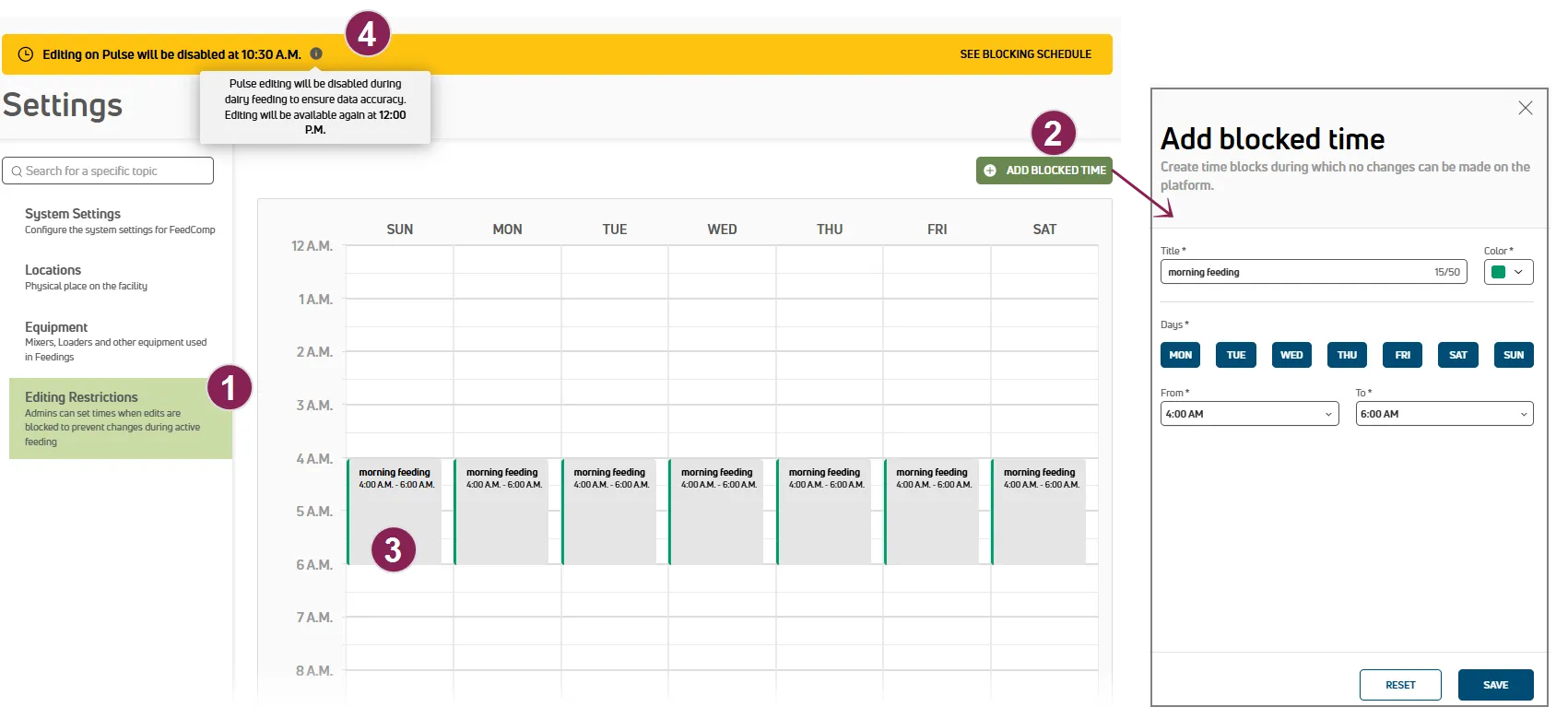
View Editing Restrictions: Check for any protected times in a calendar view.
Add a Blocked Time: Click Add Editing Restrictions at the top right of the page to open the side panel and enter information for the editing restriction.
Edit or Delete a Blocked Time: Click the editing restriction to update or delete from the calendar view to open the Edit blocked time side panel. From here, you can change the editing restriction details or click the delete button  in the upper right corner of the side panel.
Warning Banner: PULSE warns you if a blocked time is approaching. Hover over the warning for more information.