Locations
1 min
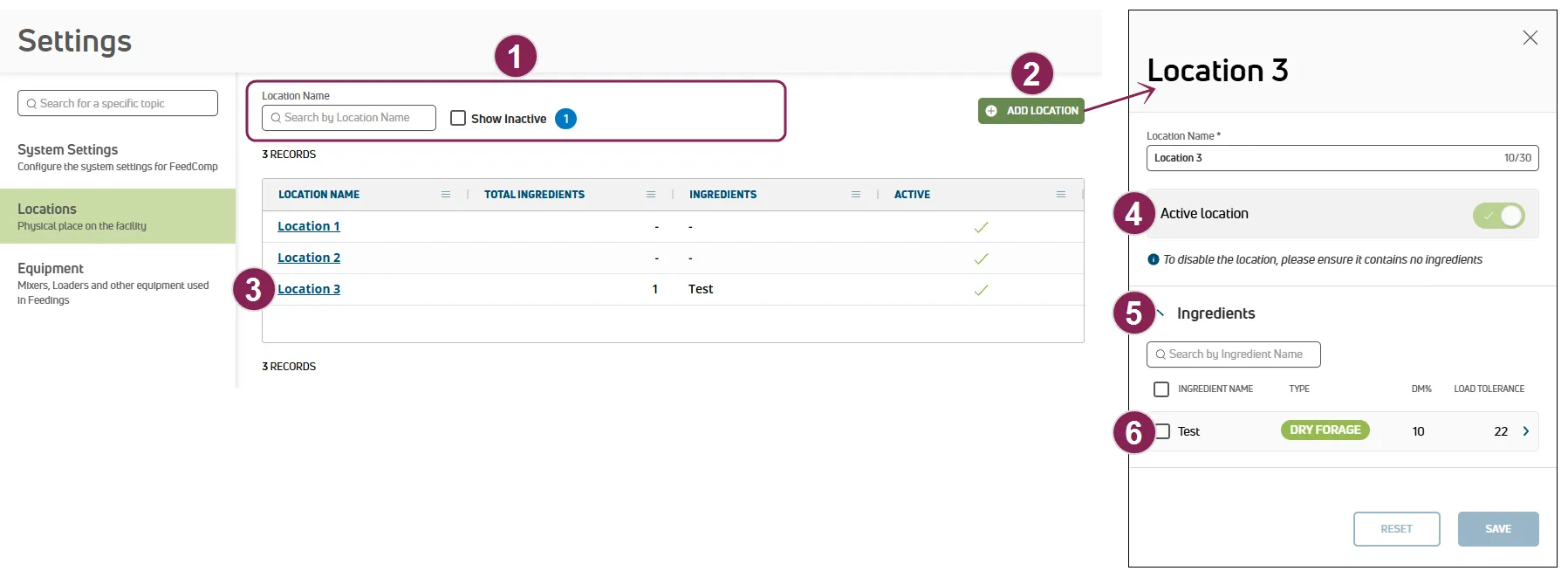
locations represent where feed ingredients are stored on the dairy, such as lots, bays, or silage piles in feedcomp, each ingredient is associated with a location so you can track where inventory is stored and manage it accurately from the locations area, you can create and maintain locations, view which ingredients are stored at each location, and move ingredients as inventory changes this article explains how to manage locations in feedcomp on both web and mobile you can manage locations on the settings page expand the sections below to learn more search and filter the locations list options to search and filter the locations list are available at the top of the page follow the guidelines below when working with the locations list type text in the name field to search the list of locations by name active locations are displayed by default check the show inactive box to view all available locations in the list icons indicate whether the location is active or inactive click the clear filters option to clear all of the filters currently applied create new location click add location at the top right of the page to open the side panel and enter information for the location the location name entered must be unique and cannot match the name of existing locations click the active location toggle to activate or deactivate the location once you've added the information, click save edit location click the name of the location to update its details you can deactivate or reactivate it, view the location's ingredients, or transfer ingredients to other locations tip don't see the location? be sure to click the show inactive filter at the top of the page deactivate or reactivate locations deactivate location click the name of the location to inactivate the side panel opens click the active location toggle to deactivate the location click save note a location that contains ingredients cannot be deactivated, but you can move the ingredients to a different location and then deactivate it see transfer ingredients to other locations docid\ vrkielwkl33xqzdroqgqz for more information reactivate location click the show inactive box at the top of the page to view all available locations in the list icons indicate whether the location is active or inactive click the name of the location to activate the side panel opens click the active location toggle to activate the location click save view ingredients at a location click the name of the location to view the side panel opens, and all ingredients associated with the location are displayed under ingredients click the arrow button > on the right side of an ingredient to view the ingredient's details on the ingredients page tip need to move ingredients to a new location? see transfer ingredients to other locations docid\ vrkielwkl33xqzdroqgqz for more information transfer ingredients to other locations click the location from which the ingredient needs to be moved the edit side panel opens, and all ingredients associated with the location are displayed under ingredients check the box for one or more ingredients to transfer or, check the ingredient name box to select all ingredients click transfer ingredient(s) the edit ingredients side panel opens select the new location, and then click save note if the location selected already contains the ingredient being transferred, pulse will automatically update the and the cost for the ingredient you can manage locations on the adjustments screen active locations are displayed by default tap the inactive filter to see more expand the sections below to learn more create new location tap create location at the bottom of the screen the location details, and then tap save at the bottom of the screen edit location tap the location to update, and then tap edit location at the bottom of the screen from here, you can change the location details, and deactivate location docid\ vrkielwkl33xqzdroqgqz reactivate location docid\ vrkielwkl33xqzdroqgqz transfer ingredients to other locations docid\ vrkielwkl33xqzdroqgqz deactivate location tap the location to inactivate tap edit location at the bottom of the screen tap deactivate at the top right of the screen if the location has ingredients that need to be moved, you can transfer ingredients to other locations docid\ vrkielwkl33xqzdroqgqz reactivate location tap the location to activate tap reactivate at the bottom of the screen tip don't see the location? be sure to tap the inactive filter at the top of the page transfer ingredients to other locations tap the location from which the ingredient needs to be moved tap edit location at the bottom of the screen tap move ingredients at the bottom of the screen select the ingredient(s) to transfer (or use the select all option), and then tap continue at the bottom of the screen select the new location, and then tap verify ingredients at the bottom of the screen update the and the cost unit , and then tap move ingredients at the bottom of the screen search and filter the locations list options to search and filter the locations list are available at the top of the screen