FeedComp Troubleshooting
Use this section to identify and resolve common FeedComp issues.
- Check Android Location Permissions (Most Common Cause on Android):
- Android requires Location access for Bluetooth Low Energy (BLE) scanning. If permissions are set to "Allow once" or disabled, the app cannot detect or pair with the scale.
- Go to Android Settings > Apps > FeedComp > Permissions > Location.
- Set permission to Allow only while using the app (or Allow all the time).
- Toggle Use precise location to ON.
- Return to the FeedComp App Info screen and toggle Remove permissions if app is unused (or Pause app activity if unused) to OFF.
- Confirm Bluetooth is enabled on both the device and the scale head unit:
- Android or iOS: Go to device Settings, select Bluetooth, and toggle on.
- Topcon Digi-Star Scale: See Topcon Digi-Star ScaleTopcon Digi-Star Scale for help.
- Scale-Tec POINT Scale: See Scale-Tec POINT ScaleScale-Tec POINT Scale for help.
- Turn the scale off and back on, then retry connecting from FeedComp.
- Properly close and reopen FeedComp:
- Android: Go to device Settings > Apps > FeedComp and tap Force stop, then reopen the app. (Note: Swiping the app away in the task switcher does not completely reset the background Bluetooth connection service).
- iOS: Swipe up from the bottom of the screen and pause in the middle to open the App Switcher, then swipe up on the FeedComp app to close it and reopen.
- Restart both the device and the scale indicator.
- Check that no other device is currently paired to the scale:
- The scale can only connect to one device at a time.
- NOTE: If FeedComp closed unexpectedly while still connected to the scale, the Bluetooth connection may remain active in the background. The scale may reject a new connection attempt thinking a second device is trying to connect. Power-cycle the scale head unit to clear the active session.
- Make sure the app language is set to English:
- Some scale models fail to pair when the app is set to another language.
- Tap on the
icon in the top right corner to select English.
- Verify roles in Loader View:
- If using Loader View, confirm each device has been assigned a distinct role (Mixer vs. Loader) and named properly — roles cannot be swapped without reinstalling the app.
- Verify scale head firmware is up to date:
- Check firmware using the scale manufacturer's native app (Scale-Tec or Digi-Star) before launching FeedComp.
- Topcon Digi-Star Scale: Contact VAS Support..
- Scale-Tec POINT Scale: Connect the device to the internet. Open the POINT app; it will automatically notify you if a firmware update is available. Follow the on-screen prompts to install the update.
⚠️ IMPORTANT: Do not uninstall and reinstall the FeedComp app to resolve scale connection drops. Reinstalling resets the permission prompt, which will cause the issue to recur if "Allow once" is selected. Always verify the Android OS permissions directly.
If the feed tractor passes near a WiFi location, the tablet can auto-connect to that WiFi, triggering a data refresh, and the app may freeze mid-feeding.
- Use FeedComp in Offline Mode by turning off WiFi on the device before starting any feeding. This is the primary workaround.
- Android: Swipe down and toggle off WiFi or go to
Settings, then select Connections and toggle off WiFi.
- iOS: Go to
Settings, then select WiFi and toggle it off.
NOTE: For the best experience, we recommend maintaining a data connection during feeding. If your feed bunk or mixing area lacks coverage, a cellular tablet or WiFi range extender can help. See the Pre-Installation ChecklistPre-Installation Checklist for details.
- If WiFi can't be disabled, avoid feeding routes that go through areas with WiFi coverage.
- Check that no device restrictions (battery saver, low power mode) are active — these can reduce Bluetooth range and reliability.
- Android: Go to
Settings, then select Battery and toggle off Power Saving.
- iOS: Go to
Settings, then select Battery and toggle off Low Power Mode.
After pairing successfully, the Bluetooth connection doesn't persist between each feeding session, and you need to re-pair the device before feeding can begin:
- Verify Android Location Permissions (Most Common Cause):
- Open Android Settings > Apps > FeedComp > Permissions > Location.
- Make sure permission is set to Allow only while using the app (or Allow all the time). If it is set to "Ask every time" or "Only this time," Android revokes access when the app closes or restarts, which breaks auto-reconnection.
- Make sure Use precise location is toggled ON.
- Tap the back arrow to return to the FeedComp App Info screen and make sure Remove permissions if app is unused (or Pause app activity if unused) is toggled OFF.
- Restart the App Properly:
- After updating permissions, force-stop the app by going to Android Settings > Apps > FeedComp > Force stop, then reopen FeedComp.
- Note: Simply swiping the app away in the recent apps / task switcher does not restart the background Bluetooth connection service.
- Check Scale Power and Range:
- Confirm the scale indicator is powered on and within Bluetooth range (under 30 ft / 9 m).
- Verify the correct mixer/truck is selected in the FeedComp app.
⚠️ IMPORTANT: Do not uninstall and reinstall the FeedComp app to fix this issue. Reinstalling resets the permission prompt, which will reintroduce the problem if "Allow once" is selected again. Always verify the Android OS permission settings directly..
This is almost always a physical hardware issue, not an app issue.
- Check the physical load cell cable connections at the mixer and junction box — loose or corroded wiring is the most common cause.
- Inspect the mixer for rusted wires at the junction box; if corroded, a farm mechanic should replace them (risk of breakage).
- Verify the scale head's Display Count setting is set to C1 (not C0) to prevent invalid values from syncing (Scale-Tec POINT ScaleScale-Tec POINT Scale only).
- Confirm the scale is not stuck in Gross/Net lock mode — toggle back to Gross if needed.
- Topcon Digi-Star Scale: The T/R button toggles between Net and Gross each time you press it. On the scale, check the flashing arrow on the side of the display points to GROSS, which allows the display to show the total weight.
- Scale-Tec POINT scale: Press the square stop button (■) on the POINT scale to place it back into Gross Mode.
- Check that the scale isn't in Hold mode. To resolve this, see Scale is stuck in "Hold" mode below.
Scales can enter a hardware-level Hold that conflicts with the FeedComp pause function.
- In the FeedComp app, verify the Pause icon ("On Hold" button) is no longer active. It should only display during the loading and dropping phases. When tapped, the connected scale enters "On Hold" mode.
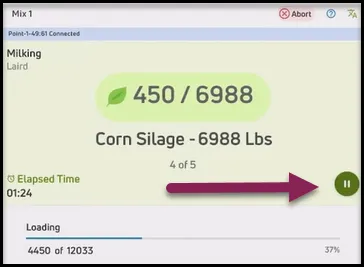
- Check the Hold settings on the scale:
- Topcon Digi-star Scale: For help, view Configure Scale Settings for Topcon Digi-Star ScalesConfigure Scale Settings for Topcon Digi-Star Scales.
- Scale-Tec POINT Scale: Press the square stop button (■) on the scale head. The scale should return to Gross Mode and the weight will begin updating live again.
- If the scale won't leave "On Hold" mode, turn the scale off and back on, then reconnect via Bluetooth.
If you continue to experience bouncing weights, delayed stabilization, or premature auto-advances with your Topcon Digi-Star scale, Contact Us to adjust your scale settings remotely. VAS can adjust motion filter settings per scale from our side, and no changes to the scale head or on-site equipment are needed.
- Open FeedComp on your device and tap the profile icon in the top-right corner.
- Scroll to the bottom of the profile page to the App Version section, located just above the Sign Out button.
- Tap the version number. A message confirms the logs were saved to the device.
- Open the device Files app.
TIP: Use the search feature in the app list to fine "files" if the icon is not on the home screen.
- Navigate to the Downloads folder, typically found under Internal Storage.
- Locate the log file. The filename uses this format: FC_[IntegrationID]_Device_logs_[Date]T[Time].txt
- Coordinate sharing the log file with Support or email it to: fwsupport@vas.
NOTE: Log files are only stored on the device for approximately 48 hours. Share them with VAS Support as soon as possible after encountering an issue.
- Ensure the mixer is on level ground and the mixer's load cells are evenly seated.
- Review the mixer's physical mounting and scale sensitivity — this is typically a dealer/hardware configuration issue, not a FeedComp issue.
- Contact the scale manufacturer to review and adjust the scale's filtering and dampening settings.
⚠️ IMPORTANT: Tapping "Finish Load" immediately closes the load and updates inventory — there's no undo.
This is not a scale hardware issue, but this directly alters the scale reading during a feeding if Finish Load is tapped before the scale reads zero.
- Before tapping Finish, confirm the feed has been fully dropped.
- Check that the scale reads zero (or the desired remaining weight).
If you use a Topcon Digi-Star scale, make sure that the mixer's Drop Tolerance is set to a minimum value of 1 in the Equipment settings.
When the mixer is within the Drop Tolerance threshold and no additional weight is detected, FeedComp automatically advances to the next pen or completes the load if it’s the final pen.
⚠️ IMPORTANT: If 0 is the Drop Tolerance value, FeedComp may not complete drops correctly.
To update your mixer's Drop Tolerance:
- Tap Adjustments > Equipment.
- Select the mixer.
- Tap Edit Equipment.
- Enter the new Drop Tolerance.
- Tap Save.
Follow these steps to troubleshoot and restore the connection and ensure your feeding data is saved:
- Check Internet Connectivity: Ensure the mobile device has an active WiFi or cellular network connection. Open a web browser on the device to verify access.
- Force a Manual Sync: Open the FeedComp app and navigate to the main dashboard. If the app is open but not syncing, try closing the app completely and restarting it to trigger a new connection.
- Verify App Version: Ensure you are running the latest version of the FeedComp app. Outdated versions may fail to send the required heartbeat data to PULSE.
- Review Power Settings: Ensure the device is not in a "Low Power" or "Battery Saver" mode that might be restricting background data usage or preventing the app from communicating with the cloud.
If FeedComp is having trouble connecting via Bluetooth, try these common fixes:
- Confirm Bluetooth is enabled on your device.
- Move closer to the device you're connecting to.
- Turn Bluetooth off and back on, then reopen FeedComp.
- Re-pair the device if the connection was lost.
- If issues persist and the device is in need of a system software update, see FeedComp App Auto-Update for guidance on scheduling OS updates during non-feeding hours.