Vendors
Vendors in FeedComp represent the suppliers you purchase feed ingredients from. Each vendor can be linked to one or more ingredients, making it easier to manage sourcing, track ingredient availability, and keep feeding workflows organized.
This article explains how to work with vendors in FeedComp, including how to search and filter the vendor list, create and update vendor records, assign ingredients, and activate or deactivate vendors as needed. Use the tabs in this article to view instructions for the Web or Mobile experience.
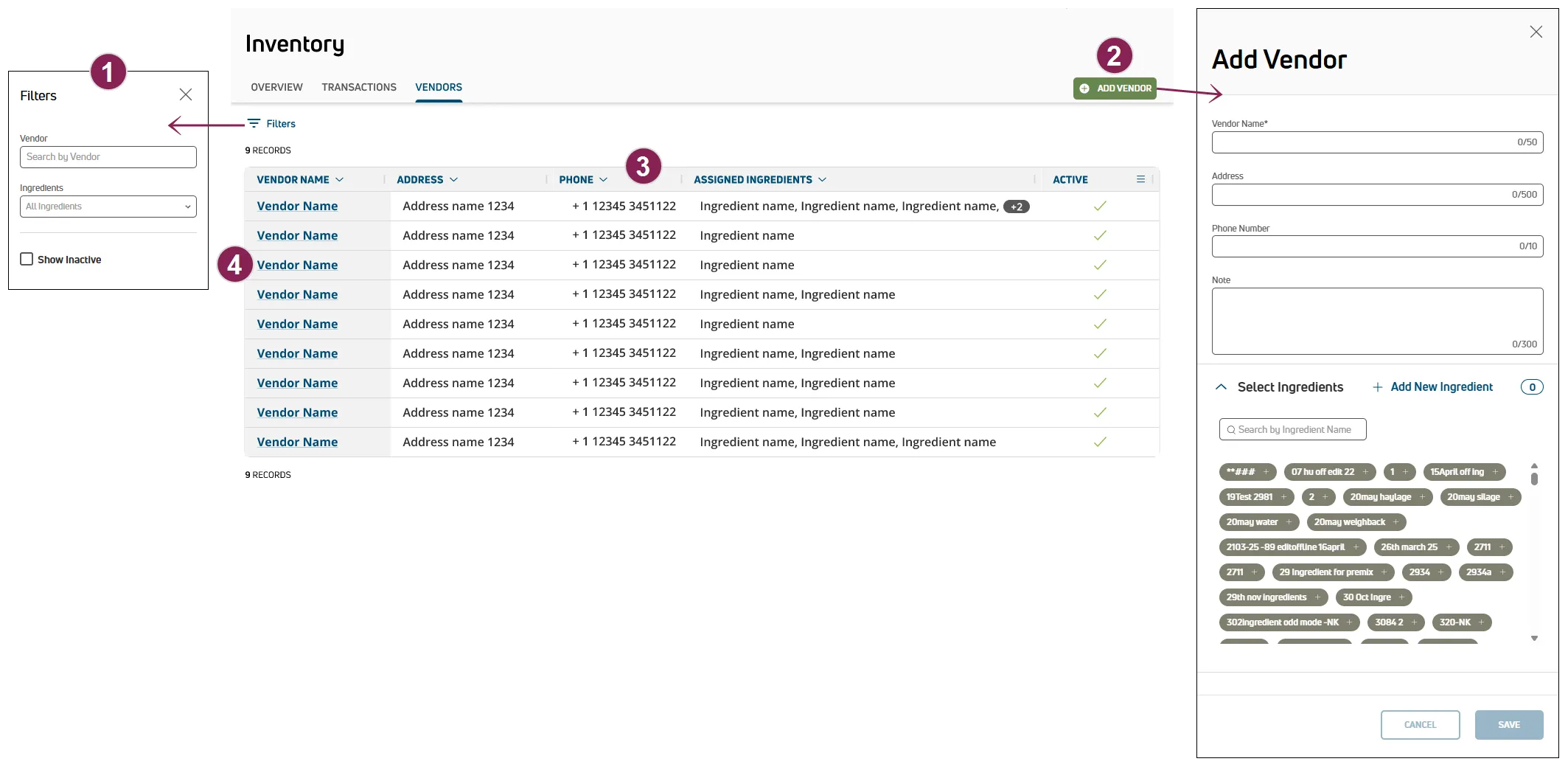
Follow the guidelines below when working with vendors:
Options to search and filter the vendors list are available at the top of the page. Follow the guidelines below when working with the vendors list:
- Click Filters at the top left of the page to limit the data that is displayed. The Filters side panel opens.
- Type text in the Vendor field to search the list of vendor by name.
- Select an Ingredient to limit the list to a specific ingredient. Multiple ingredients can be selected. You can also type text directly in the field to search for ingredients by name.
- Active vendors are displayed by default. Check the Show Inactive box to view all available vendors in the list. Icons indicate whether the vendor is active
 or inactive
  .
.
- Click the Clear Filters option to clear all of the filters currently applied.
Click Add Vendor at the top right of the page to open the side panel and enter information for the vendor. Follow the steps below to continue:
Add the Vendor Name. The name entered must be unique and cannot match the name of existing vendor.
In Address, enter the business address for the vendor.
In Phone Number, enter the telephone number where the vendor can be contacted.
In Note, include any additional notes about the vendor.
Select each ingredient you want to assign to the vendor under Select Ingredients.
- Type text in the Search field to search the list of ingredients by name.
- Multiple ingredients can be assigned to the vendor.
- Click Add New Ingredient to open the side panel and assign a new ingredient to the vendor. See Create New Ingredient to learn more about adding ingredients.
Click on a Vendor Name in the table to open the side panel and view its details. Follow the guidelines below when viewing vendor details:
- Address: The business address for the vendor.
- Phone Number: The telephone number where the vendor can be contacted.
- Note: Any additional notes about the vendor.
- Under Ingredients, view the ingredients currently assigned to the vendor.
- Type text in the Search field to search the list of ingredients by name.
- Multiple ingredients can be assigned to the vendor.
- The ingredient type is displayed in a color-coded label.
- Dry Forage: Vegetative material, such as stems, leaves, and stalks of plants, in a dried state that is used for feed.
- Fresh Forages: A crop of cultivated plants or plant parts that are grazed or harvested as feed.
- Silage: Preserved forage for feed, like pasture grass, alfalfa, grains, and corn, that is produced by fermenting plant matter.
- Energy: High-calorie feed, such as corn, sorghum, barley, and wheat.
- Protein: High-protein feed, such as soy and canola.
- Vitamins and Minerals: Supplements added to feed to prevent deficiencies in dairy cows that can impact health and milk production.
- Additives: Products added to feed to enhance feed quality, make the feed more digestible, and improve health and performance.
- Weighback: Feed leftover from a prior feeding that can be added to a recipe and help reduce waste.
- Water: Water added to a feed mixture to improve daily milk yield.
- Click the arrow
 on the right side of an ingredient to View Ingredient Details.
- Click on a Vendor Name in the table to open the side panel.
- Click the Options button
 at the top right of the side panel, and then select Edit Vendor. The Edit Vendor side panel opens.
- Update the information in the side panel as needed. See View Vendor Details to learn more about the information displayed in the side panel.
- Click Save at the bottom right of the side panel.
- Click on a Vendor Name in the table to open the side panel.
- Click the Options button at the top right of the side panel, and then select Deactivate Vendor. A confirmation message is displayed.
- Click Delete.
- Click Filters at the top left of the page.
- Check the Show Inactive box to view all available vendors in the list.
- Click on a Vendor Name in the table to open the side panel.
- Click the Options button at the top right of the side panel, and then select Activate Vendor. A confirmation message is displayed.
- Click Yes to confirm the activation.
You can manage FeedComp vendors on the Adjustments screen. Active vendors are displayed by default. Tap the Inactive filter to see more.
TIP: Tap the pin icon  to keep your favorite vendors at the top of the Vendors screen! Vendors can provide more than one ingredient. See Assign Ingredients to a Vendor to learn more.
Expand the sections below to learn more:
Tap Create Vendor at the bottom of the screen. Add the vendor details, and then tap Save at the bottom of the screen.
- Tap + Add Ingredient at the bottom of the screen.
- Select the ingredient, and then tap Add at the bottom of the screen.
- Tap Save at the bottom of the screen.
Tap the vendor to update, and then tap Edit Vendor at the bottom of the screen. From here, you can change the vendor details.
- Tap the vendor to inactivate.
- Tap Edit Vendor at the bottom of the screen.
- Tap Deactivate
 at the top right of the screen.
- Tap the vendor to activate.
- Tap Reactivate at the bottom of the screen.
TIP: Don't see the vendor? Be sure to tap the Inactive filter at the top of the page.
- Tap the vendor to view.
- Tap View Note at the bottom of the screen.
- To update the note, tap Edit Vendor at the bottom of the screen, update the Note content, and then tap Save at the bottom of the screen.
- Tap the vendor to assign ingredients.
- Tap Edit Vendor at the bottom of the screen.
- Tap + Add/Edit Ingredient at the bottom of the screen.
- Select each weighback ingredient you want to assign to the vendor.
- Tap Add at the bottom of the screen, and then tap Save at the bottom of the screen.
Options to search, sort, and filter the vendors list are available at the top of the screen.