Edit Multiple Feedings
2 min
On the web (PULSE), you can manage multiple feeding changes using two different methods. Choose the method that best fits what you need to update:
- By Feeding: Use this option to update a specific feeding across multiple pens, such as adding or removing pens or adjusting drop amounts.
- By Pen: Use this option to update feedings for a specific pen, such as changing feeding times or feed allocations throughout the day.
Either method lets you make multiple changes at once while FeedComp verifies equipment capacity and nutritional targets.
Edit Pens Included in a Feeding
Use this method to change which pens are included in a specific feeding or adjust drop amounts. The feeding must have an active recipe assigned.
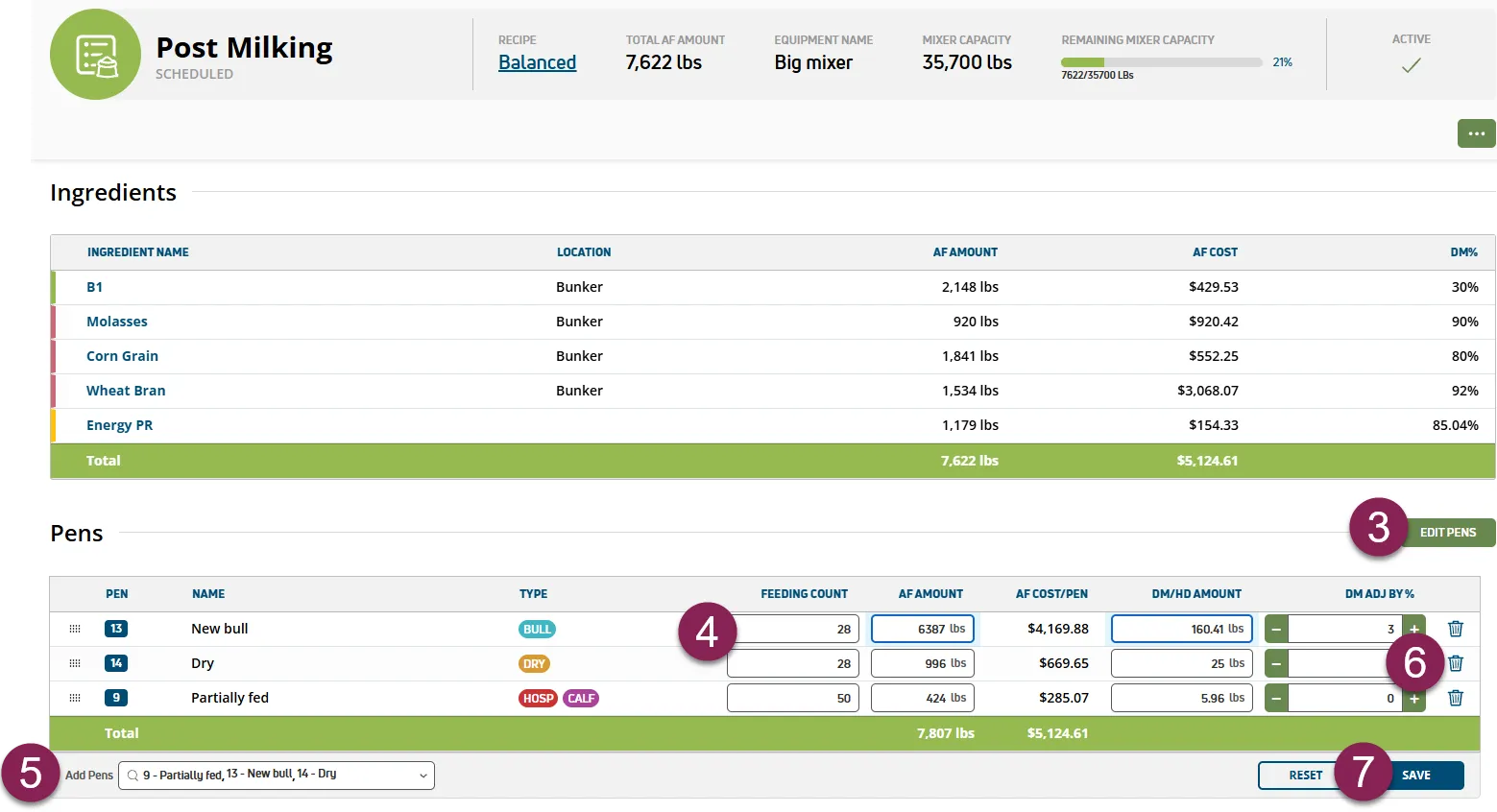
- In PULSE, go to FeedComp > Feedings.
- Select the feeding you want to modify.
- Click Edit Pens in the upper right corner
- Edit the pen details directly in the table. PULSE highlights your changes and automatically recalculates related fields when you adjust AF Amount, DM/HD Amount, or DM Adj By %.
- To add a pen, select it from the Add Pens drop-down list at the bottom of the page.
- To remove a pen, click the Delete (
 ) button at the end of its row.
- Click Save to apply the changes.
Edit Feedings for a Pen
Use this method to adjust feeding schedules and distributions for a specific pen.
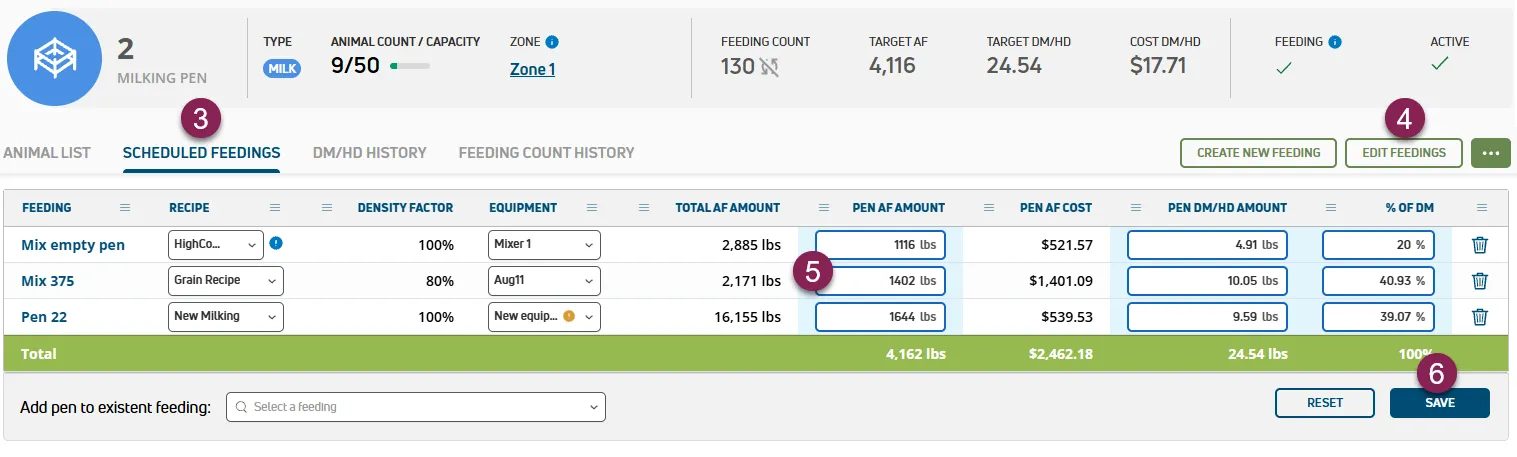
- In PULSE, go to FeedComp > Pens.
- Select the pen you want to update.
- Select the Scheduled Feedings tab.
- Click Edit Feedings.
- Edit the feeding details directly in the table. PULSE highlights your changes and automatically recalculates related fields when you adjust Pen AF Amount, Pen AF Cost, or Pen DM/HD Amount.
- Click Save to apply the changes.