Create a Transaction
Transactions record changes to your ingredient inventory. You can create three types of transactions manually: deliveries, pickups, and physical inventory adjustments. Usage transactions are created automatically by FeedComp as feedings are completed. For definitions of each transaction type, see Transaction Types.
From PULSE (Web)
You can create a transaction from the Overview tab or the Transactions tab on the Inventory page.
- Open the Add Transaction side panel:
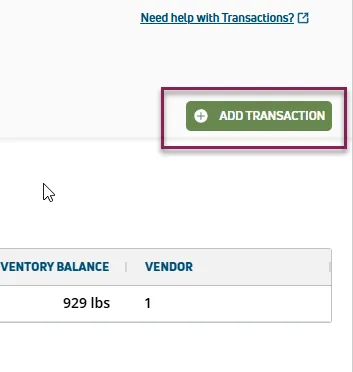
- From the Transactions tab, select Add Transaction at the top right of the page.
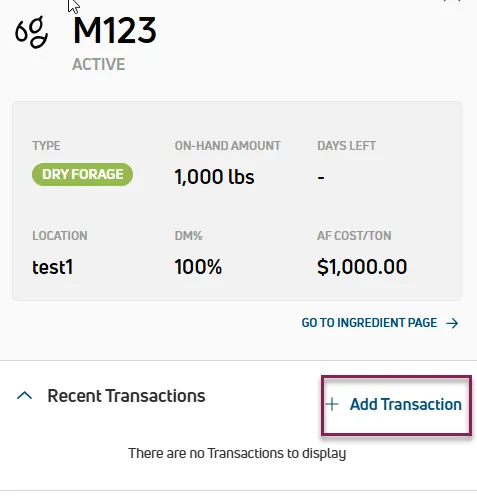
- From the Overview tab, first open the ingredient details — select the Details link on a card (Cards view) or select the ingredient name (Table view) — then select Add Transaction in the side panel.
- Select Add Transaction at the top right of the page. The Add Transaction side panel opens.
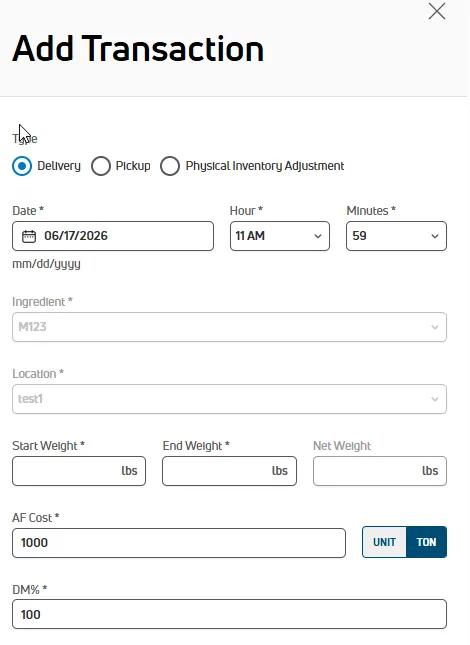
- Select the transaction Type: Delivery, Pickup, or Physical Inventory Adjustment.
- Select the Date, Hour, and Minutes the transaction occurred. Today's date and the current time are defaulted for you.
- Select the Ingredient associated with the transaction.
- Select the Location where the transaction took place.
- Enter the amount:
- For Delivery or Pickup: Enter the Start Weight and End Weight. The Net Weight calculates automatically.
- For Physical Inventory Adjustment: Enter the Adjustment Amount and select Unit or Ton.
- In DM Cost, enter the as-fed cost of the ingredient and select Unit or Ton.
- In DM%, enter the dry matter percentage of the ingredient.
- For Delivery or Pickup only: Select the Vendor and enter the Driver name.
- In Note, add any additional notes about the transaction.
- Select Save.
💡TIP: Amounts are displayed in pounds or kilograms based on the unit of measure specified in your Dairy Info and User Account settings.
From the Mobile App
On the mobile app, you create transactions from the ingredient details screen.
- Under Adjustments, tap Inventory. On the next screen, tap Inventory again to view your ingredient cards. Tap the ingredient card you want to create a transaction for.
- Choose the type of transaction:
- Tap Create Transaction to record a Delivery or Pickup.
- Tap Physical Inventory Adjustment to record a manual adjustment.
- Add the transaction details, then tap Save at the bottom of the screen.
🗒️ NOTE: Before creating a delivery or pickup, a vendor must be assigned to the ingredient. See Vendors to learn more.
Important Considerations
Keep the following points in mind when creating transactions.
- FeedComp updates your recipes and feedings automatically when transactions are created or when the DM% of an ingredient changes.
- Usage transactions are created automatically as feedings are completed and cannot be created manually. They are only visible on the web when the Show Usage filter is checked.
- FeedComp supports offline mode on the mobile app. Transactions created while offline are saved locally and applied automatically once your device is back online. See Mobile Connection Status for more information.
- To view, edit, or delete an existing transaction, see View Transaction Details or Edit or Delete a Transaction.