Create an Ingredient
When you create an ingredient, you add a new feed component to FeedComp and link it to its storage locations on your dairy. Once you’ve set it up, you can start using that ingredient in your recipes and premixes. FeedComp then tracks the inventory at each location, giving you a clear view of your available feed.
Before you begin, make sure your Locations are already set up. See Start Here: Better Feeding Made Simple to learn more about the required setup order.
⚠️ IMPORTANT: The load tolerance setting controls when the app auto-updates during loading. See Load Tolerance for important cautions before changing this setting.
Create an Ingredient in PULSE on the Web
Follow the steps below to create a new ingredient using PULSE on the web.
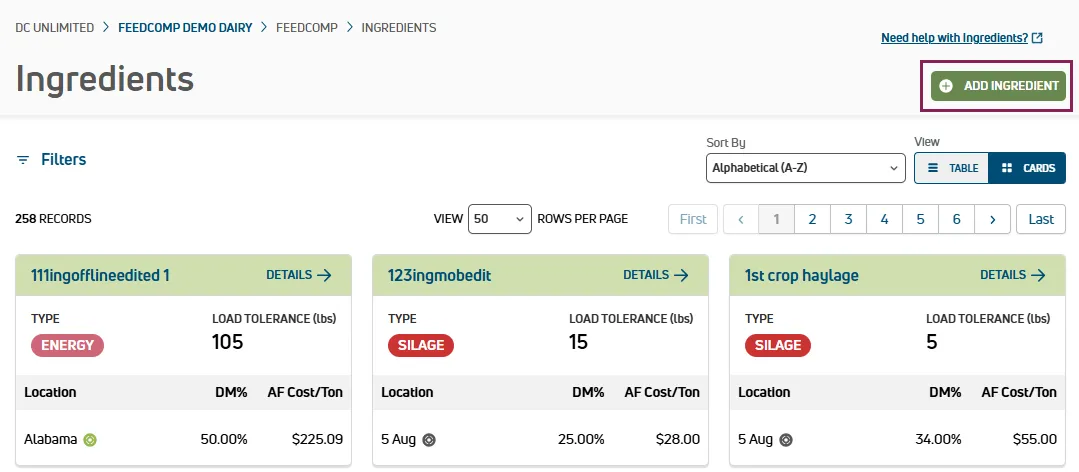
- Navigate to the Ingredients page.
- Select Add Ingredient at the top right of the page. The side panel opens.
- Enter a unique Ingredient Name (it cannot match an existing ingredient).
- Select the Ingredient Type. If you're adding a weighback ingredient, select "Weighback."
- In Load Tolerance, enter the amount of weight considered "close enough" to the target amount. (See Load Tolerance to learn more.)
- Select Add Location to assign the ingredient to a storage location. Multiple locations can be added. For each location:
- Enter the DM% and AF Cost, then select Unit or Ton.
- Click the Track this Location toggle to begin tracking inventory at this location.
- In On-Hand Amount, enter the current quantity available, then select Unit or Ton.
- Select Save.
Create Ingredients in the Mobile App
Follow the steps below to create a new ingredient using the mobile app.
- On the Ingredients screen under Adjustments, tap Create Ingredient at the bottom of the screen.
- Enter the Ingredient Name.
- If you're adding a weighback ingredient, tap the Weighback Ingredient toggle.
- Select the Ingredient Type.
- Enter the Load Tolerance if you want the app to auto-advance during loading.
- Tap + Assign Location in the middle of the screen.
- Select the location, select Unit or Ton, enter the DM% and Cost Unit or Cost Ton, then tap Add at the bottom of the screen.
- Tap Save at the bottom of the screen.
Important Considerations
Keep the following points in mind when creating ingredients:
- Ingredient types, load tolerance, DM%, AF Cost, and other field definitions are described on the Ingredients page.
- Units (lbs or kg) are based on your account settings. See Edit Your User Account to change them.
- To edit an ingredient after creating it, see Edit an Ingredient.
To learn more, see the links below:
- View and Search Ingredients: Find, sort, filter, and view ingredient cards and details.
- Edit an Ingredient: Update fields such as DM%, cost, load tolerance, type, and time delay.
- Deactivate or Reactivate an Ingredient: Deactivate or reactivate ingredients.
- Manage Ingredient Locations: Assign, remove, or transfer ingredients across locations, and enable tracking.