Manage Weighbacks
3 min
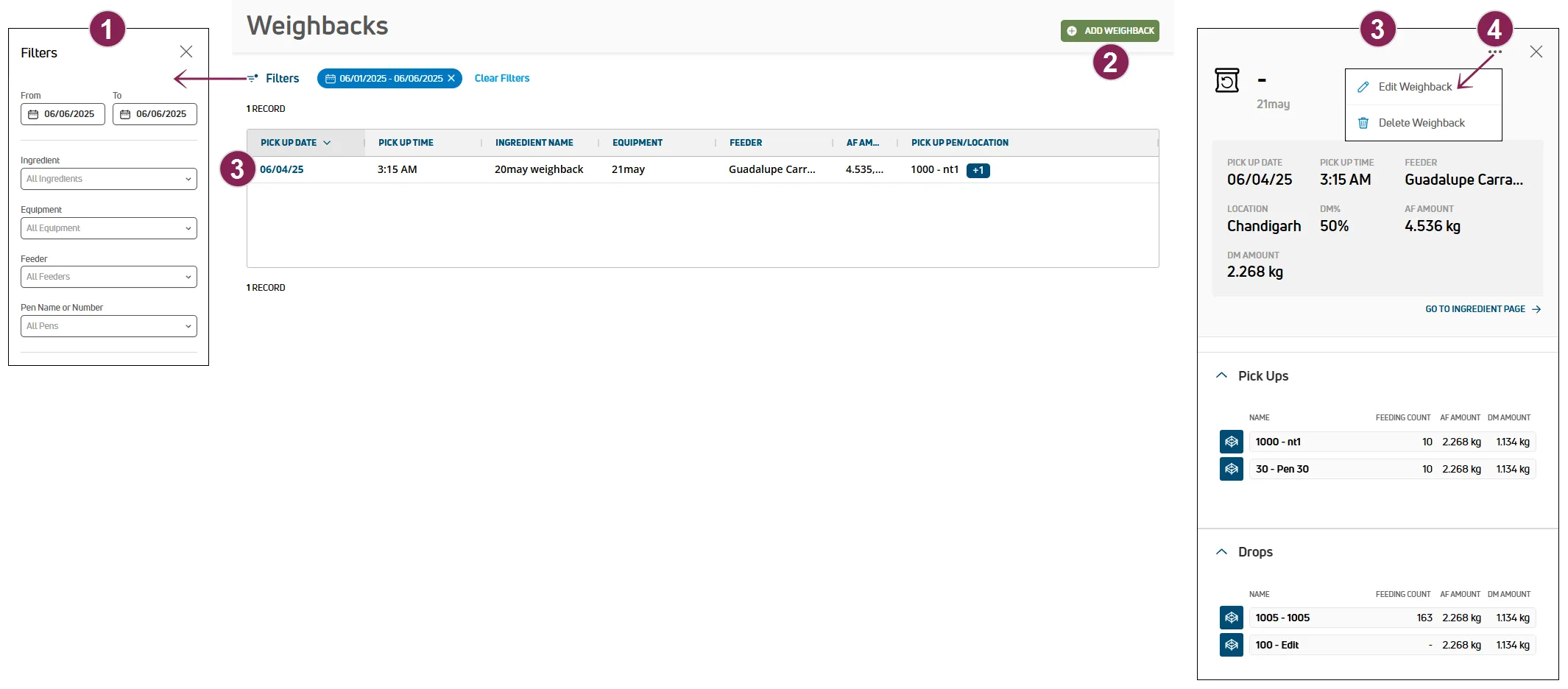
a weighback—also called a "refusal" or "cleanup"—is the feed left over in the feeding area from a previous day feedcomp allows you to capture the weight of these leftovers to ensure your records reflect what the animals actually consumed, rather than just what was delivered capturing weighbacks helps reduce waste and improve accuracy in your feeding records when a weighback is created for a previous feeding, feedcomp automatically adjusts dry matter intake to reflect what was not consumed for example, if 200 pounds of feed is left in a pen and collected the next day, that amount is subtracted from the prior day’s intake, ensuring the dm intake report reflects true consumption depending on your setup, leftovers can be added to other pens or locations, used as a filler load in a recipe, or sold before you head out to the pens, use the table below to decide which workflow best fits your needs if you want to use this method key benefit add leftovers into a new, scheduled mix filler load maintains nutritional balance while recycling nutrients move leftovers to a different pen or storage weighback only pick up quickly clears feeding areas; ideal for feeding heifers or culls track leftovers for resale or disposal weighback only pick up keeps inventory accurate even if the feed leaves the farm note please note that you can only create, edit, or delete weighback only pick ups in feedcomp on pulse you can create filler loads docid\ ilhxl4cbi zodwfoatzkl in the feedcomp app expand the sections below to learn more search and filter the weighbacks list options to search and filter the weighbacks list are available at the top of the page follow the guidelines below when working with the weighbacks list click filters at the top left of the page to limit the data that is displayed the filters side panel opens select an ingredient to limit the list to a specific ingredient multiple ingredients can be selected you can also type text directly in the field to search for ingredients by name select equipment to limit the list to specific equipment multiple equipment names can be selected you can also type text directly in the field to search for equipment by name select a feeder to limit the list to a specific feeding technician you can type text directly in the field to search for feeding technicians by name select a pen name or number to limit the list to a specific pen multiple pens can be selected you can also type text directly in the field to search for pens by name or number create new weighback tip amounts are displayed in pounds or kilograms based on the unit of measure specified for your user account docid\ adcj5yzybengyc6xqqec3 click weighback at the top right of the page to open the weighback builder and enter information for the weighback follow the steps below to continue select the pick up date and pick up time for the weighback 's date and the current time are defaulted for you select the ingredient to add for the weighback only weighback ingredients are available for selection see create new ingredient docid zm5tz6ctwpsjyumocaki to learn how to create a weighback ingredient the location field automatically updates and selects a pen or location that contains the weighback ingredient you can select a different option if the ingredient is located in more than one pen or location select the equipment to use for the weighback to learn more about equipment, see equipment docid\ xpxwbun3lneeul22xqvpw select the name of the feeding technician who will complete the weighback in feeder click next in search , select one or more pens or locations where the load will be picked up for the weighback follow the guidelines below when assigning pick up pens and locations to a weighback type text in the search field to search the list of pens and locations by name if more than one pen or location was assigned to the weighback, you can use the handle on the left side of an item to drag and drop it to a new position in the list and change the pick up order in amount , enter the pick up as fed amount for the pen or location the dry matter amount in amount automatically updates click next in search , select one or more pens or locations where the load will be dropped off for the weighback follow the guidelines below when assigning drop off pens and locations to a weighback type text in the search field to search the list of pens and locations by name if more than one pen or location was assigned to the weighback, you can use the handle on the left side of an item to drag and drop it to a new position in the list and change the drop off order in amount , enter the drop off as fed amount for the pen or location an error is displayed if the total drop off amount does not equal the total pick up amount for the weighback click weighback at the bottom right of the page view weighback details click on a pick up date in the table to open the side panel and view its details follow the guidelines below when viewing weighback details equipment the name of the equipment used for the weighback is displayed at the top left of the side panel pick up date the date when the weighback was completed pick up time the time when the weighback was completed feeder the name of the feeding technician who completed the weighback the name of the location where the first ingredient was picked up for the weighback % the dry matter percentage for the first ingredient was picked up for the weighback amount the as fed amount for the weighback dm amount the dry matter amount for the weighback pick ups a list of pens and locations where the ingredients were picked up for the weighback drops a list of pens and locations where the ingredients were dropped off for the weighback edit or delete weighbacks edit weighback click on a pick up date in the table to open the side panel click the options button at the top right of the side panel, and then select edit weighback the edit weighback side panel opens update the information in the side panel as needed see view weighback details docid\ mcz2bd0l oabogwh5s2oq to learn more about the information displayed in the side panel click save at the bottom right of the side panel delete weighback click on a pick up date in the table to open the side panel click the options button at the top right of the side panel, and then select delete weighback a confirmation message is displayed click delete required setup this feature is only available when you’re using this device for feeding if you change your mind about using a device for feeding, log out of the app docid\ o 4bu3uynsnndnscbo0kx and select yes or no when asked if the device will be used for feeding devices used for feeding must be connected to a scale see configure and connect the scale docid\ yczp8hfysnbkiowltwqoq to learn more about connecting to your scale filler load a filler load is type of weighback collection that reuses leftover feed from the previous day and adds it into a scheduled feeding for the current day a predetermined with a weighback as the first ingredient must be active in a scheduled feeding for it to populate in the filler load feeding flow a weighback for the day is loaded first during this flow, and the following ingredient amounts are recalculated based on dry matter targets a filler load will only allow scheduled feeding drops users may pick up a weighback from locations or pens dry matter intake amounts will auto adjust for the previous day based on collected weighback if collecting from individual pens tap add weighback at the bottom of the screen tap + add ingredient under ingredient select each ingredient you want to add to the filler load tip only weighback ingredients are available for selection see create new ingredient docid zm5tz6ctwpsjyumocaki to learn how to create a weighback ingredient tap add at the bottom of the screen tap + add under pick up select one or more locations, and then tap add at the bottom of the screen note if a weighback is picked up from a random location (not a pen), dry matter will not be recalculated since dry matter intake is not known for locations (only for pens) tap the filler load toggle tap + add feeding under feedings select the feeding that will use the weighback, and then tap add at the bottom of the screen load the ingredients for the mix important if you want to use both a feeding device and a loading device to monitor and manage loads, enable loader view on a loading device docid\ jz7z evo1pfxe8f3dba5w loader view allows you to connect your loading device to your feeding device, so any operations on your feeding device are mirrored on your loading device when loader view is enabled on a loading device, you can advance or pause feedings and view real time feeding details while loading is in progress follow the steps below to load a mix tap save and start loading at the bottom of the screen if multiple pens and/or locations were selected for this weighback, you can skip or ignore weighback ingredients when you start loading pick up the weighback at the selected pick up location(s) as you load the weighback, the scale weighs the load and calculates the remaining capacity of the load the remaining ingredients for the recipe if you ignore an ingredient, its amount is recorded as 0 proceed to drop the mix at the locations docid\ mcz2bd0l oabogwh5s2oq drop the mix at the locations important if you have enabled loader view docid\ jz7z evo1pfxe8f3dba5w on a loading device, the loading device is automatically disconnected from your device once all of the ingredients are loaded follow the steps below to complete the filler load once you load all of the ingredients, tap start dropping at the bottom of the screen if multiple locations were selected for this weighback, you can skip or ignore locations when you start dropping drop the load(s) at the selected pen(s) once you have dropped the load(s) at the selected location(s), tap continue at the bottom of the screen compiles and presents your weighback summary tap view report card at the bottom of the screen to view additional details for the weighback weighback only pick up a weighback only pick up is a type of weighback flow that gathers leftover feed from the previous day without adding it into a recipe this type of collection method allows users to record individual pen or overall weights the weighback can then be dropped to other pens/locations as needed tap add weighback at the bottom of the screen tap + add ingredient under ingredient select each ingredient you want to add to the weighback only pick up tip only weighback ingredients are available for selection see create new ingredient docid zm5tz6ctwpsjyumocaki to learn how to create a weighback ingredient tap add at the bottom of the screen tap + add under pick up select one or more locations where the ingredients will be picked up, and then tap add at the bottom of the screen tap + add under drop(s) select one or more locations, and then tap add at the bottom of the screen load the ingredients for the mix important if you want to use both a feeding device and a loading device to monitor and manage loads, enable loader view on a loading device docid\ jz7z evo1pfxe8f3dba5w loader view allows you to connect your loading device to your feeding device, so any operations on your feeding device are mirrored on your loading device when loader view is enabled on a loading device, you can advance or pause feedings and view real time feeding details while loading is in progress follow the steps below to load a mix tap save and start loading at the bottom of the screen if multiple pens and/or locations were selected for this weighback, you can skip or ignore weighback ingredients when you start loading pick up the weighback at the selected pick up location(s) as you load the weighback, the scale weighs the load and calculates the remaining capacity of the mixer proceed to drop the mix at the locations docid\ mcz2bd0l oabogwh5s2oq drop the mix at the locations important if you have enabled loader view docid\ jz7z evo1pfxe8f3dba5w on a loading device, the loading device is automatically disconnected from your device once all of the ingredients are loaded follow the steps below to complete the weighback only pick up once you load all of the ingredients, tap start dropping at the bottom of the screen if multiple locations were selected for this weighback, you can skip or ignore locations when you start dropping drop the load(s) at the selected location(s) once you have dropped the load(s) at the selected location(s), tap continue at the bottom of the screen compiles and presents your weighback summary tap view report card at the bottom of the screen to view additional details for the weighback skip or ignore during weighbacks allows you to skip or ignore weighback ingredients when loading them into a mixer, and you can also skip or ignore pens and locations when loading weighback ingredients or dropping the weighback mix at pens or locations if multiple pens and/or locations were selected for this weighback, the following options are available when you're loading and dropping the weighback tap ignore to ignore the ingredient, pen, or location when you ignore an ingredient, pen, or location, it is skipped and removed from the current order entirely tap the arrow to advance to the next ingredient, pen, or location tap skip to skip the ingredient, pen, or location when you skip an ingredient, pen, or location, it is temporarily skipped and moved to the end of the order so you can return to it later abort a weighback in progress once the loading or dropping process is started for a weighback, you can tap abort at the top middle of the screen to abort the weighback view past weighbacks once a weighback is completed, you can tap the weighback icon to view its report card tip don't see the weighback? be sure to select the correct pick up date at the top of the screen restart incomplete weighback if a weighback was started but not completed, you can resume it whenever you’re ready incomplete weighbacks are identified with an orange weighback icon tap the incomplete weighback to restart tip don't see the weighback? be sure to select the correct pick up date at the top of the screen activate the filler load toggle tap +add feeding at the bottom of the screen tap add at the bottom of the screen tap save and start loading at the bottom of the screen the steps to continue the weighback process differ slightly based on the weighback type click the links below to see the remaining steps for each type filler load docid\ mcz2bd0l oabogwh5s2oq weighback only pick up docid\ mcz2bd0l oabogwh5s2oq delete weighback tap the weighback to delete tap delete at the top right of the screen