Adjust Settings
To adjust settings in the mobile app, tap your user picture in the top right corner of most screens and then tap  Settings.
Expand the sections below to learn more.
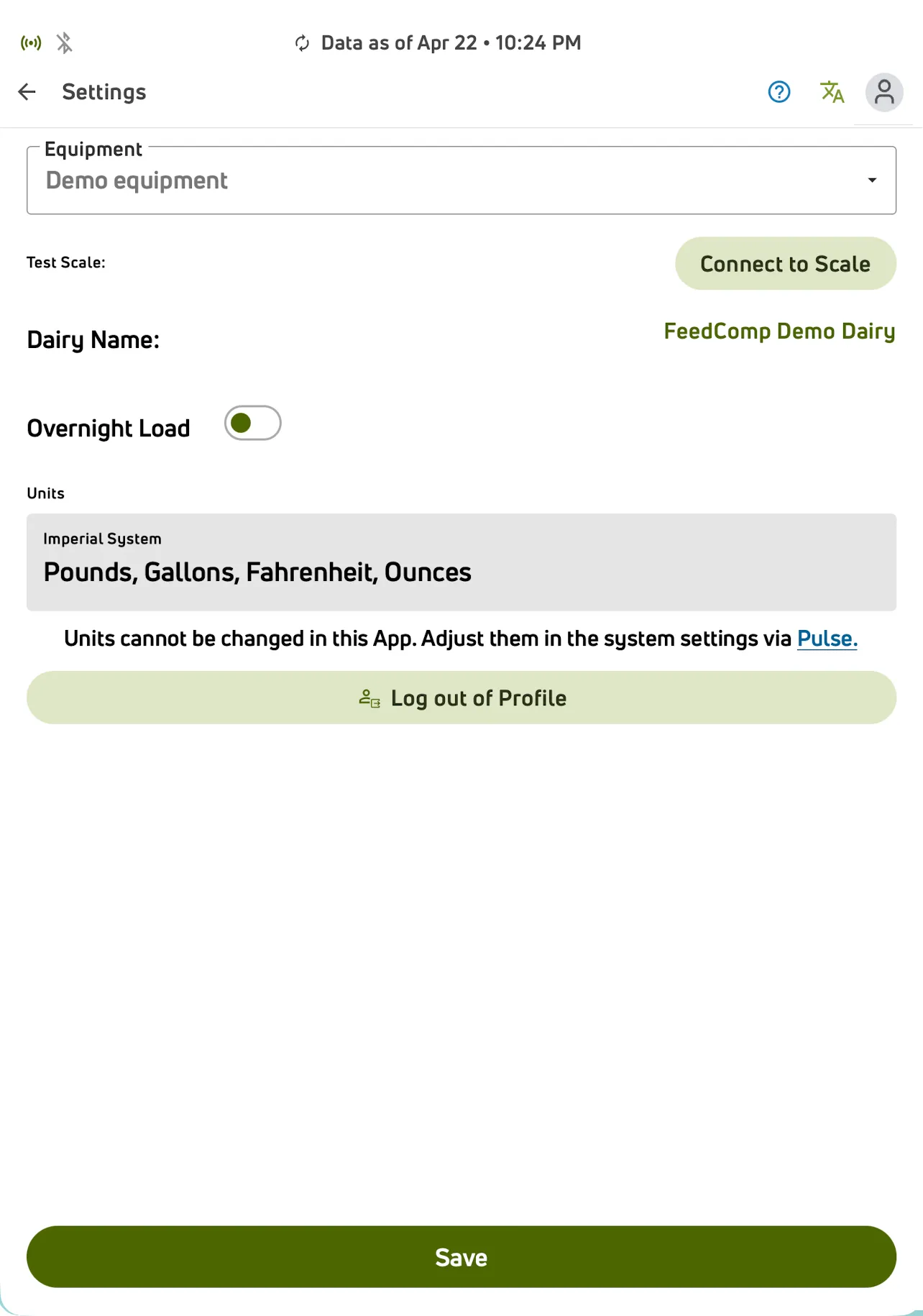
IMPORTANT: This feature is only available when you’re using this device for feeding. If you change your mind about using a device for feeding, log out of the app and select Yes or No when asked if the device will be used for feeding.
- Select the Equipment to connect.
- Tap Connect to Scale and select the scale to connect. After a scale is connected to your mobile device, the Bluetooth icon
 displays at the top left of each screen in the FeedComp App. The Switch Scale button also becomes available and allows you to connect to a different scale if needed.
For more information about scale connections, see Configure and Connect the Scale.
Before using overnight loads in the FeedComp app, you must enable them for your farm. Tap your user photo in the top right of any screen and tap Settings. Locate the Overnight Load option about midway down the page, and toggle the option ON.
See Use Overnight Loads for instructions on creating an overnight load during the loading process and then continuing it the next day.
🗒️ NOTE: Once you start an overnight loadovernight load, be aware that the equipment stays locked to the overnight load until it’s finished or cancelled. This means that you cannot use the same equipment to complete any other feedings until the overnight load is completed. If you connect to and attempt to feed using equipment containing an overnight load, an overnight load notification with a red alert icon  displays.
If you started an overnight load by mistake, you can cancel or complete an overnight loadcancel it or drop the feed on the same day.
FeedComp units of measure are defined in PULSE and are synced to the mobile app. To check the unit of measurement used by the FeedComp mobile app, go to Settings and locate the gray Units block toward the bottom of the page.
- Imperial System displays units in Pounds, Gallons, Fahrenheit, and Ounces.
- Metric System displays units in Kilograms, Liters, Celsius, and Milligrams.
To change the unit of measure, sign into PULSE and edit the setting in the Dairy Info page.