Scale Troubleshooting
Use this section to identify and resolve common scale connection issues. For all other FeedComp troubleshooting tips, see FeedComp Troubleshooting.
- Confirm Bluetooth is enabled on both the device and the scale head unit. The scale should show as "connected" in the Bluetooth settings:
- Android or iOS: Go to
 Settings, select Bluetooth, and toggle on.
- Topcon Digi-Star Scale: See Topcon Digi-Star ScaleTopcon Digi-Star Scale for help.
- Scale-Tec POINT Scale: See Scale-Tec POINT ScaleScale-Tec POINT Scale for help.
- Turn the scale off and back on, then reconnect the scale from FeedComp.
- Close FeedComp on the device, reopen it, and retry pairing:
- Android: Tap on the 3 vertical lines in the bottom left corner, then swipe up on the FeedComp app to close the app.
- iOS: Swipe up from the bottom of the screen and pause in the middle to open the App Switcher, then swipe up on the FeedComp app to close the app.
- Restart both the device and the scale.
- Check that no other device is currently paired to the scale as the scale can only connect to one device at a time.
NOTE: If the FeedComp app closed the last time it was connected to the scale, the Bluetooth connection may still be active. The app only allows one connection at a time and may think that you're trying to connect a second device if this happens.
- Make sure the app language is set to English (some scales fail to pair when the app is set to another language).
- Tap on the
 icon in the top right corner to select English.
- If using Loader View, confirm each device has been assigned a distinct role (Mixer vs. Loader) and named properly — roles cannot be swapped without reinstalling the app.
- Verify the scale head firmware is up to date using the scale manufacturer's native app (Scale-Tec or Digi-Star) before launching FeedComp.
- Topcon Digi-Star Scale: Contact VAS Support.
- Scale-Tec POINT Scale: Connect the device to the internet. After opening the POINT app, it will automatically notify you if a firmware update is available. Follow the on-screen prompts to install the update if one is available.
If the feed tractor passes near a WiFi location, the tablet can auto-connect to that WiFi, triggering a data refresh, and the app may freeze mid-feeding.
- Use FeedComp in Offline Mode by turning off WiFi on the device before starting any feeding. This is the primary workaround.
- Android: Swipe down and toggle off WiFi or go to Settings, then select Connections and toggle off WiFi.
- iOS: Go to Settings, then select WiFi and toggle it off.
NOTE: For the best experience, we recommend maintaining a data connection during feeding. If your feed bunk or mixing area lacks coverage, a cellular tablet or WiFi range extender can help. See the Pre-Installation ChecklistPre-Installation Checklist for details.
- If WiFi can't be disabled, avoid feeding routes that go through areas with WiFi coverage.
- Check that no device restrictions (battery saver, low power mode) are active — these can reduce Bluetooth range and reliability.
- Android: Go to Settings, then select Battery and toggle off Power Saving.
- iOS: Go to Settings, then select Battery and toggle off Low Power Mode.
After pairing successfully, the Bluetooth connection doesn't persist between each feeding session, and you need to re-pair the device before feeding can begin:
- Close the app and reopen, then attempt to pair again.
- If the issue persists, uninstall and reinstall the FeedComp app. See Install the FeedComp AppInstall the FeedComp App to learn more.
⚠️ IMPORTANT: Reinstalling the app resets the settings in the FeedComp app.
This is almost always a physical hardware issue, not an app issue.
- Check the physical load cell cable connections at the mixer and junction box — loose or corroded wiring is the most common cause.
- Inspect the mixer for rusted wires at the junction box; if corroded, a farm mechanic should replace them (risk of breakage).
- Verify the scale head's Display Count setting is set to C1 (not C0) to prevent invalid values from syncing (Scale-Tec POINT ScaleScale-Tec POINT Scale only).
- Confirm the scale is not stuck in Gross/Net lock mode — toggle back to Gross if needed.
- Topcon Digi-Star Scale: The T/R button toggles between Net and Gross each time you press it. On the scale, check the flashing arrow on the side of the display points to GROSS, which allows the display to show the total weight.
- Scale-Tec POINT scale: Press the square stop button (■) on the POINT scale to place it back into Gross Mode.
- Check that the scale isn't in Hold mode. To resolve this, see Scale is stuck in "Hold" mode below.
Scales can enter a hardware-level Hold that conflicts with the FeedComp pause function.
- In the FeedComp app, verify the Pause icon ("On Hold" button) is no longer active. It should only display during the loading and dropping phases. When tapped, the connected scale enters "On Hold" mode.
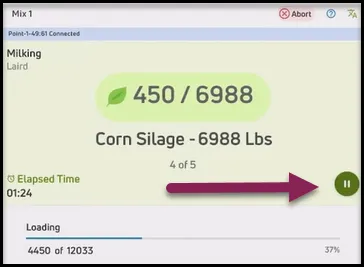
- Check the Hold settings on the scale:
- Topcon Digi-star Scale: For help, view Configure Scale Settings for Topcon Digi-Star ScalesConfigure Scale Settings for Topcon Digi-Star Scales.
- Scale-Tec POINT Scale: Press the square stop button (■) on the scale head. The scale should return to Gross Mode and the weight will begin updating live again.
- If the scale won't leave "On Hold" mode, turn the scale off and back on, then reconnect via Bluetooth.
If you continue to experience bouncing weights, delayed stabilization, or premature auto-advances with your Topcon Digi-Star scale, Contact Us to adjust your scale settings remotely. VAS can adjust motion filter settings per scale from our side, and no changes to the scale head or on-site equipment are needed.
- Open FeedComp on your device and tap the profile icon in the top-right corner.
- Scroll to the bottom of the profile page to the App Version section, located just above the Sign Out button.
- Tap the version number. A message confirms the logs were saved to the device.
- Open the device Files app.
TIP: Use the search feature in the app list to fine "files" if the icon is not on the home screen.
- Navigate to the Downloads folder, typically found under Internal Storage.
- Locate the log file. The filename uses this format: FC_[IntegrationID]_Device_logs_[Date]T[Time].txt
- Coordinate sharing the log file with Support or email it to: fwsupport@vas.
NOTE: Log files are only stored on the device for approximately 48 hours. Share them with VAS Support as soon as possible after encountering an issue.