Enable Batch Command Filter and Navigation View
Question: How do I filter which animals are shown in my Expert Batch or Simple Batch command? How do I check if all the needed animals on my To-Do List are included in my batch command?
Answer: Follow the steps below to build your batch command and add animals from a single worklist instead of manually scanning each animal. Additionally, you can easily navigate and check the animals between your batch command form and To-Do List. You can also process animals that are on both lists at the same time.
Guidelines
- It is highly recommended that navigation lists clearly display the animal criteria used for filtering.
- Any OnDone and/or PostProcess commands need to be applied on the navigation list.
In Pocket CowCard, go to Administration > Settings and check the box next to Allow navigation in Expert Batch and Simple Batch.
Enter your Expert Batch or Simple Batch command.
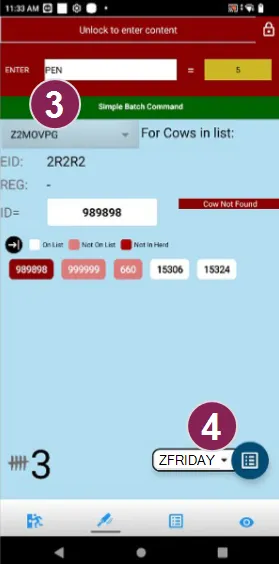
From the drop-down list at the upper left side of the screen, select the filter list to limit which animals will be processed by the Batch command content. In the example below, Z2MOVPG is selected as the filter list, so only animals on this list will be automatically processed by the batch command.
NOTE: If you do not want to use the shared features or navigation view, select ALL.
From the drop-down list at the lower right side of the screen, select the navigation list you want to process or check against the animals in the filter list. In the pictured example, ZFRIDAY (a daily To-Do List), is selected as the navigation list.
Now, scan and process the animals on the navigation list. When you process an animal that is included in both the filter list and navigation list, the animal is moved from To Do to Done on both lists.
If you scan an animal that is not included on the navigation list, Pocket CowCard plays a BUZZ sound. Additionally, you can go to the Batch Command screen and review the progress of the last five animals you scanned. The highlight behind the animal ID indicates whether the animal has been processed correctly:
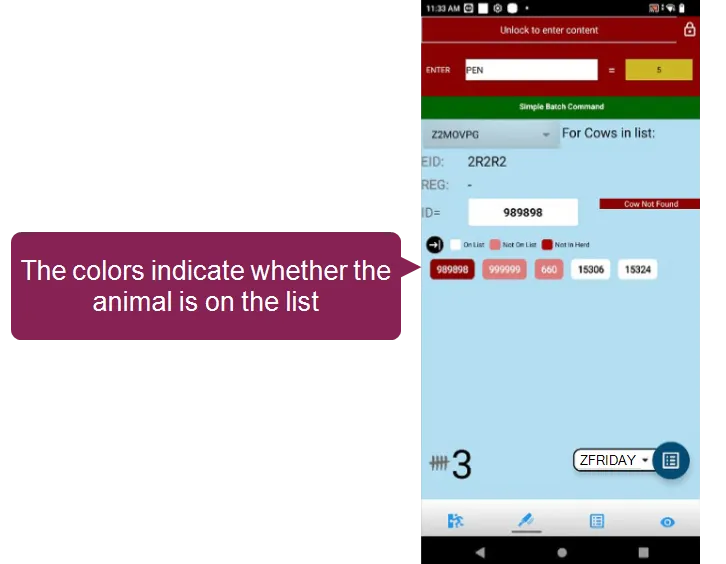
- White: The animal was processed; it was on both the filter list and the navigation list.
- Light Red: The animal was not processed; it was on the navigation list, but it was not on the filter list.
- Dark Red: The animal is not in the herd at all.