Enable Breeding Grid Filter and Navigation View
Question: How do I filter which animals are added to the breeding grid? How do I check if all the animals that need to be bred on my To-Do List are included in the breeding grid?
Answer: Follow the steps below to build your breeding grid and add animals from a single worklist instead of manually scanning each animal. Additionally, you can easily navigate and check the animals between your breeding grid and To-Do List. You can also process animals that are on both lists at the same time.
Guidelines
Follow the guidelines below when working with the breeding grid features:
- If you choose a filter list or navigation list, the selections are reset if you refresh the breeding grid when it is not empty. The settings are saved if you exit the breeding grid if it has unposted data and you did not refresh.
- It is highly recommended that any navigation list includes the criteria of the animals that will be used for a filtered list.
- Any OnDone and/or PostProcess commands need to be applied on the navigation list.
Set Up the Breeding Grid Filter and Navigation View
Follow the steps below to set up the breeding grid filter and navigation view:
In Pocket CowCard, go to Administration > Settings and check the box next to Allow navigation in Breeding Grid.
Open the Batch tab at the top of the screen and tap Breeding Grid Batch to open the Breeding Grid screen:
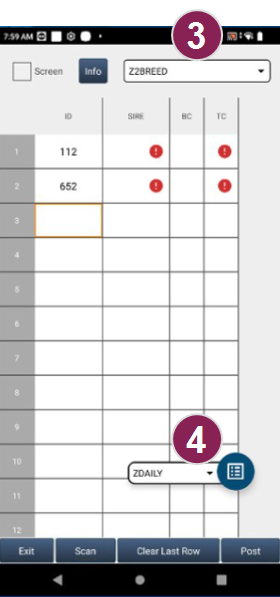
From the drop-down list at the upper right side of the screen, select the filter list to limit the animals shown in the breeding grid. In the pictured example, Z2BREED is selected as the filter list and only animals on the Z2BREED list will be automatically added to the breeding grid.
NOTE: If you do not want to use the shared features or navigation view, select ALL.
From the drop-down list at the lower right side of the screen, select the navigation list you want to process or check. In the pictured example, ZDAILY (a daily To-Do List), is selected as the navigation list.
Now, scan and process the animals on the navigation list. When you process an animal that is included in both the filter list and the navigation list, the animal is moved from To Do to Done on both lists.
If you scan an animal that is not included in the filter list, Pocket CowCard plays a BUZZ sound. Additionally, you can check the eye icon at the bottom right side of the screen to check whether an animal is in the filter list:
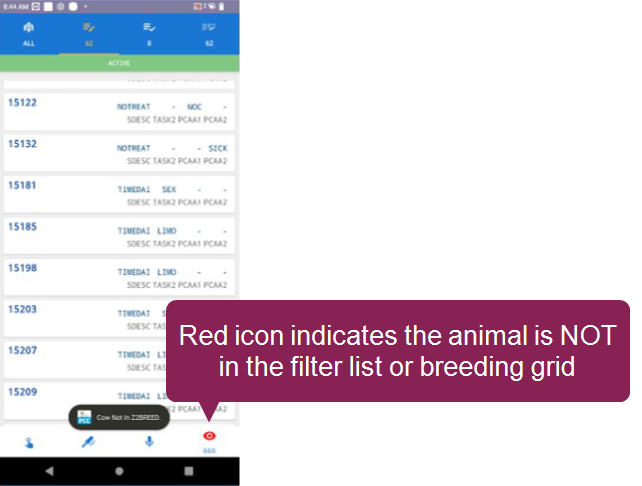
- Green Eye: The animal is in the breeding grid; it is on both the navigation list and the filter list.
- Red Eye: The animal is not in the breeding grid; it is on the navigation list, but it is not on the filter list. If an animal needs to be added to the breeding grid, follow the instructions in Manually Add an Animal to the Breeding GridManually Add an Animal to the Breeding Grid.
Manually Add an Animal to the Breeding Grid
Follow the steps below to add an animal from the navigation list to the breeding grid:
- Scan the animal and on your Pocket CowCard device, tap the Red Eye button at the bottom right corner to open the animal's CowCard Events tab.
- Tap Breed at the bottom right corner to add the animal to the breeding grid.