Manually Update the App on your Android Device
Question: How do I manually update Pocket CowCard if it doesn't auto-update? Why should I update Pocket CowCard?
Answer: The Pocket CowCard app is updated on a regular basis and often includes key enhancements and bug fixes that improve app performance and usability. Most versions of Pocket CowCard have an in-app updater that automatically installs the latest version of Pocket CowCard onto your device. If your version of Pocket CowCard does not automatically download the latest version of Pocket CowCard, manually download the latest version of Pocket CowCard. Before initiating any update, ensure all pending transactions have been delivered to DairyComp. Please note that your Pocket CowCard device must be charged to at least 20% before you can download the latest version of Pocket CowCard.
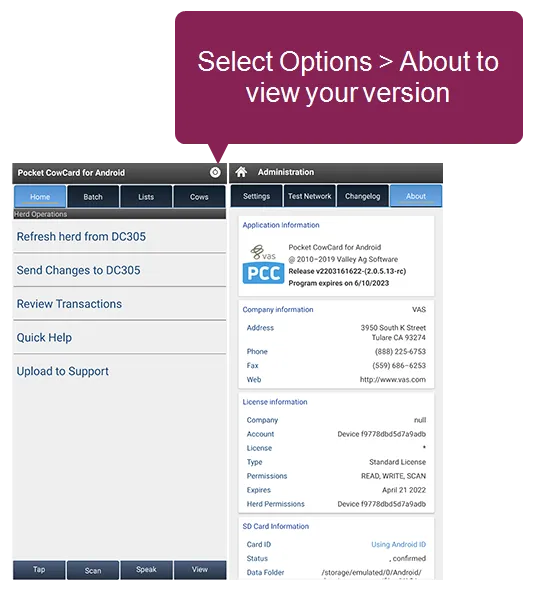
IMPORTANT: If your device uses an older version of Android that is no longer supported (i.e. version 8.1 or older), do not use this method to manually update Pocket CowCard.
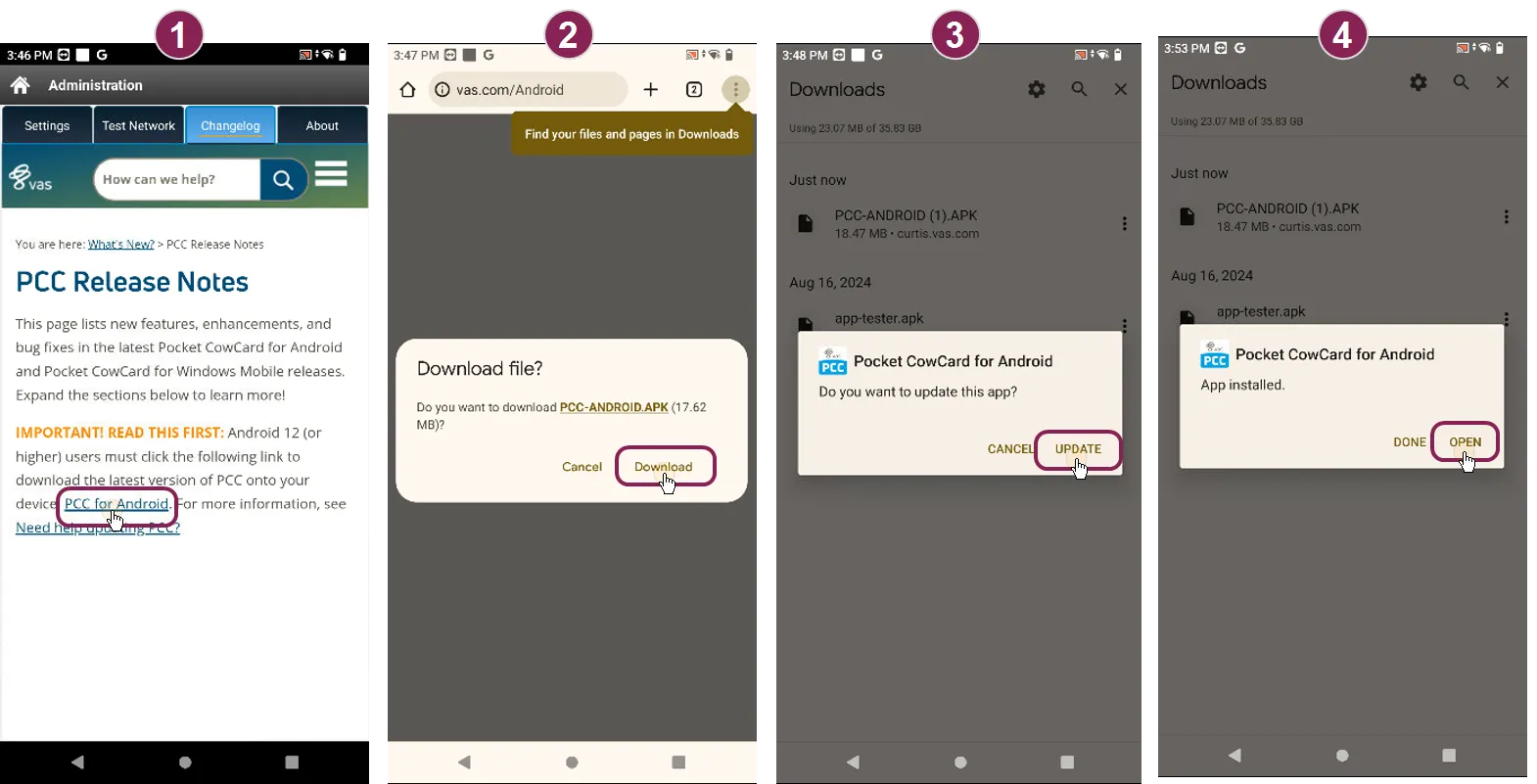
On your Pocket CowCard device, open a web browser and go to https://www.vas.com/Android.
Tap Download.
On your Downloads screen, tap the downloaded file (Pocket CowCard-ANDROID.APK), then tap Update.
When the download is complete, tap Open to run the latest version of Pocket CowCard.
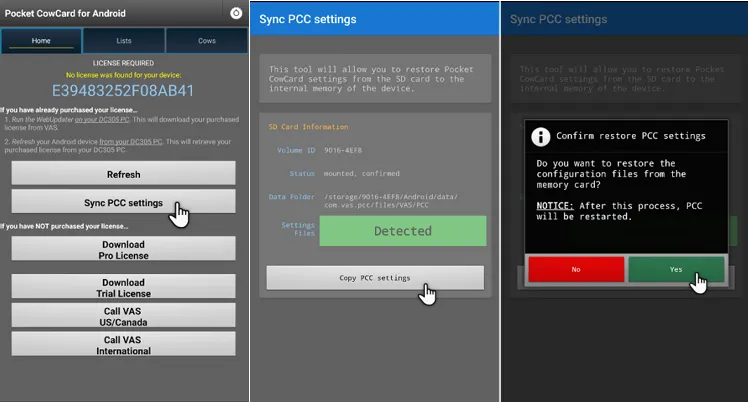
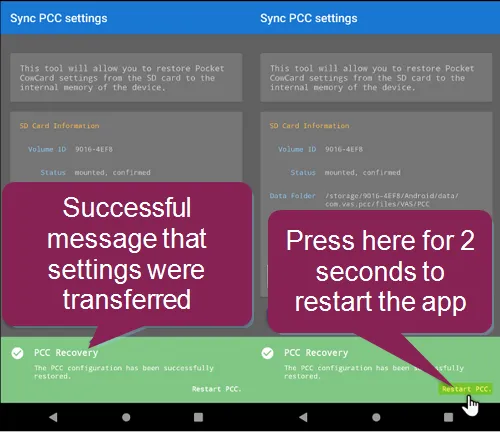
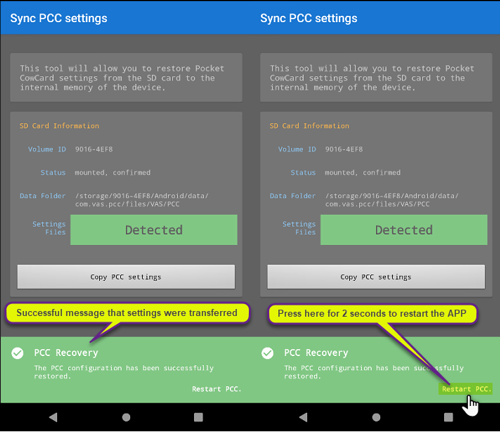
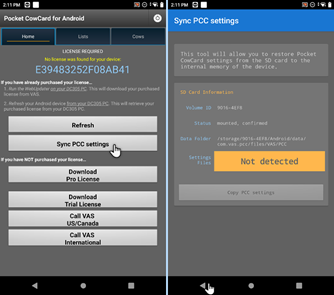
NOTE: For devices running Android 11 or higher, the app will automatically install onto the device (not the SD card). You then have a one-time option to transfer your Pocket CowCard settings from the SD card to the device.