Customize Quick Pick Lists
Question: What are quick pick list options? How do I customize the options shown in the quick pick list at the bottom of the Queue screen?
Answer: The quick pick list consists of commands that you can quickly tap and initiate while you're viewing an animal in a hospital list or entering a FRESH event. The list is customizable, so you can see your most frequently used commands first, saving you time and effort:
For example, if you frequently diagnose mastitis in the hospital pen, you have to exit the hospital list and complete multiple steps to add a mastitis event to an animal. With quick pick list options, you can do it directly from the hospital list: simply open an animal's Treatment Info and tap the mastitis event (MAST) option.
Expand the drop-downs to learn how to add quick pick options:
Add Quick Pick Options for Hospital List Animals
Create a hospital list command
- In DairyComp, enter ALTER\3 in the command line.
- Click Add [Ins] on the left side of the screen to add a new command:
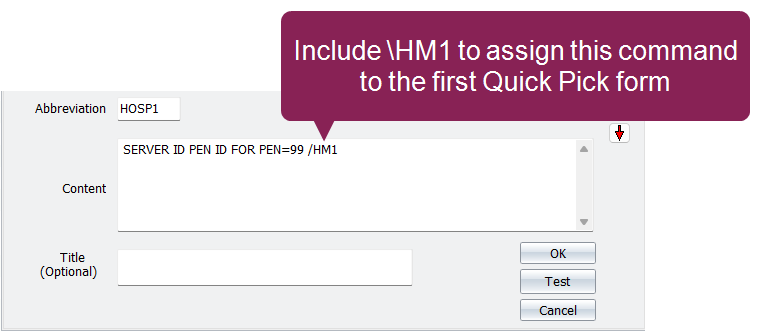
Enter the command details:
- Abbrevation: Enter an abbreviation for your command.
- Content: Enter the full command for the animals on your hospital list. For example, you can enter SERVER ID PEN ID FOR PEN=99 to create a command that moves animals to the hospital pen. At the end of the command, add \HM1 to assign this command to the first Quick Pick form, where you will configure the quick pick options. DairyComp supports 8 Quick Pick forms, so you can add any switch between \HM1 to \HM8.
- Click OK to save the command.
Add Quick Pick Options to the Quick Pick Form
- Enter SERVER\3 in the command line to open the Server Configuration screen.
- Open the Pocket CowCard Entry tab.
- Locate the first Quick Pick form, Form1, at the bottom of the screen:
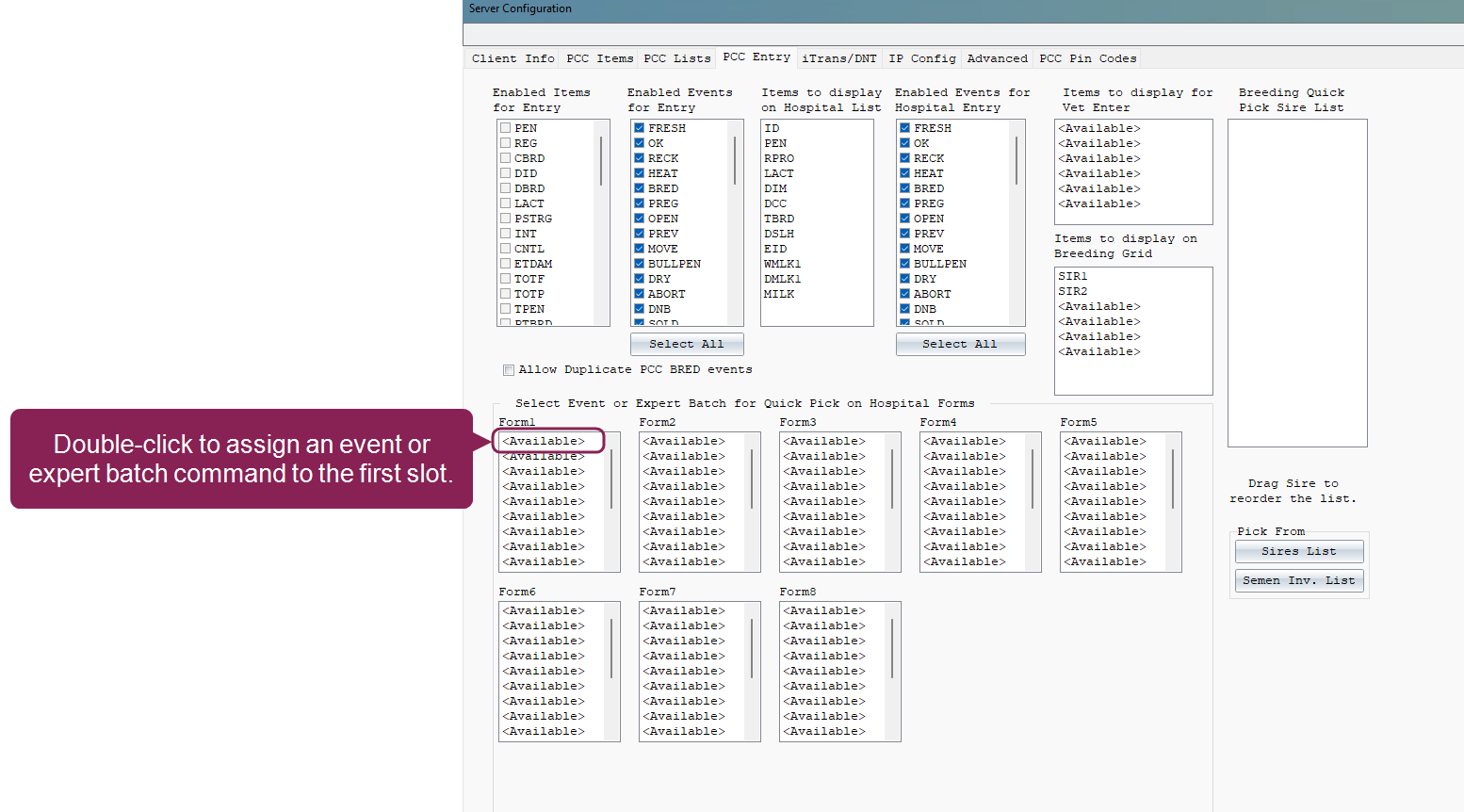
- Double-click the first instance of <Available>.
- Select the event or expert batch command that should be listed first on the Quick Pick list, then click OK. Pocket CowCard displays your choices in the order you configure them.
- Double-click each subsequent <Available> slot to add an event or expert batch command to the quick pick list.
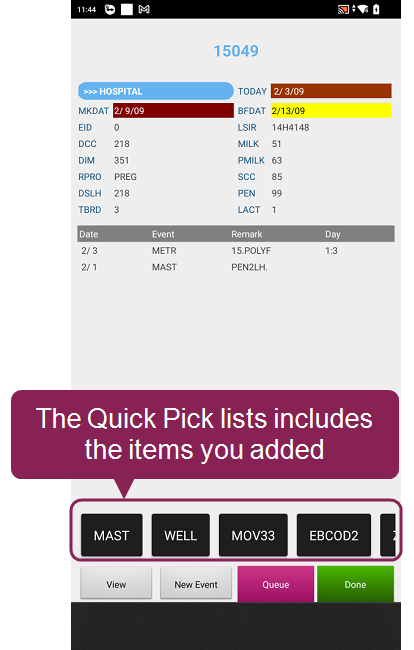
- Click OK in the upper right corner to save your changes. Now, when you view an animal on that hospital list in Pocket CowCard, the selected events or expert batch commands are listed at the bottom of the screen. Tap one to quickly initiate the event or command:
Add Quick Pick Options for FRESH Events
Use the steps below to customize a quick pick list of expert batch commands that you can initiate whenever you create a FRESH event:
- Enter SERVER\3 in the command line to open the Server Configuration screen.
- Open the Pocket CowCard Entry tab.
- Locate the Cow Fresh Form or Calf Fresh Form at the bottom of the screen:
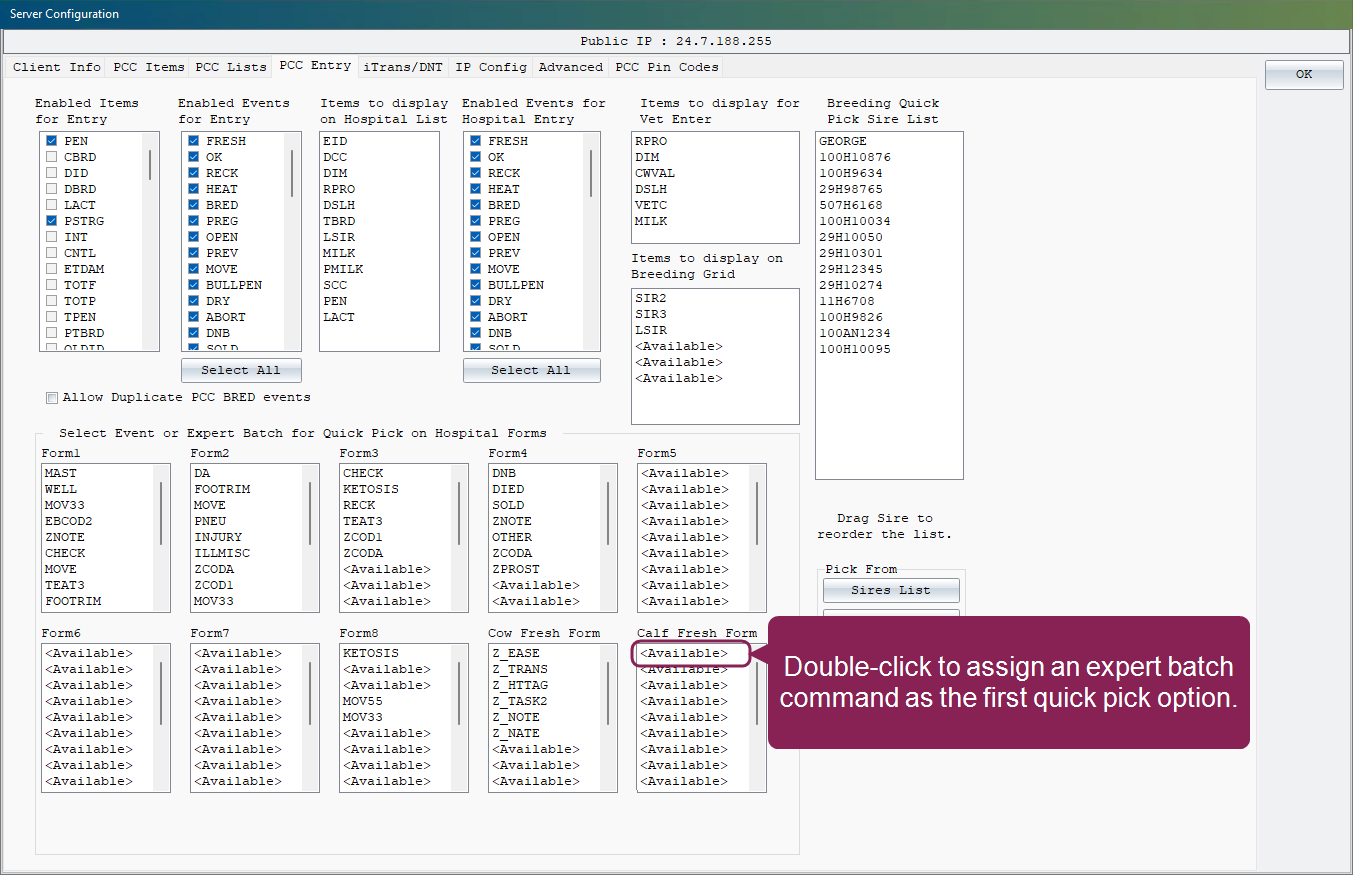
- Double-click the first instance of <Available>.
- Select the event or expert batch command that should be listed first on the Quick Pick list, then click OK. Pocket CowCard will display your choices in the order you configure them.
- Click OK in the upper right corner to save your choices. Now, when you create a FRESH event in Pocket CowCard, the expert batch commands are listed at the bottom of the screen. Tap one to quickly initiate the command.
TIP: Another way to speed up creating FRESH events in Pocket CowCard is by making sure the Reverse Cow Items Order setting is enabled. When enabled, selected items assigned to a cow are automatically copied to its calf whenever a FRESH event is created. This setting should be enabled by default, but you can check it in Pocket CowCard under Administration > Settings.