Features and Icons
Feature/ Icon | Description |
|---|---|
 | VAS logo button. Located in top left corner of the screen. Click this button to go to your User Account Home screen. |
 | PULSE Notifications button. Located in the top navigation bar, toward the right side of the screen. Click the |
 | Integration Status button. Located at the top of the page, toward the right side of the screen. If the status icon is green, it indicates that data is currently synchronized for the default platform zone. Click this icon to view the date and time that data was last synchronized between PULSE and DairyComp 305, FeedWatch, Parlor, and WeighComp.See also When was my data last synchronized?When was my data last synchronized? for more information. |
 | Integration Status button in error state. If the Integration Status button is blinking red, it indicates that a synchronization error has occurred. Click the Integration Status icon to view the sync error date, time, and location. When the error has been corrected, the system displays the date and time that synchronization was restored. See When was my data last synchronized?When was my data last synchronized? for more information.If your data fails to sync within 24 hours, the PULSE displays an Integration Status Alert each time you access the dairy. |
 | PULSE Help button. Located at the top of the page, toward the right side of the screen. Click this button to open the Help in a new browser tab. |
 | Dairy Home icon. Located in the menu barmenu bar. Click the Dairy Home button to view your dairy home page. See Settings (Dairy)Settings (Dairy) for more information. |
 | DairyComp/MyDC icon. Located in the menu barmenu bar. Click this button to view a menu of DairyComp/MyDC features. See DairyComp/MyDCDairyComp/MyDC and View Animal Details on CowCardsView Animal Details on CowCards for more information. |
 | |
 | |
 | |
 | Insights button. Located in the menu barmenu bar. Click this button to view a menu of reports-related options. See Shared FilesShared Files or RumINSIGHT ReportRumINSIGHT Report for more information. |
 | Live Chat button. Located at the bottom right of any PULSE screen. Click to open a chat window to communicate directly with a member of VAS technical support. A blue button indicates the Live Chat feature is currently available, while a gray button indicates that Live Chat is currently not available. See Navigating PULSENavigating PULSE for more information. |
 | The gear icon indicates configuration options. You will see it in the Configure Dairy button that is located in the top right corner of PULSE window, just below the User menu. |
 | Milk withholding status. |
 | Meat withholding status. |
| Options button. Click this button to view other options for the related area of the screen. 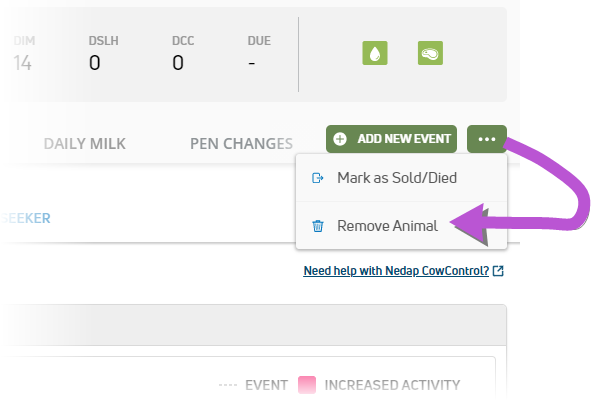 |
| Expand and collapse buttons. Click these buttons to show or hide additional details. 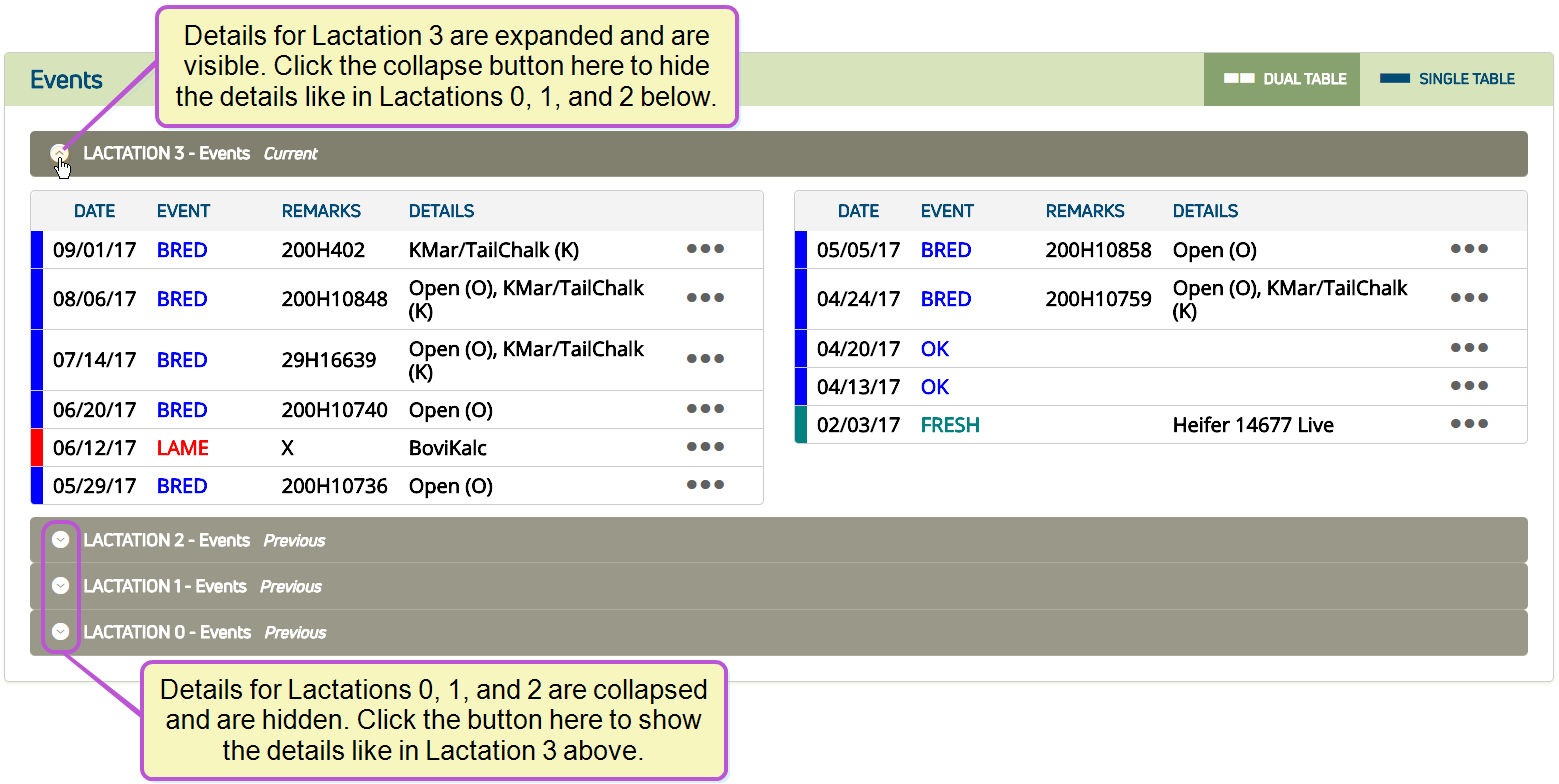 |