Step 4: View Scheduled Alerts in Process Scheduler
2 min
Follow the steps below to continue:
- Begin by selecting Dairy > Process Scheduler from the PULSE menu.
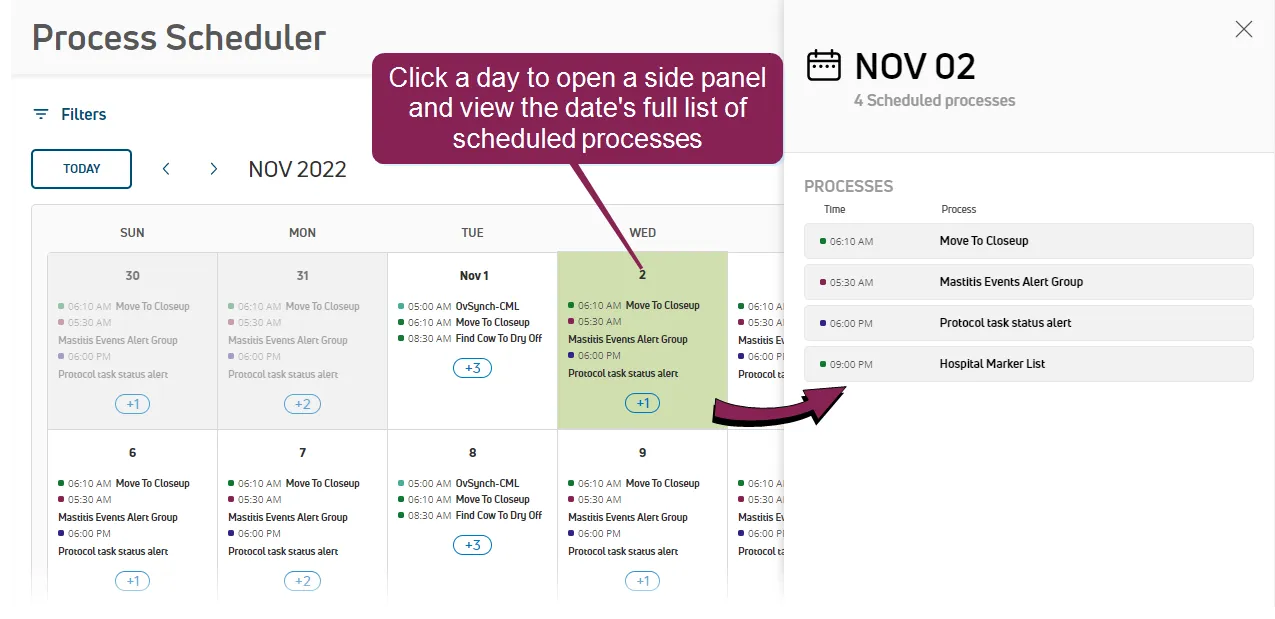
- Click on a date in the Process Scheduler calendar to open a side panel that displays the date's scheduled processes:
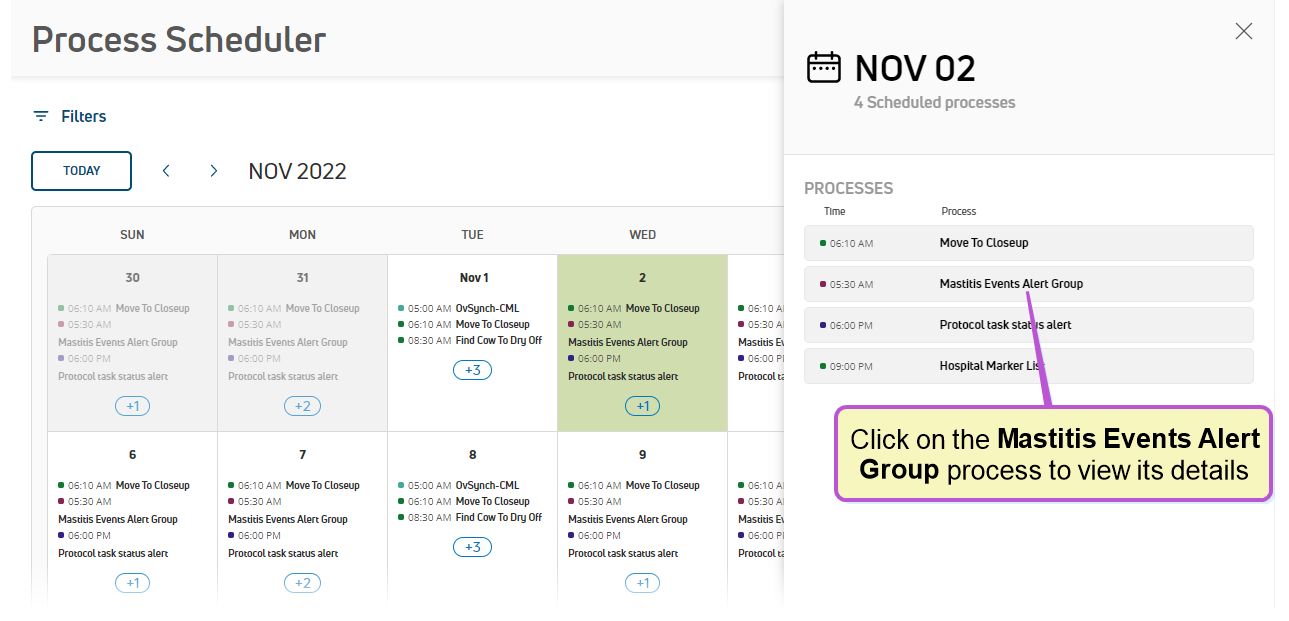
- Click a process to view its details.
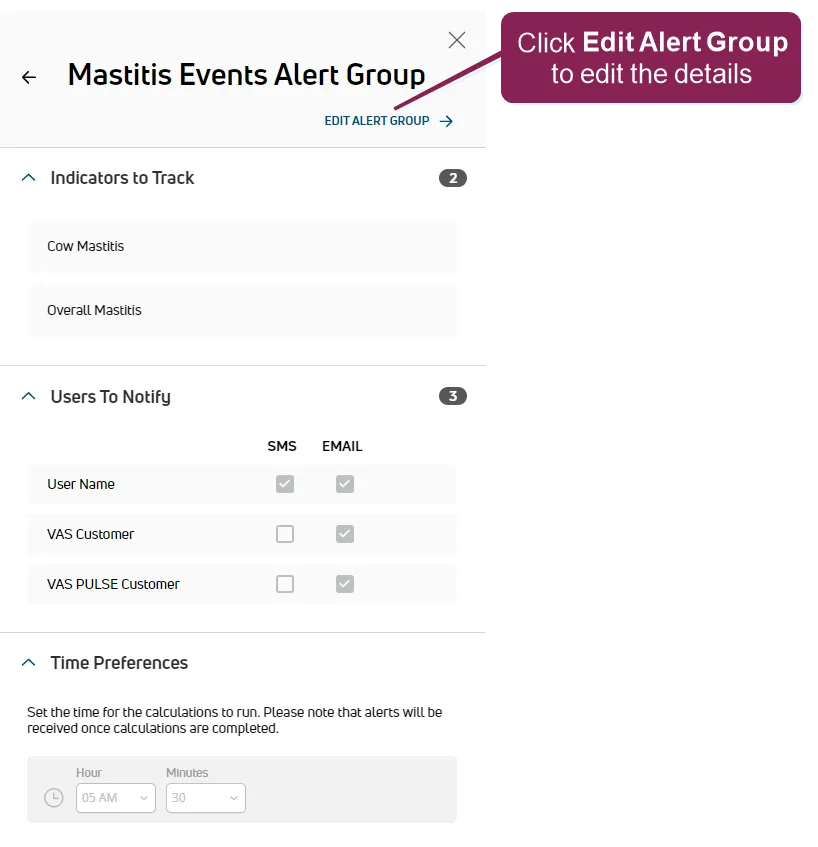
This example illustrates details for the Mastitis Events Alert Group process that we created as an example in Step 3: Add Alert GroupsStep 3: Add Alert Groups.
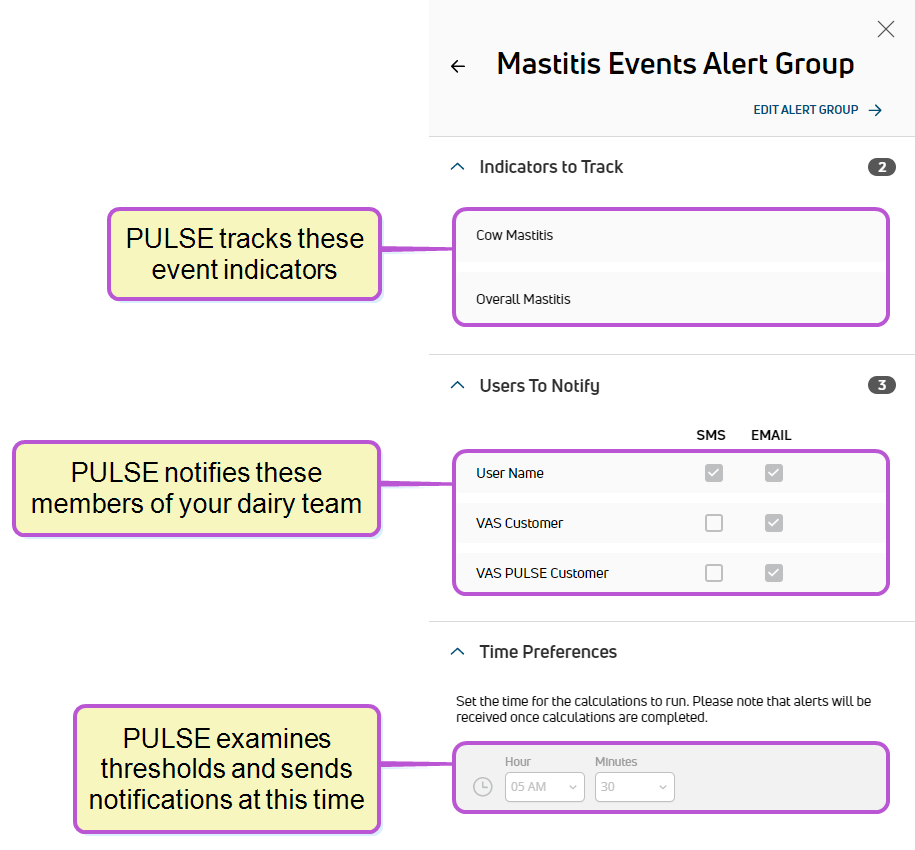
The details note which indicators PULSE is tracking for this alert group, which users will be notified if your herd exceeds the thresholds, and the time of day that notifications will be sent.
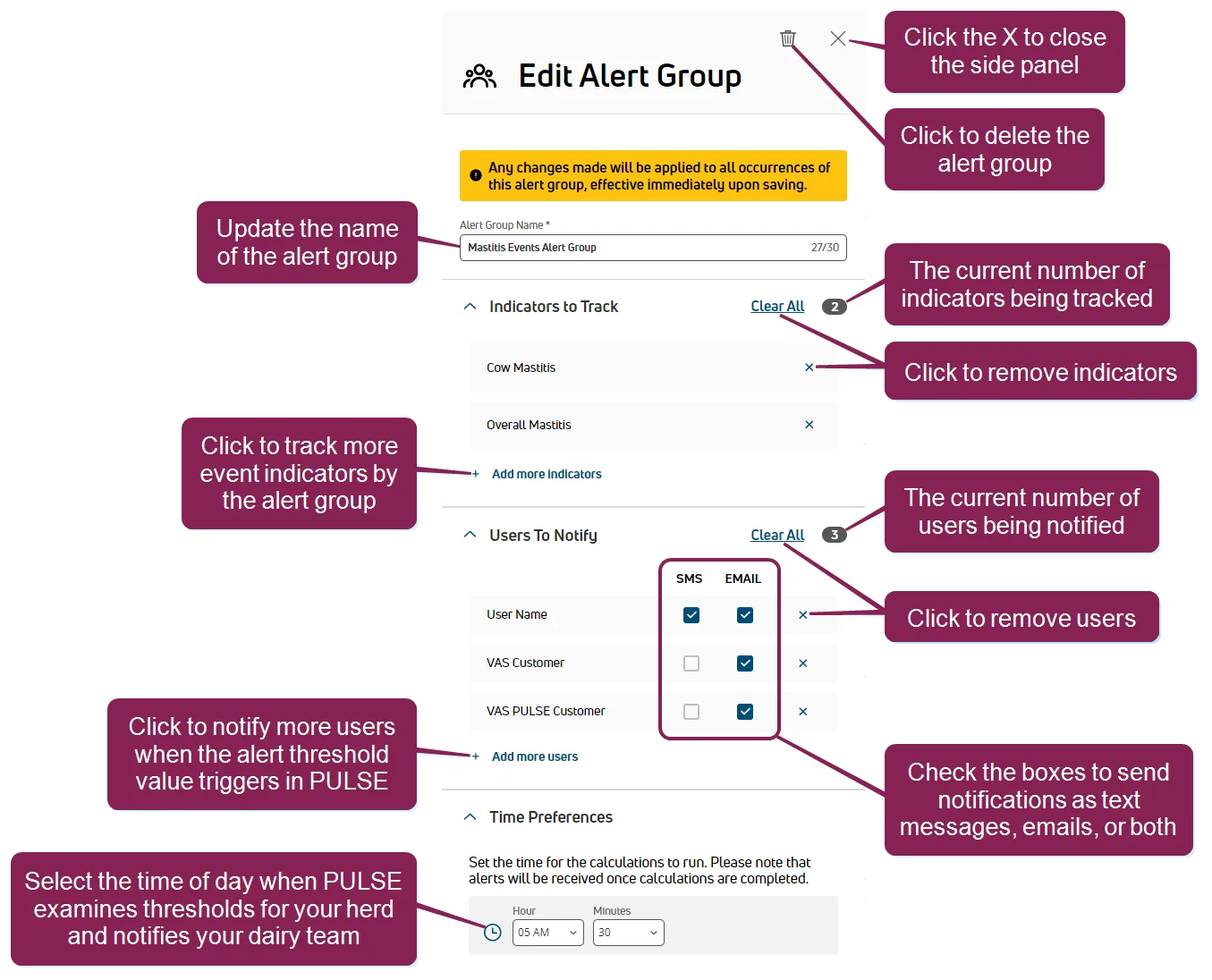
- Click Edit Alert Group to edit the details if necessary.