Animal Configuration
All users assigned to a role with Herd Read permissions can view this feature. Only users who are assigned a role with Herd Configuration permissions can edit data or customize settings.
See the topics below to learn more:
- Edit Dairy User PermissionsEdit Dairy User Permissions
- Manage Dairy RolesManage Dairy Roles
The Animal Configuration page allows you to customize animal data for your dairy, such as naming and identification formats and quarter configuration. You can find this feature under the DairyComp/MyDC menuDairyComp/MyDC menu > SettingsSettings option on the General Settings tab.
See the sections below for more information:
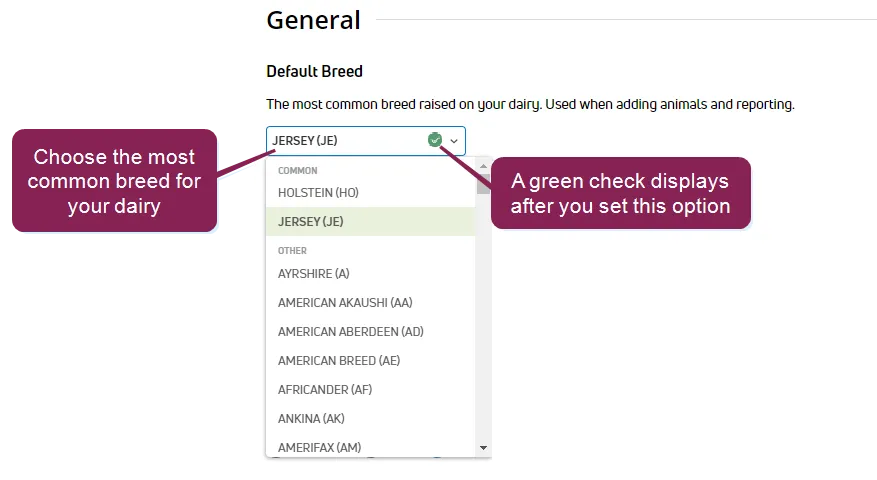
Default Breed: Use the drop-down to select the most common breed raised on your dairy. This information is used when adding animals and reporting.
Preferred Identifier: Select the preferred animal identifier to use for search, on CowCards, and in reports.
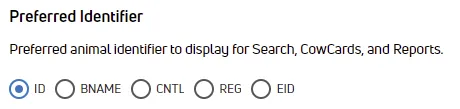
NOTE: Depending on your dairy configuration, you may have fewer animal identification items than shown in the example above. See Item DefinitionsItem Definitions to view all available items for your dairy. This setting only affects how animals are identified in PULSE, such as in reports and on CowCards.
ISO ID Display Format: Select the preferred display format used by your dairy for ISO IDs on the CowCard and in reports.

Sire Identification: Select how sires are identified throughout PULSE. Identify sires by NAAB Code, Name, Registration Number, or by using a country ID. For bulls originating outside of the US, select the appropriate Country ID that you would like to use in PULSE.

NOTE: In cases where a sire does not have the selected identifier entered in PULSE, the bull's NAAB code will be used. This setting only affects how sires are identified in PULSE, such as in reports and on CowCards.
Maximum Number of Visible ID Digits: In this field, enter the maximum number of digits to be displayed from the animal's ID on its visible tag.
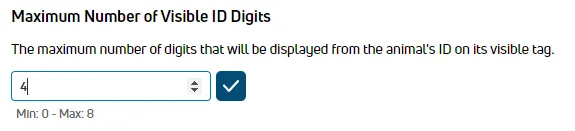
The system displays a ten digit number for identifying animals, made up from both the animal's visible ID tag number and its source farm (if any). The value entered in this field indicates how many of those ten digits come from the visible ID. This value must be between 0-8.
A zero (0) in this field means that no source farm data will be used. Therefore, all ten digits displayed will come from the animal's tag. If you enter 7 in this field, the maximum number of source farm digits displayed will be 3. Entering an 8 in this field leads to 2 source farm digits being displayed, and so forth.
Because of programming constraints, the number entered in this field also controls the maximum number of source farms you can use. For example, if you choose to display 7 digits from the visible ID, you can have a maximum of 200 source farms. If you choose to display 8 digits from the visible ID, you can have a maximum of 20 source farms, and so on until zero source farms.
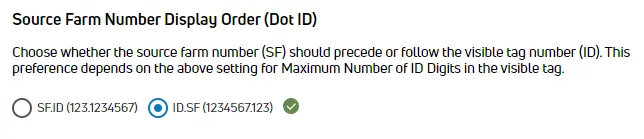
Source Farm Number Display Order: Choose whether the source farm number should precede or follow the visible tag number. This preference depends on the setting for Maximum Number of Visible ID Digits (above).
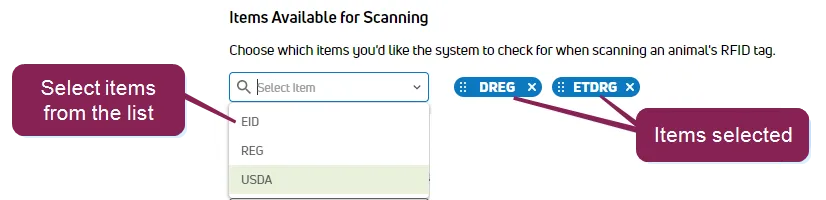
Items Available for Scanning: Use the drop-down to select which items the system checks for when scanning an animal's RFID tag.
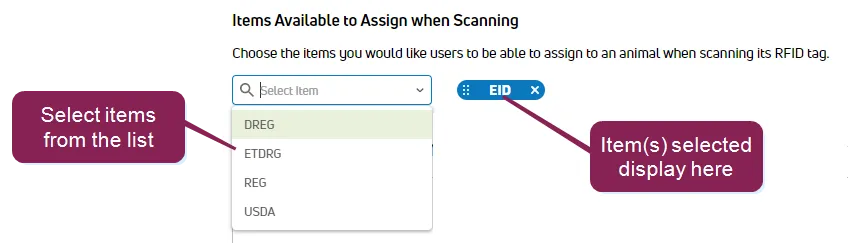
Items Available to Assign when Scanning: Use the drop-down to select which items users can assign to an animal when scanning its RFID tag.
Use the Quarter Configuration options to customize the labels that PULSE mobile app displays for Events with ProtocolsEvents with Protocols when you choose which quarter (e.g., hoof, teat) is receiving a treatment protocol.
The typical quarter labels are illustrated in the image below. Complete these steps if your dairy prefers to use different labels.
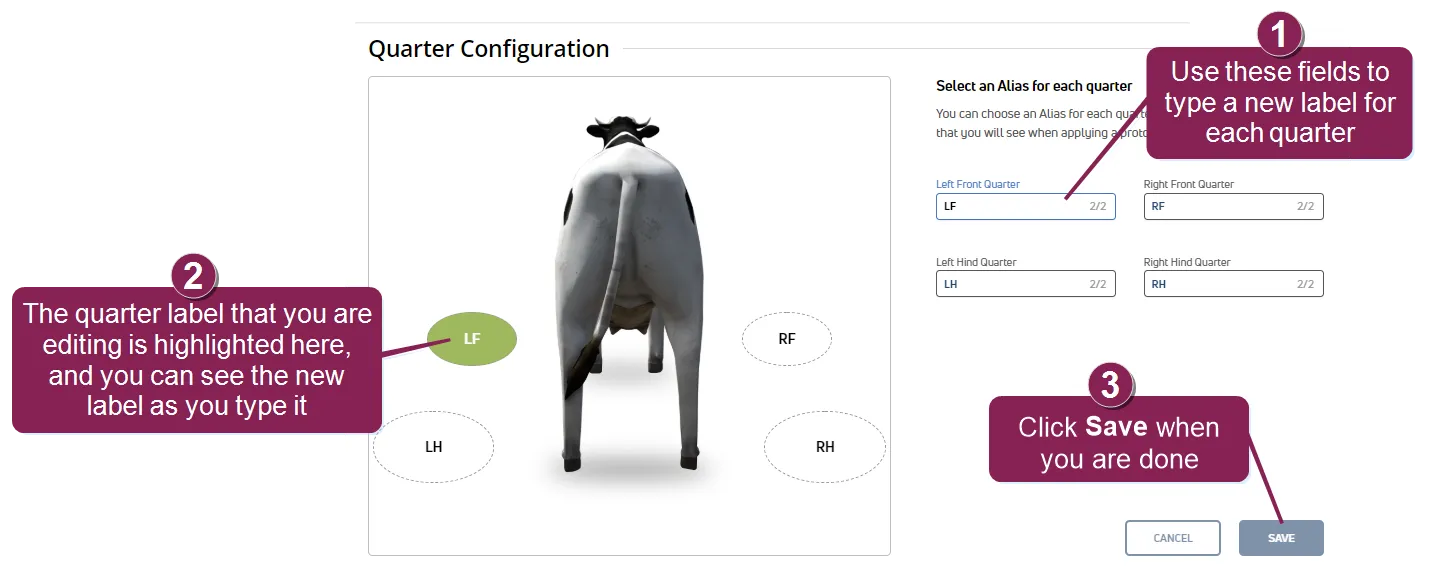
- Type the new label(s) in their respective fields (max of 2 characters in each field). Only letters and numbers are allowed.
- Note that the quarter label that you are editing is highlighted in green on the left side of the page, and it will display the new label as you type it.
- Click Save when you are done. PULSE will then send your customized labels to the mobile app during its next data sync.