Schedule or Edit a Process
Expand the topics below to learn more about scheduling and managing the processes that are included in your calendar on the Process Scheduler page. You can schedule future processes or edit or delete current processes:
You can manage your scheduled worklists, reports, and other processes on Process Scheduler, though each type is scheduled a little differently. Expand the sections below to learn more:
To schedule a recurring report or worklist and add it to Process Scheduler, navigate to the Dairy Reports/WorklistsDairy Reports/Worklists page and follow the instructions below:
Click the Schedule button to open a side panel where you can create an automated schedule for the report or worklist.
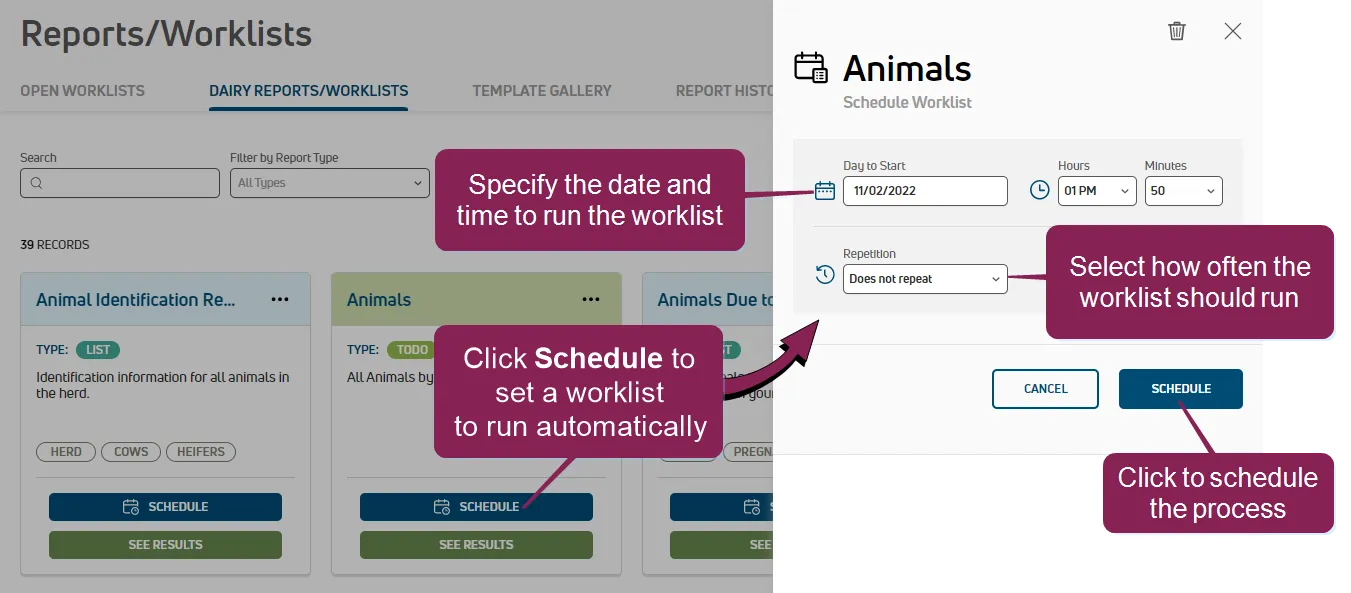
Use the following guidelines to schedule your report or worklist:
- Select the date and time to start the process.
IMPORTANT: Set the Day to Start to a future time, either later today or a future date, as scheduling a process at a time that has passed will not run until the next time the scheduled interval is reached. For example, if you schedule a process to start on Mondays at 5 am, but today is a Monday at 9 am, the enrollment will start next week at 5 am.
- Set the schedule for the process:
- Set the Repetition to "Repeats".
- Set the frequency and interval for the process. For instance, to run a process weekly, set Every to "1" and Intervals to "Weeks".
- Click Schedule. After you schedule your report or worklist, PULSE shows the Scheduled button and Process Scheduler includes the report or worklist. To view the generated report or worklist, see Report HistoryReport History or Worklist HistoryWorklist History.
To schedule a recurring report and add it to Process Scheduler, select DairyComp/MyDC > Task Lists****Task Lists from the menu barmenu bar and follow the steps below:
NOTE: Only reports on your Dairy Reports/WorklistsDairy Reports/Worklists page can be scheduled and added to Process Scheduler.
Click the Schedule button to open a side panel where you can create an automated schedule for the report or worklist.
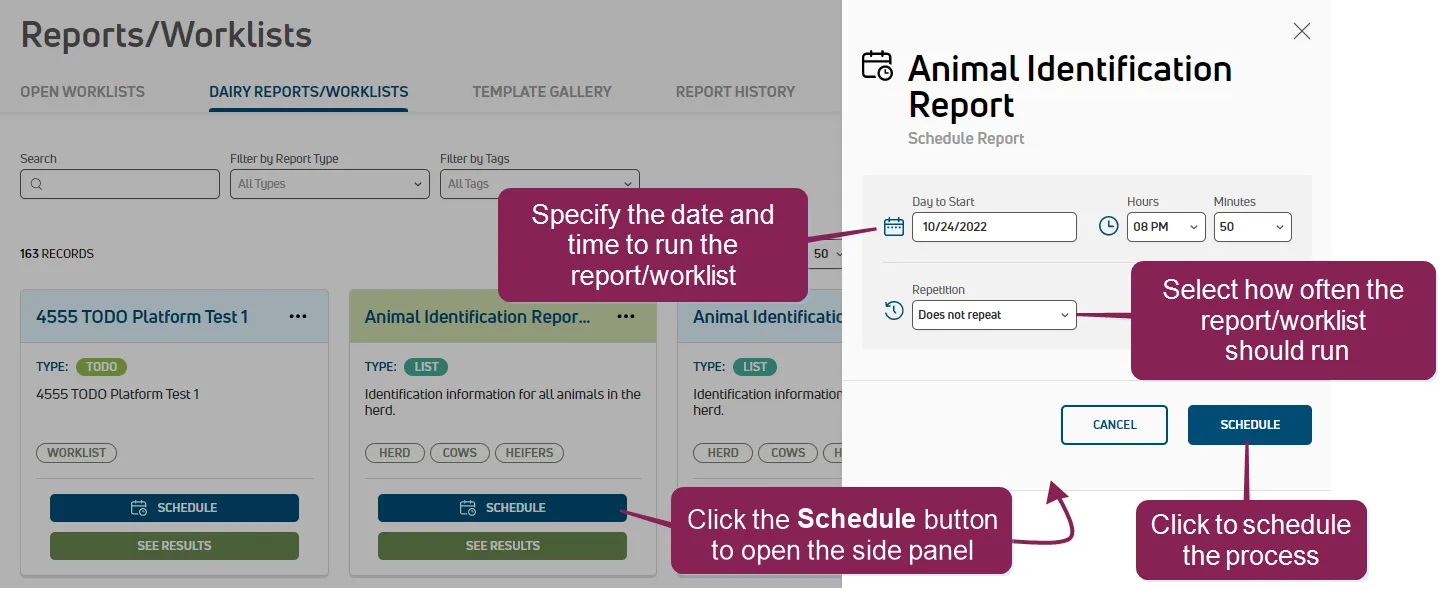
Use the following guidelines to schedule your report or worklist:
- Select the date and time to start the process.
IMPORTANT: Set the Day to Start to a future time, either later today or a future date, as scheduling a process at a time that has passed will not run until the next time the scheduled interval is reached. For example, if you schedule a process to start on Mondays at 5 am, but today is a Monday at 9 am, the enrollment will start next week at 5 am.
- Set the schedule for the process:
- Set the Repetition to "Repeats".
- Set the frequency and interval for the process. For instance, to run a process weekly, set Every to "1" and Intervals to "Weeks".
- Click Schedule. After you schedule your report or worklist, PULSE shows the Scheduled button and Process Scheduler includes the report or worklist. To view the generated report or worklist, see Report HistoryReport History or Worklist HistoryWorklist History.
Process Scheduler allows you to create and manage email and text alerts for your dairy's protocol tasks. See Add and Manage Task Status AlertsAdd and Manage Task Status Alerts for more information on setting protocol task alerts.
NOTE: Protocol-related processes for OvSynch can be set to automatically run according to your defined enrollment setup. See Schedule Automatic EnrollmentSchedule Automatic Enrollment to learn more!
NOTE: Completed processes cannot be edited.
- Click on a date in the Process Scheduler calendar to open a side panel that displays the date's scheduled processes.
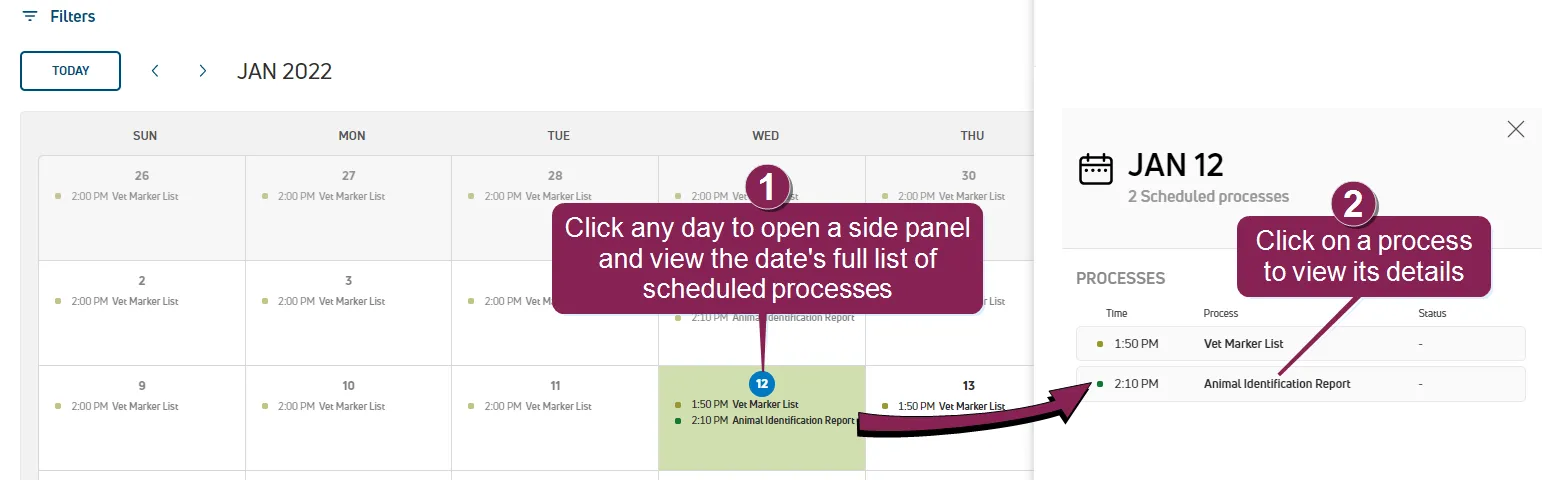
Click a scheduled process to view its details.
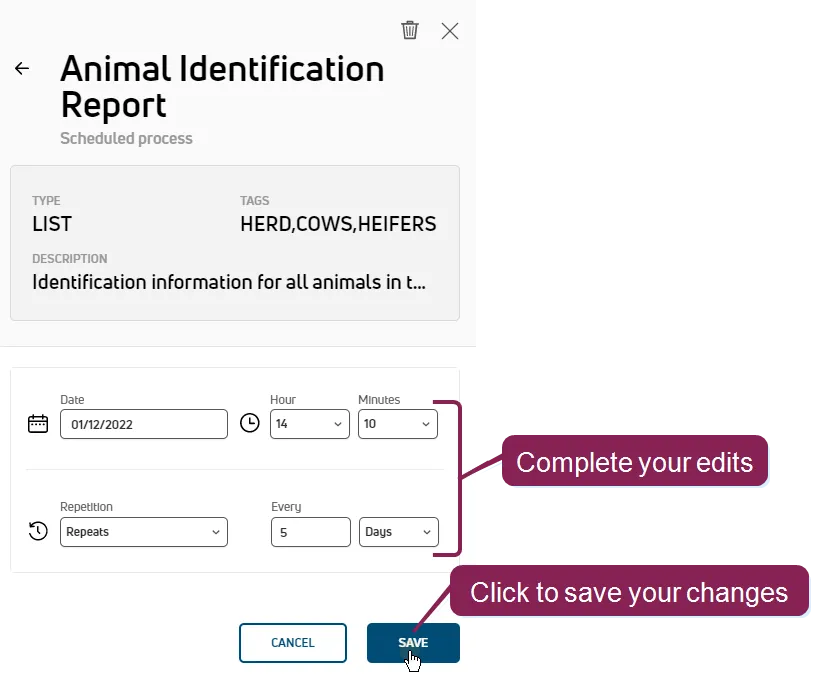
Complete your edits, then click Save to apply your changes.
NOTE: Completed processes cannot be deleted.
- Click on a date in the Process Scheduler calendar to open a side panel that displays the date's scheduled processes.
Click a scheduled process to view its details.
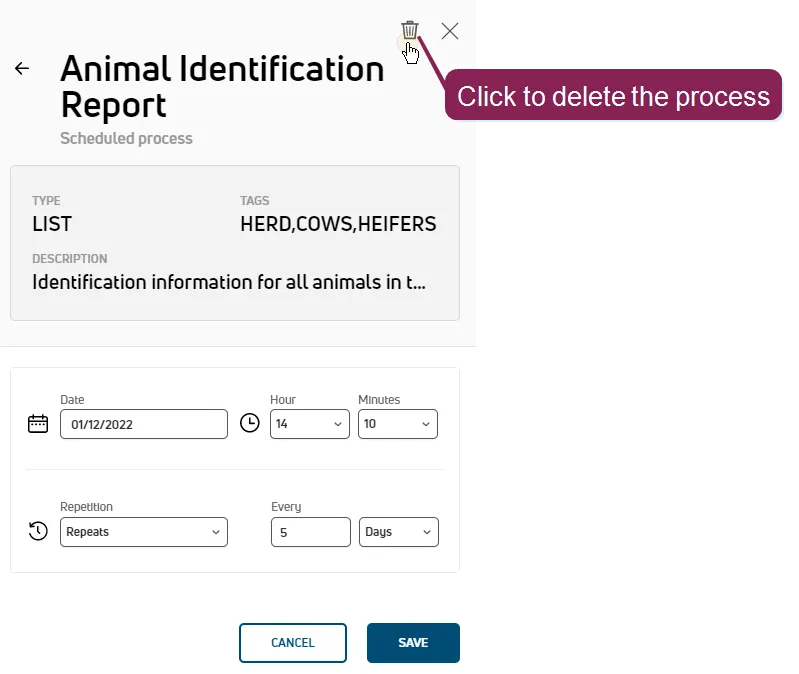
Click the trash icon  in the upper right corner, then click Delete in the system's confirmation pop-up window.
The process is removed from Process Scheduler.
in the upper right corner, then click Delete in the system's confirmation pop-up window.
The process is removed from Process Scheduler.