View Worklists History
1 min
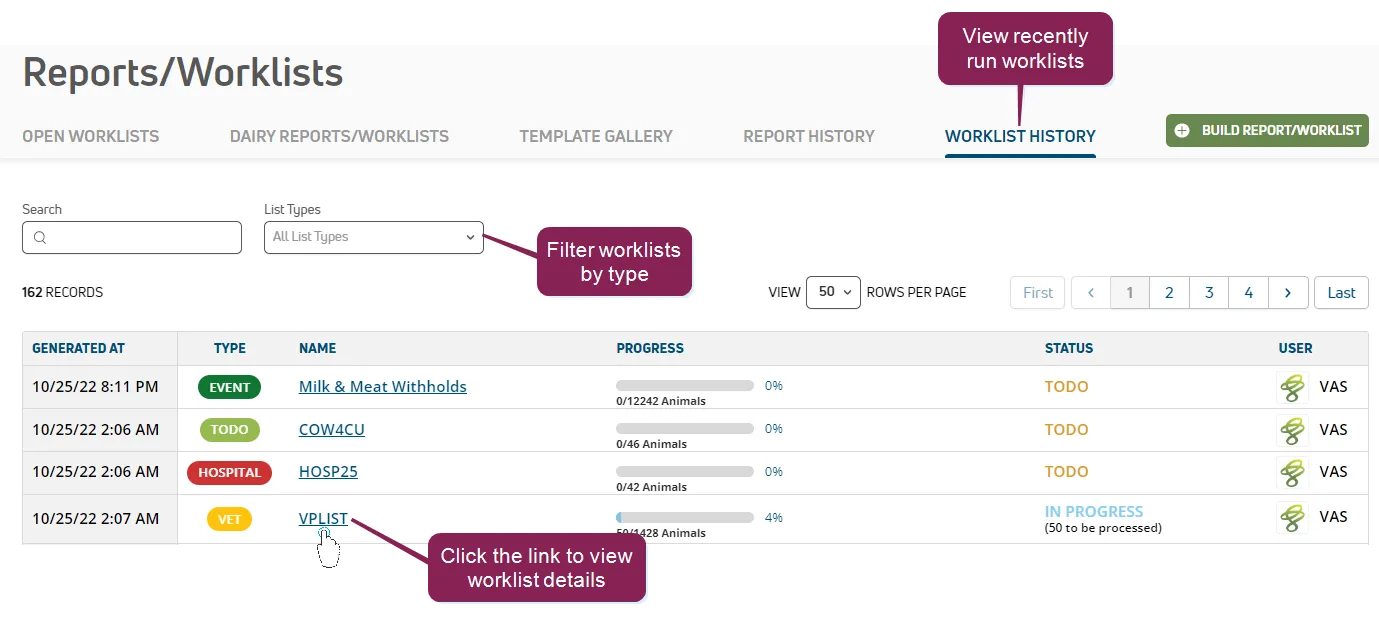
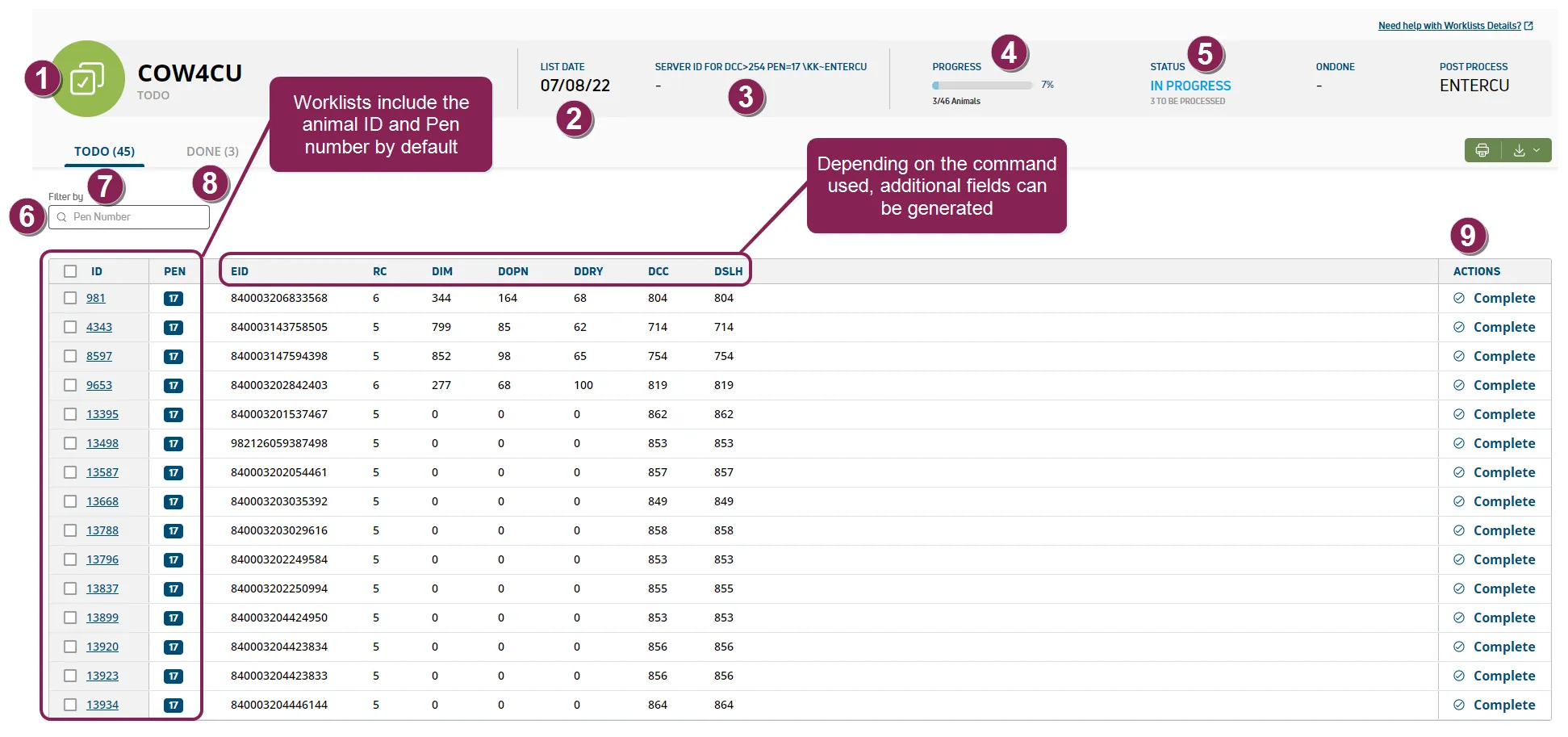
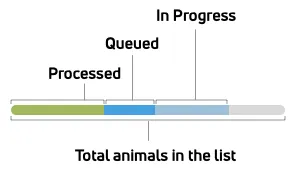
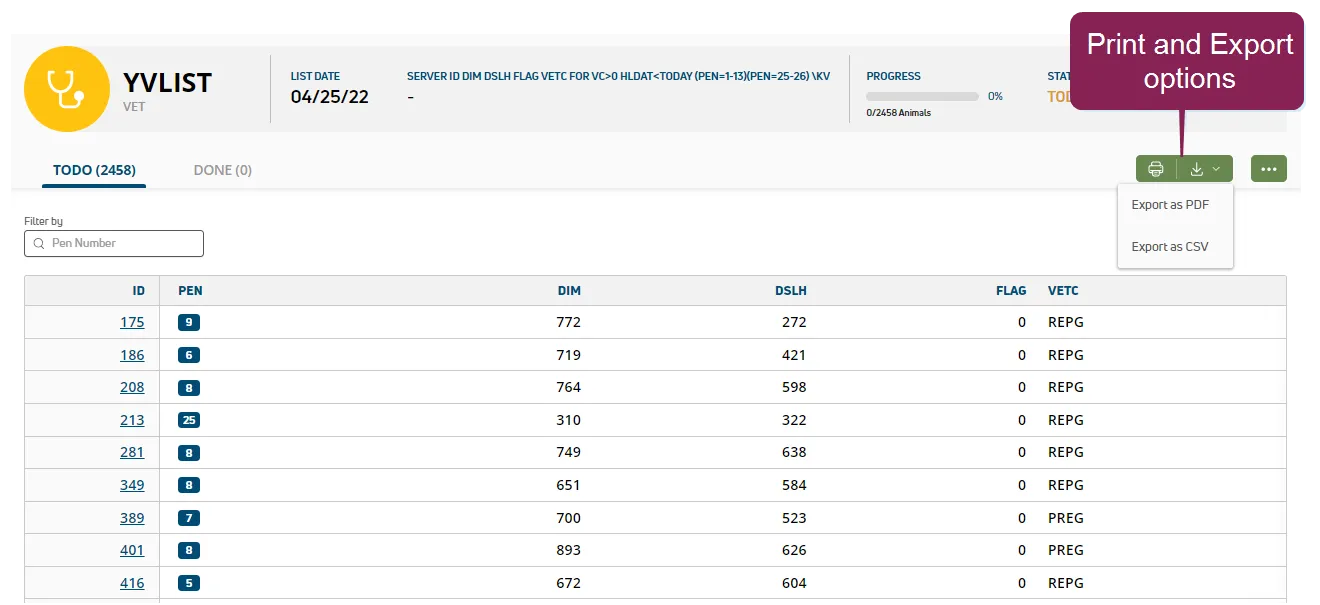
the history page lists recently run s for quick and easy access select a worklist name from the page to see details for that list the information displayed depends upon the type of list selected, but always includes all the animals on the list, their number, and other associated information specific to that list you can find this feature under the dairycomp/mydc > reports/worklists menu docid\ ezfejzdkbcfov b69aupr on the worklist history tab expand the sections below to learn more view worklist details list name identifies the name and type of list event list hospital list to do list open tasks list ( dairies only) list date the date the worklist was created worklist information the list command and list name contact our vas support http //platform docs vas com/default htm#cshid=1004 team for help sending list commands see send worklists from dc305 to pulse (dc unlimited only) docid\ nmc jf8gr2xk1 jbc voe for more information the remaining columns on this page are populated based on the command used to generate the to do list, vet list, or hospital list progress the progress column displays how much of the list has been completed against the total, both in percentage and for the number of animals the visual progress bar makes it easy to glance at the page and assess the current progress for all lists see the image below to learn more about the colors in the progress bar status the status column reflects whether work has started on the list, and if so, how far along it is the possible status messages are todo no changes have been made to the list yet in progress one or more users have marked at least one animal as done, but no one has yet tapped the process changes button in the mobile app (i e , at least one person is working on the list and marking animals as done, but no one has sent those changes back to dairycomp 305 yet) queued after a user taps the process changes button in the mobile app and sends the list updates back to pulse, this status shows the list updates that are waiting to be fetched by processed this status means that the list updates are complete and pulse has updated the records for the animals that were marked as done for more information on worklist status, see view animal status in the mobile app (v1) docid\ yk2n02jjhzolxspkwzow5 or complete tasks (v2) docid\ ouqpn6bznefzozbgfompv filter by enter a pen number to filter the worklist and show items for that specific pen number todo select the todo tab to see the following details for all animals that require action animal identifier click the number to view that animal's cowcard pen the animal's current pen number veterinary code, or the reason for the veterinary examination this column is only included for vet lists for more information, see send worklists from dc305 to pulse (dc unlimited only) docid\ nmc jf8gr2xk1 jbc voe done select the done tab to see all animals that have been processed or completed in the mobile app actions the actions column displays the actions taken for each task note the done page contains different content for to do lists, vet lists, and hospital lists see view done worklists docid\ zga0apk9jzm38jmojg9fq print and export worklists you can print and export your list as pdf or csv for further analysis or for record keeping purposes use the buttons at the top right of the page to print and export your worklist