Invite a User to Your Dairy
1 min
The User Management feature allows you to add new users and invite them to PULSE, to your company, and to your dairies. This topic explains how to add and invite users to your dairy.
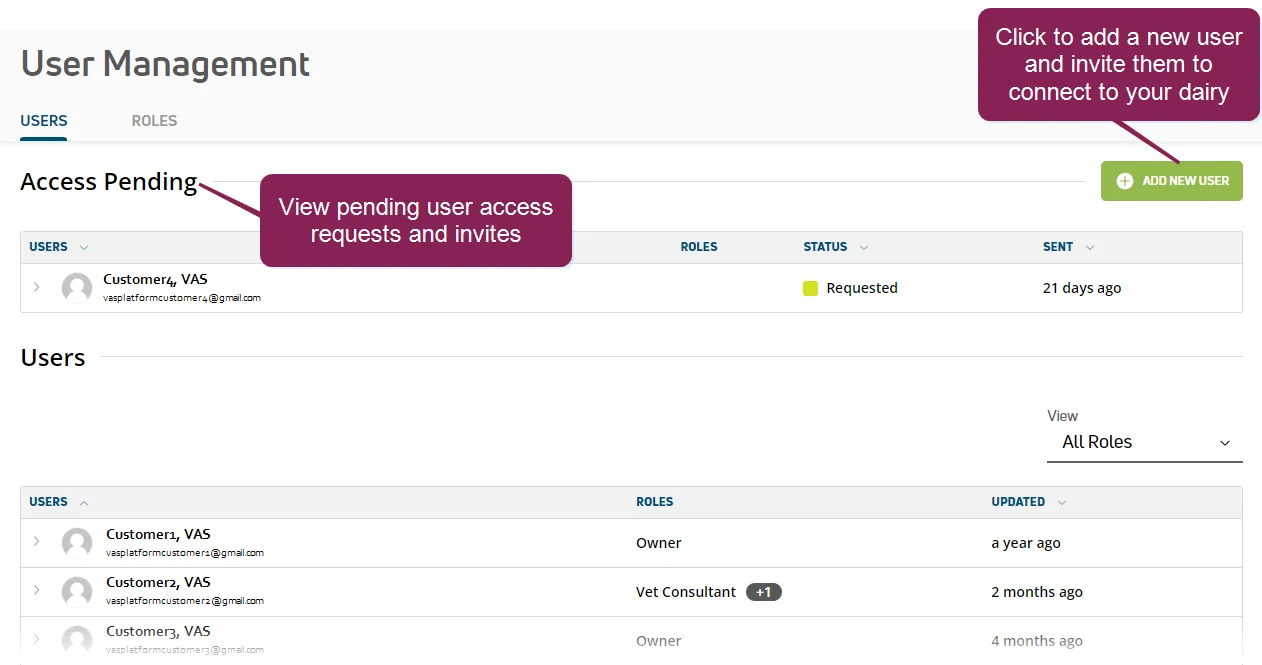
You can find this feature under the Dairy menuDairy menu. If you need to invite a user to your company, see Add and Invite a New User to Your CompanyAdd and Invite a New User to Your Company.
- Click the Add New User button at the top right side of the Users tab. If you are connected to more than one dairy, be aware that new users are added and invited to the dairy currently selected.
- Enter the user's Email address. If a PULSE account already exists for the email address entered, a message is displayed. Click the link in the message to preview the user account for the email address entered.
- In the Roles list, check the boxes to select the roles to assign to the user's account. The roles selected control how much or how little a user can do with the data in PULSE. You can edit role assignments at any time; see Edit Dairy User PermissionsEdit Dairy User Permissions for more information. Each role checked is displayed in the Roles Assigned list. You can click the X on the right side of a role to unassign it.
- Click the Invite User button at the bottom right side of the page.
PULSE sends the user an invitation email, which they can then use to create a PULSE account (if they don't already have one). If they already have a PULSE account, they will be able to access your dairy once they accept your invitation.