Manage Company Users and Roles
4 min
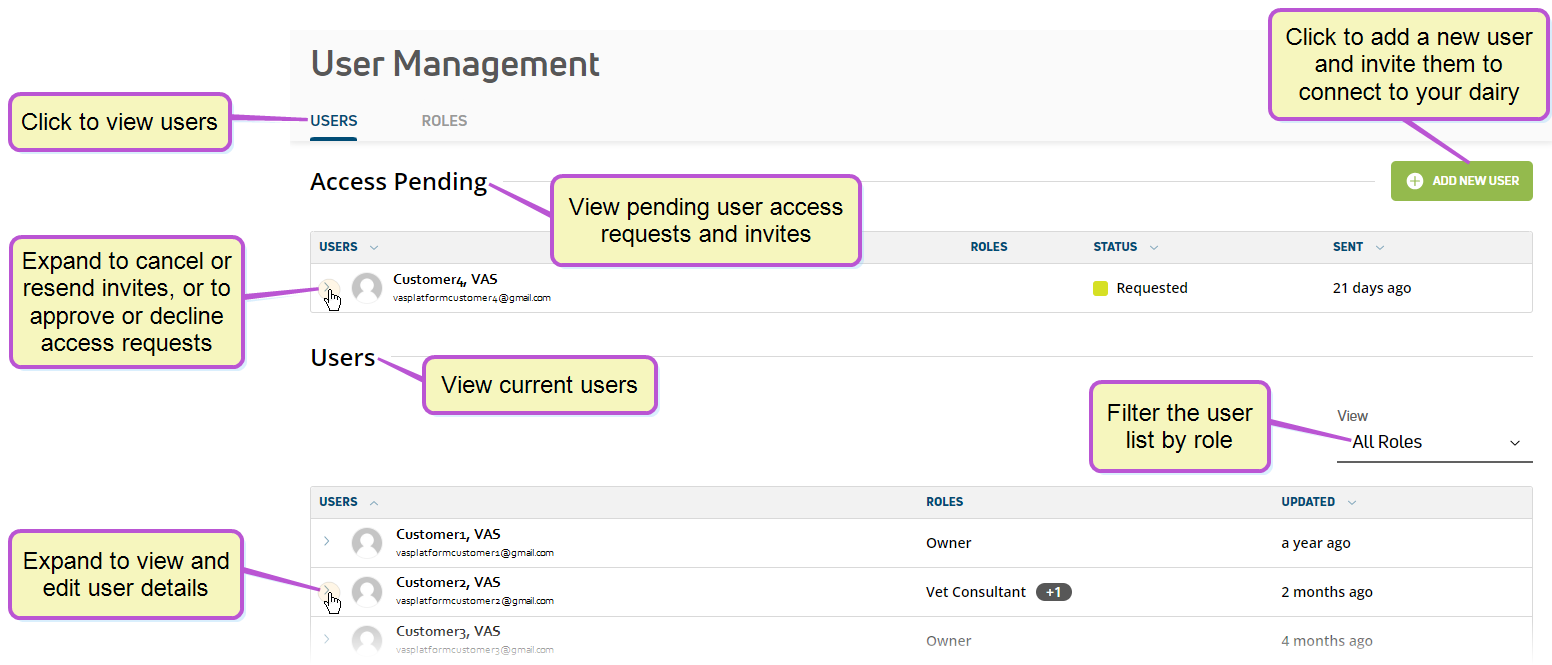
required permissions only users who are assigned the manager role in the company can use this feature see edit company user permissions docid\ e7uzgau22kupop rzyz p for more information user management features in pulse allow you to manage user accounts and roles by company and dairy company user permissions are controlled entirely through role assignments user connections at the company level differ from dairy level connections this section includes instructions for managing company user permissions and roles for instructions on how to edit your personal user account, see edit your user account docid\ adcj5yzybengyc6xqqec3 or, see manage dairy users and roles docid 8e1bcpqdppyoa0lhkisel to learn more about dairy user accounts and roles users cannot request access to a company like they can for a dairy instead, a user who is assigned the manager role in the company must invite other users to connect with the company to request company owner access, please contact us docid 4ghs 95g97ps fckkm8su expand the sections below to learn more add and invite a new user to your company navigate to company view docid 8izwznjy duydm55o3eh6 and select user management from the configure company menu at the top right of the page click the add new user button at the top right side of the users tab enter the user's email address if a pulse account already exists for the email address entered, a message is displayed click the link in the message to preview the user account for the email address entered click the confirm and assign roles button to confirm the email address entered and continue to assign roles for the new user account in the roles list, check the boxes to select the roles to assign to the user's account the roles selected control how much or how little a user can do with the data in pulse you can edit role assignments at any time; see edit company user permissions docid\ e7uzgau22kupop rzyz p for more information each role checked is displayed in the roles assigned list you can click the x on the right side of a role to unassign it click the invite user button at the bottom right side of the page pulse sends the user an invitation email, which they can then use to create a pulse account (if they don't already have one) if they already have a pulse account, they will be able to access your company‑level features docid\ wxu7mpruzhzyoanw2bcfw once they accept your invitation cancel or resend an invite to a company user navigate to company view docid 8izwznjy duydm55o3eh6 and select user management from the configure company menu at the top right of the page in the access pending list on the users tab, expand the details of the company user whose invite you want to cancel or resend click the cancel invite button at the bottom left side of the page to cancel the invite to the user or click the resend invite button at the bottom left side of the page to resend the invite to the user remove a company user navigate to company view docid 8izwznjy duydm55o3eh6 and select user management from the configure company menu at the top right of the page in the users list on the users tab, expand the details of the company user that you want to remove click the remove user button at the bottom left side of the page once these steps are complete, the user's pulse account will still be active, but the user will no longer be able to view details for the company edit company user permissions navigate to company view docid 8izwznjy duydm55o3eh6 and select user management from the configure company menu at the top right of the page in the users list on the users tab, expand the details of the company user that you want to update click the edit roles button at the bottom right side of the page in the available roles list, check the boxes to select additional roles to assign to the user's account the roles selected control how much or how little a user can do with the data in pulse each role checked is displayed in the roles assigned list you can click the x on the right side of a role to unassign it click the save button at the bottom right side of the page see view company user roles docid\ e7uzgau22kupop rzyz p to review the permissions assigned to each company role view company user roles the roles tab contains the following information all roles that are currently available for this company the number of permissions that are currently assigned to each role the status of each role (active/inactive) follow the steps below to continue navigate to company view docid 8izwznjy duydm55o3eh6 and select user management from the configure company menu at the top right of the page on the roles tab, expand the details of a role to view the specific permissions that are assigned to it click here to see the permissions assigned to each company role! the following roles and permissions are available at the company level data analyst role permissions dashboard view reporting manager role permissions billing management dairy management dashboard management dashboard view message management profile management reporting user management viewer role permissions there are no permissions assigned to this role users assigned this role can only access the company and view the company's structure