Integration Status
4 min
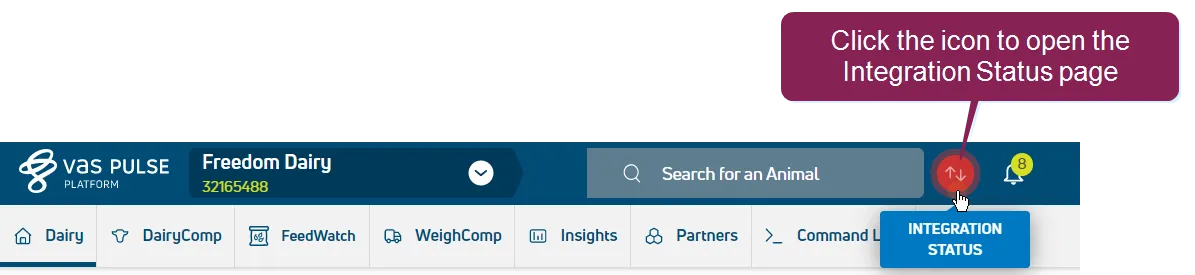
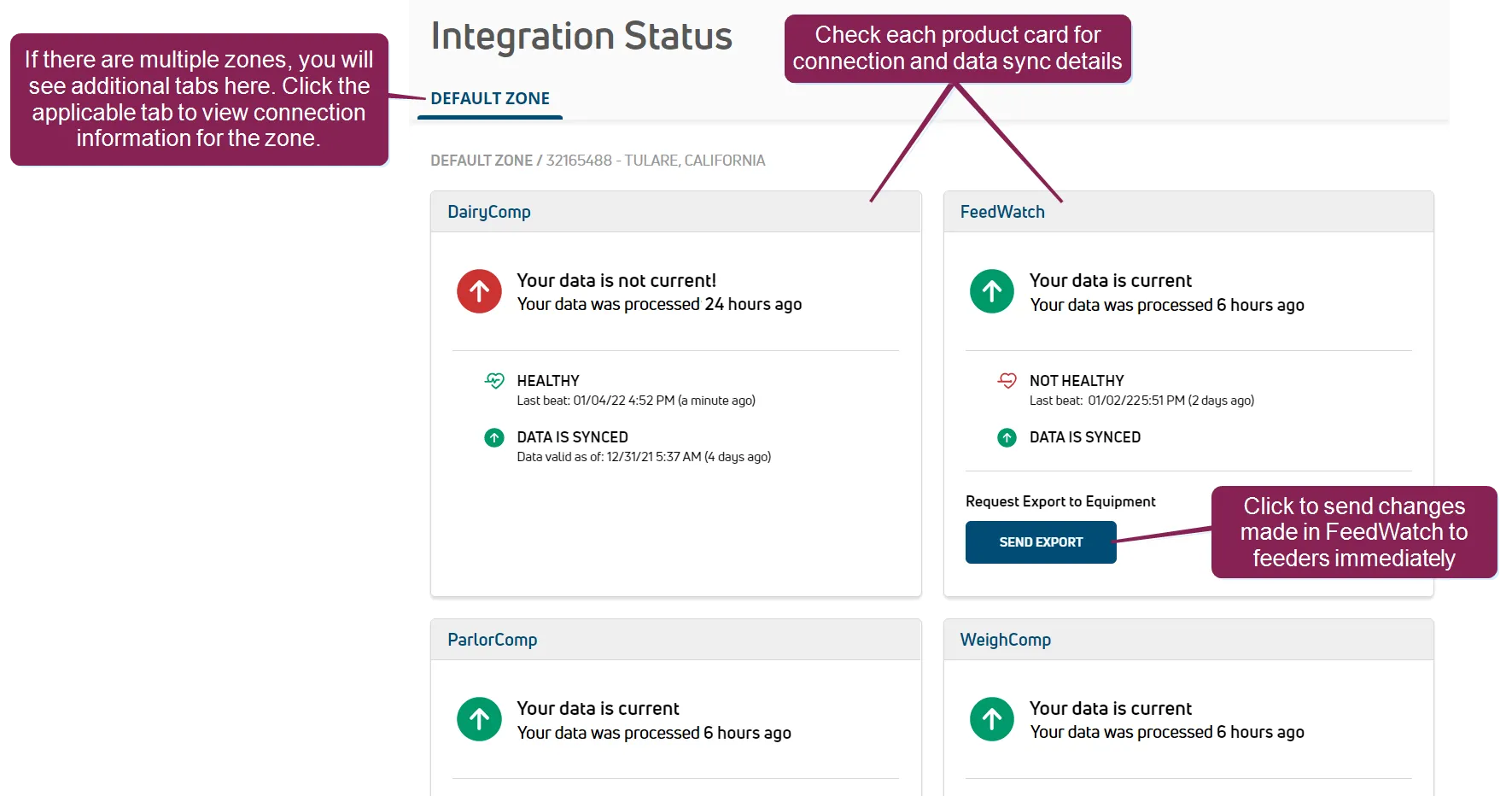
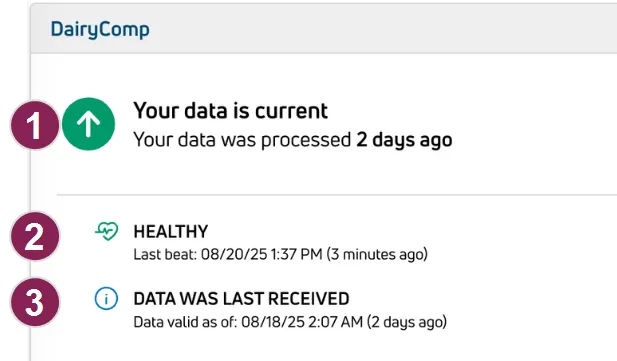
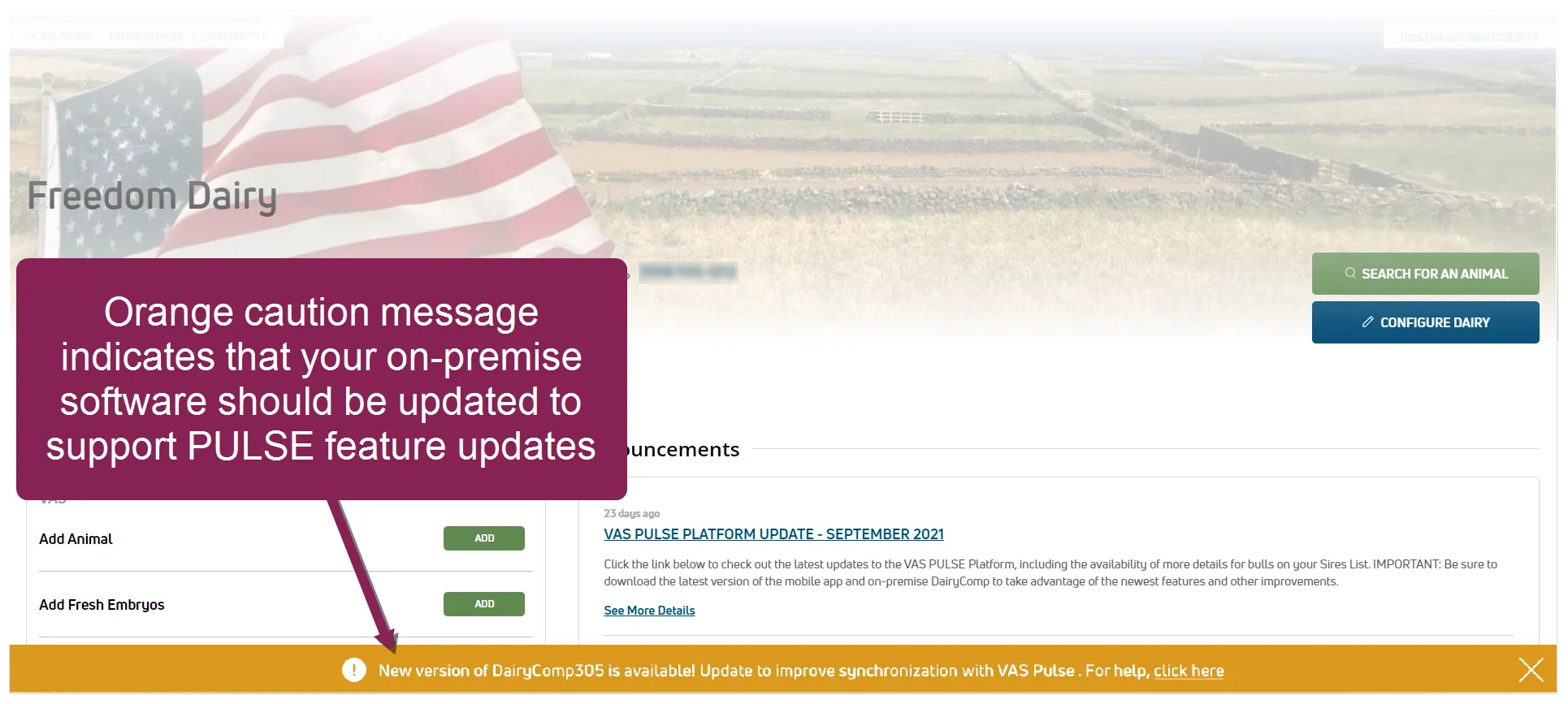
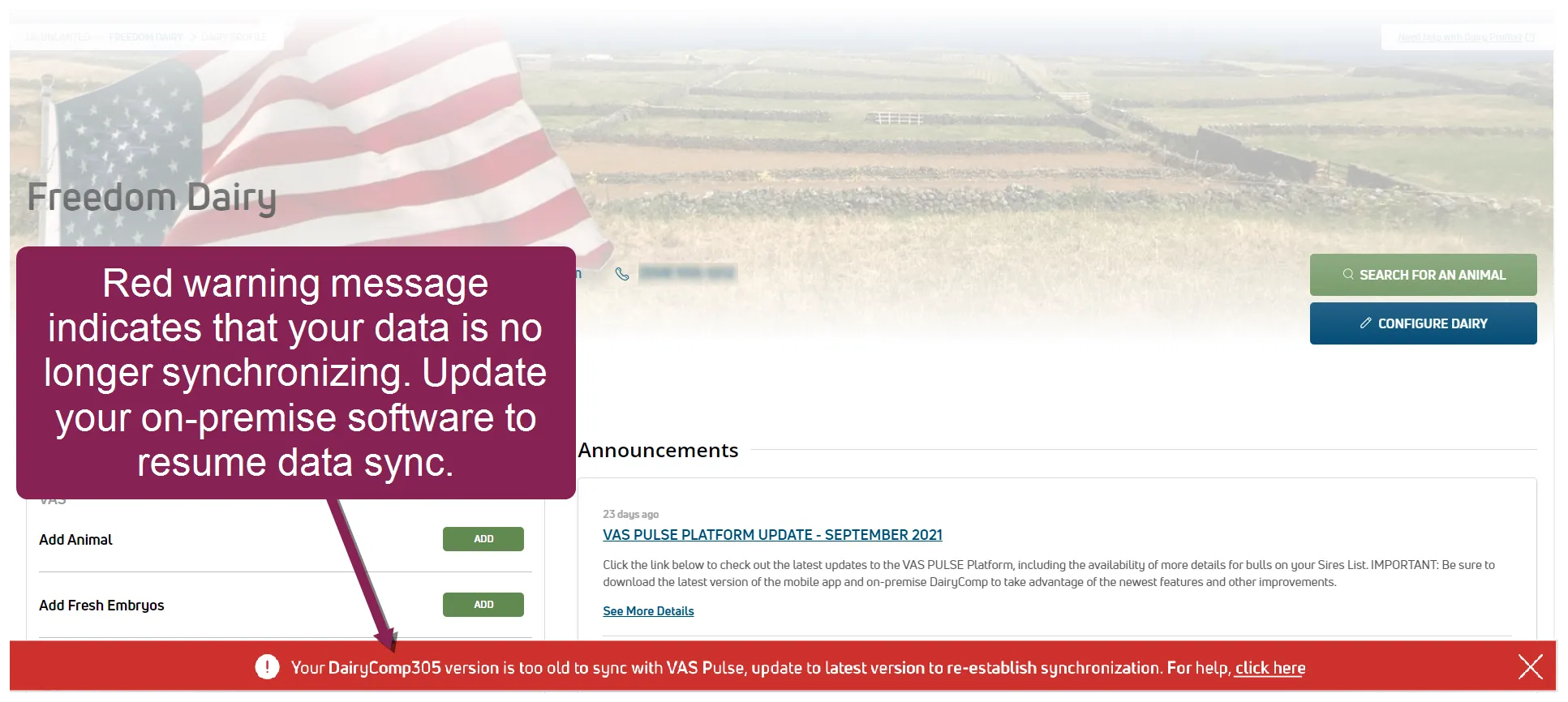
how do i check the connection status between dairycomp and pulse in dairycomp 305? in dairycomp, you can check the connection status by clicking the connection status tab at the bottom of the dairycomp screen to learn more, see connection status docid\ zwdll74naenqiztmlmgvu quickly check the connection status between pulse and all of your on premise applications, like dairycomp, on the integration status page click the integration status button at the upper right side to open the page the button looks different depending upon the integration status a white button indicates that the connection between pulse and all on premise apps is working correctly, and no action is required a red button indicates that the connection between pulse and at least one of your on premise apps is not working correctly, and your action is required you will not see a button if pulse is not connected to any on premise apps this page contains a card for each of your integrated, on premise products, letting you quickly see if they are properly communicating and syncing data with pulse you can also access the integrations status page directly from the dairy menu docid\ ezfejzdkbcfov b69aupr integration status details there are numerous indicators that help you identify the health of the connection between your on premise apps and pulse data sync status data sync status pulse indicates whether your data has been processed and received from your on premise app this status is only visible if your on premise app sends or receives data from pulse a green icon indicates that your data has been processed on pulse and pulse has not received any more changes from your on premise app for dairycomp users, use connection status https //dc help vas com/default htm#cshid=1089 to make sure that your data is being sent to pulse a red icon can indicate that pulse received incomplete data from your on premise app or your data has not been received or processed for at least 24 hours this is a critical error that requires immediate attention to ensure that all animal information, details, and event data continue to sync correctly with the pulse and your on premise app communication status communication status pulse checks the connection (or "heartbeat") between your on premise app and pulse every 10 minutes a green icon indicates that your on premise app is communicating with pulse a red icon indicates that your integration is not communicating with pulse last data sync last data sync see when pulse last received and processed data from your on premise app if any of your indicators are red, follow the steps in troubleshooting guidelines docid 8 ccknxcbfd26y06xrtub to correct the errors troubleshooting guidelines follow the steps below to troubleshoot any communication or data sync errors after you resolve your issue, it may take a few minutes for the communication status to change to a healthy heartbeat and it may take longer for data to synchronize check your internet connection check your internet connection verify that the on premise computer has an active internet connection if necessary, restart your modem, router, or other equipment, and ensure your internet provider is not experiencing an outage the communication status may take a few minutes to change to a healthy heartbeat restart your on premise computer restart your on premise computer contact your manager or office staff to verify that the on premise app is running normally if it is not, restart your on premise computer make sure that you have the latest version of your on premise applications make sure that you have the latest version of your on premise applications if pulse detects that your on premise software is out of date, the system will display caution and warning messages to inform you that an on premise software update is either recommended or required; older versions of some apps may stop syncing data see update your vas software docid 8 ccknxcbfd26y06xrtub to learn more about updating your out of date software see offline dairycomp integration docid 8 ccknxcbfd26y06xrtub for actions to take when your connection is suspended or reloading orange caution messages orange caution messages indicate that even though your on premise software is still compatible with pulse, but it should be updated to support recent pulse feature updates red warning messages red warning messages indicate that your on premise software is too out of date to synchronize properly with pulse in this case, pulse ceases to synchronize your data until you update to a supported version of the on premise software for the respective if the errors continue, contact us docid 4ghs 95g97ps fckkm8su offline dairycomp integration (dairycomp unlimited dairies only) if your dairycomp connection goes down, pulse warns you and specifies the actions you need to take this ensures you don't inadvertently edit outdated animal records and keeps your pulse data current pulse detects three different offline modes to safeguard your herd data obsolete integration obsolete integration your on premise dairycomp software is too out of date to synchronize properly your herd data in pulse and mobile app features will remain read only until you update dairycomp see update dairycomp to the latest release https //dc help vas com/default htm#cshid=1009 in the dairycomp online help for detailed instructions suspended integration suspended integration your connection to dairycomp has been down for more than 60 days pulse and mobile app features will remain read only until the connection is re established contact us docid 4ghs 95g97ps fckkm8su to reload your dairy from dairycomp reloading integration reloading integration vas support is reloading your dairy pulse and mobile app features will remain read only until the reload completes this may take up to an hour, depending on the size of your cowfile and current server traffic update your vas software dairycomp dairycomp to update your dairycomp software, follow the steps in update dairycomp to the latest release https //dc help vas com/default htm#cshid=1009 in the dairycomp online help feedwatch (on premise) feedwatch (on premise) to update your feedwatch (on premise) software, contact feedwatch (on premise) support at fwsupport\@vas com mailto\ fwsupport\@vas com or 888 225 6753 request export to equipment (feedwatch only) click the send export button to send changes you've made in (such as an ingredient percentage ( ) adjustment) to the feeders immediately note changes made in are automatically sent to the feedwatch (on premise) computer in order for those changes to be sent from the computer to the feeders immediately (so they can used for feeding), you need to click send export