Customize Dashboards
4 min
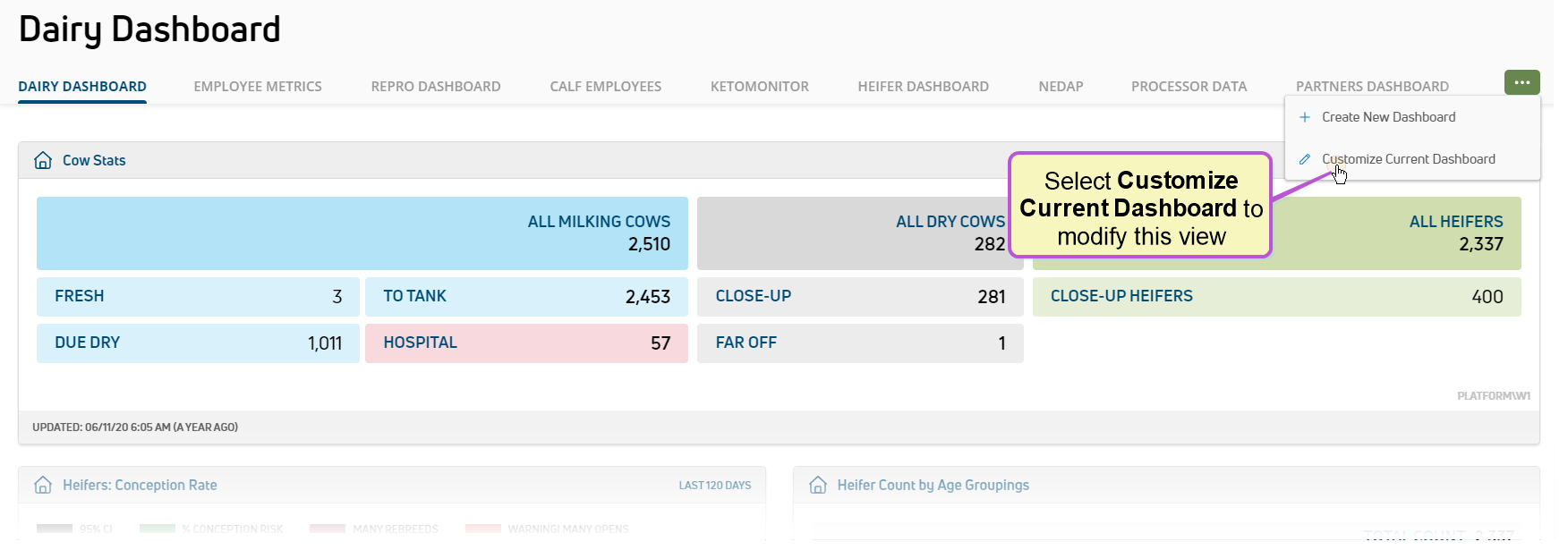
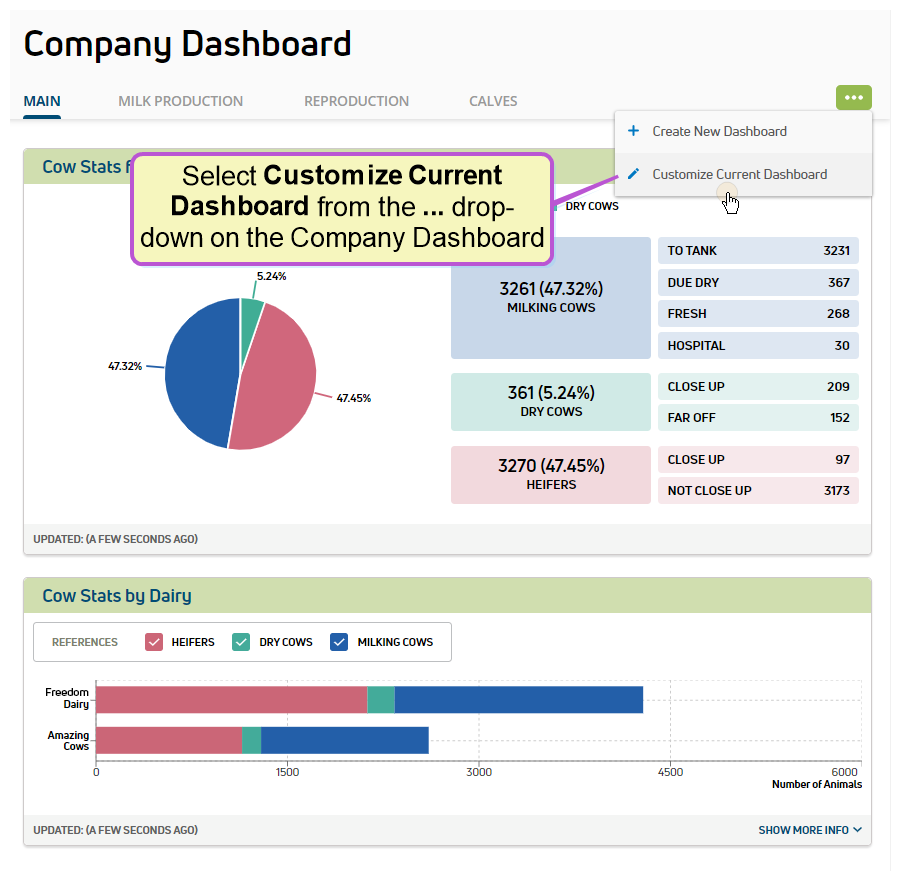
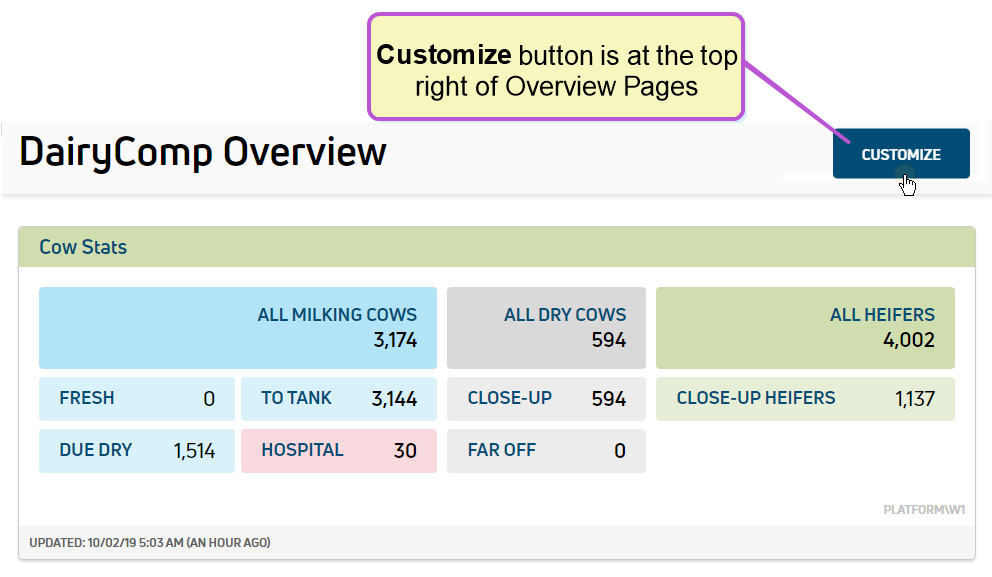
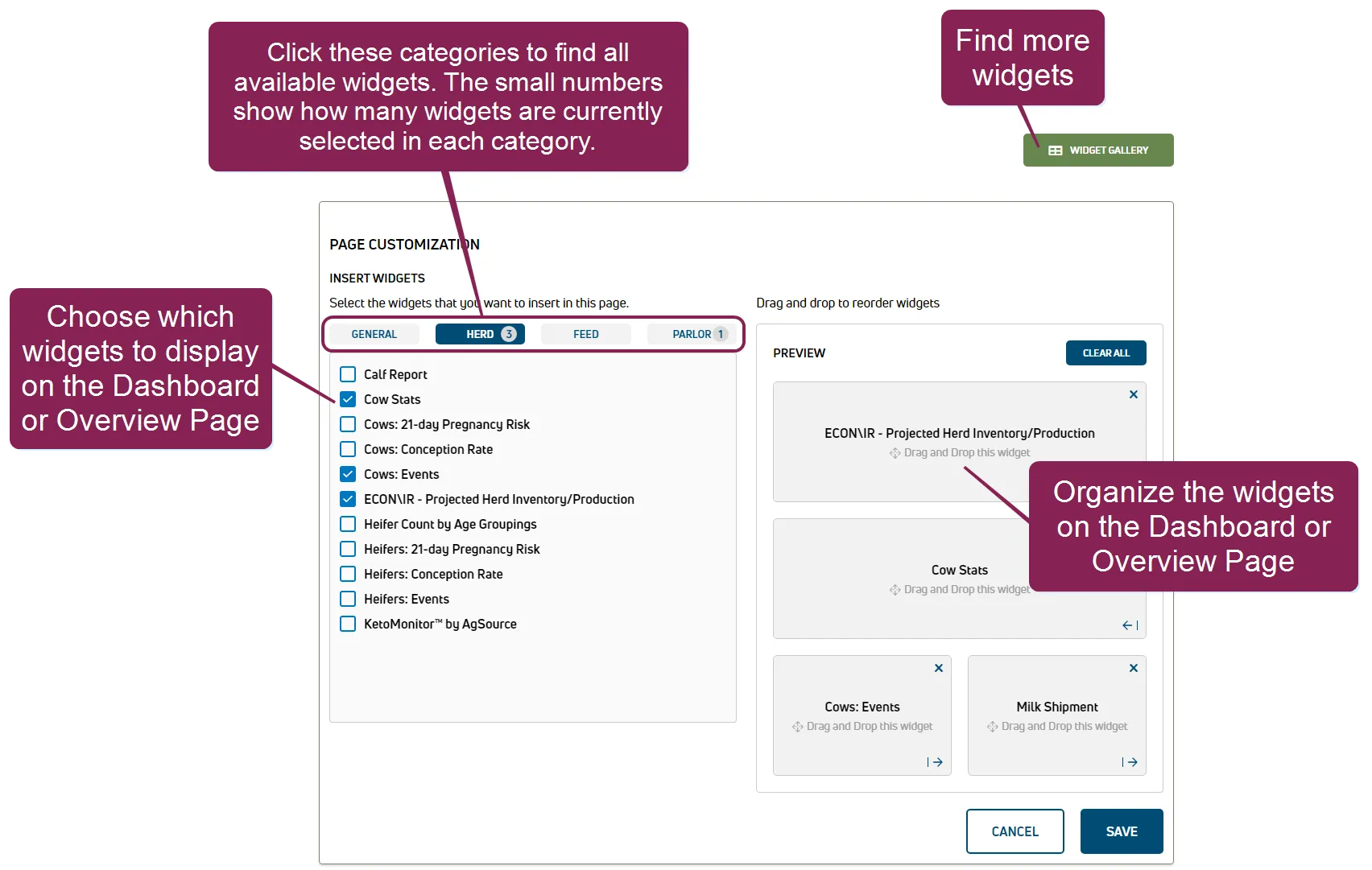
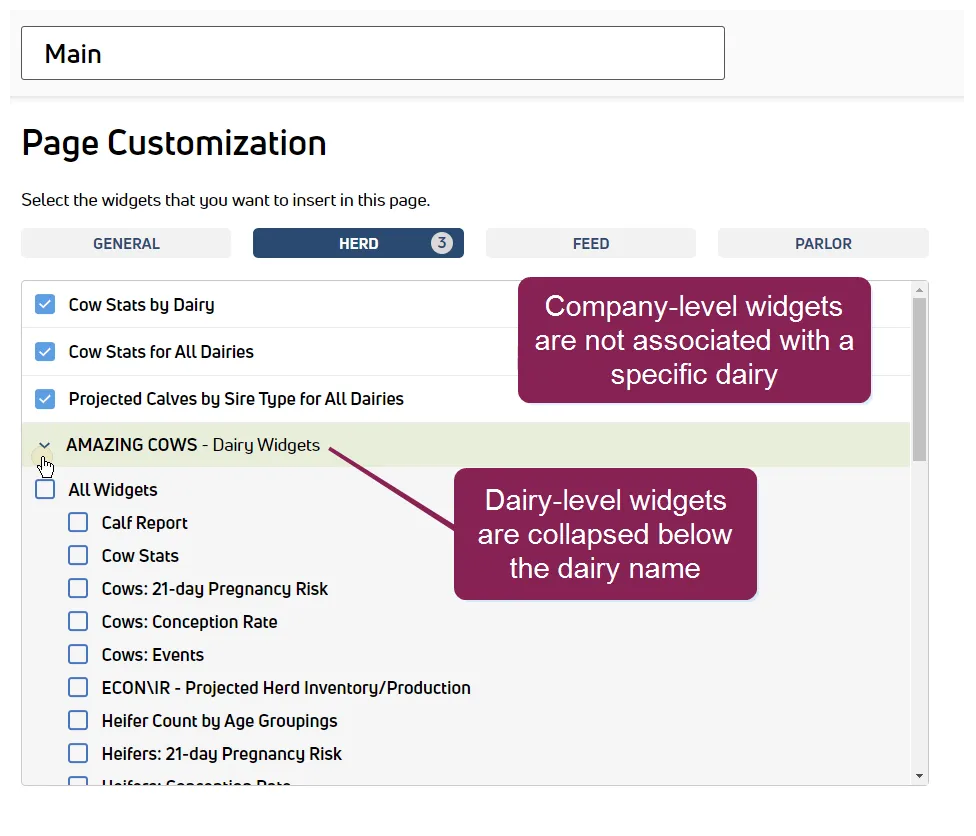
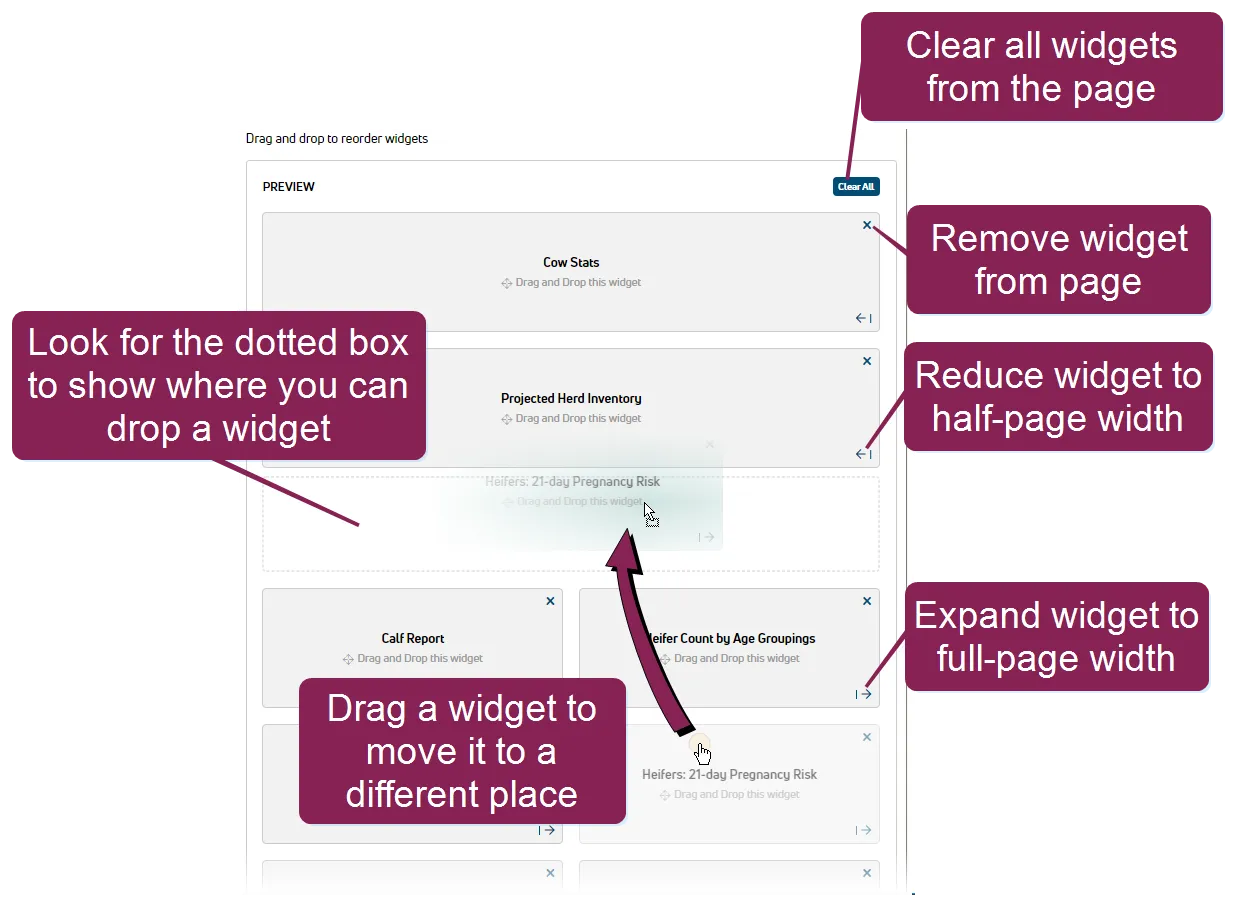
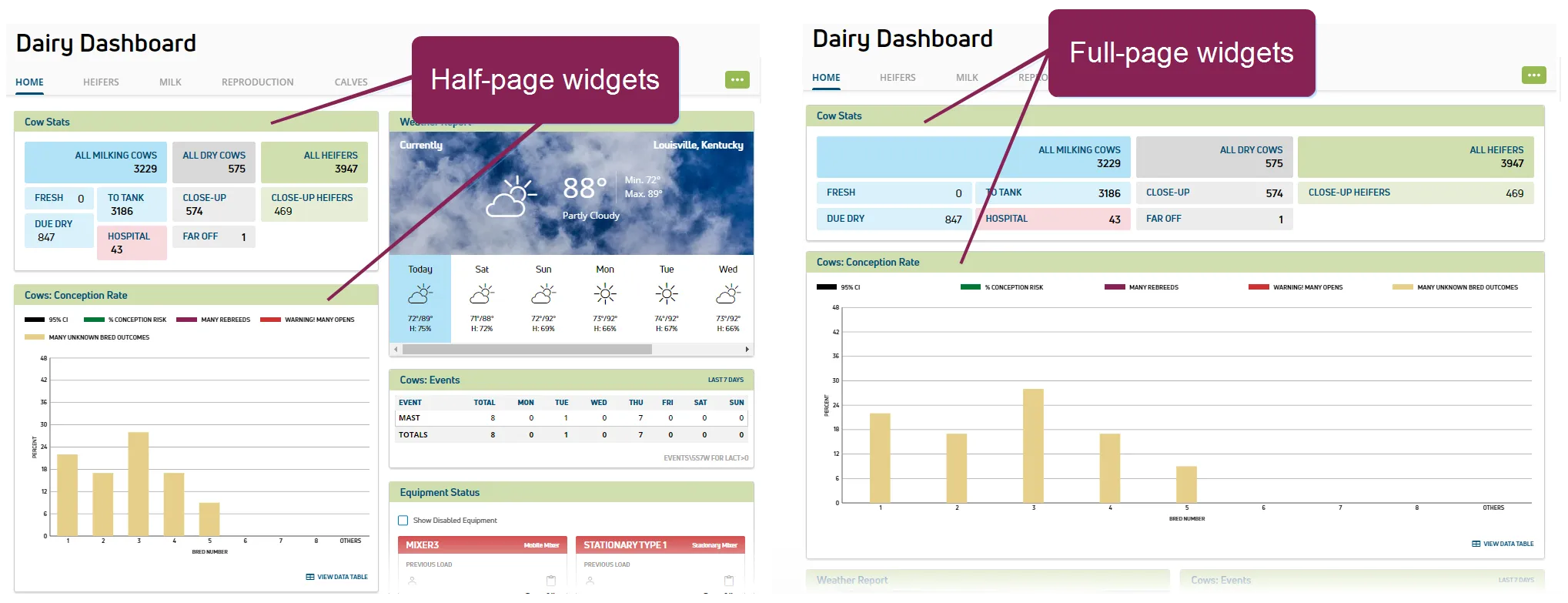
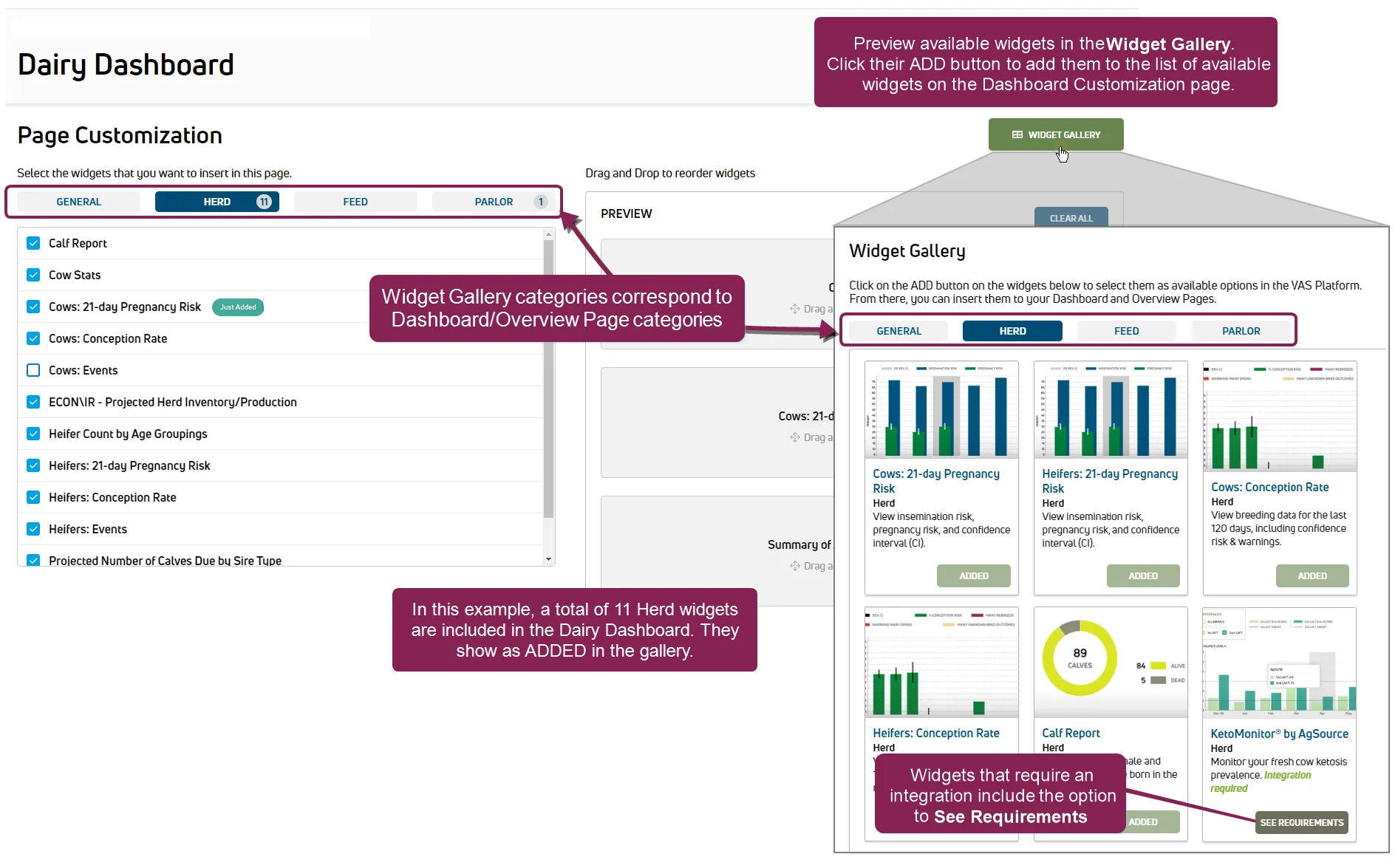
required permissions only users who are assigned to a role with dashboard management permissions can use this feature see edit dairy user permissions docid\ gw6zx7tfc4ihsbrtozc v and manage dairy roles docid 9yjukdzfab0kko1hw0mxj for more information you can customize your dashboards based on the needs of your dairy you can add, remove, resize, or rearrange widgets to prioritize the data you see (for a full list of available widgets and what they show, see widget descriptions docid\ c3gmsunap0ph8hsjqugoo ) use the options button customize current dashboard option at the top right of the dairy or company dashboard or the customize option on overview pages to personalize your dashboards note if you do not see the options button or customize option, check your roles and permissions this button is only visible for users who are assigned to a role with dashboard management permissions see edit dairy user permissions docid\ gw6zx7tfc4ihsbrtozc v for more information after you select customize , the system displays your page customization options follow these steps to customize your dashboards step 1 select widgets use the checkboxes on the left to choose which widgets to display on the dashboard or overview page when choosing widgets, use the following guidelines the widgets are categorized under the following tabs general , , feed , and parlor click each tab to view the widgets that are available in these categories see widget descriptions docid\ c3gmsunap0ph8hsjqugoo for more information for the company dashboard, dairy level widgets are presented by dairy name the small number shown on the right edge of each tab indicates how many widgets are currently selected for that category use the widget gallery button at the top right of the page to find other available widgets step 2 arrange widgets use the right side of the page to arrange how the widgets are displayed on the dashboard or overview page to rearrange widgets, simply drag and drop them to where you want them located as illustrated below, once you begin dragging an item, the page will display dotted boxes to indicate where you are able to drop them to remove all widgets from the dashboard or overview page, click the clear all button at the top right click the x at the top right of any widget to remove it from the dashboard or overview page this also unchecks it from the list to the left click the icon at the bottom right of any widget to reduce it down to half the page width, or likewise click to expand it to the full page width step 3 (optional) add new widgets click the widget gallery button at the top right of the customization page to open the widget gallery in the widget gallery, you can view a complete list of widgets that you can use in your dashboards use follow these guidelines to select widgets click the general, , feed, and parlor categories at the top of the widget gallery to preview widgets that are available in each category for platform dashboards and overview pages click a widget's add button to add it to the list of available widgets in the page customization options newly added widgets display a just added badge under page customization widgets that require an integration with one of our partners docid 8kajwgmukcelr5elb5ga include the option to view additional details on completing the integration in the example, 11 widgets are included in the dairy dashboard, each of which shows as added in the widget gallery note some widgets require setup and activation in your dairy or company pulse account before they will begin displaying data on your dashboard and overview pages if you have added a widget and it is not displaying any data, please contact us docid 4ghs 95g97ps fckkm8su for help related topics view dashboards docid\ kwnrzwtq6ozbo 8pevhzw manage multiple dashboards docid\ ao d6rsf0mkx veb5 dmr widget descriptions docid\ c3gmsunap0ph8hsjqugoo