Cubex Premise & Medicine Mapping
NOTE: The DairyComp Medicine Mapping page only includes content for dairies with an active Cubex PULSE integration.
For new Cubex integrations, PULSE imports medicine details from Cubex and attempts to match each drug with its CowCare equivalent based on the NADA identification number. In cases where the drugs cannot be automatically matched based on the NADA, you must complete a task to "map" (i.e., associate) medicines available in CowCare to drugs available in Cubex inventory.
You can find this feature under the DairyComp/MyDC menuDairyComp/MyDC menu > SettingsSettings option on the Health Settings tab.
If your dairy installs more than one Cubex instance, you must first map each Premise to a database before you can proceed to mapping medicine names.
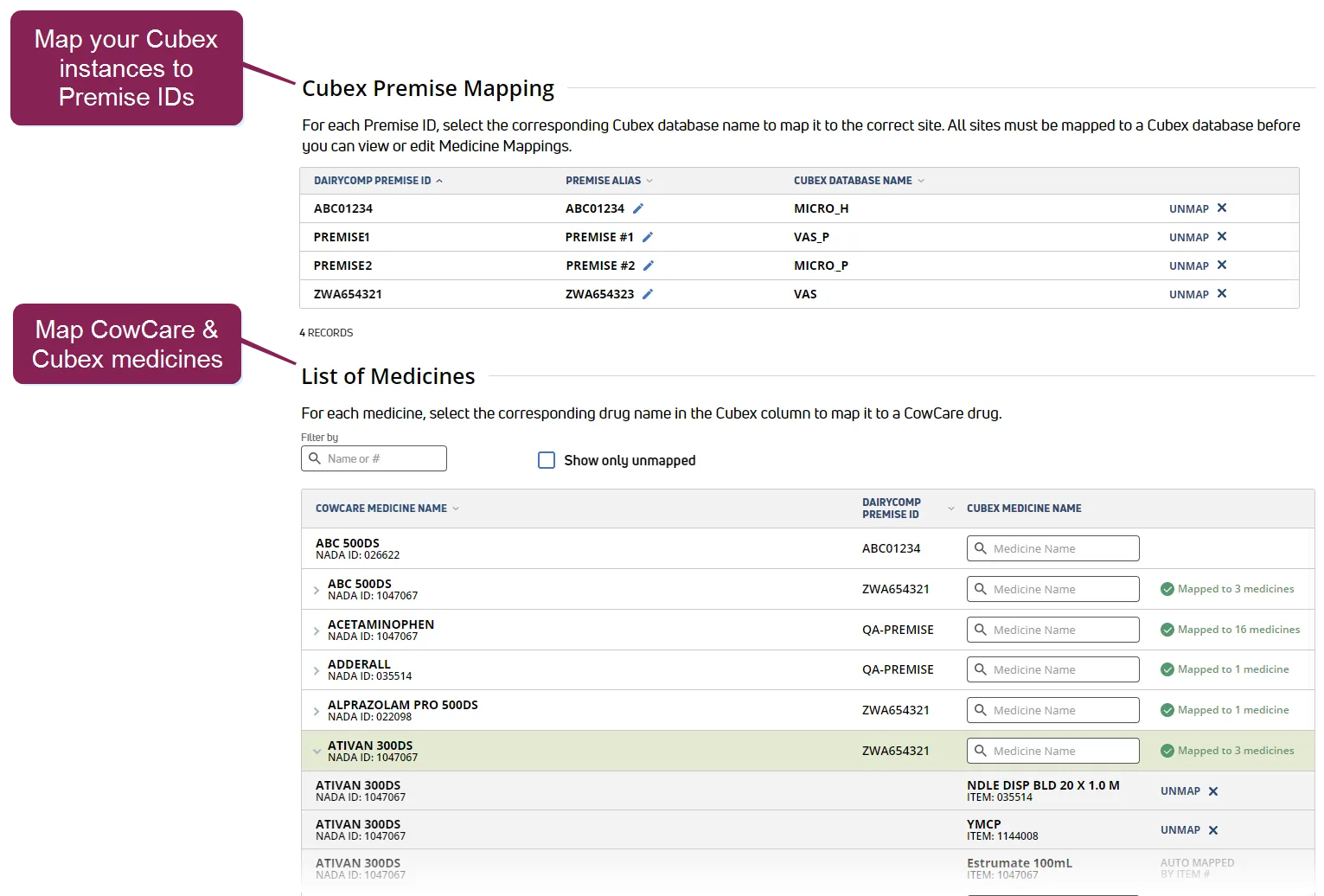
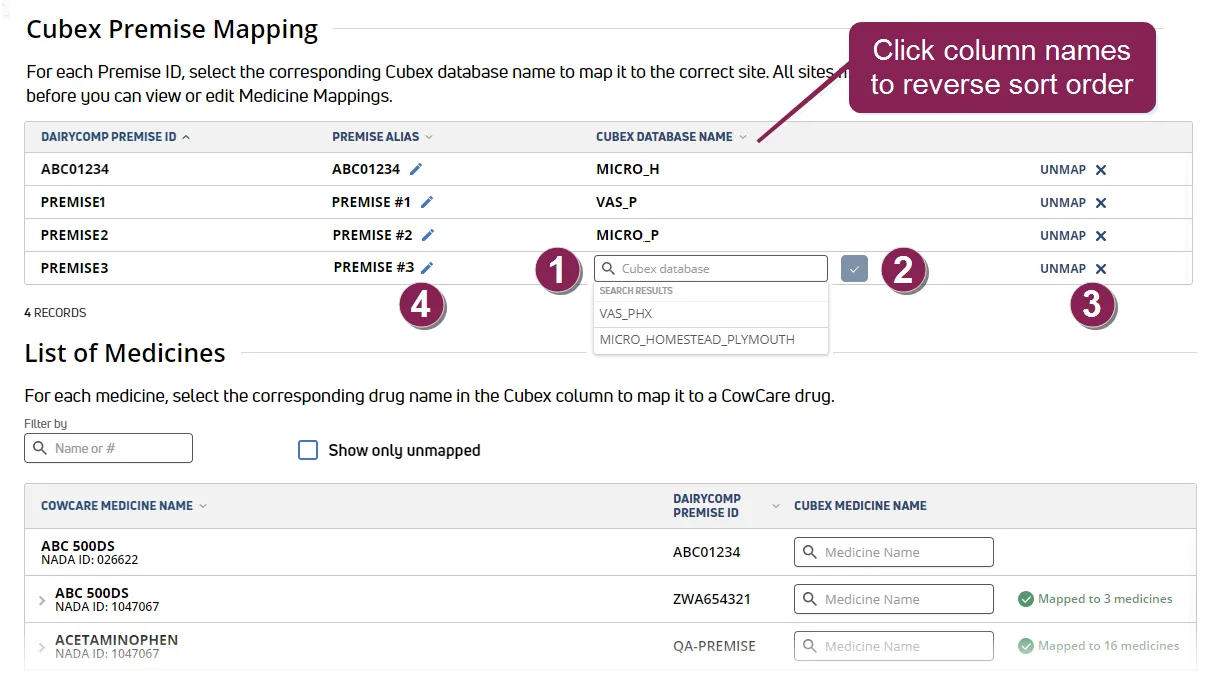


Use the Filter By option to quickly find drugs by Name or NADA number, or click on the CowCare Medicine Name column to reverse the sort order. Then, complete the mapping process for each Unmapped Medicine.
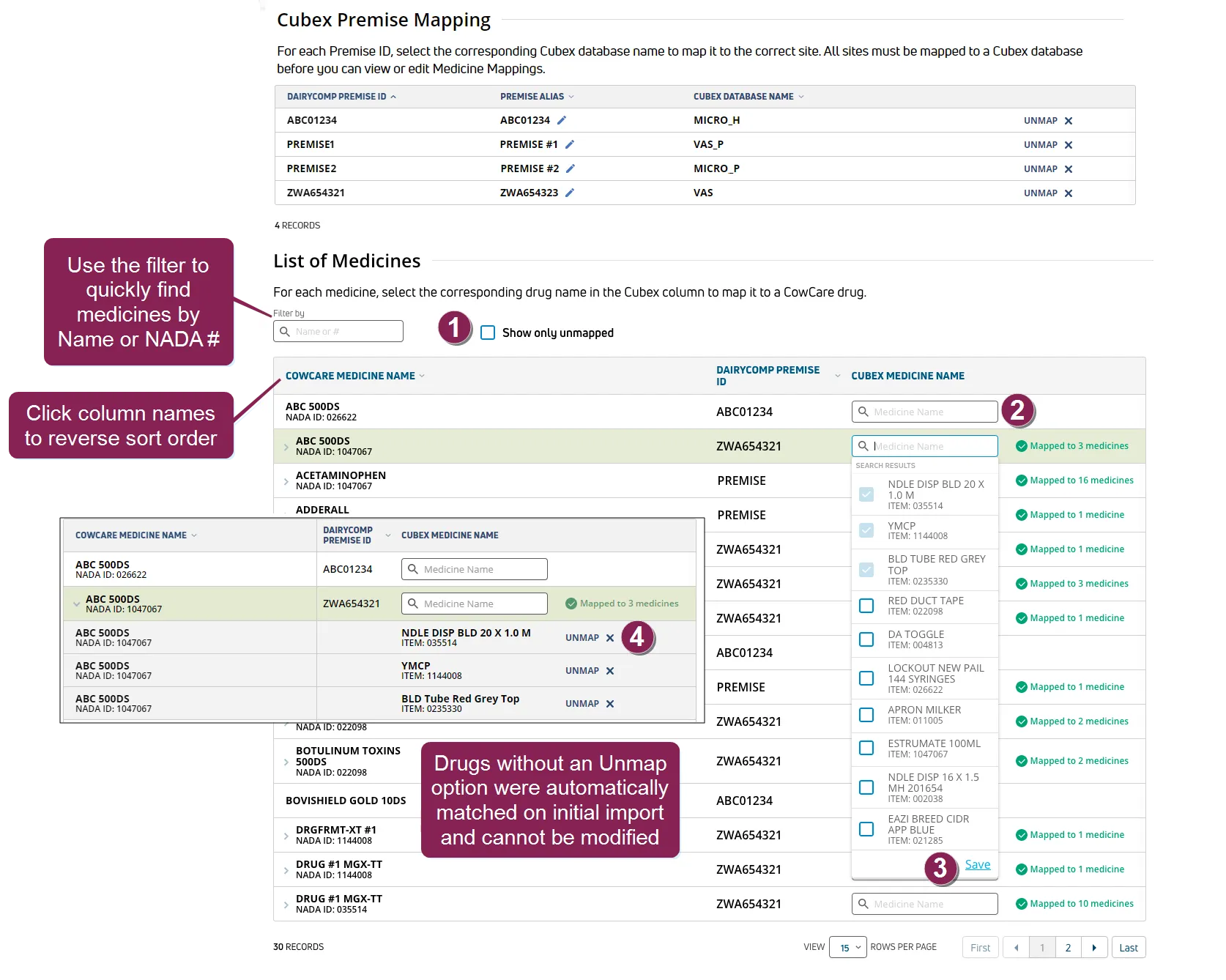
- To map a CowCare medicine, check Show only unmapped to see unmapped medicines.
- Start typing the Cubex drug name in the search field. Choose the equivalent Cubex drug(s) from the results and click the checkmark button
 to save the mapping. A green check and success message displays with the number of medicines mapped:
  .
.
- To map multiple CowCare medicines to a Cubex medicine, check the boxes to the left of the medicine name in the search results and clickSave.
- If you make a mistake, clickUnmap and remap the medicine to the correct Cubex drug. Note that the Unmap option is not available for drugs that were automatically matched.
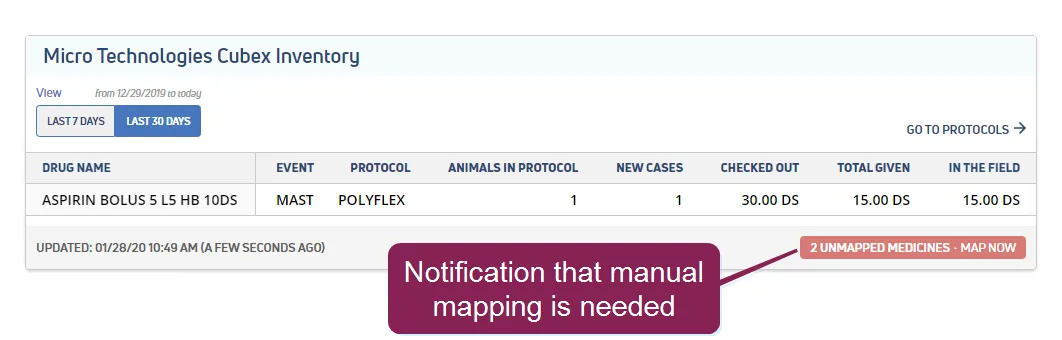
As new medicines are added to CowCare, the Micro Technologies Cubex Inventory widget informs you that additional mappings are needed, and you can return to this Medicine Mapping page to complete them.