Create Hospital Lists
Before you can process your hospital lists in PULSE or the mobile app, you must first generate them in PULSE, or set them up in DairyComp with the \K switch (which sends them to PULSE). PULSE then sends them out to the mobile app in its next care package update.
NOTE: Configuring treatment protocols and hospital lists requires advanced knowledge of PULSE, as well as the guidance of animal health experts. The steps outlined below assume that you are working with an expert user and your veterinarians to guide and properly define your treatment protocols.
Follow the steps below to continue:
You can generate worklists in PULSE from multiple locations:
- Dairy Reports/WorklistsDairy Reports/Worklists: Use this tab to generate reports or worklists saved from the Gallery.
- Template GalleryTemplate Gallery: Use the Gallery to check out available report and worklist options.
- Report/Worklist BuilderReport/Worklist Builder: This tool allows you to build custom reports and worklists using an easy drag & drop interface.
See Build a Hospital ListBuild a Hospital List for step-by-step instructions for building a hospital list.
Deciding which conditions to treat and how to treat them requires input from veterinarians and other animal health experts. After your dairy has defined treatment plans, known as protocols, they must be entered in DairyComp. Use the ALTER\7 command and enter all required details for each protocol.
After your protocols are defined in DairyComp, they are available for viewing from theProtocolsProtocols page in PULSE.
TIP: For complicated treatments that require different drugs on different days or information that exceeds the DairyComp 14-character limit in the REM (Remark) field, use the Details option in the protocol. This option allows you to add up to 5 unique notes per day of treatment.
DairyComp hospital items are customizable, and are defined as part of protocol setup using the Advanced > Set Up Items option in ALTER\7.
IMPORTANT: The milk withdrawal date item (MKDAT) and beef withdrawal date item (BFDAT) are required for hospital lists. These are the dates that a cow's milk or meat is deemed clear of drug residues and safe to return to the bulk tank or for the animal to be sold for beef. Additional items are optional.
It is common for larger dairy operations to dedicate specific pens to the treatment of sick animals. This simplifies the management of milk and beef withholds, and makes locating animals for treatment easier and faster. Pens can be labeled as hospital pens in DairyComp using the ALTER\4 command. This is an optional step and will affect the commands you will use to generate your hospital lists.
For customers who are familiar with the VAS PCC product, you may already know how to create and send a hospital list to Pocket CowCard handhelds. The command is similar when creating a hospital list to send to PULSE.
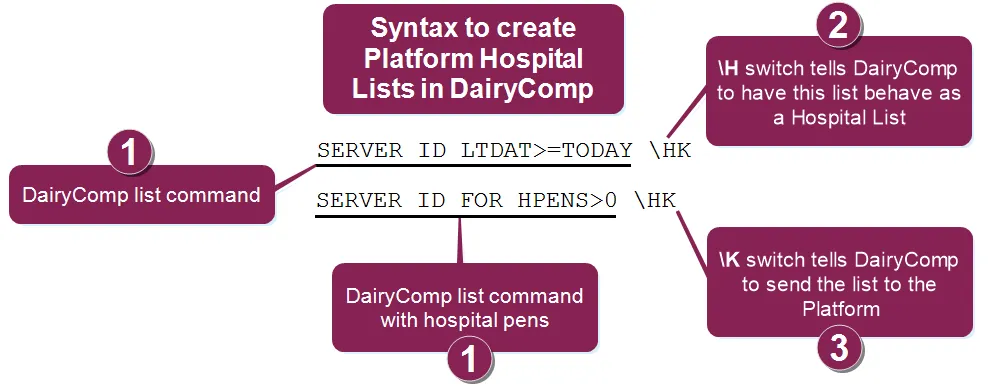
Set up the command as shown in the example below:
- Start with the SERVER command to define what you want the hospital list to do.
- Use the \H switch to tell DairyComp 305 to have this list behave like a hospital list.
- Use the \K switch to tell DairyComp 305 to send the list to PULSE.
IMPORTANT:
The way to define which items display in a hospital list differs between Pocket CowCard and Platform. Pocket CowCard items are defined in DairyComp using the Pocket CowCard Entry tab in Server Configuration (
SERVER\3
). Platform items are included in the Hospital List command in one of two ways:
- Directly in the command. For example: SERVER ID Identifier PEN Pen number DIM Days in milk RPRO Reproductive code DCC Days carrying calf/pregnant FOR PEN=99 \HK
- As a separate command. For example: SERVER HPITEMS FOR PEN=99 \HK where the HPITEMS command is defined as ID PEN DIM RPRO DCC
IMPORTANT: Be aware that if DairyComp 305 sends multiple versions of the same list to PULSE in one day, the most recent list overwrites the earlier ones but does NOT affect any progress or changes made against the list.
Unlike the Pocket CowCard product, which requests each worklist during a refresh, PULSE does not request worklists from on‑premise DairyComp. Instead, DairyComp must manually send worklists to PULSE. This ensures that on‑premise users control the lists that are sent out to PULSE mobile app.
You can send Platform Worklists from DairyComp manually or schedule DairyComp to send them automatically. Follow the instructions below to proceed.
Follow these steps to send worklists from DairyComp to PULSE manually:
- Go to the DairyComp command line.
- Type PLATFORM\K and press enter.
This command instructs DairyComp to find all Platform-enabled (\K) SERVER commands and generate the corresponding worklist files. The worklist files are then sent to PULSE the next time it synchronizes data from DairyComp.
If you prefer not to do a manual send each time you want to update your PULSE lists, you can set up a DairyComp Scheduled Task that automatically executes the PLATFORM\K command at a convenient daily or weekly interval. Please contact VAS Support if you need help scheduling this type of task in DairyComp.