Pedigree
This feature is available only for MyDC subscribers. This feature will be available for DC Unlimited subscribers in a future release.
Click herehere to learn more about the different versions of PULSE.
Use the Pedigree tab on the CowCard to learn more about an animal's dam and sire, the dam's lactation history, and offspring information for the animal's calf.
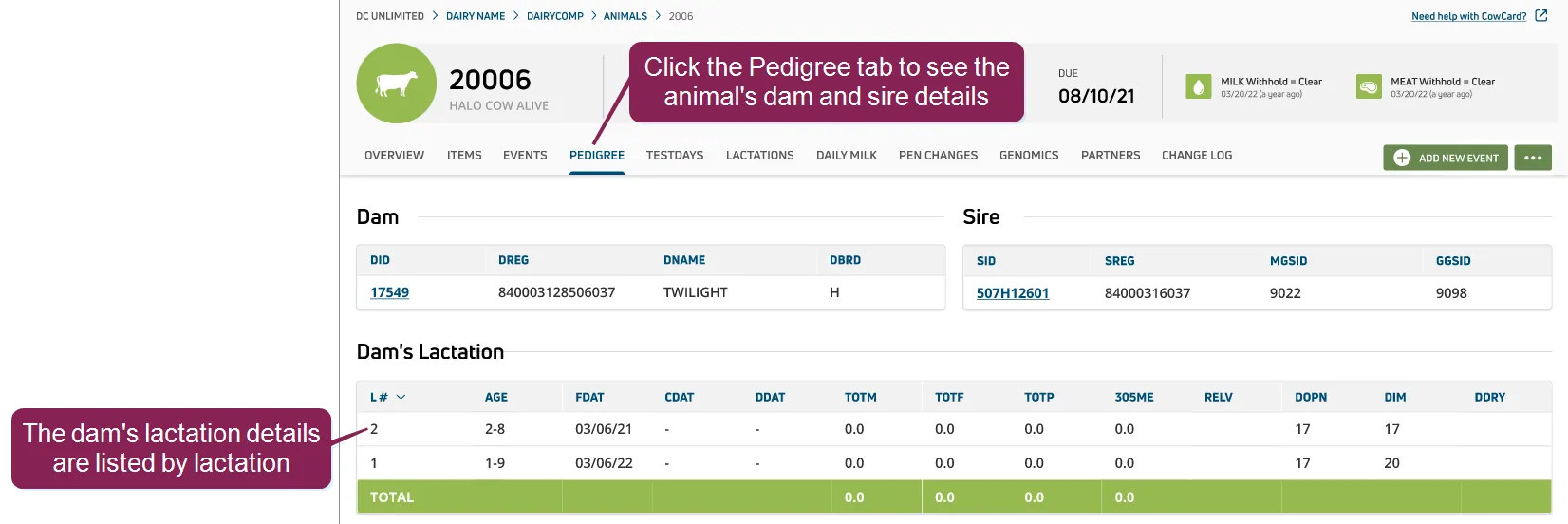
Pedigree information can be used to predict or determine which important traits may be inherited by an animal. For example, you can use a dam's lactation history to predict how much milk its calf may produce in its lifetime.
Expand the sections below to learn more:
The Dam and Sire tables contain the animal's parental details.
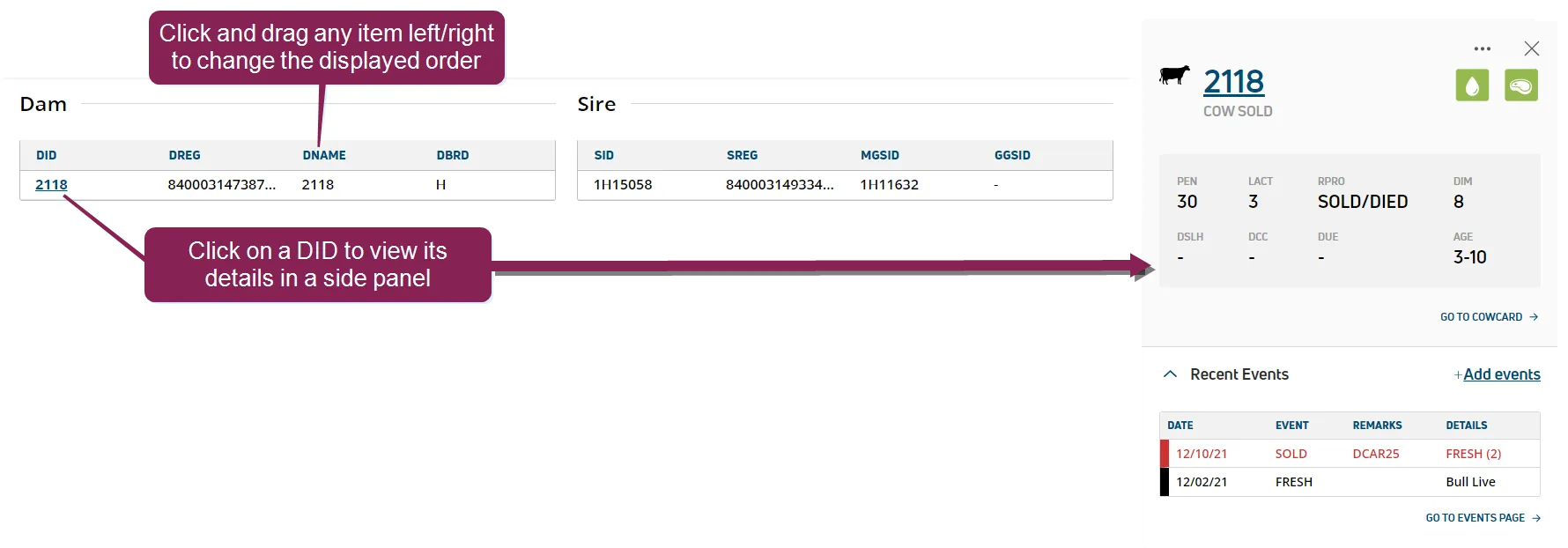
- Dam: Click on a Dam ID (DID) to view its details in side panel. You can then click the animal ID to go the parent or calf's CowCard:
Clicking the animal's ID in the column opens a side panel that displays details about the animal.
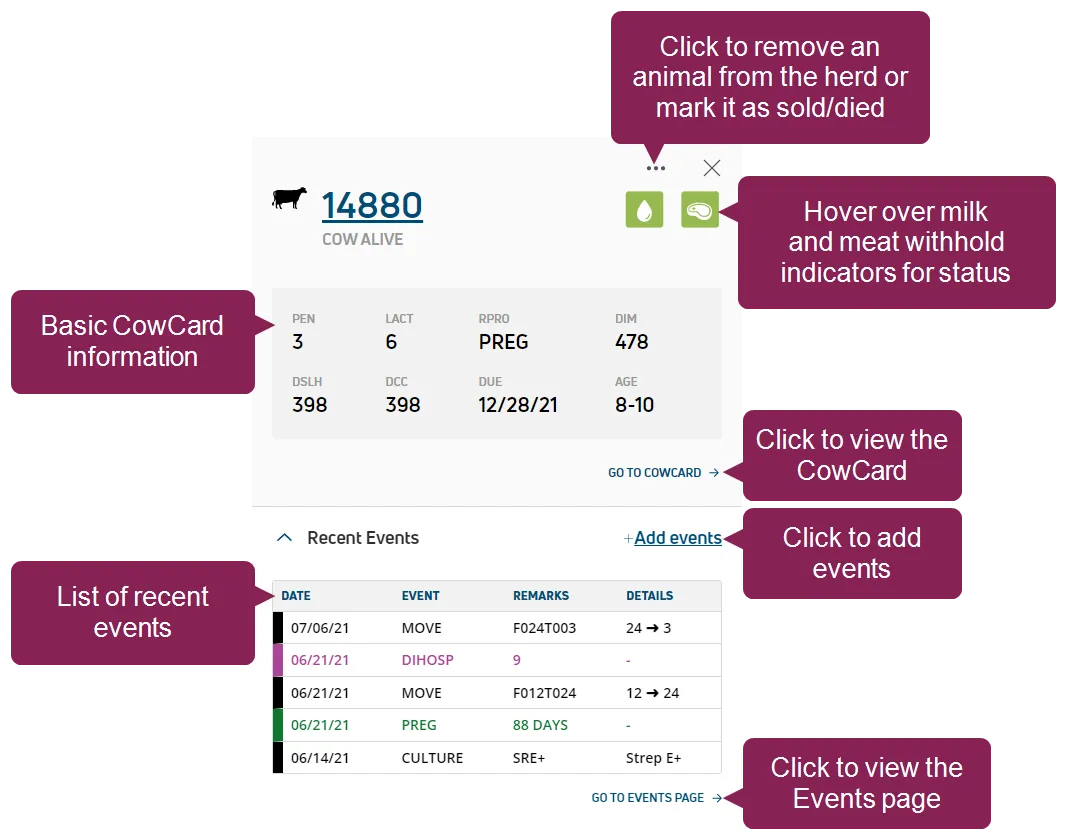
See View Animal DetailsView Animal Details to learn more about the information displayed in the side panel.
To view a full list of animals in the dairy, see the AnimalsAnimals topic.
- Sire: The Sire table displays identification information for the animal's male parent.
- You can reorder the way columns display by clicking in the header of the column you want to move and dragging it to its new location.
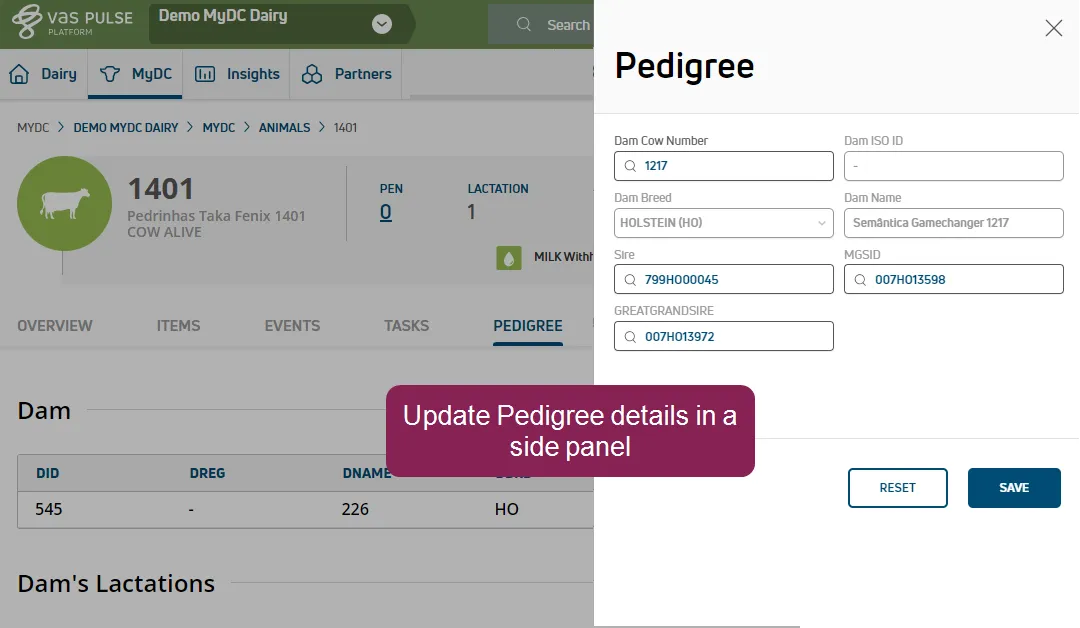
Use the Update Pedigree button to open a side panel that allows you to update the animal's dam, sire, maternal grandsire, and great grandsire.
Use the Dam's Lactations table to determine how well the animal's dam performed in each lactation. It contains some of the most important milking-related statistics for each of the animal's lactations, allowing you to gauge its lifetime production rates at a glance.
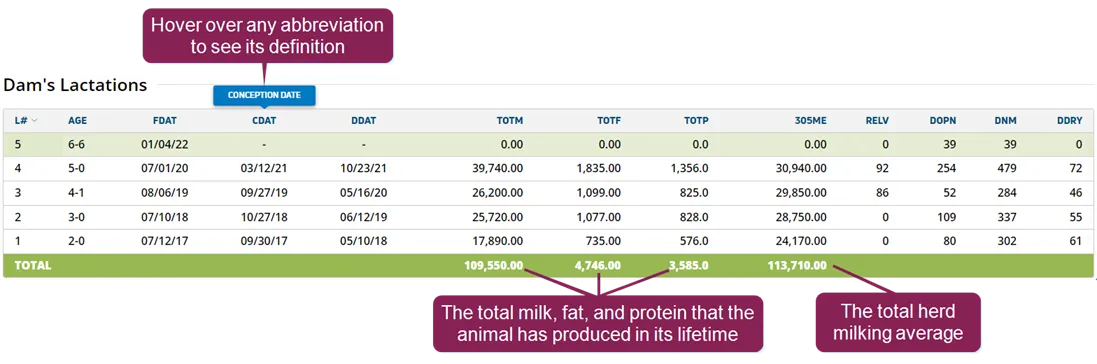
- Hover over any abbreviation to view the definition in a pop-up tooltip.
- The Total row at the bottom of the table shows how much milk (TOTM), fat (TOTF), and protein (TOTP) the animal has produced across all lactations.
- You can compare the animal's milk production to the herd's average milking total (305ME).
The Offspring table contains calf records where you can view parent's offspring and the Sire.
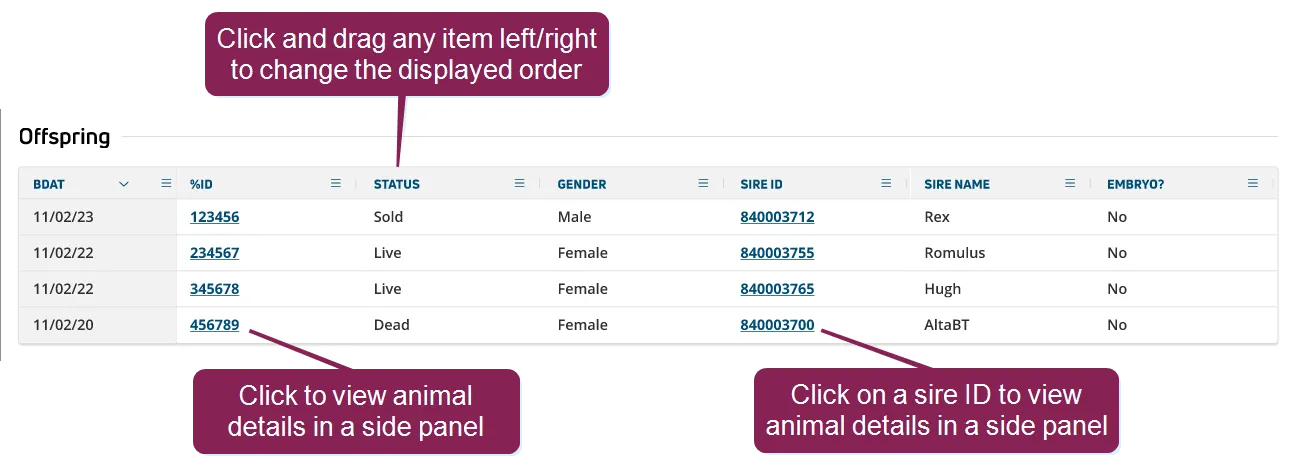
- You can click on an ID in the table to open a side panel and view offspring details.
Clicking the animal's ID in the column opens a side panel that displays details about the animal.
See View Animal DetailsView Animal Details to learn more about the information displayed in the side panel.
To view a full list of animals in the dairy, see the AnimalsAnimals topic.
- You can click on a Sire ID in the table to open a side panel and view Sire details.
The sire's side panel may include a photo, as well as the semen supplier. The side panel also provides additional details recorded by the supplier, such as production, health, calving, and conformation details.
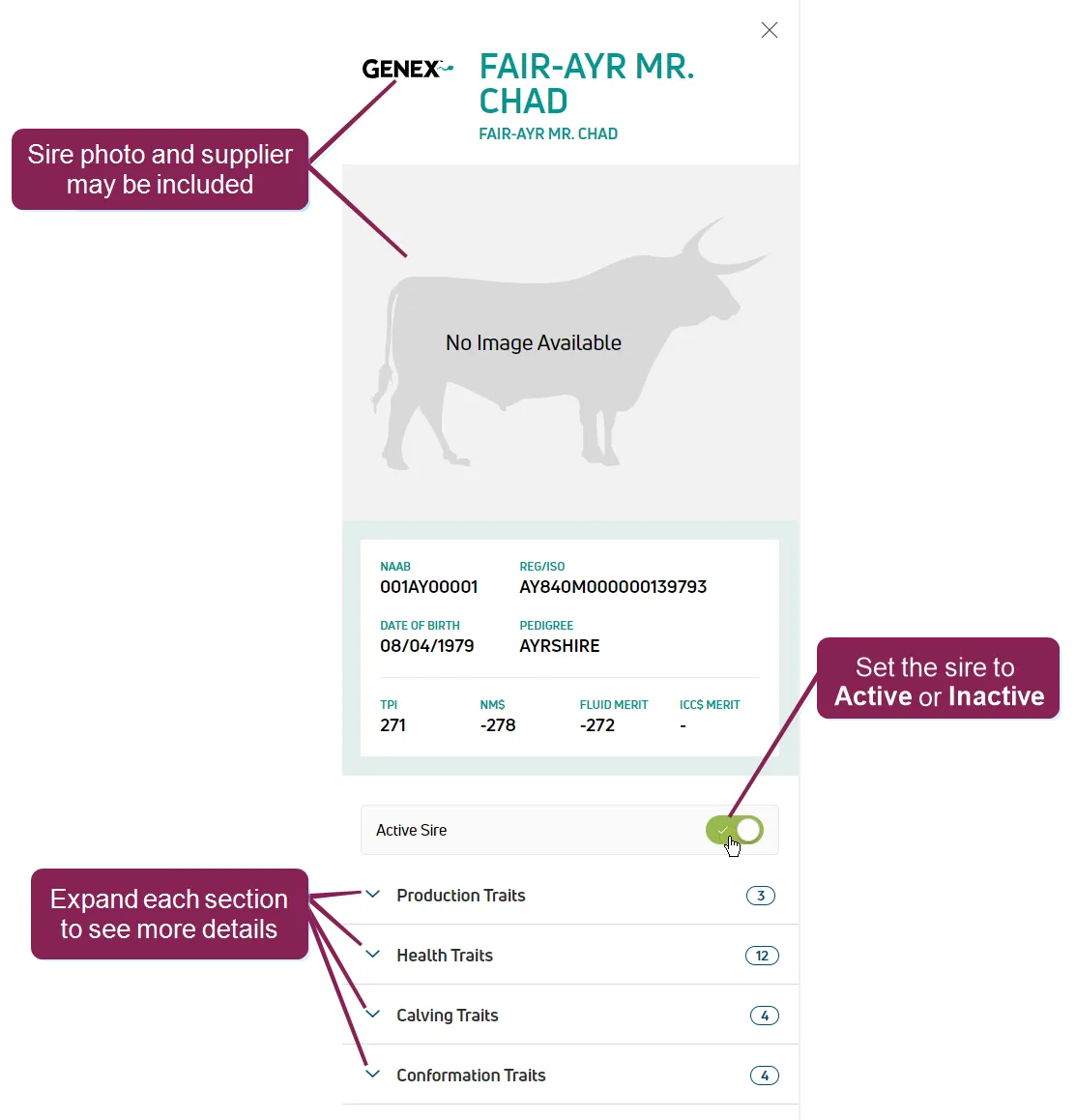
NOTE: You cannot edit or delete sire records or sire details that are provided by the origin company. You can only toggle the sire's status to Active or Inactive.
See Edit Sire RecordsEdit Sire Records to learn more about the information displayed in the side panel.
To view a full list of animals in the dairy, see the AnimalsAnimals topic.
You can customize how offspring records are displayed in the table.
Interactive column headers allow you to arrange the data into a way that's most useful to you. Depending on the features available for each column, you can add new columns of data, rearrange and reorder them, and filter some columns. To access these features, click on the column menu in the column you want to change.
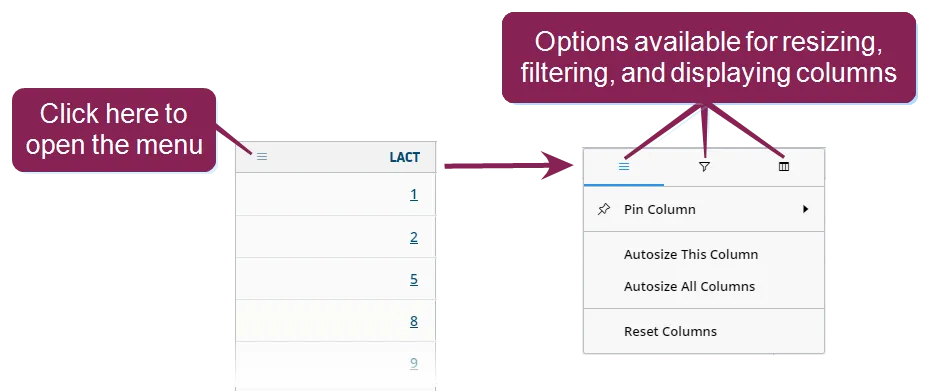
The top menu can contain three different options—one for resizing the column, one for filtering the data displayed in the column, and one for controlling which columns are displayed. Each menu contains various ways for manipulating what's shown on the page.
Expand the sections below to learn more:
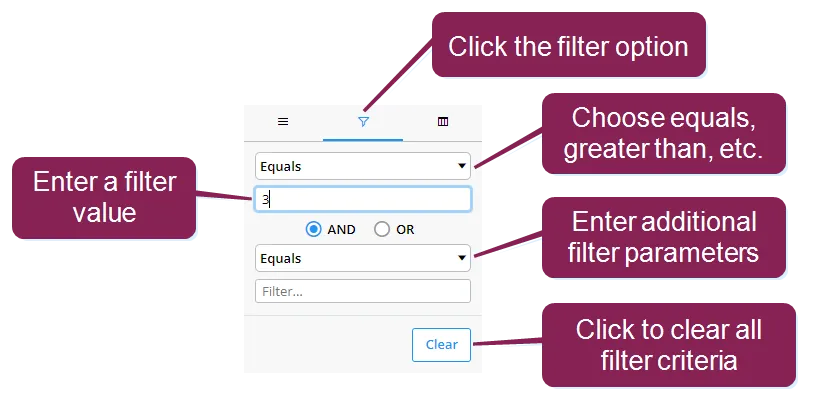
Some columns that contain numeric values can be filtered to show only certain data. For example, to filter the Lactation column so that only animals with a lactation value of 3 display, click the filter option, and then use the fields to create your filter.
You can reorder the way columns display by clicking in the header of the column you want to move and dragging it to its new location.
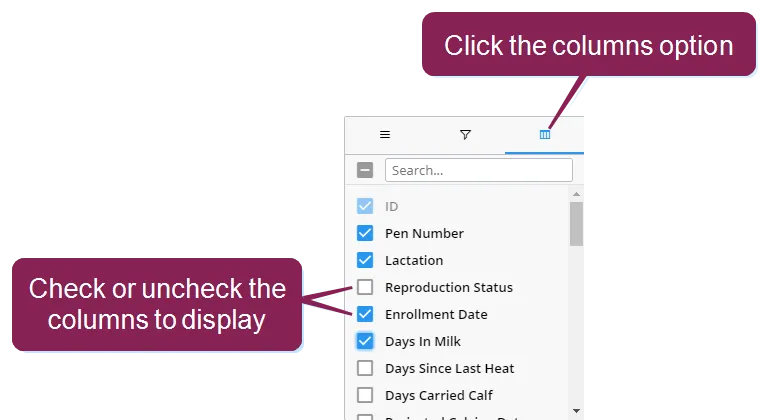
To add or remove columns from the page, click the columns option and then check or uncheck the boxes to select which columns to display.
You can also remove columns by clicking on the header of the column you want to remove, holding down the mouse key, and dragging the column up and out of the table.
While the Pedigree tab primarily provides dam and sire information, you can view a list of a dam's calves in the EventsEvents tab.
In the Events tab of a dam's CowCard, click on a FRESH event to open a side panel and view its details.
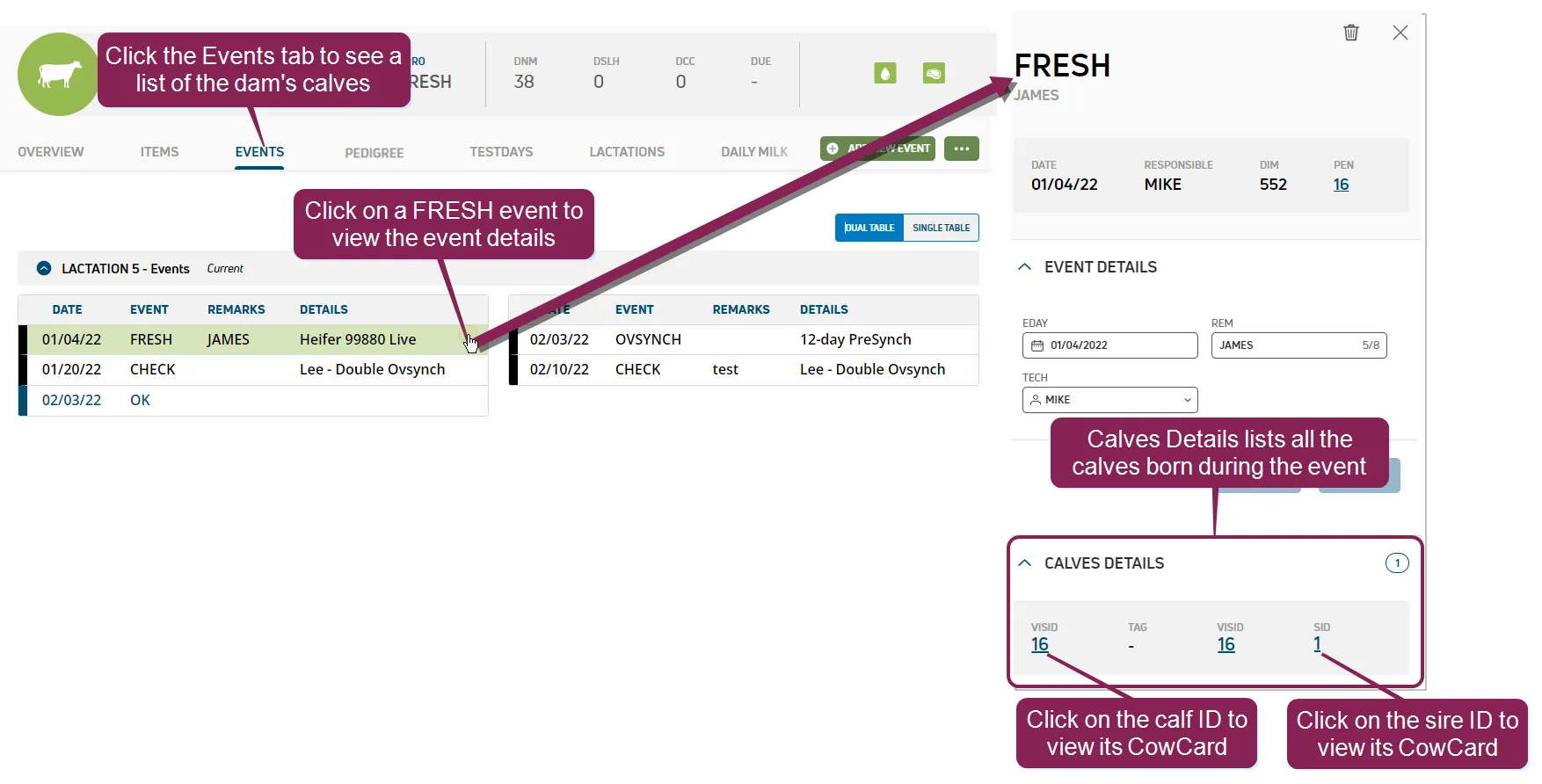
The event details include a list of calves that were delivered during the event. Click any calf's ID to go to its CowCard.
For more information about the Events tab, see EventsEvents.