How do I change PULSE language?
Your Account Settings allow you to choose a different language for PULSE. The language you select in your Account Settings will be applied when you log in to both the web and mobile versions of PULSE. Once you save your language selection in the web version, you must then restart the mobile app and re-enter your credentials to apply the language change there.
Follow these guidelines when changing the language:
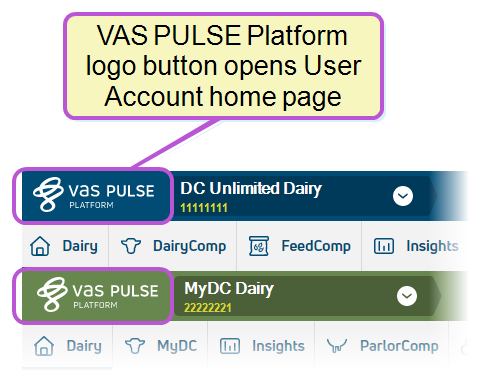
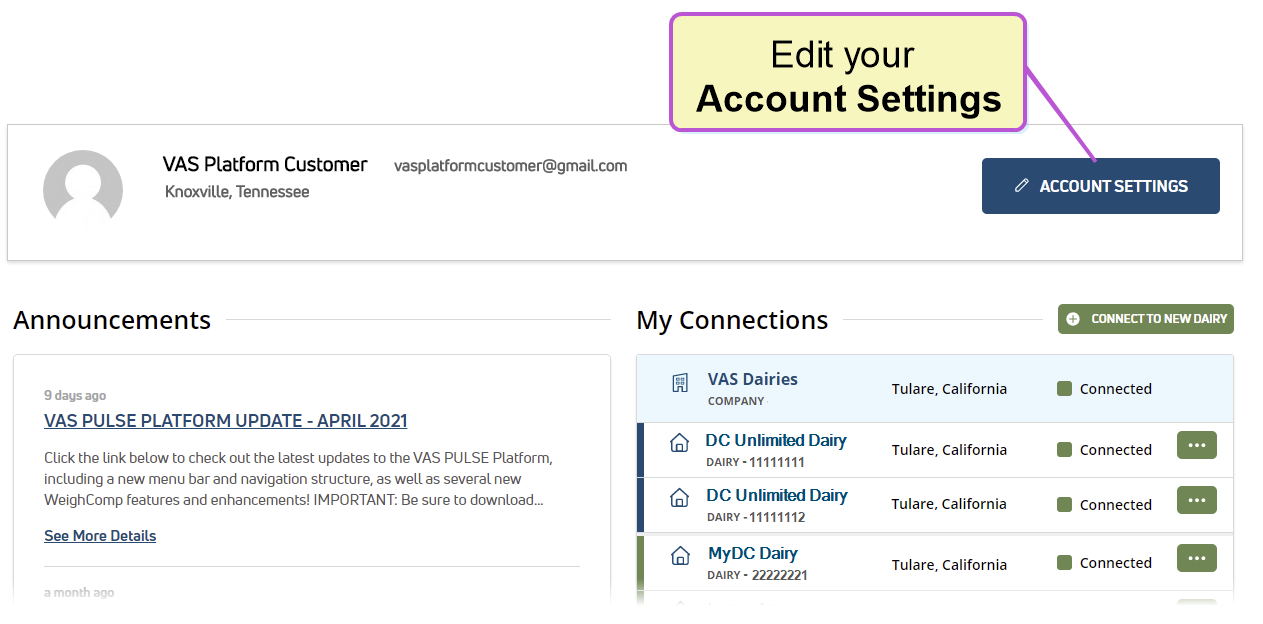
- If you're not already on your Account Settings page, click PULSE logo button in the top left corner of the window, and click the Account Settings button to the far right of your User Account home page.
OR
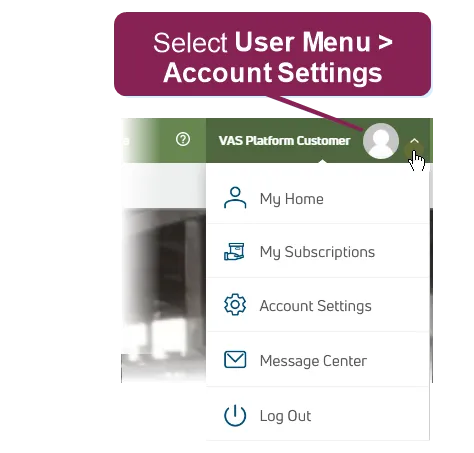
Select Account Settings from the User MenuUser Menu in the top right corner of the page.
- On the Account Settings page, select the User Profile tab at the top of the page.

- Locate the Language field toward the bottom of the page and choose a setting from the drop-down list.
- Click the Save button to apply the language setting to the web version of PULSE.
- If you use the mobile app as well, restart the app and re-enter your credentials to apply the language setting there.
NOTE: For DairyComp Unlimited, the Platform language setting does not change the data fields that are pulled from on-premise DairyComp. When PULSE synchronizes data from the on-premise DairyComp, it will be displayed in PULSE the same way it was entered in the on-premise DairyComp.