Create To-Do Lists
1 min
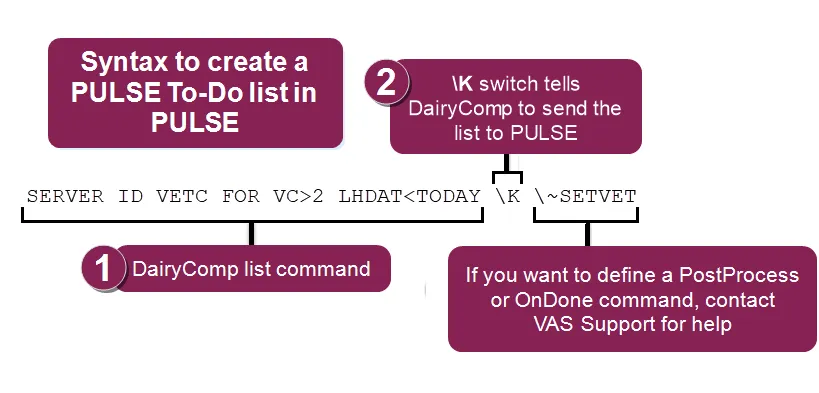
before you can process your to do lists in pulse or the mobile app, you must first generate them in pulse, or set them up in dairycomp with the \k switch and then send them to pulse pulse then sends them out to the mobile app in its next update expand the sections below to learn more create to do lists in pulse you can generate s in pulse from multiple locations dairy reports/worklists docid\ unglsr18amy6xyamsfdnh use this tab to generate reports or worklists saved from the gallery template gallery docid 2ph37i7mwsj79bzcm4wca use the gallery to check out available report and worklist options report/worklist builder docid\ i7vcqxla9mwqwnm o exz this tool allows you to build custom reports and worklists using an easy drag & drop interface see build a to do list docid\ b4qr zkza afjvqgk2 kj for step by step instructions for building a to do list create to do lists in dairycomp step 1 create pulse to do tasks in dairycomp for customers who are familiar with the vas product, you may already know how to create and send a list to handhelds the command is similar when creating a to do list to send to pulse set up the command as shown in the example below start with the server command to define what you want the worklist to do use the \k switch to tell dairycomp to send this list to pulse if you want to define a postprocess or ondone command, enter for postprocess or ^ for ondone, followed by the command that should be run postprocess example server for >2 lhdat< \k \\ setvet ondone example server id vetc for vc>2 lhdat\<today \k \\^setvet cautions when planning follow‑up routines use caution when scheduling follow‑up routines for dairycomp to run after a list is processed (i e , postprocess lists), especially if all animals on the list must be processed before kicking off the next routine dairycomp does not wait for the entire list to be done it will kick off the follow‑up routines for each animal as it receives notification from the mobile app that the animal is done important use caution when scheduling follow‑up routines for dairycomp to run after a list is processed (i e , postprocess lists), especially if all animals on the list must be processed before kicking off the next routine dairycomp does not wait for the entire list to be done it will kick off the follow‑up routines for each animal as it receives notification from the mobile app that the animal is done expandableheading{customanchorslug="video"} click here for video tutorials on this feature! for more information on how to use ondone and postprocess routines in dairycomp, check out the following videos on the vas website step 2 send your to do tasks to pulse important be aware that if dairycomp sends multiple versions of the same list to pulse in one day, the most recent list overwrites the earlier ones but does not affect any progress or changes made against the list unlike the product, which requests each worklist during a refresh, pulse does not request worklists from on‑premise dairycomp instead, dairycomp must manually send worklists to pulse this ensures that on‑premise users control the lists that are sent out to pulse mobile app you can send platform worklists from dairycomp manually or schedule dairycomp to send them automatically follow the instructions below to proceed send lists manually follow these steps to send worklists from dairycomp to pulse manually go to the dairycomp command line type platform\k and press enter this command instructs dairycomp to find all platform enabled (\k) server commands and generate the corresponding worklist files the worklist files are then sent to pulse the next time it synchronizes data from dairycomp schedule dairycomp to send lists if you prefer not to do a manual send each time you want to update your pulse lists, you can set up a dairycomp scheduled task that automatically executes the platform\k command at a convenient daily or weekly interval please contact vas support http //platform docs vas com/default htm#cshid=1004 if you need help scheduling this type of task in dairycomp