Create a Vet List
Before you can process your vet list in PULSE or the mobile app, you must first build it in PULSE, or set it up in DC305 with the \K switch (which sends the list to PULSE).
IMPORTANT: Configuring s requires advanced veterinary knowledge as well as the guidance of animal health experts. The steps outlined below assume that you are working with an expert PULSE/DairyComp user and your vet.
Expand the sections below to learn more:
You can generate worklists in PULSE from multiple locations:
- Dairy Reports/WorklistsDairy Reports/Worklists: Use this tab to generate reports or worklists saved from the Gallery.
- Template GalleryTemplate Gallery: Use the Gallery to check out available report and worklist options.
- Report/Worklist BuilderReport/Worklist Builder: This tool allows you to build custom reports and worklists using an easy drag & drop interface.
See Build a Vet ListBuild a Vet List for step-by-step instructions for building a custom vet list.
Use the ALTER\5 command to define options, such as Vet Codes (VC) and Vet Check (VETC) reasons. The order of the items is important, as the VETLIST command flags the first vetcode encountered as the reason for the vet check. For instance, if an animal has multiple vet codes in its record, including VC 3 (PREG) and VC 6 (ABT?), the will use VC 3 as the reason for the check.
Save your common VETLIST commands for easy reuse in DairyComp using the ALTER\3 command. For example, you can save VETLIST VITEMS FOR VC>0 HLDAT<TODAY BY PEN as "VLIST".
The VETLIST command resets the veterinary codes by first looking at the animal's record and checking if a veterinary code exists. If there is no veterinary code present, DairyComp examines the items in the animal's record to see if they meet any of the conditions in the veterinary code table (such as days in milk and RC=2 or FRESH), or in the command (such as PEN=2-4).
Prior to being able to send your to PULSE , you must run your VETLIST command(s).
If you saved your VETLIST command as an abbreviation, such as "VLIST", use the abbreviation to quickly run the command.
For customers who are familiar with the VAS PCC product, you may already know how to create and send a vet list to Pocket CowCard handhelds. The command is similar when creating a vet list to send to PULSE.
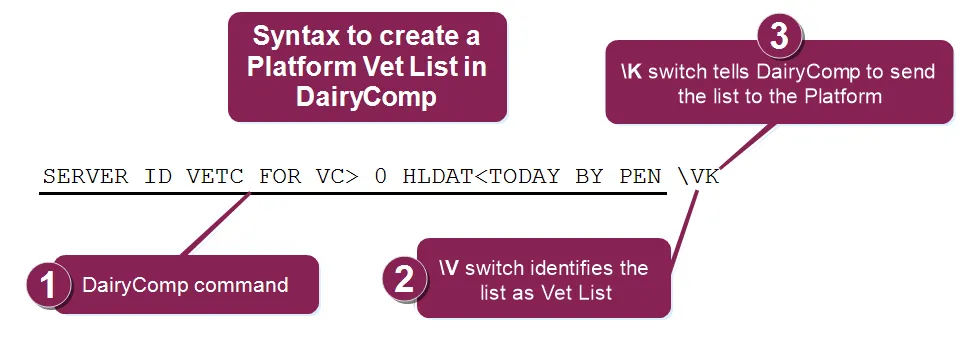
Set up the command as shown in the example below:
- Start with the SERVER command to define what you want the vet list to do.
- Use the \V switch to identify the list as a vet list (in the mobile app).
- Use the \K switch to tell DairyComp 305 to send the list to PULSE.
IMPORTANT:
The way to define which items display in a hospital list differs between Pocket CowCard and Platform. Pocket CowCard items are defined in DairyComp using the Pocket CowCard Entry tab in Server Configuration (
SERVER\3
). Platform items are included in the Hospital List command in one of two ways:
- Directly in the command. For example: SERVER ID Identifier PEN DIM Days in milk RPRO Reproductive code DCC Days carrying calf/pregnant FOR PEN=99 \HK
- As a separate command. For example: SERVER HPITEMS FOR PEN=99 \HK where the HPITEMS command is defined as ID PEN DIM RPRO DCC
IMPORTANT: Be aware that if DairyComp 305 sends multiple versions of the same list to PULSE in one day, the most recent list overwrites the earlier ones but does NOT affect any progress or changes made against the list.
Unlike the Pocket CowCard product, which requests each worklist during a refresh, PULSE does not request worklists from on‑premise DairyComp. Instead, DairyComp must manually send worklists to PULSE. This ensures that on‑premise users control the lists that are sent out to PULSE mobile app.
You can send Platform Worklists from DairyComp manually or schedule DairyComp to send them automatically. Follow the instructions below to proceed.
Follow these steps to send worklists from DairyComp to PULSE manually:
- Go to the DairyComp command line.
- Type PLATFORM\K and press enter.
This command instructs DairyComp to find all Platform-enabled (\K) SERVER commands and generate the corresponding worklist files. The worklist files are then sent to PULSE the next time it synchronizes data from DairyComp.
If you prefer not to do a manual send each time you want to update your PULSE lists, you can set up a DairyComp Scheduled Task that automatically executes the PLATFORM\K command at a convenient daily or weekly interval. Please contact VAS Support if you need help scheduling this type of task in DairyComp.