ALTER4: Pens
6 min
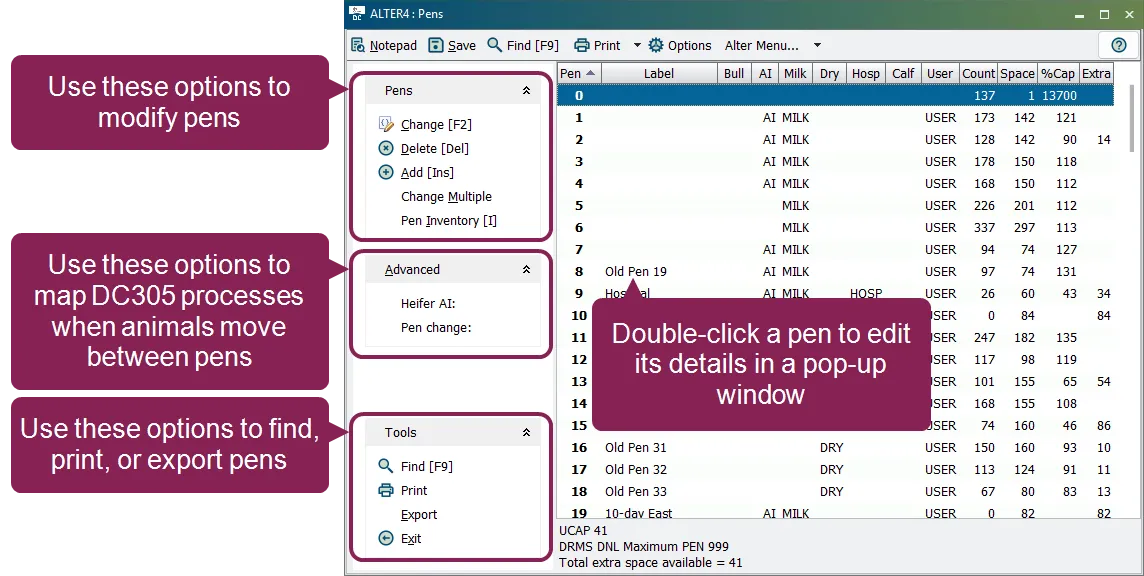
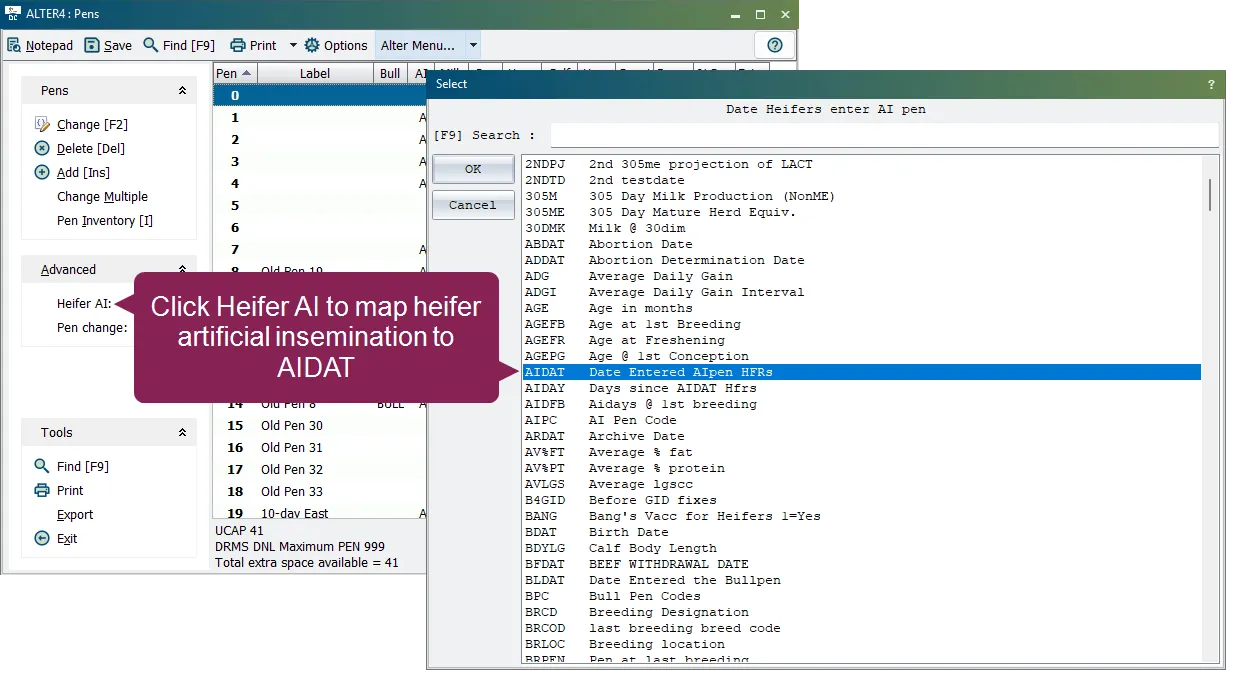
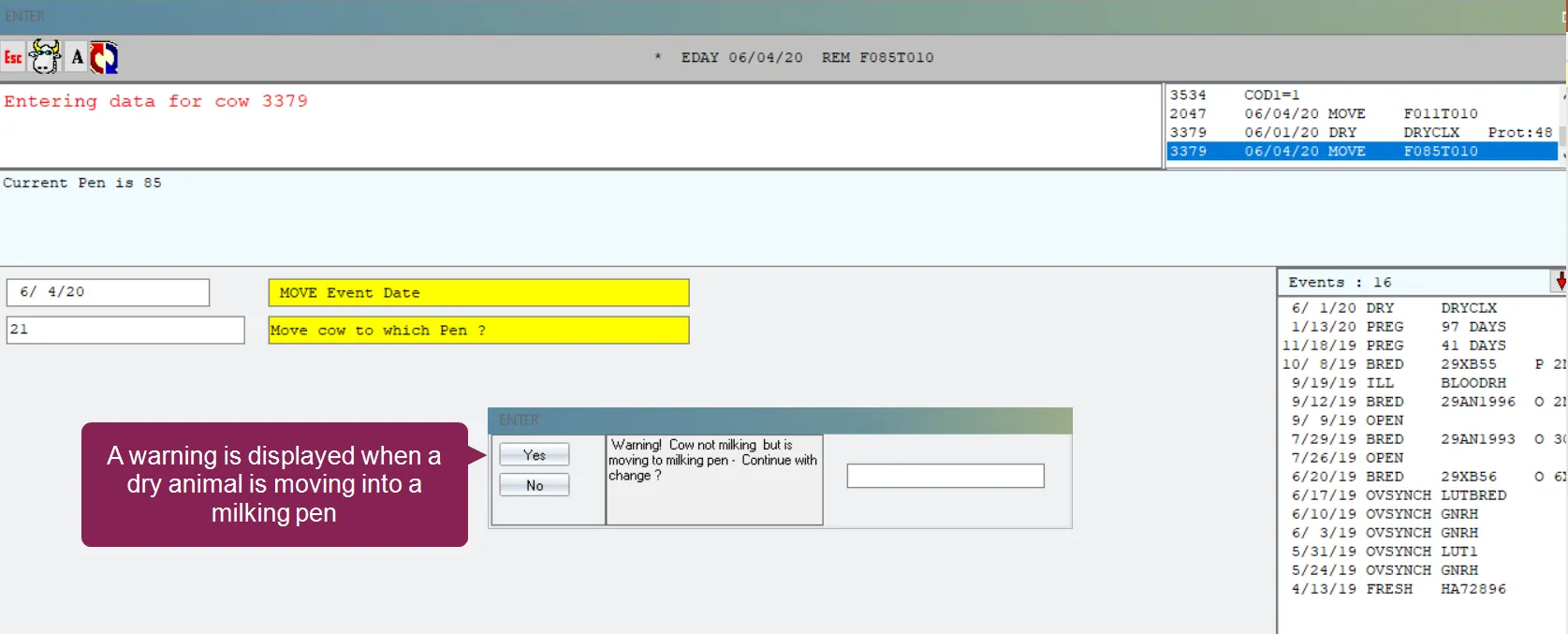
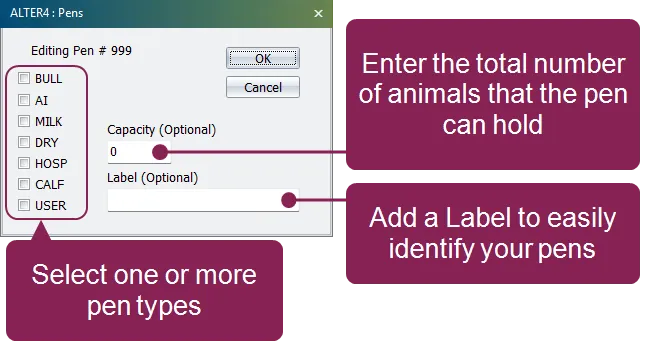
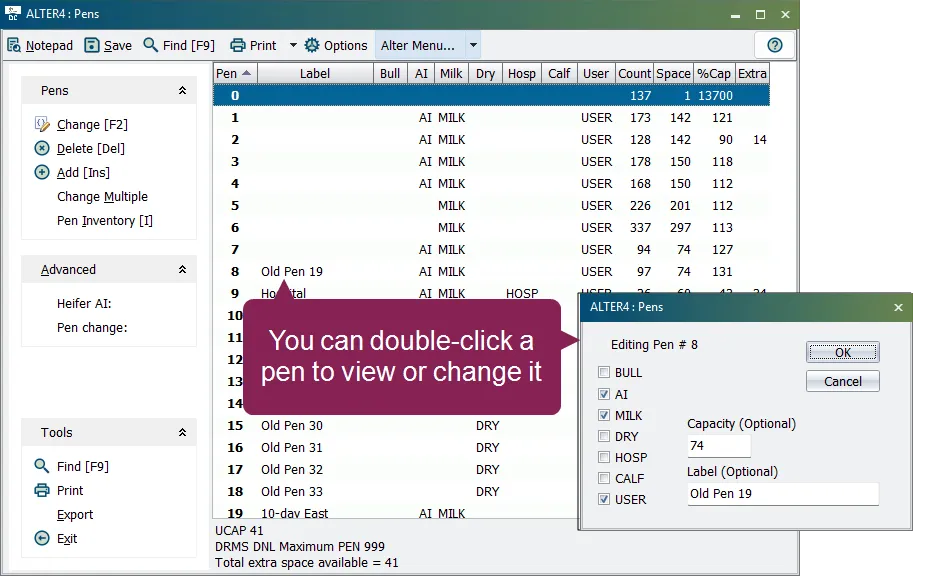
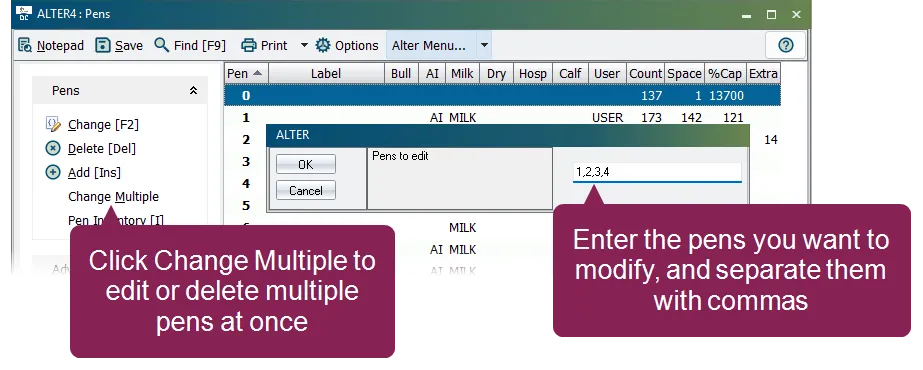
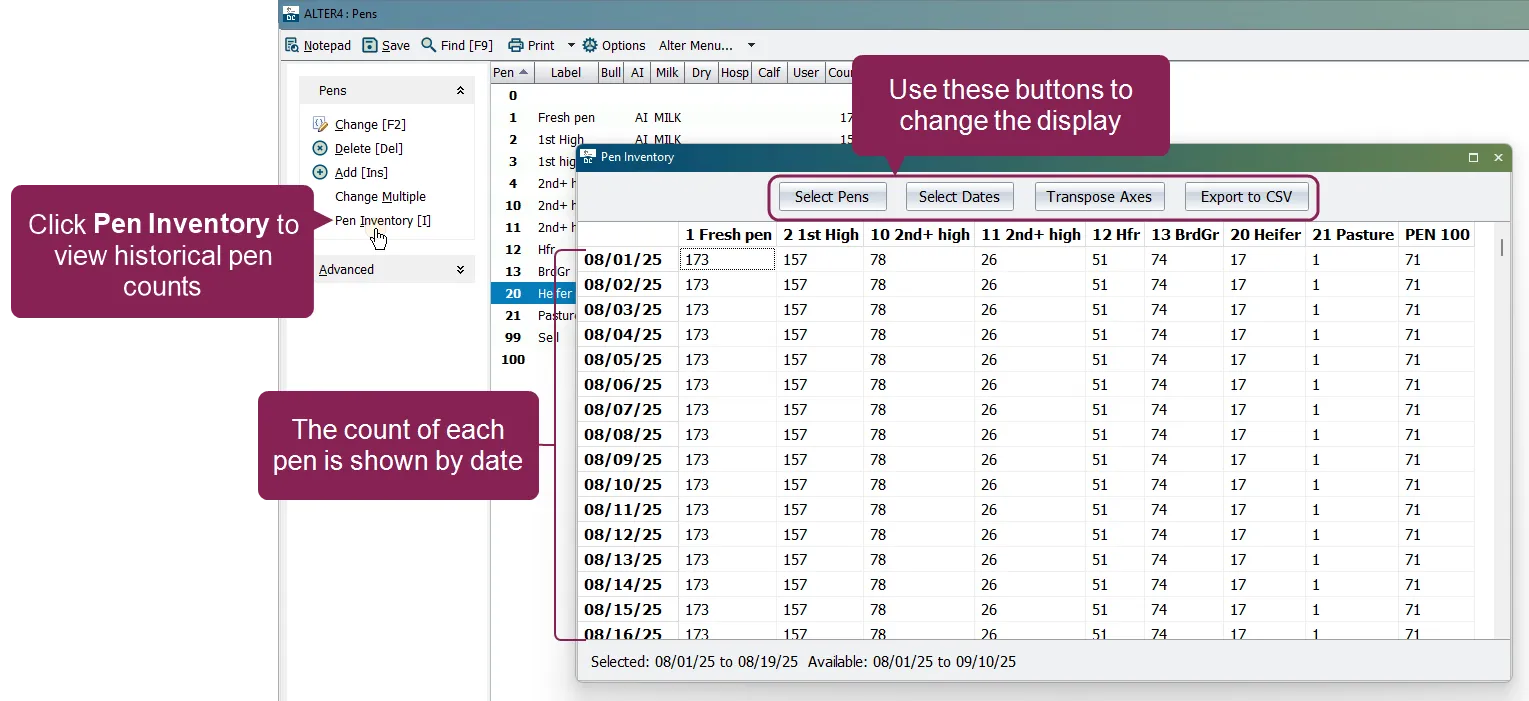
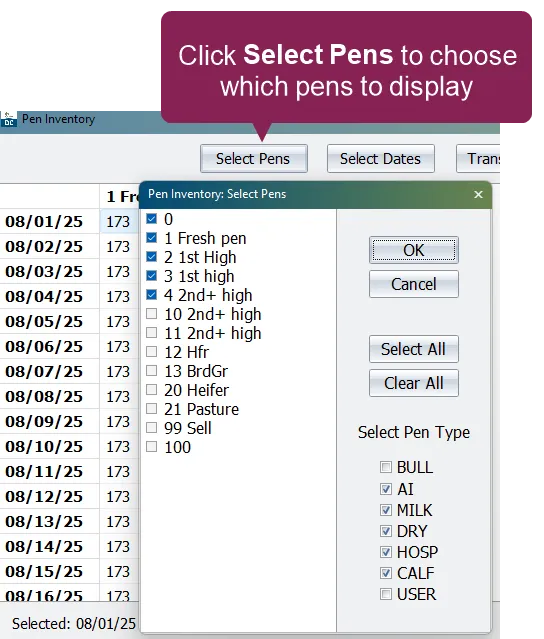
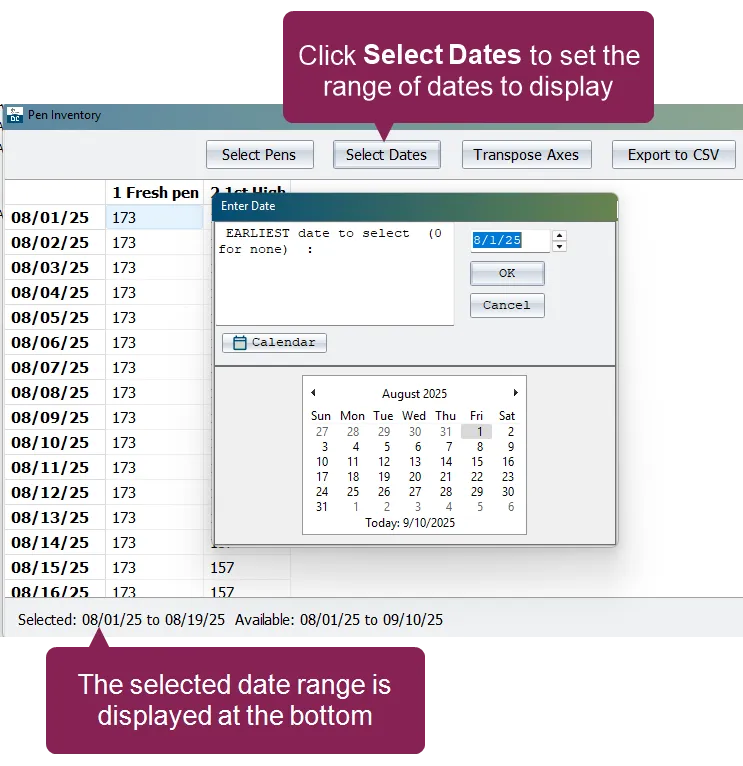
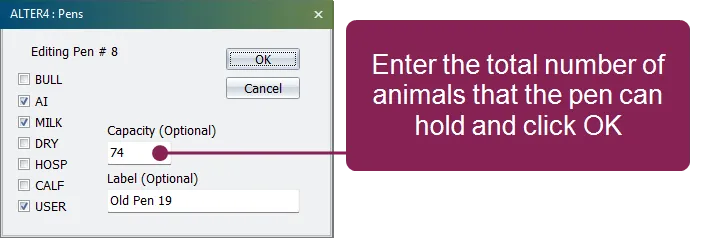
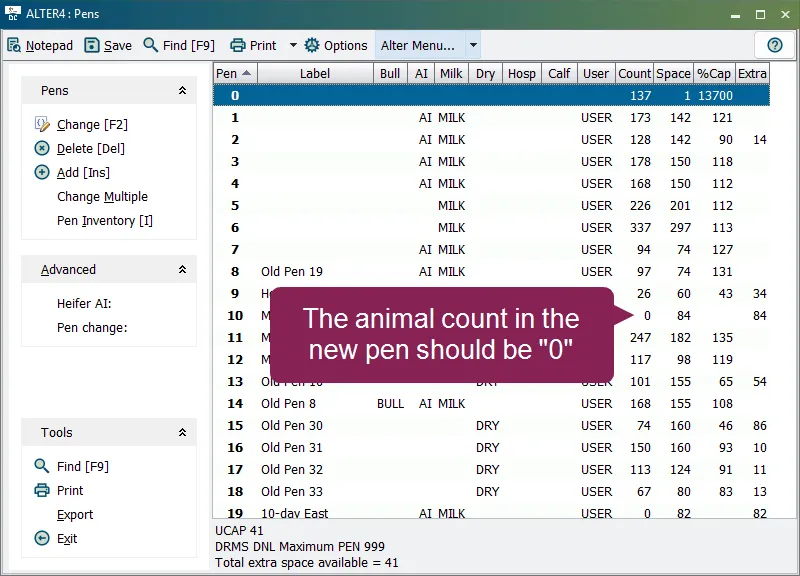
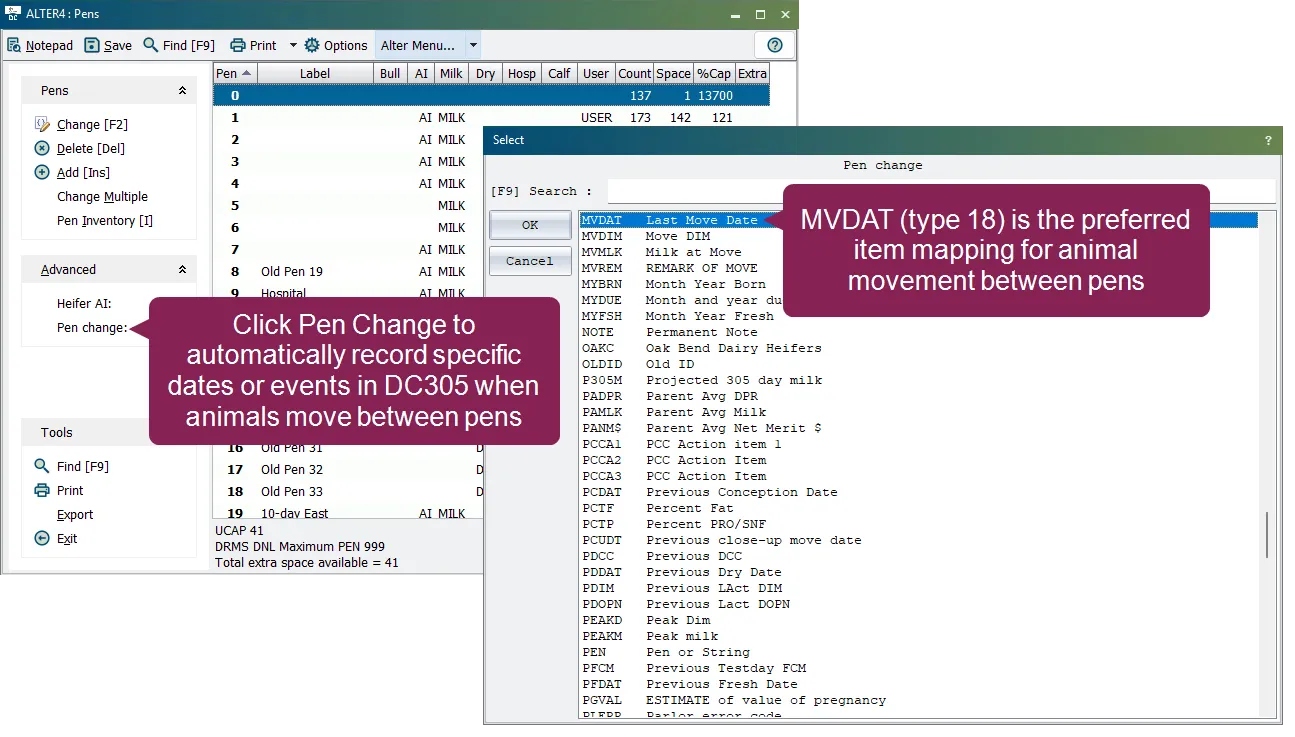
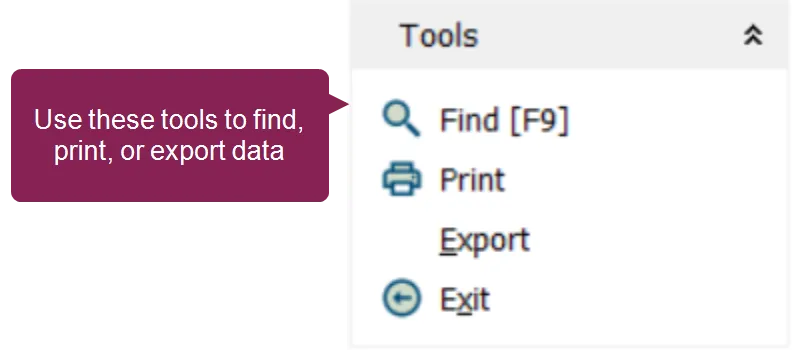
the alter4 pens option allows you to manage your dairycomp pens or to view a historical pen inventory you can create new pens, and also delete, rename, or change (alter) them to open the pens list window, enter alter in the command line, then select \[4] pens from the menu alternatively, you can enter alter\4 directly in the command line when setting up your pens, dairycomp can automatically record the date when an animal enters a pen this helps accurately reflect an animal's reproductive or health status for example \<font color="#67854e">bull pens\</font> recording the move in date for a bull pen helps you estimate conception dates see bull pen docid\ nom61wlbr2ibwgqeald6e and pen change docid\ nom61wlbr2ibwgqeald6e to learn more \<font color="#67854e">ai pens \</font> many dairies only enroll animals in breeding or sync programs when they move into an active ai pen ( aipen>0 ) recording this move in date is important because it allows you to enter bredsum aidat\y in the command line to quickly see your bredsum analysis and monitor key metrics like reproductive performance, conception rate, and pregnancy rate enter bredsum for aipen>0 in the command line to filter your bredsum analysis to include only animals that have moved into ai pens create more flexible and future proof command abbreviations using alter\3 , because the aipen>0 filter automatically includes all animals in any ai pen this eliminates the need to manually update your abbreviations whenever a specific ai pen number changes or a new one is added see ai pen docid\ nom61wlbr2ibwgqeald6e and heifer ai docid\ nom61wlbr2ibwgqeald6e to learn more expand the sections below to learn more guidelines for working with pens the pen numbers available in dairycomp vary based your current dairycomp cowfile version version 10 allows pen numbers 1 9999 pen number "0" (zero) is typically used by dairycomp for record transfers so, you should avoid using it as it may cause dairycomp to miss animals that need pregnancy checks \<font color="#f97316">important\</font> if you have an older dairycomp cowfile version, please update dc305 to the latest release docid\ ebeqsmccwmoq 6dbm5x7v some users may have limited pen numbers available when using a dhi testing service pen types in dairycomp reflect an animal's reproductive or health status you must select at least one pen type when adding or changing a pen see learn about pen types docid\ nom61wlbr2ibwgqeald6e for more information learn about pen types in dairycomp, pen types, like ai, bull, and dry, are not just pen classifications dairycomp records different data and performs various workflows depending on the pen's type for example, if an animal is moved to a bull pen, dairycomp automatically enters the bullpen event into the cow's record (to document potential exposure to a bull) and adds her to the appropriate veterinary exam expand the pen types below to learn more about the processes that occur in dairycomp when animals are moved into in each pen type bull when an animal is moved to a bull pen, dairycomp automatically enters the bullpen event into the cow's record (to document potential exposure to a bull) and adds her to the appropriate veterinary exam an animal in a bull pen will have a heat date assigned to open animals dairycomp also considers the cow bred on the date it is moved into the bullpen, so an open animal in a bull pen will always have a bred repro status since she is exposed to a bull at all times while in the pen \<font color="#f97316">important \</font> a pen cannot be both an ai and a bull at the same time ai the ai pen type can be used for both cows and heifers that are ready for artificial insemination when a heifer pen is designated as an ai pen, dairycomp can automatically set the aidat in the animal's record when it is first moved to that pen you can map heifer ai to aidat within the advanced drop down list see heifer ai docid\ nom61wlbr2ibwgqeald6e to learn more \<font color="#f97316">important\</font> a pen cannot be both an ai and a bull at the same time milk a milking pen is a specific pen type for lactating animals and should only be used for animals that are producing milk dry dry pens are used for closeup and dry animals when an animal is dry and moved to a dry pen, dairycomp records the dry date (ddat) in the animal's record dairycomp warns you when a dry animal moves into a milking pen hosp the hospital pen is used for sick animals with special needs when an animal is moved into a hospital pen, the hospital date (hpdat) is recorded calf calf pens are used to identify youngstock a calf pen can also be an ai pen when heifers are ready for artificial insemination user the user pen type allows you to create your own user‑defined pen type add a pen from the pens drop down menu, select add \[ins] to create a new pen enter a new pen number between 1 9999 if you enter an existing pen number that is already in use, you'll edit the existing pen's details instead click ok to open the pen details pop‑up window define the pen details \<font color="#67854e">pen type\</font> choose from a predefined list of types multiple types can be assigned to a pen see learn about pen types docid\ nom61wlbr2ibwgqeald6e for more information about how animals in each pen type are processed \<font color="#67854e">capacity\</font> (optional) enter the total number of animals that the pen can hold see set up pen capacity docid\ nom61wlbr2ibwgqeald6e to learn more \<font color="#67854e">label\</font> (optional) enter an identifier for the pen that will help you easily identify the pen later view or change a pen use the change option or double click a pen to preview a pen or change its details make your edits, and then save your changes delete a pen use the delete option to remove a pen, but note that deleted pens cannot be recovered to delete a pen, select the pen, click delete \[del] , and confirm the deletion modify multiple pens the change multiple option allows you to edit or delete multiple pens at once enter the pen numbers you want to edit, using commas to separate the numbers e g 1,2,3,4 click ok respond to the prompts to delete or edit each pen when you complete the last pen in your list, your changes are saved and the pens list window closes view pen inventory the pen inventory function provides a historical log of pen counts, allowing you to monitor occupancy trends in your dairy over time dairycomp logs pen counts once daily, shortly after midnight, as long as dairycomp is running if dairycomp is closed, the count is logged the next time the program starts note pen inventory maintains up to two years of data; after that, older data is trimmed automatically to use this function, select pen inventory from the pens list window the pen inventory window opens, showing the number of animals in each pen by date use the buttons at the top of the pen inventory window to change what is shown \<font color="#67854e">select pens\</font> opens a checklist of all pens so you can choose which to display you can select all, clear all, or filter by pen type (for example, ai or milk) dairycomp remembers your last selection for convenience \<font color="#67854e">select dates\</font> lets you set the range of dates to display you cannot select dates earlier than when your herd first began logging pen inventory data the range of dates you select appear at the bottom of the pen inventory window \<font color="#67854e">transpose axes \</font> switches the table orientation by default, pens are columns and dates are rows when transposed, dates become columns and pens are rows \<font color="#67854e">export to csv \</font> saves the displayed inventory data with a default name of peninventory csv you can keep that name or change it if the file already exists the system will ask if you want to overwrite it set up pen capacity pen capacity is the total number of animals that the pen can hold, and it is usually defined by the number of usable stalls or headlocks in the pen use the pens list window to set up pen capacity use the change option or double click a pen to preview a pen or change its details in the capacity field, enter the total number of animals that the pen can hold and click ok use these commands to check pen capacity! to see all the pens that have a set capacity, enter alter\4p01 in the command line and click ok in the results list, you can also see how full each pen currently is to see all pens that are over 90% capacity, enter alter\4p90 in the command line and click ok move an entire pen of animals to a new pen \<font color="#f97316">important\</font> before you move all animals from one pen into another, we highly recommend that you complete the precautionary steps below complete these steps before proceeding! save a backup using the save\f command confirm that the new pen is empty by entering alter\4 in the command line, and then verify that the new pen's count is "0" in the pens list window ensure that you have the correct pen number for your current pen enter show id pen rpro for pen=(current pen number) in the command line to verify that the current pen's list of animals matches the list of animals you want to move to move an entire pen of animals into a new pen, enter pen=(new pen number) for pen=(current pen number) in the command line for example, if you want to move all the animals from pen number 1 to pen number 2, enter pen=2 for pen=1 in the command line advanced pen options expand the sections below to learn more heifer ai you can use the advanced heifer ai option to document when a heifer enters an ai pen the option can be found in the advanced drop down list on the left side of the window when selected, dairycomp provides a picklist of items to choose from so you can define the date when a heifer first entered an ai pen see aipen docid\ nom61wlbr2ibwgqeald6e to learn more note the aidat (type 18) item is the preferred date item mapping for heifer movement into ai pens see alter2 item definitions docid\ elh0 fj ktf5ihc3rhfig to learn more about configuring items in dairycomp pen change in the advanced drop down list on the left side of the window, use the pen change option to map which date or event items should be automatically recorded when animals move between pens note the mvdat (type 18) item is the preferred date item mapping for animal movement between pens see alter2 item definitions docid\ elh0 fj ktf5ihc3rhfig to learn more about configuring items in dairycomp find, print, and export pen definitions these options are found within the tools drop down list at the bottom right side of the pens list window the system displays the numbers, names, types, animal counts, and descriptions of all pens in the current table you can either print the list from the browser or export the information to a file to find a specific pen, click the find option or press the \[f9] button on your keyboard enter the desired pen into the search bar the system will automatically locate the pen as you type