ALTER3: Command Abbreviations
The ALTER\3 command in DairyComp lets you manage command abbreviations. Command abbreviations are shortcuts that represent longer, frequently used command strings. Command abbreviations save time, reduce errors, and help maintain consistency when running reports and performing routine data checks.
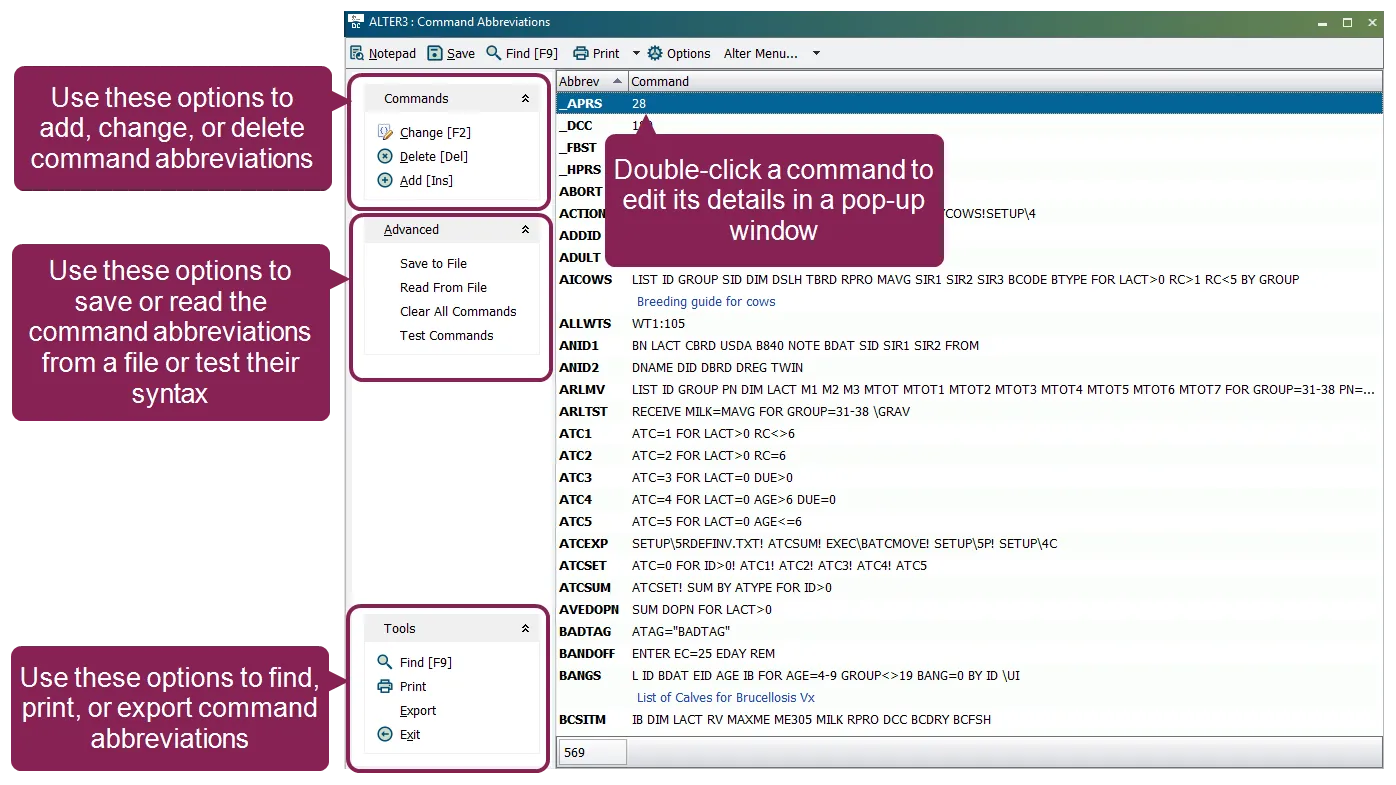
To open the Command Abbreviations window, enter ALTER\3 or type ALTER and choose [3] Commands from the menu
1 Pull-down menus
2 Interactive icons
3 Command line entry box
4 The left side of the window contains an Outlook style toolbar (simply called the "Outlook Bar") that supplies quick access to the program's major functions.
5 Use the tabs at the bottom of the window to quickly navigate to different DairyComp pages.
6 A status bar with the cowfile information and current date can be found at the bottom of the window.
Expand the sections below to learn more:
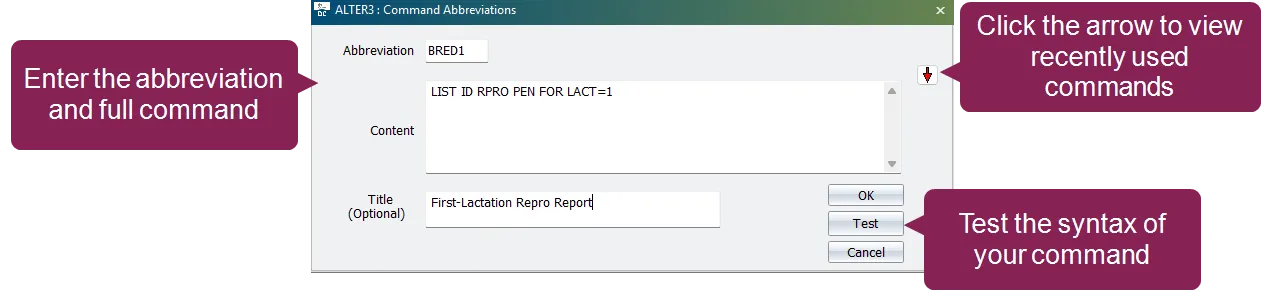
Use the Add option to create a new command abbreviation. When selected, a new window opens where you can enter the abbreviation and the full command it represents.
Command abbreviations are stored in the DairyComp cowfile and are available to all users who access that file.
A command abbreviation has three parts:
- Abbreviation: The one word name for the command abbreviation. Limited to 2-7 characters. Example: BRED1 or REPORT2.
TIP: Choose an abbreviation that is short and meaningful to help you remember the command's purpose.
IMPORTANT: An abbreviation cannot use the same name as an existing item or event.
- Content: The full command that the abbreviation runs.
Example: LIST ID RPROPEN FOR LACT =1
You can type the command directly, or click the red arrow button
 to open a list of recently used commands. Selecting one of these commands inserts it into the Content field, where you can edit or expand it to create your desired abbreviation. See Command LineCommand Line for more information about using command line syntax.
- Title: A short description, used mainly in printed reports. Adding a title to a command allows you to search for it within the Reports section of AssistAssist. When reports are printed, DairyComp displays the title instead of the abbreviation.
The window also includes a Test button. See Test Commands to learn more about this function.
- A version 8 cowfile can store up to 2,048 total command abbreviations, with a maximum command length of 127 characters.
- A version 10 cowfile can also store up to 2,048 total command abbreviations, but command length can be up to 1,024 characters.
Use the Change option to edit an existing command abbreviation. This is helpful when the underlying command changes, a title needs updating, or an abbreviation no longer matches its purpose.
Select the abbreviation you want to modify, then choose Change from the Commands menu (or press F2). You can edit the abbreviation, the full command, or the title as needed. You can also use the Test button to check the syntax of the command to confirm it is valid before saving your changes.
NOTE: Changes apply to everyone who uses the same cowfile. Update shared abbreviations carefully to avoid disrupting other users' workflows.
Use the Delete option to remove a command abbreviation that is no longer needed. DairyComp prompts you to confirm the action, and selecting Yes deletes the command abbreviation immediately.
TIP: If you may need the abbreviation again, consider exporting your command list before deleting. Deleted abbreviations are not automatically backed up.
The Print and Export options are available from the Tools drop-down list at the bottom-right of the Command Abbreviations window. These features let you print or export your list of command abbreviations for backup, review, or sharing.
Select Print to print all command abbreviations. This produces a list of all abbreviations, their contents, and titles for reference or review.
NOTE: Printing is available when the DairyComp print option is enabled and a printer is properly configured.
Select Export to open the Export Grid window, where you can choose what to include in the export and select the file format.
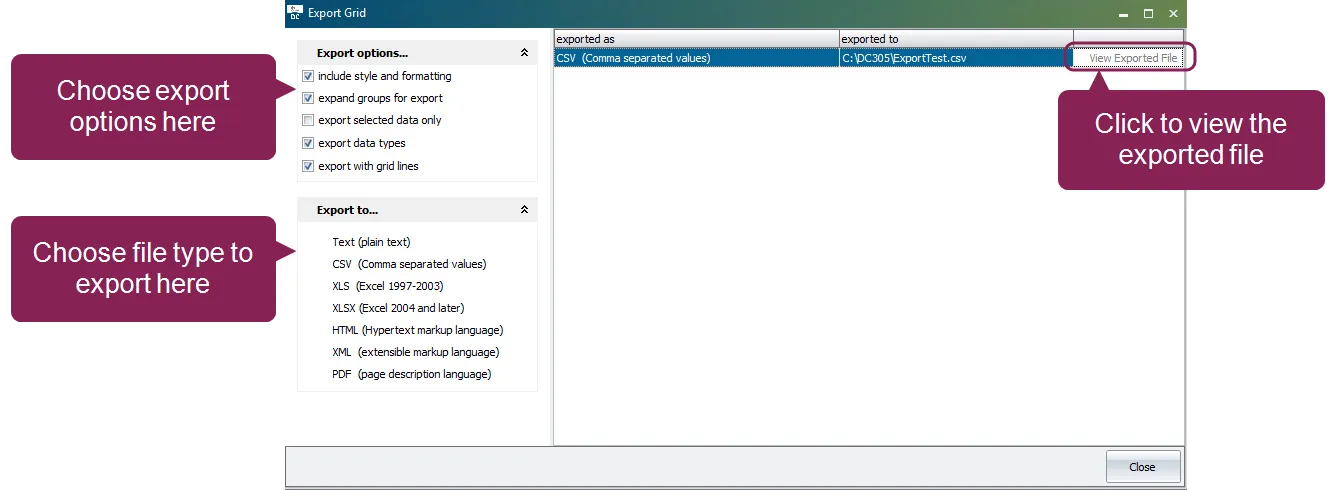
Once you have created the export file, its details display in the Export Grid window. To open the file, select View Exported File.
The Export options area of the window lets you specify how data is exported.
- Include style and formatting: Keeps grid formatting in the exported file.
- Expand groups for export: Expands grouped data so all records are included.
- Export selected data only: Exports only the abbreviations you’ve highlighted; leave unchecked to export all.
- Export data types: Includes field type information in the export.
- Export with grid lines: Adds grid lines to make data easier to read.
The Export to area of the window lets you choose the file format. You can choose from the following formats:
- Text (plain text)
- CSV (comma-separated values)
- XLS (Excel 1997–2003)
- XLSX (Excel 2004 and later)
- HTML, XML, or PDF
After choosing the format, DairyComp opens a standard Save As dialog where you can enter a file name and choose where to save the exported file.
Use the Find option to quickly locate a specific command abbreviation. A search bar appears where you can type all or part of an abbreviation. This feature is helpful when you have a long list of abbreviations and need to view or edit a particular one.
DairyComp automatically highlights matching commands as you type. For example, typing "BRED" highlights any abbreviations that begin with those letters.
If multiple abbreviations match, continue typing until the one you want is selected.
Use the Test option to verify that your command abbreviations use valid syntax. This process checks the structure of each command (not whether it produces the correct data output).
When you select Test, DairyComp reviews all abbreviations and reports any syntax errors it finds. A list of errors and their causes is displayed for command abbreviations that fail. Examples of failure points include unknown items in the syntax of commands and having DairyComp Report menu items that don't have command abbreviations associated with them.
IMPORTANT: Because the test does not verify whether the command produces the correct data or expected results, you should manually review any commands that return unusual or unexpected outputs in actual reports.
The Save to File and Read From File options are located under the Advanced section in the Command Abbreviations window. These features let you back up your list of command abbreviations or import an existing list. They are especially useful when upgrading DairyComp, moving data between herd files, or sharing command sets with other users.
IMPORTANT: It's strongly recommended that you work with VAS Support when saving or reading commands from a file.
Use Save to File to export all command abbreviations to a text file. You'll be prompted to specify a file name and location for the file.
NOTE: If you don’t specify a file name, DairyComp saves the file as COMMANDS.LST in the program’s subdirectory.
The exported file is an ASCII file that you can open in a plain text editor (such as Notepad). You can add, delete, sort, or modify abbreviations directly in this file if necessary.
IMPORTANT: When editing the file, keep abbreviations aligned in their original columns. Misalignment can prevent the file from importing correctly.
Use Read From File to import a list of saved command abbreviations. DairyComp displays a preview of the abbreviations before importing.
If duplicates exist, you’ll be prompted to choose whether to replace or ignore the existing entries.
TIP: Before importing, consider using Save to File to create a backup of your current command list. This ensures you can restore your original abbreviations if needed.