ALTER2: Item Definitions
5 min
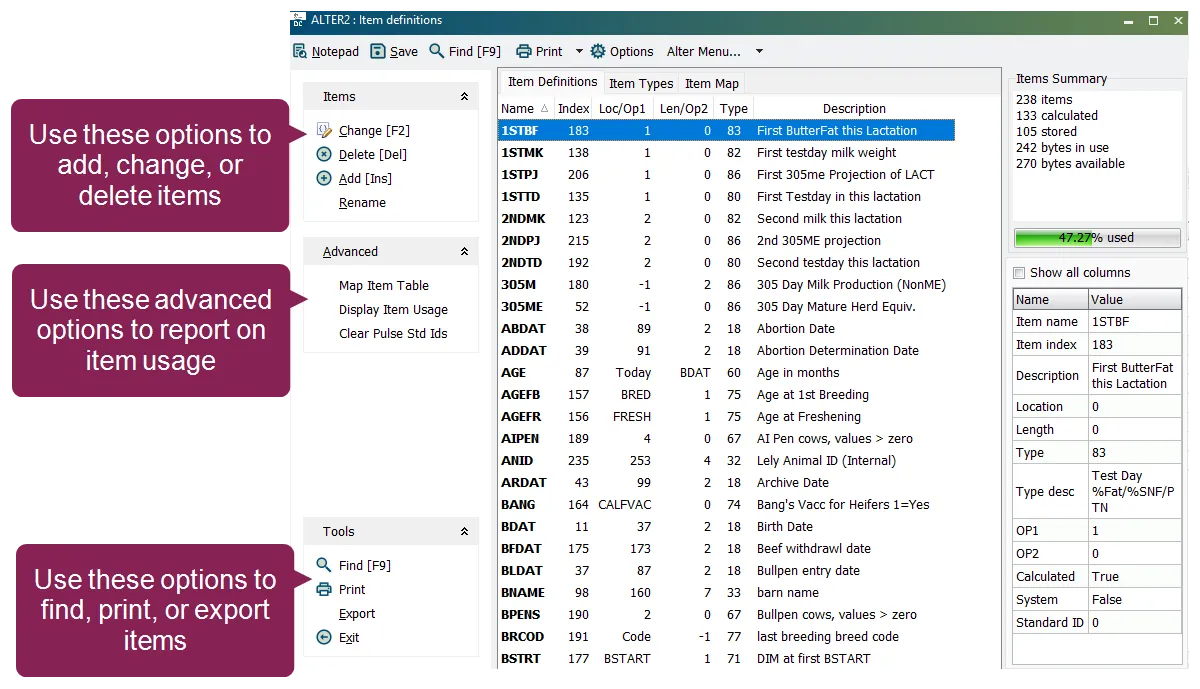
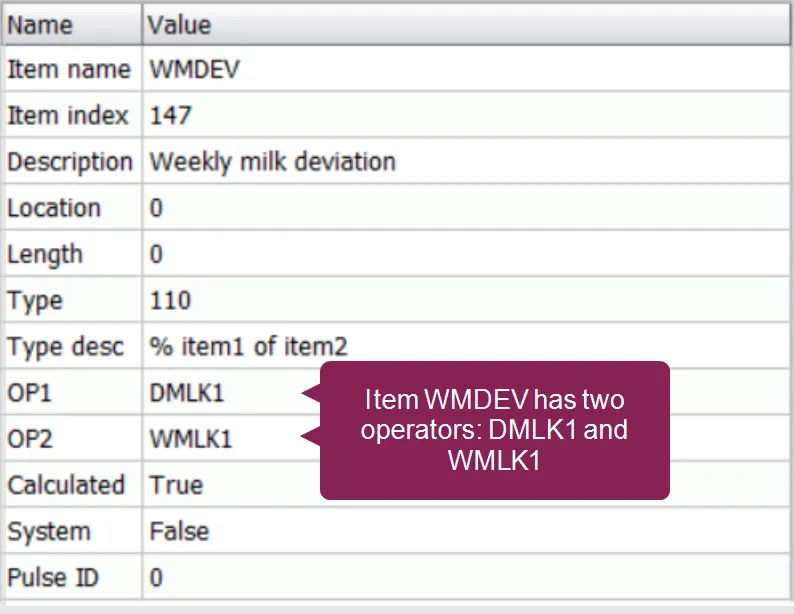
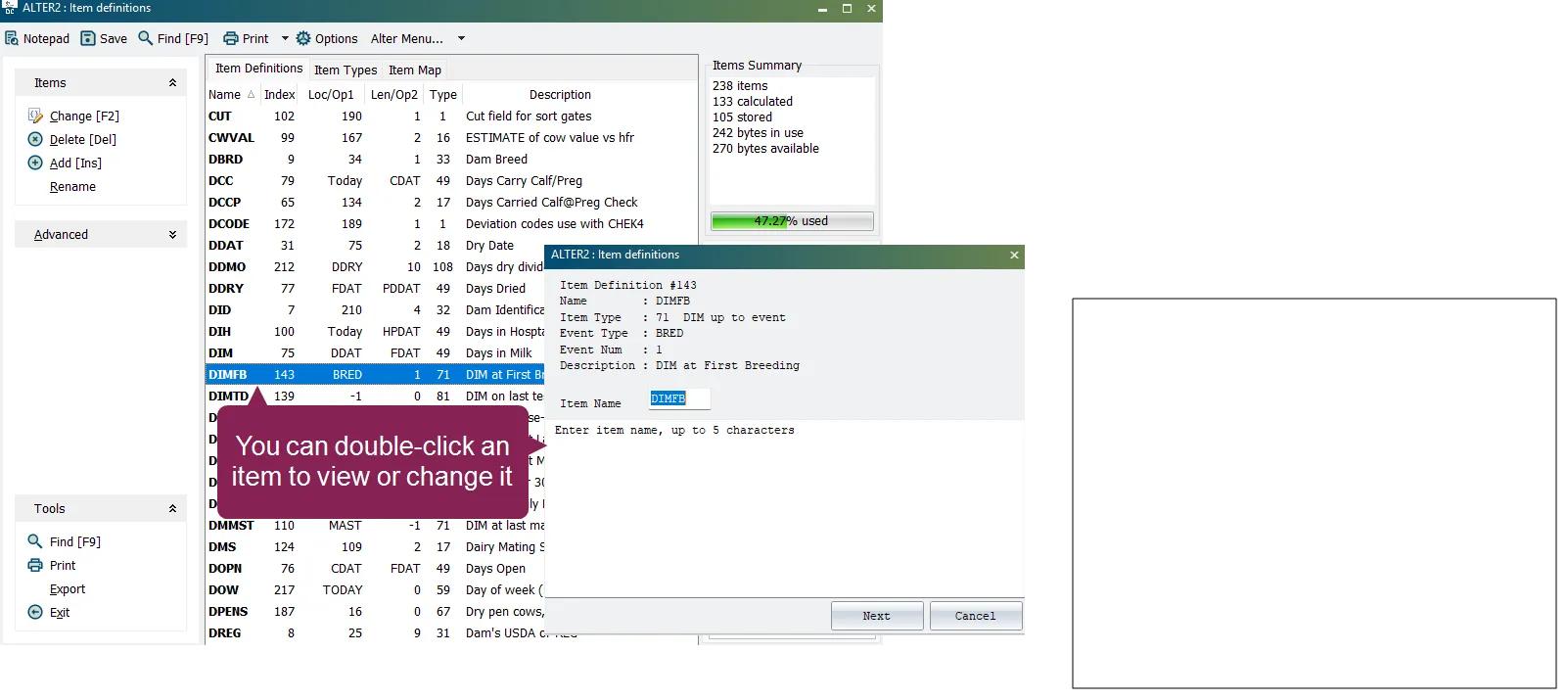
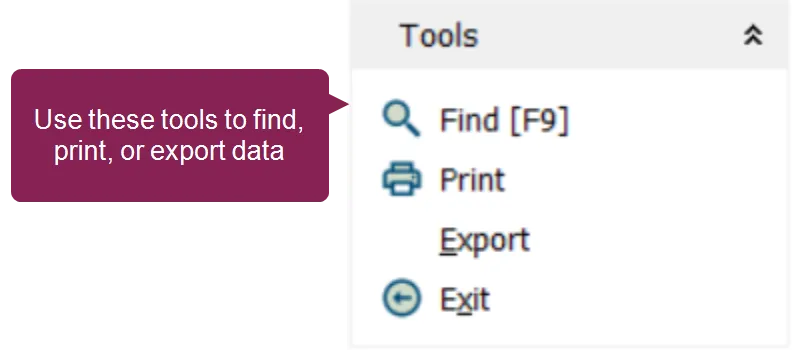
in dairycomp, the alter2 item definitions option allows you to view all the items currently configured for your dairycomp you can then change, delete, or rename the items, or you can create new items to open the item definitions window, enter alter in the command line, then select \[2] items from the menu alternatively, you can enter alter\2 directly in the command line note see items tabs docid od5c1wmdblyvcdln4p2 for more information about items in dairycomp expand the topics below to learn more about the options in the item definitions window add an item from the items drop down menu, select add \[ins] to create a new item you will need to click the next button after each entry \<font color="#67854e">item name \</font> limited to five characters \<font color="#67854e">item type \</font> choose from a predefined list of types common types include stored items (dates, numbers, strings) and calculated items (ages, due dates, expected or estimated values) \<font color="#67854e">item description\</font> limited to 31 characters for calculated item types, you can select a pair of “operators” ( op1 and op2 ) that affect how the item behaves for item types that accept other items as operators, press the space bar or up arrow key to display a list of current item names to select an item, select or type the item name, then press the enter key note in this case, “operators” do not mean the same as using system operators such as =, <, or x for item definitions, op1 and op2 function as two preexisting items that combine as a variable to formulate a calculated item type click here for an example of a calculated item with operators once an item definition has been reviewed and created, the system will ask if you wish to create another if you would like to create another, the system will save the previous item and open a new window to create a new item view or change an item use the change option or double click an item to preview an item or change its type and location once your desired changes have been made, you can either save the item or modify another item delete an item the delete option allows you to delete items from each animal's record, as well as the item table select the item you would like to delete, click delete \[del] , then confirm deletion note the system will not delete any items numbered 1 89 rename an item use the rename option to change an item name and/or description of your choice click on the item you would like to rename and select the rename option in the items drop down menu once an item name/description has been changed, the system will ask if you would like to update command abbreviations the system displays all commands that contain the item as well as an option for changing the commands contents note dairycomp cannot update the monitor table, cowcards, and fresh item table if an item has been moved to a different location in the table and has been given a new item number, make sure that your cowcard table, fresh table, monitor table, and command abbreviations have been properly updated map item table the map item table option is found within the advanced drop down list and is primarily used when vas support needs to debug or manipulate the item table you can also utilize this function to print, save the file, or view the availability for new items within the current table if a conflict is shown, you can modify or remove the item display item usage use the display item usage option to generate a comprehensive report of all data items in the system this option is found within the advanced drop down list the report can be printed or sent to a file the primary purpose of this function is to show how and where each item is being used throughout the system this is indicated by single letter codes in the "usage" column, with a legend provided at the top of the report this allows you to quickly see if an item is tied to a command, a report, an animal record, or a system function, which is useful for troubleshooting, customization, and understanding the system's data structure the report also includes the percentage of animals that have data for each item, giving you insight into its practical application find, print, and export item definitions these options are found within the tools drop down list at the bottom right side of the items definitions window the system displays the numbers, names, types, operators (or storage location), and descriptions of all items in the current table you can either print the list from the browser or export the information to a file to find a specific item, click the find option or press the \[f9] button on your keyboard enter the desired item into the search bar the system will automatically locate the item as you type