WeighComp Settings
The Settings page displays the assets that have been configured to use for the transactions performed in the WeighComp app. You can find this feature under the WeighComp menuWeighComp menu.
The products, vendors, and locations displayed in the Settings page have already been preset in FeedWatch (on-premise) and cannot be added or deleted from the WeighComp Platform. Fields for transactions are created directly in WeighComp in PULSE.
Click the Product tab to view a list of all feed products (e.g., almost shells) currently configured to work with WeighComp, along with their associated fields.
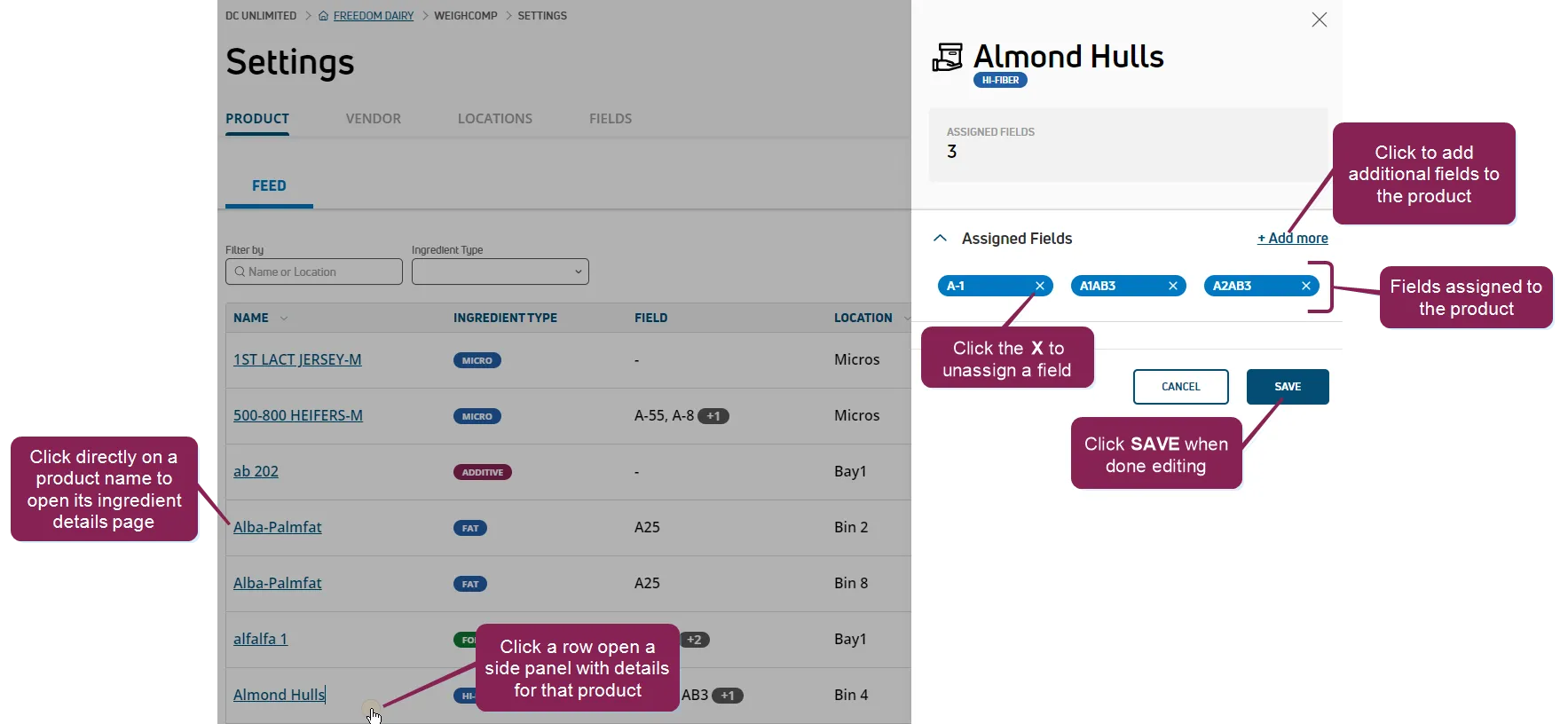
Each row displays up to two fields per product. If a product has more than two fields associated with it, the number of additional fields is indicated with a plus sign.
Much of the information shown in the Product tab is the same as that shown on the IngredientsIngredients list. You can click directly on the name of a feed product to view its ingredient details page.
NOTE: Products that have more than one location will be shown multiple times in the list (i.e., once for each location). Fields that are applied to these products will be applied universally (i.e., not to the product/location combination).
Use the following guidelines when editing fields for a product:
- The side panel shows the fields already configured for the product.
- To add new fields, click + Add more.
- To unassign a field, click the X near the field name.
- When you have set the fields, click Save.
Click the Locations tab to view a list of all the physical locations available for transactions and their associated feed products (e.g., "Bin 2") that have been configured for use in WeighComp transactions.
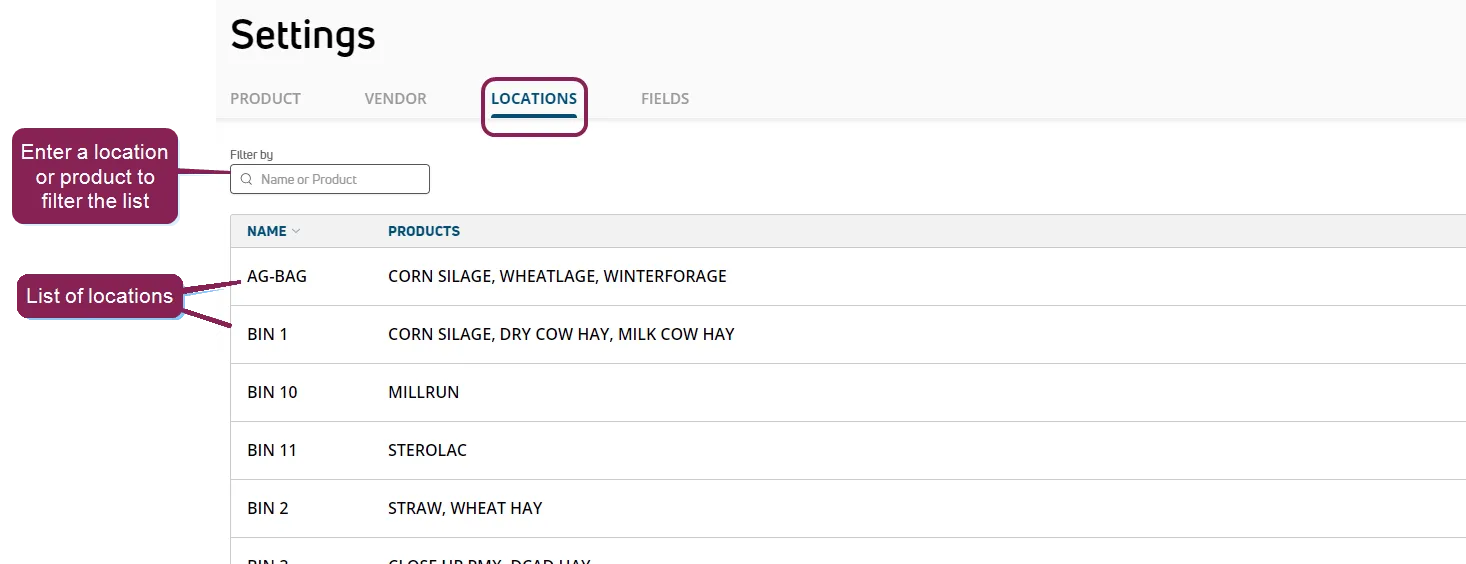
Location data is for reference purposes only and cannot be altered in WeighComp.
Click the Vendor tab to view a list of all vendors currently configured to work with WeighComp and their associated products (for example, Greenway Farms—Canola, Hay, Ground Rice).
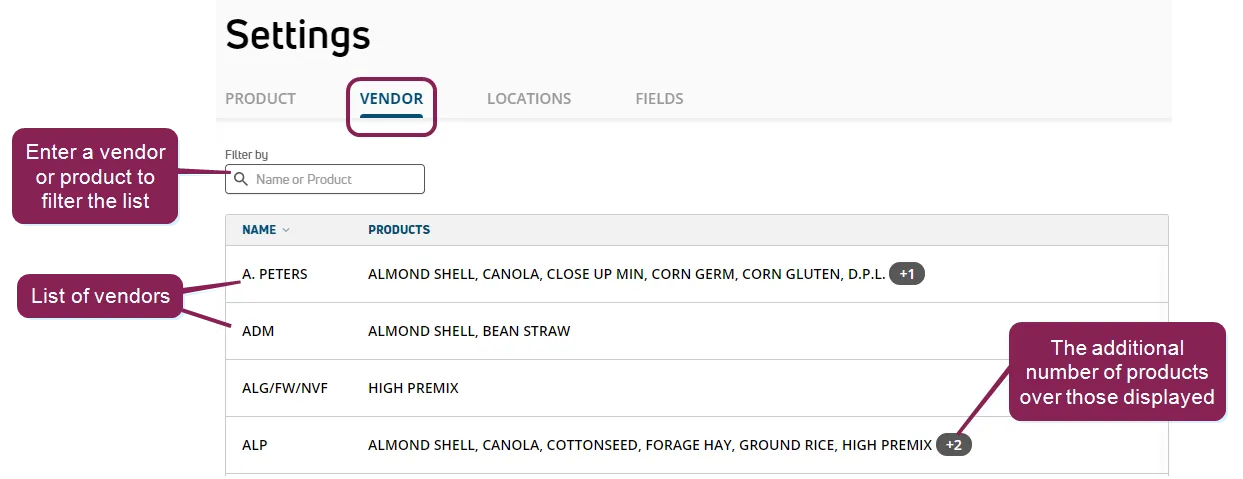
The name of each vendor appears in the left column. Each row of the page displays up to six products per vendor. If a vendor has more than six products configured, the number of additional products is indicated with a plus sign. Click the plus sign to view all of the products associated with the vendor.
To assign or unassign products for the vendor, click the applicable row to open a side panel with details for the vendor.
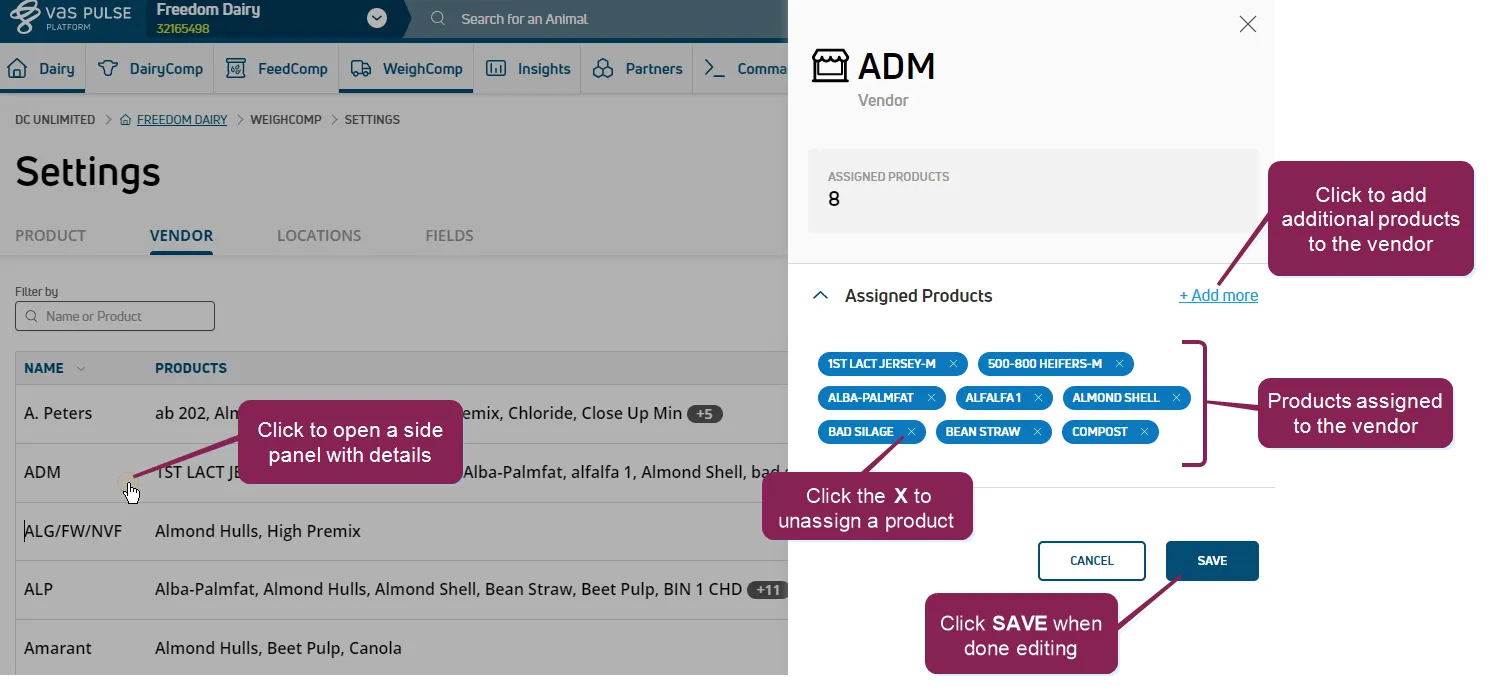
Use the following guidelines when editing products for a vendor:
- The side panel shows the products already configured for the vendor.
- To add new products, click + Add more.
- To unassign a product, click the X near the product name.
- When you have set the products, click Save.
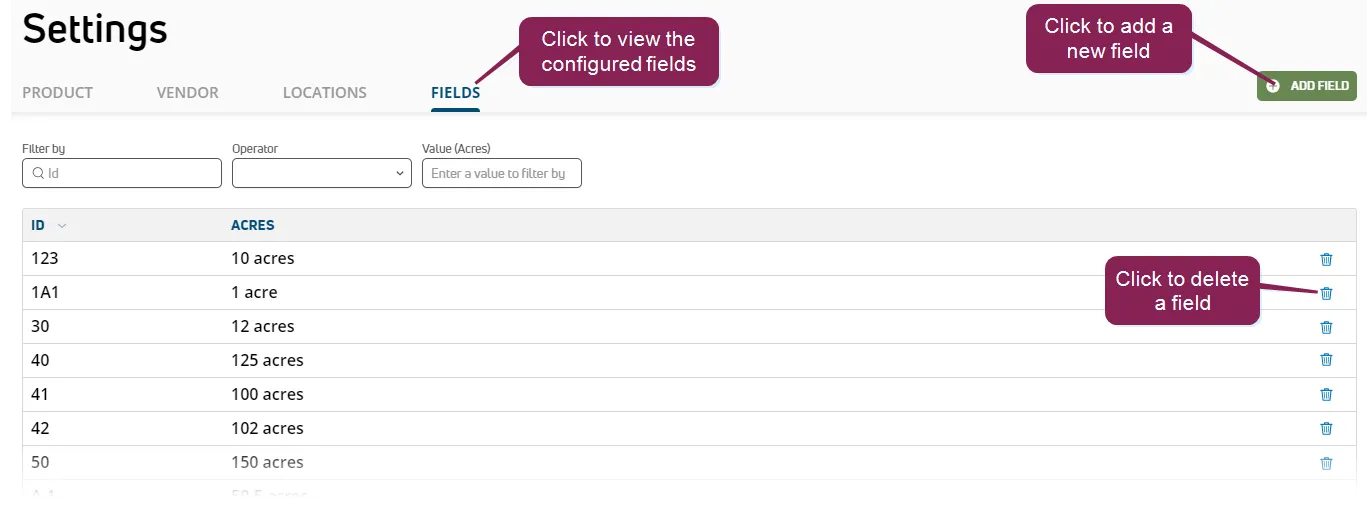
Click the Fields tab to view a list of all the fields on the dairy currently configured to work with WeighComp.
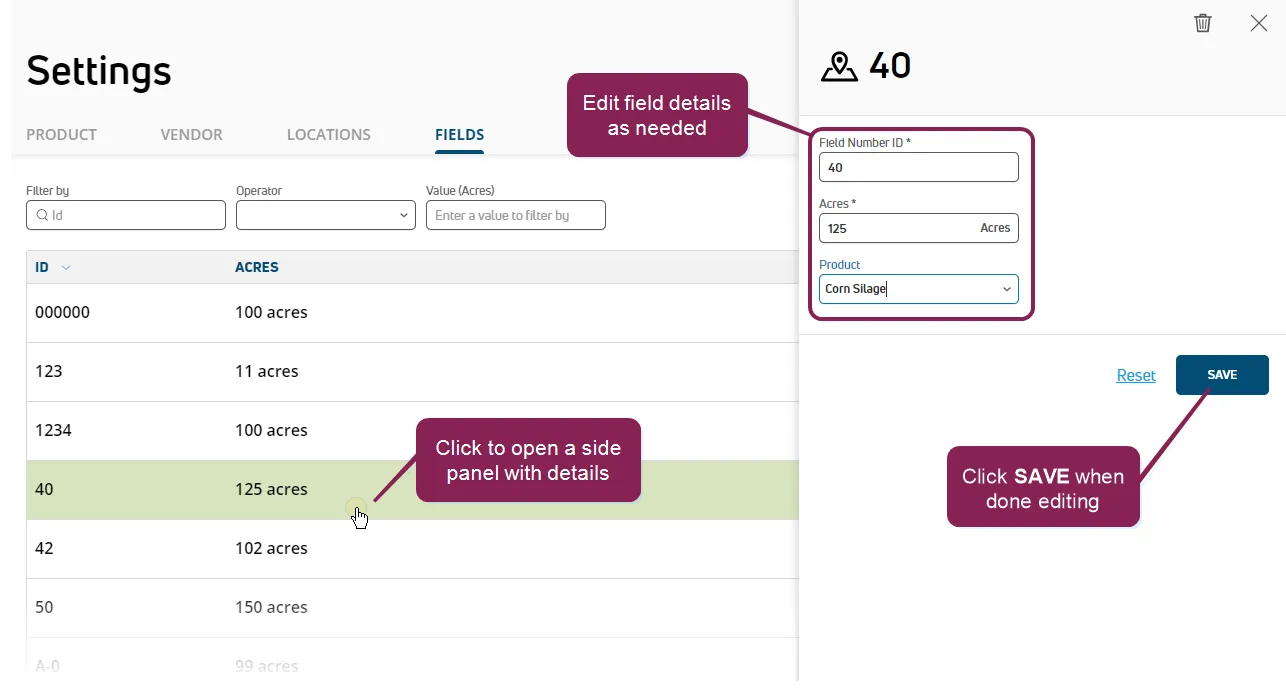
To view and edit the details for a field, click on its row to open a side panel where you can edit the Field Number ID, Acres, and Product associated with the field.
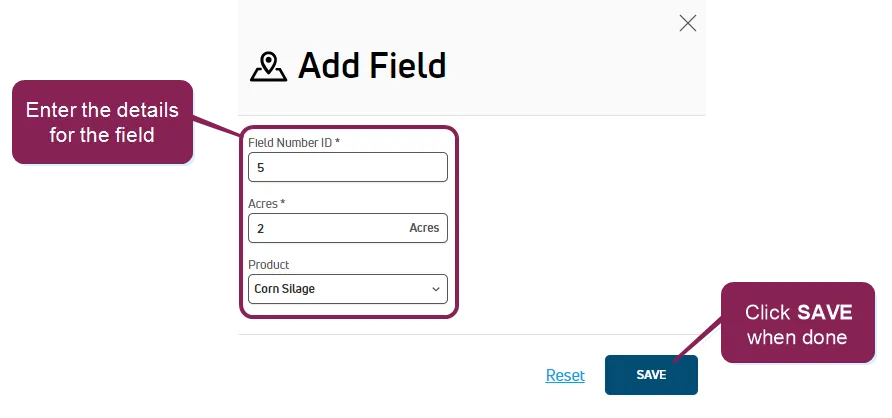
To add a new field to the list, click Add Field. The system will prompt you for information about the field. After you've entered the information, click Save.
To delete a field, click the delete icon  in the applicable row or from the field's side panel.