Contracts
The Contracts feature in WeighComp lets you manage contracts for feed products directly within PULSE. By centralizing contract management, you can eliminate manual tracking in spreadsheets or on paper, improve data accuracy, and streamline the reconciliation of delivered loads. You can find this feature under the WeighComp menu.
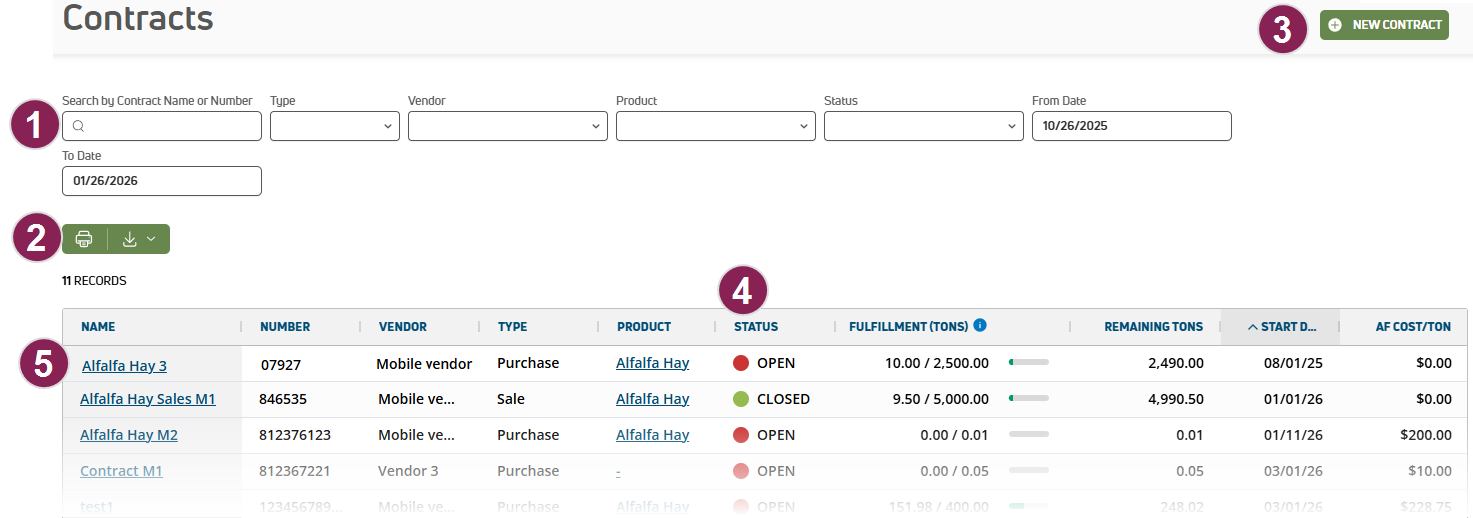
Search and Filter the Contracts List
Options to search and filter the listed contracts are available at the top of the page.
- Use the search bar to quickly locate a specific contract by its Name or Number.
- Filter the list by Type, Vendor, Product, or Status.
- Choose From Date and To Date to list only contracts for a specific date range.
Print or Export the Contracts List
Click the green Export as CSV button  to save the data as a CSV file. Or, click Print
  to send your data to the printer. If you applied filters, the data will print or export with the current filter(s) applied.
Add a New Contract
Click the New Contract button at the top right of the page to open the side panel and enter information for the contract. Follow the guidelines below when adding contracts:
- The contract Name can include alphanumeric characters, spaces, or dashes, while the Number field is alphanumeric to accommodate various vendor filing systems.
- Ensure you select the correct Type (Purchase or Sale), as this determines whether the contract tracks inbound deliveries or outbound pickups.
- When you select a Product, the Location list filters automatically to show only the bins or bays associated with that item; if only one location exists, it is pre-selected for you.
- You can click Import DM% and Cost to pull the most recent quality and pricing data directly from your feed software, though you can still manually adjust the DM% and AF Cost if needed.
- A Start Date is required to activate the agreement. You can leave the End Date blank when creating or editing the contract, but you must set one when closing it.
- If you enter a Note, an icon
 displays in the main Contracts table so you can quickly reference internal comments or specific agreement terms.
- Once you've added the information, click Save.
View Contracts Summary Data
An overall summary of all your contracts displays in the table at the center of the Contracts page based on the current filters set.
- Clicking a contract Name opens a detailed view of all associated pending and approved transactions, while clicking the Product name allows you to view specific ingredient details.
- The Number field provides a unique alphanumeric identifier, making it easy to cross-reference your records with external vendor filing systems.
- Check the Status column to see if an agreement is
 and active for new loads or
  and restricted to read-only access.
- Use the Fulfillment column to monitor real-time progress through a visual bar that compares the total weight delivered or picked up against your original contracted amount.
- The Type designates whether you are tracking a Purchase (inbound) or a Sale (outbound).
- AF Cost/Ton represents your agreed-upon "As-Fed" financial terms and serves as the basis for calculating the total cost of the contract as transactions are approved.
- If you see a Note icon , you can click it to quickly open the side panel and read any internal comments or specific terms added during the contract setup.
View Details for a Specific Contract
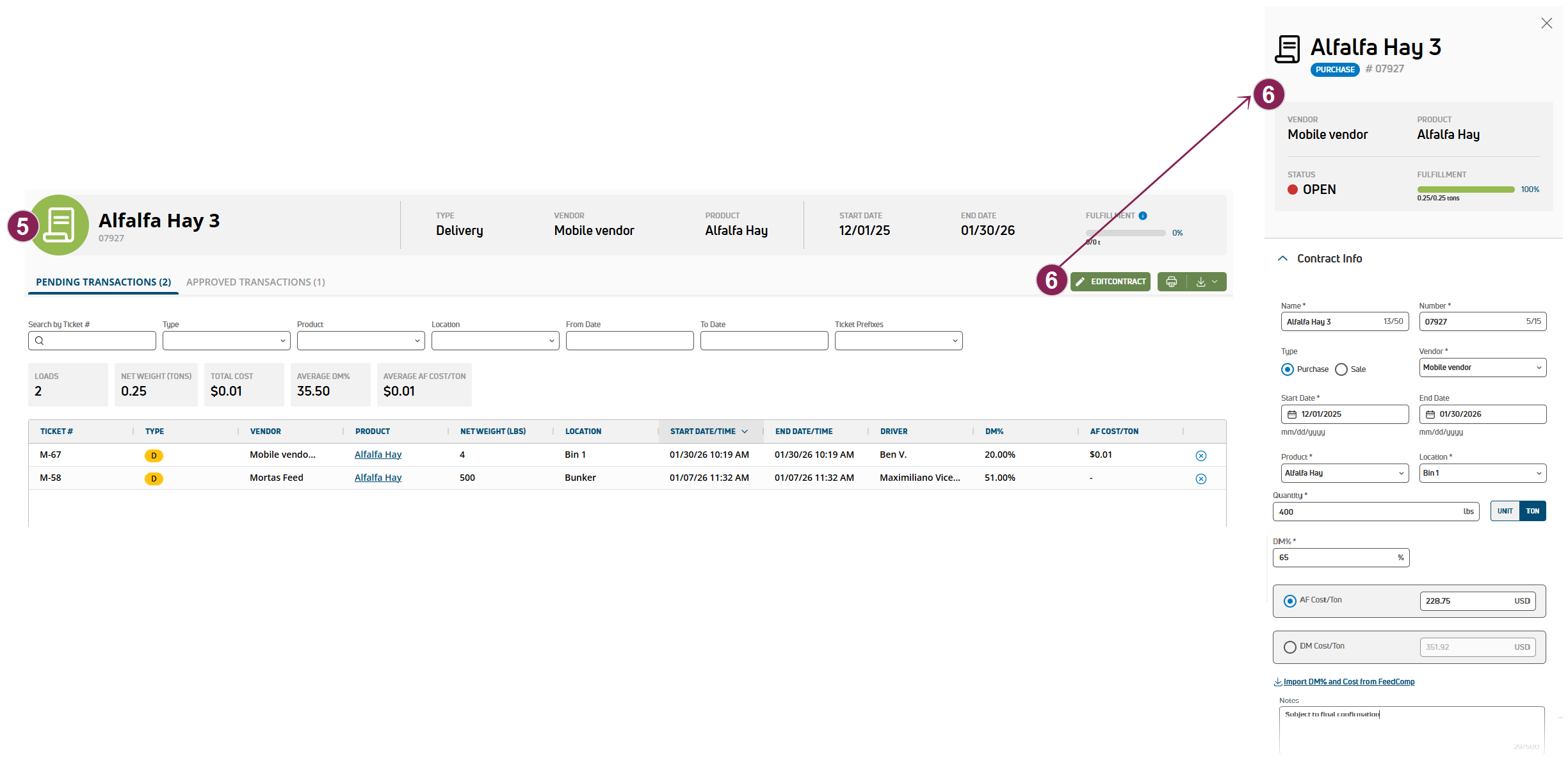
The contract details page provides a centralized view of all activity related to a specific contract, allowing you to monitor fulfillment progress, review associated transactions, and analyze financial performance. To open this page, click a contract Name from the main Contracts page.
Use the following guidelines to manage contract details and review transaction data:
- The top section summarizes the contract's terms, including whether it is a Delivery or Pickup, the associated Vendor and Product, and the specific Start and End Date.
- Use the Fulfillment progress bar to see a real-time percentage comparing the weight of approved transactions against your total contracted quantity.
- Transactions are organized into Pending (recorded but not yet approved) and Approved (finalized) tabs. Approved transactions are the only loads that contribute to the contract's final fulfillment percentage.
- The summary section in both tabs provides real-time insights, including the total number of Loads, cumulative Net Weight, Total Cost, and the average DM% and AF Cost/Ton across all associated tickets.
- To remove a transaction from the contract, click the remove icon
 and confirm the action. Removed transactions can be linked to the contract again later via the Transaction Management page.
- Click the Edit Contract button to open
- Click the Edit Contract button to open a side panel for updating an open contract's details. If the contract is already closed, this button is labeled Open Contract and is used to reactivate the contract.
🗒️ NOTE: New transactions are added to contracts through the Transaction Management page. When a contract is selected for a transaction, the transaction's DM%, AF Cost/Ton, and DM Cost/Ton autocomplete from the contract data. See Transaction Management to learn more.
Editing and Closing Contracts
You can edit a contract at any time by clicking one of its fields (other than Name) in the main Contracts page list. Alternatively, click the Edit Contract button in the contract's detail page. Either method opens a side panel with details about the contract you can edit.
- The top of the side panel contains basic information about the contract, such as its associated vendor and product. The remaining fields of the side panel are the same as those for adding a contract and can be edited. If you update the contract's DM% or cost, the change will automatically apply to all related transactions, including both pending and approved ones.
- To close a contract, select the Close Contract button. Contracts don't close automatically when the target quantity is reached. Once a contract is closed, it becomes read-only and is automatically removed from transaction selection menus to prevent further loads from being attached. If additional adjustments or transactions are required later, the contract can be reopened.