WeighComp Integration Status
5 min
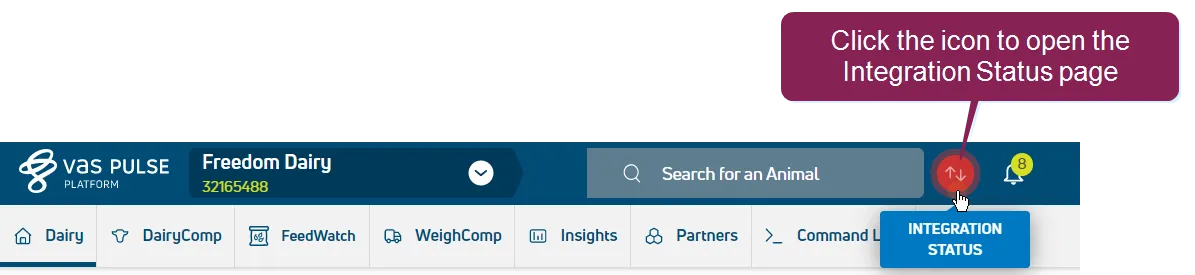
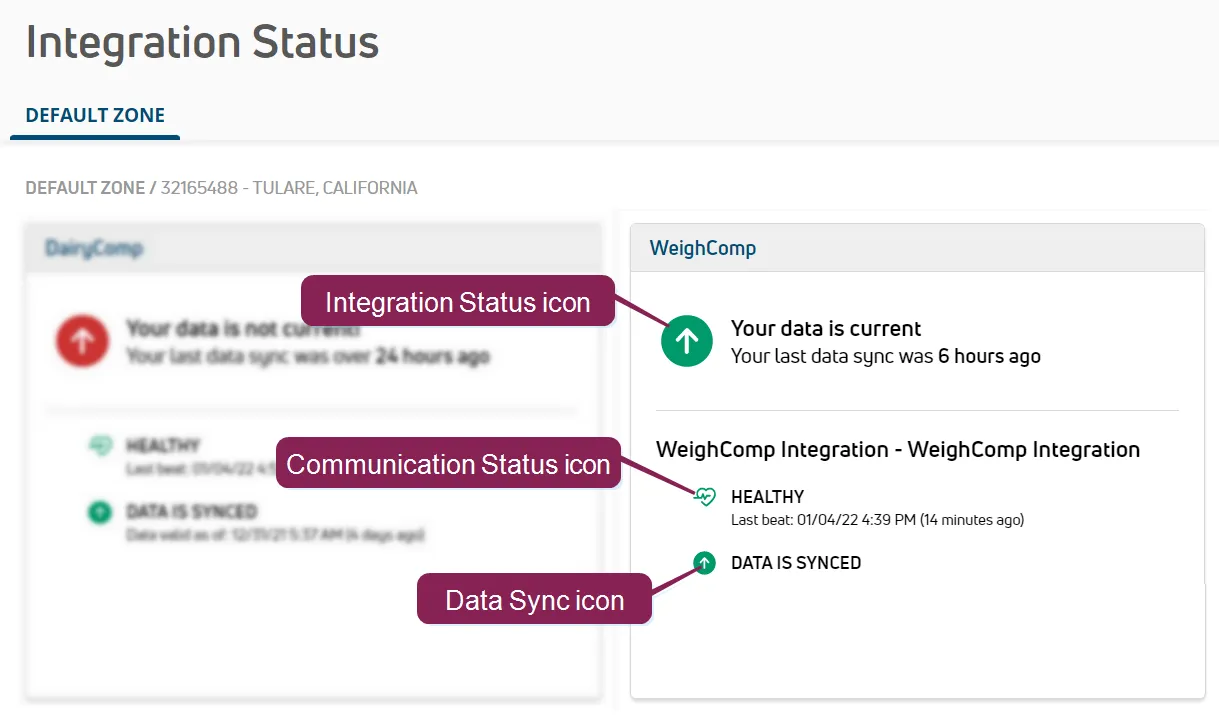
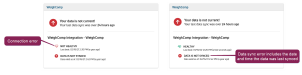
you can quickly check the connection status between the weighcomp app and pulse click on the integration status icon (located at the top of pulse) to open the integration status docid\ eujbf2vwzjsk8i2plr7ba page where you can view the weighcomp status card there are numerous indicators that help you identify the health of the connection between your products and the pulse green integration status icon (sync status is ok) this icon is located at the top of the page, toward the right side of the screen if the status icon is green, it indicates that data is currently synchronized for the default platform zone click the integration status icon to view the date and time that data was last synchronized between the pulse and the weighcomp app click the small gray arrow buttons to view sync status for other zones red integration status icon (sync status error condition) this icon is located at the top of the page, toward the right side of the screen if the status icon is red, it indicates that data is not currently synchronized for the default platform zone click the integration status icon to view the sync error date, time, and location when the error has been corrected, the system displays the date and time that synchronization was restored click the small gray arrow buttons to view sync status for other zones if your data fails to sync within 24 hours, the pulse displays an integration status alert each time you access the dairy this is a critical error that requires immediate attention to ensure that all animal information, worklist details, and event data continue to sync correctly with the pulse and mobile app proceed to troubleshooting to address any errors synchronization errors are defined as either communication status errors or last data sync errors see below for more information green communication status icon this icon can be found inside the integration status window, which can be opened by clicking the integration status icon at the top of the page a green communication status icon indicates that the connection is healthy the system also displays the date/time of the last successful communication check (or check on the pulse "beat") between the pulse and the weighcomp app the pulse is scheduled to check the communication status every 10 minutes red communication status icon this icon can be found inside the integration status window, which can be opened by clicking the integration status icon at the top of the page a red communication status icon means that the connection (or "heartbeat") between the pulse and the weighcomp app has broken down see communication status errors docid\ f90b2rj9c1gyrw74hr6zy to learn more green data sync icon this icon can be found inside the integration status window, which can be opened by clicking the integration status icon at the top of the page a green data sync icon indicates that there is a healthy heartbeat between the pulse and the weighcomp app, and the pulse is able to import or process the data the system also displays the date/time of the last successful data sync between the pulse and the weighcomp app red data sync icon this icon can be found inside the integration status window, which can be opened by clicking the integration status icon at the top of the page a red data sync icon indicates that there is not a healthy heartbeat between pulse and the weighcomp app, and pulse is unable to import or process the data see troubleshoot communication and data sync errors to learn more expand the topics below to learn more about the errors or warnings you may encounter communication status errors a sync error in communication status means that the connection (or "heartbeat") between pulse and the weighcomp app has broken down the heartbeat essentially checks the pulse of the communication channel between the pulse and the weighcomp app if there is a disconnect along that communication channel, the pulse is not able to receive data from the weighcomp app last data sync errors a last data sync error means that despite a healthy heartbeat between the pulse and the weighcomp app, the pulse is unable to import or process the data the error message displays the date/time when data was last synchronized successfully, along with icons that indicate whether the data sync is healthy or has encountered errors troubleshoot communication and data sync errors complete the following steps to troubleshoot integration errors contact your manager or office staff to verify that the weighcomp app is running normally if necessary, restart the weighcomp app check the integration status again to see if the issue was resolved if the communication status continues to display as , verify that the on premise computer has an active internet connection if necessary, restart your modem, router, or other equipment, and ensure your internet provider is not experiencing an outage the communication status may take up to 10 minutes to change to if the communication status resolves, it may take up to an hour for the data to synchronize and for the last data sync to change to if the errors continue, contact vas support http //platform docs vas com/default htm#cshid=1004