Step 4: Manage OvSynch Tasks & Alerts
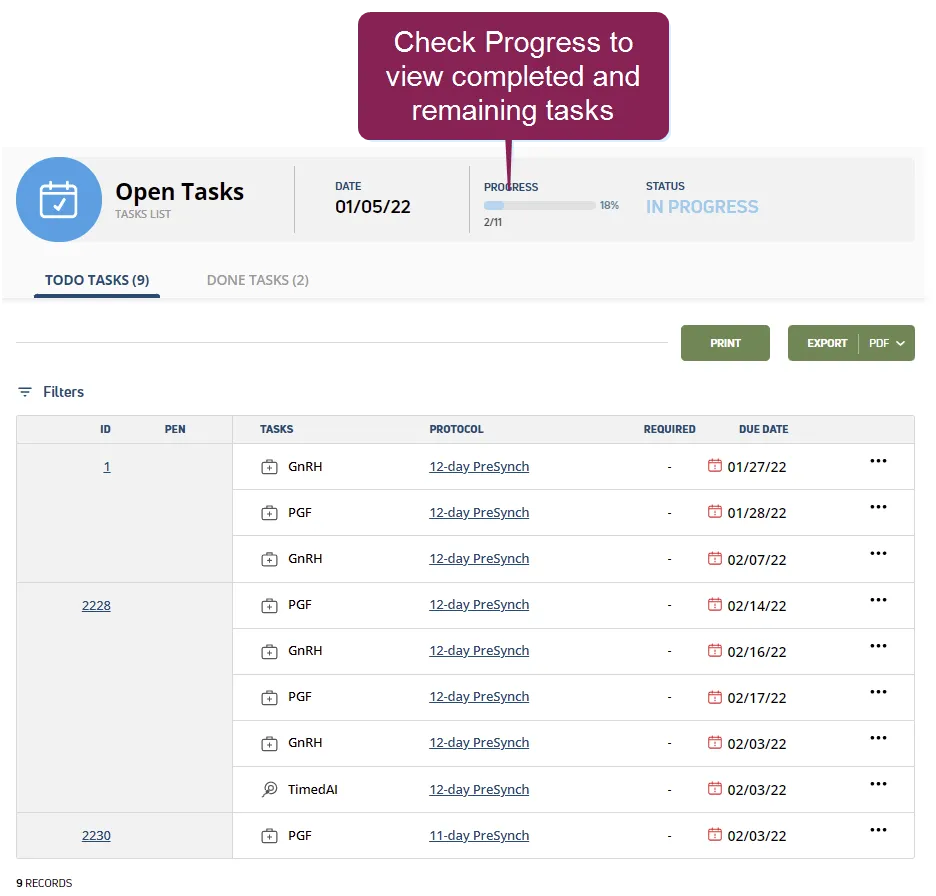
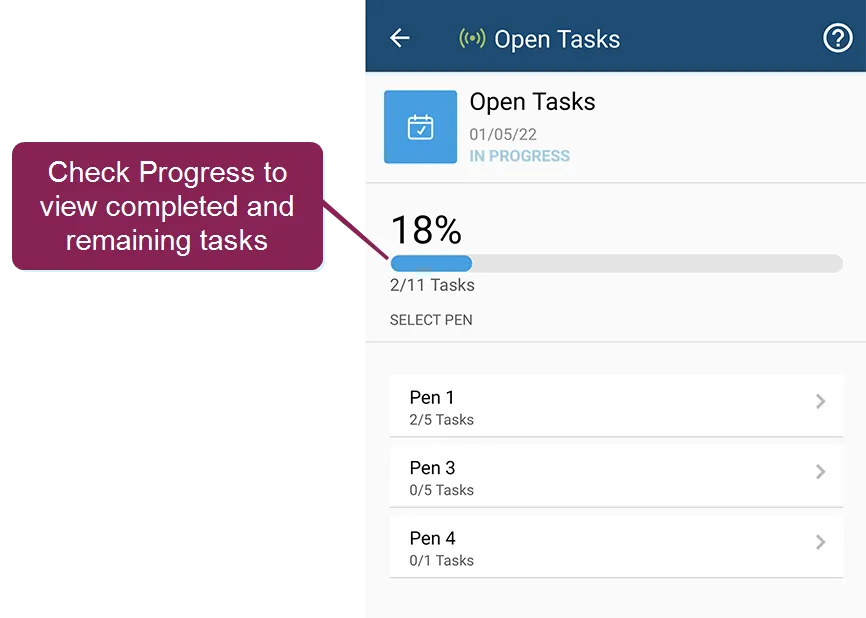
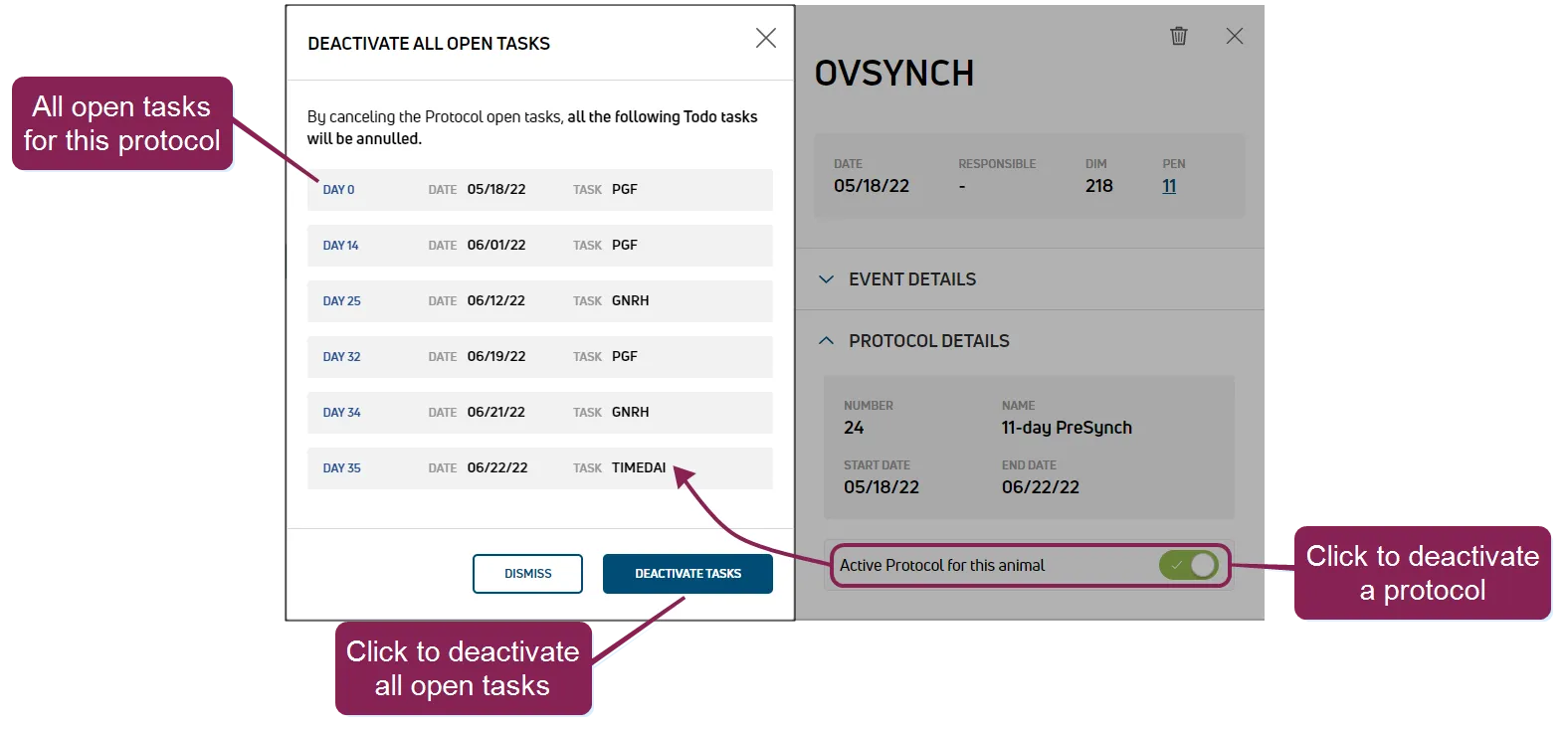
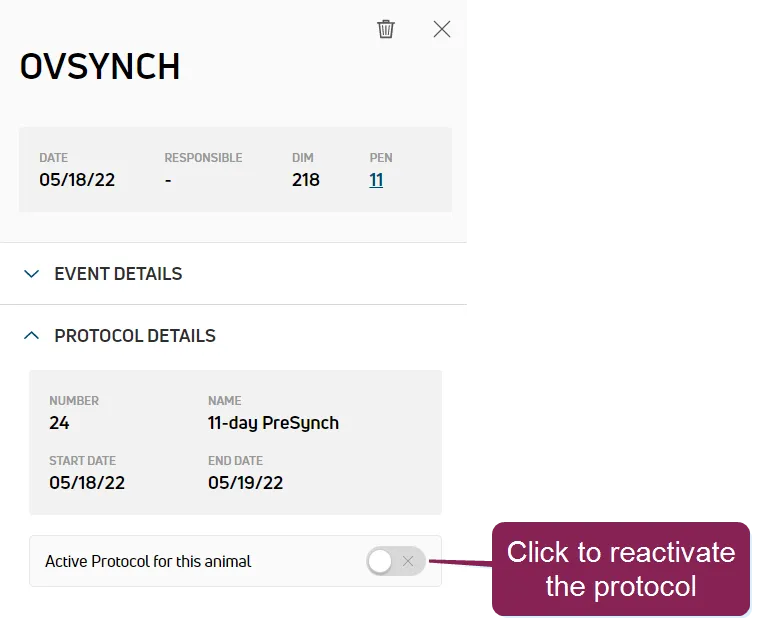
2 min
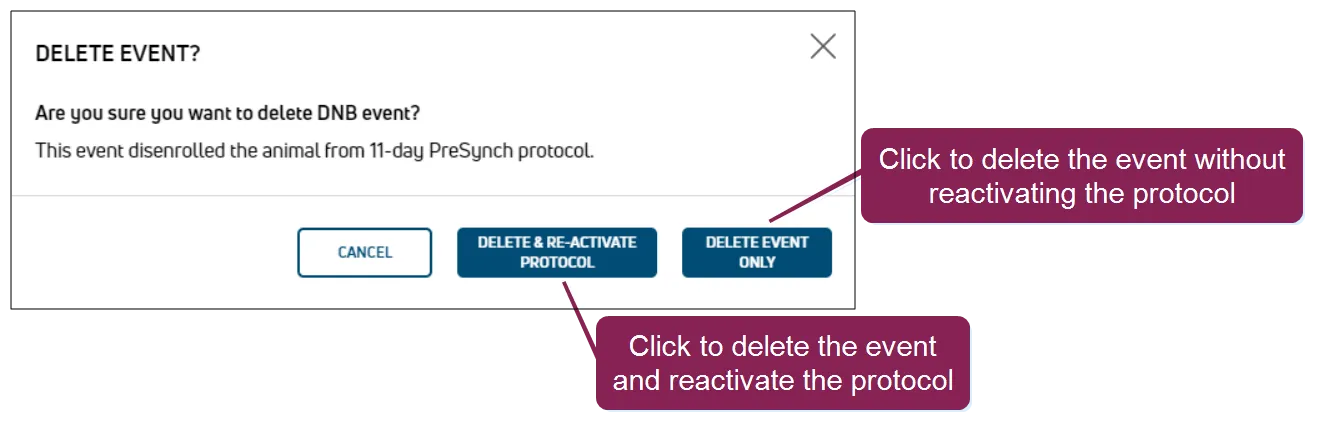
as your dairy completes ovsynch tasks, you'll want to track progress and verify compliance to your active protocols you also have the option of setting daily alerts on your tasks follow the steps below to monitor the progress of ovsynch tasks or use alerts to help you stay on track monitor tasks from web select dairycomp/mydc > reports/worklists > open worklists and click the open tasks list to open it and check progress monitor tasks from mobile tap lists and then the refresh lists button to make sure you have the latest s view your open tasks list to check progress set and manage task alerts to help you and your team stay on top of ovsynch tasks that need to be completed each day, you can set email or text alerts to notify you daily or throughout the day see add and manage task status alerts docid\ xt7uo8tkjxmsxpem wryy to learn more about managing alerts for your ovsynch tasks deactivate/reactivate an ovsynch protocol you can deactivate or reactivate an ovsynch protocol for an animal as necessary expand the sections below to learn more manually deactivate (or reactivate) a protocol if you determine an animal needs to be removed from the ovsynch protocol, click the active protocol for this animal toggle to cancel active protocol tasks and then click deactivate tasks to confirm if necessary, click the toggle again to reactivate the protocol add a disenrolling event if you add a disenrolling event for the protocol, the animal’s protocol tasks are automatically deactivated if you later delete the disenrolling event, you have the option to reactivate the protocol important if the animal has missed required protocol tasks or some tasks were already completed, you will not be able to reactivate the protocol the animal can be added at the next scheduled enrollment see schedule automatic enrollment docid\ g9dbccytkfzdt2yihrdpa to learn more about scheduling your ovsynch enrollment