Milk Recording
4 min
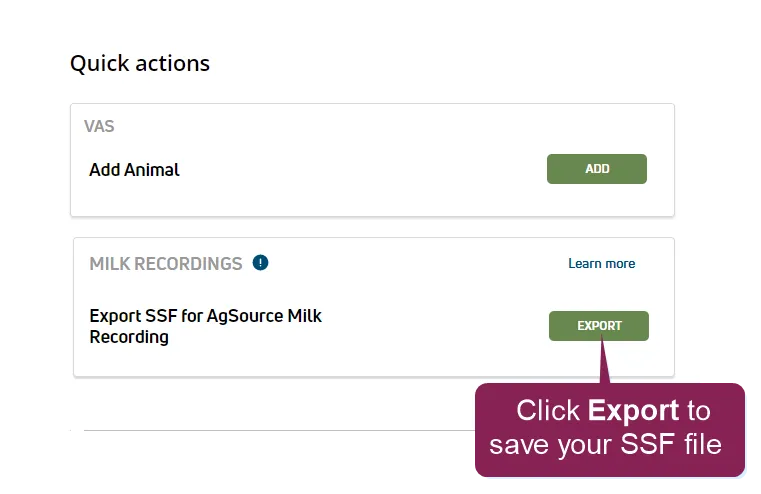
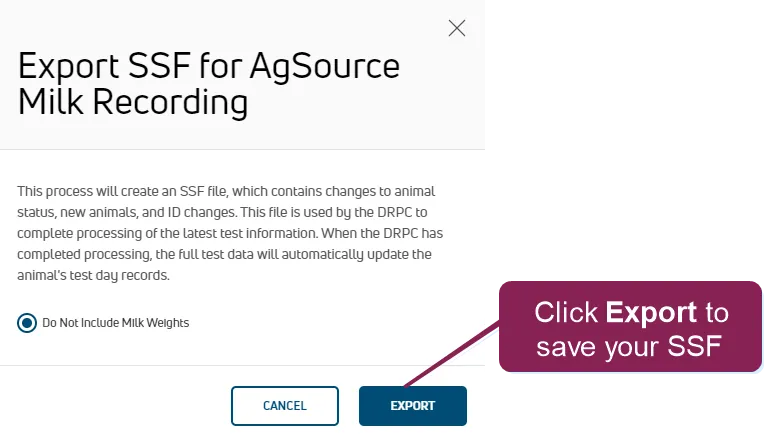
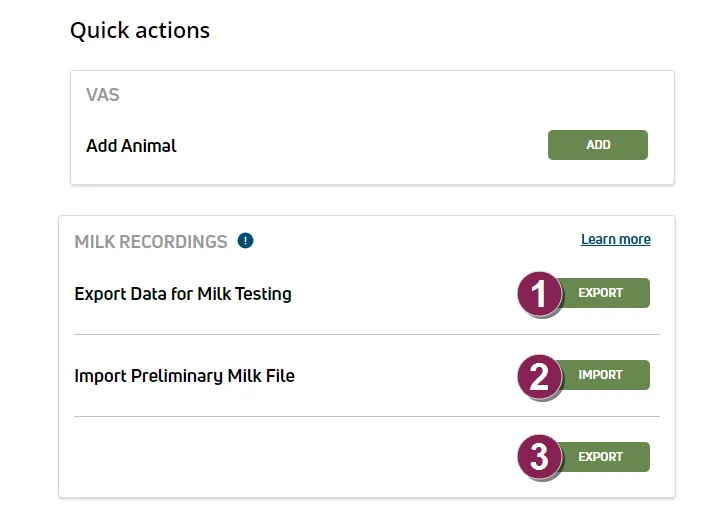
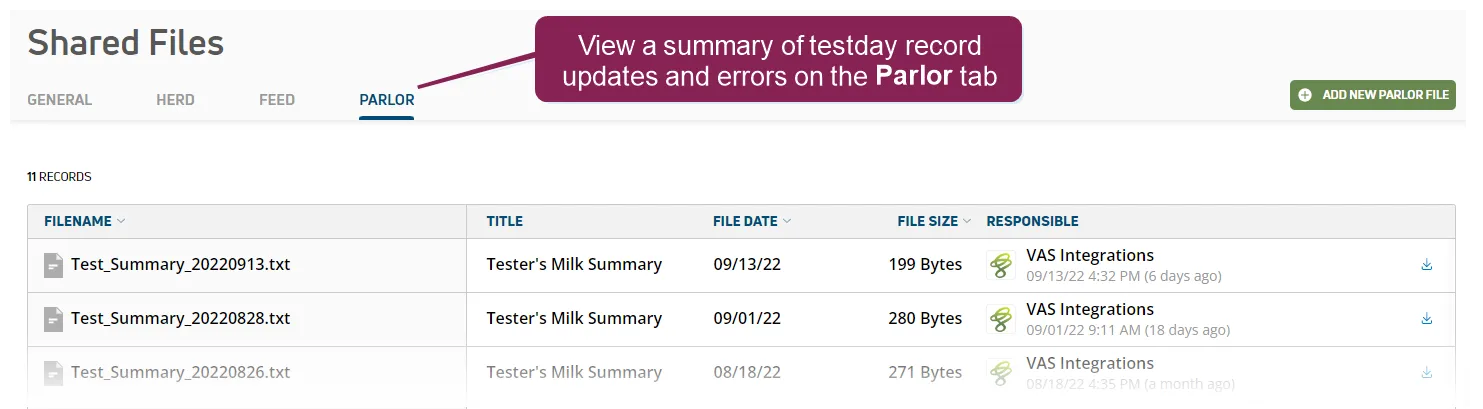
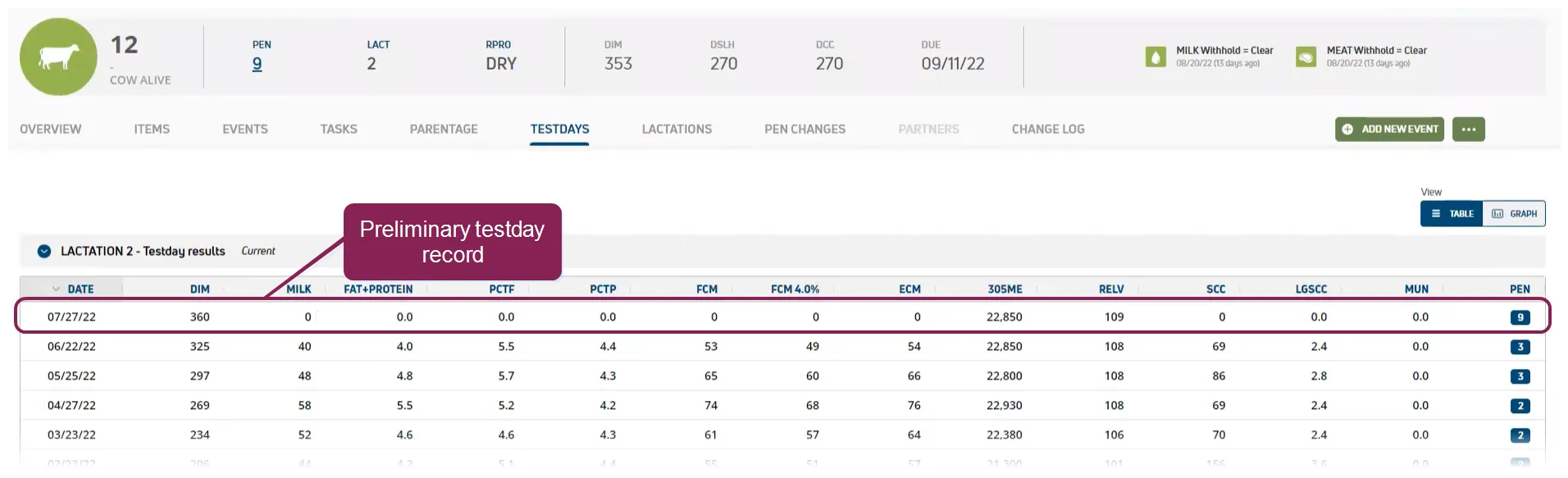
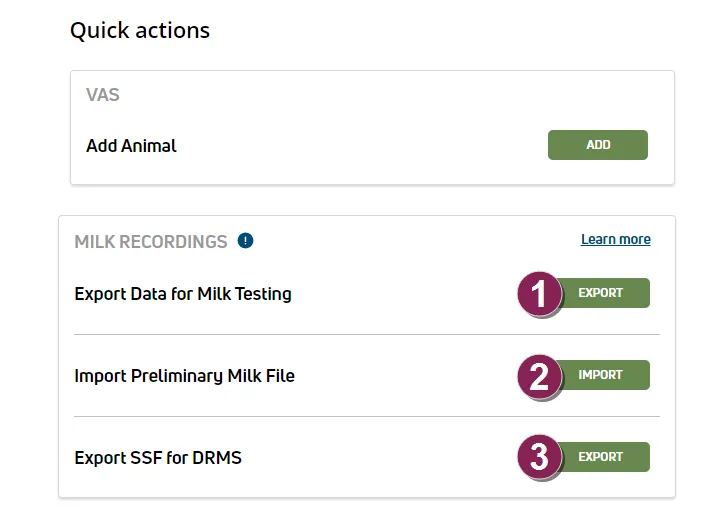
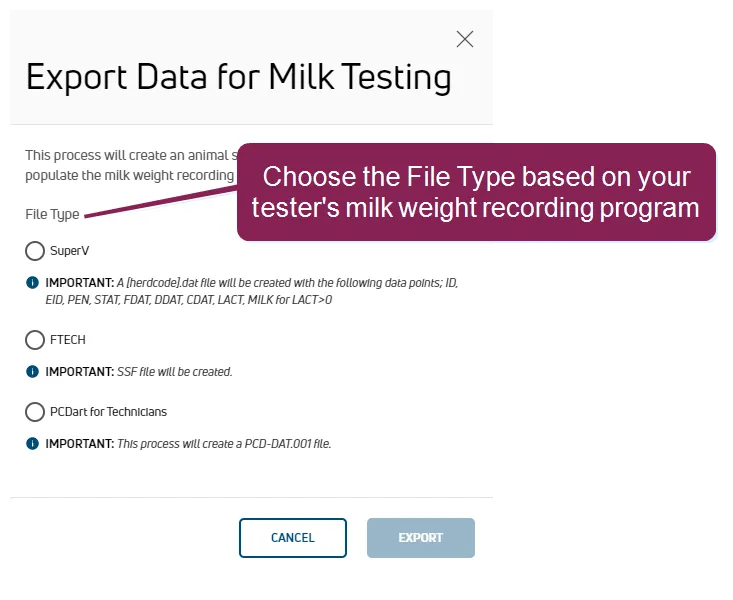
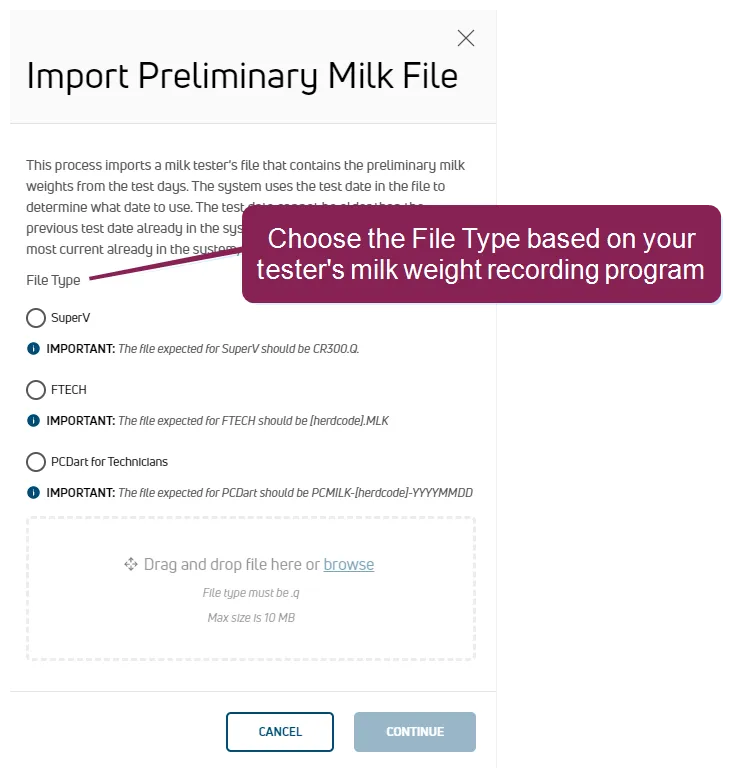
required setup important this feature is not available in all markets and regions can't find this feature? make sure it's included in your subscription! this feature/option is available only for mydc subscribers dc unlimited subscribers will not see it in pulse because this functionality is controlled in on premise dairycomp rather than in pulse click here docid 5i7xv63wgmrxmsotyjaaa to learn more about the different versions of pulse required permissions to connect the integration to your , your pulse user account must be assigned to a role with integration management permissions to access the milk recording option(s) under quick actions docid\ rpckqlh3hce7uztag0mxv , your pulse user account must be assigned to a role with partner file export and partner file import permissions vas recommends using the field technician role for your milk testers to provide them with the required access see edit dairy user permissions docid\ gw6zx7tfc4ihsbrtozc v and manage dairy roles docid 9yjukdzfab0kko1hw0mxj for more information click here for video tutorials on this feature! depending on your drpc, play one of the videos below for a tutorial on milk testing in pulse milk testing (agsource) milk testing (other drpcs) the pulse milk recording feature allows dairies to share their latest animal records with their drpc this task is typically done on a monthly or bi monthly basis, when your dairy completes their scheduled milk testing after the drpc results are returned to pulse, you can view the results on individual animals' cowcards, on the testdays docid\ g u399dzfinwsy6iigqgc tab follow the steps below to connect the integration and begin using the pulse milk recording feature step 1 connect the integration in pulse, navigate to partners > integrations gallery and locate your drpc click see details or see requirements on your drpc's card review the connection instructions on the right side of the page then click the connection status toggle and verify the status switches to active step 2 manage animal records on testday pulse allows you to manage herd data on , including sharing the animal records that have changed since the previous with your drpc the updated records file includes animals added to the herd, new animal events, and, if selected, milk weight details follow the steps below when working with your milk tester to collect samples and submit your latest animal records the steps required depend on your drpc export records for agsource go to quick actions docid\ rpckqlh3hce7uztag0mxv on your home (dairy profile) docid\ rpckqlh3hce7uztag0mxv page and click export click the export button to save the latest animal records file ( format) the file is saved to your local downloads folder access this folder when you're ready to share the file with agsource import and export records for agritech or amelicor go to quick actions docid\ rpckqlh3hce7uztag0mxv on your home (dairy profile) docid\ rpckqlh3hce7uztag0mxv page and click export data for milk testing the file (dat format) is saved to your local downloads folder provide the file to your milk tester to import into their milk recording program after milk weights are collected, click import preliminary milk file to pull in the superv file (cr300 q format) from your milk tester this file creates a preliminary record in pulse after the import completes, you can view a brief summary of record updates and errors by selecting dairy > shared files and then the parlor tab you can also view the preliminary record on an animal's cowcard testdays docid\ g u399dzfinwsy6iigqgc tab pulse shows the results as "0" until the samples are processed and your drpc returns the results click export ssf to send the latest animal records to your drpc the file (ssf format) is automatically sent to the vas iloop for your drpc and no further actions are needed from pulse import and export records for drms go to quick actions docid\ rpckqlh3hce7uztag0mxv on your home (dairy profile) docid\ rpckqlh3hce7uztag0mxv page and click export data for milk testing select the file type based on your milk tester's milk weight recording program depending on the file type selected, the file (dat, ssf, or pcd dat 001 file format) is saved to your local downloads folder provide the file to your milk tester to import into their milk recording program after milk weights are collected, click import preliminary milk file to pull in the file from your milk tester select the file type based on your milk tester's milk weight recording program this file creates a preliminary record in pulse after the import completes, you can view a brief summary of record updates and errors by selecting dairy > shared files and then the parlor tab you can also view the preliminary record on an animal's cowcard testdays docid\ g u399dzfinwsy6iigqgc tab pulse shows the results as "0" until the samples are processed and drms returns the results click export ssf to send the latest animal records to drms the file (ssf format) is automatically sent to the vas iloop for drms and no further actions are needed from pulse step 3 view your testday results pulse automatically imports your drpc results from the latest file ( format) when it becomes available, usually within a few days after your data is imported, you can view a herd level summary docid\ ezdiewyrexxlqvuai8k 2 of the results or individual animal results from the cowcard docid\ g u399dzfinwsy6iigqgc