Embryo Inventory
After you Add Embryos to Inventory or Transferred EmbryosAdd Embryos to Inventory or Transferred Embryos, use the Inventory tab to view or edit available embryos.
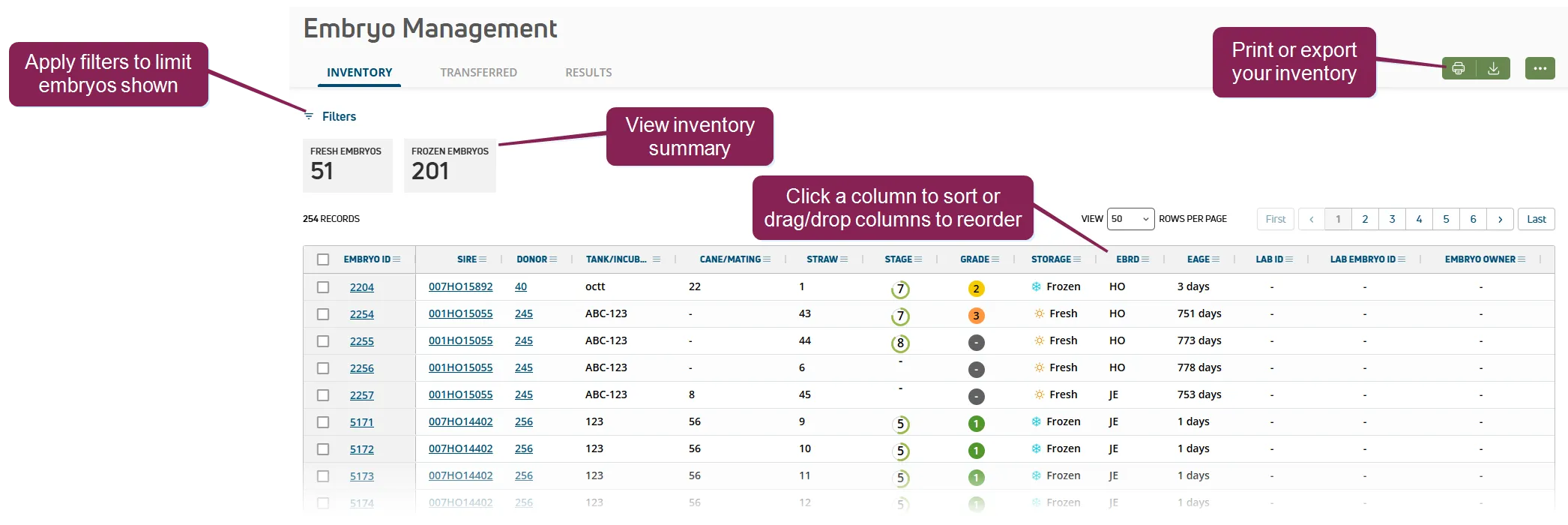
Expand the sections below to learn more.
- Filter Embryos: Use the filters to limit which embryos are shown in the list. For instance, you may want to only view fresh or frozen embryos available.
- View a Summary: A summary quickly shows the total number of fresh and frozen embryos in your inventory. The summary adjusts as you apply filters to your view.
- View Embryo Details: Click the Embryo ID to view a side panel with additional details. Scroll to the right if necessary to view additional information for your embryos.
- Sire: The bull whose semen was used to fertilize the donor's egg to produce the embryo. If this column shows Pool, it means that an oocyte was fertilized by IVF from a pool containing the semen of multiple sires.
- Donor: TThe female who provided the embryo or oocyte (sometimes referred to as the donor dam).
- Embryo Breed: The embryo breed. Select from the standard list of NAAB breeds.
- Fertilization Date: Date the donor egg was fertilized using the sire semen.
- Recovery Type: The recovery type used:
- Flush is used for embryos
- IVF for in vitro fertilization (oocytes)
- Other for neither of the above
- Tank: The liquid nitrogen storage tank containing the cane with the embryo's straw.
- Incubator: The warming unit containing the embryo's straw or mating.
- Cane: The container holding the embryo's straw.
- Mating: A description of the embryo mating details, such as sire, donor, and fertilization date. May contain multiple embryos.
- Straw number: Number of the straw holding the embryo. Canes contain multiple straws and each straw holds a single embryo.
- From Straw: The first straw number that contains this embryo.
- To Straw: The last straw number that contains this embryo. This allows PULSE to calculate the total number of embryos to be added. For instance, if you add embryos From Straw 6 To Straw 11, a total of 6 embryos are added.
NOTE: To add a single embryo, do not include From Straw and To Straw values.
- Stage: The stage at which the embryo was harvested:
- 1 Unfertilized
- 2 Simple Celled
- 3 Early Morula
- 4 Morula
- 5 Early Blastocyst
- 6 Blastocyst
- 7 Expanded Blastocyst
- 8 Hatched Blastocyst
- 9 Expanded and Hatched Blastocyst
- Grade: The quality of the embryo:
- 1 Good
- 2 Fair
- 3 Poor
- 4 Dead (or Degenerating)
- Lab ID: Identifier for the lab from which the embryo was purchased.
- Lab Embryo ID: Identifier for the embryo from the lab. This value differs from the PULSE Embryo ID.
- Embryo Owner: Name or company that owns the embryo.
- Frozen Date: Date the embryo was frozen.
- Freeze Method: The method used to freeze the embryo:
- Direct Transfer (DT) is the process of using high levels of cryoprotectant to quickly cool an embryo to freezing. A common cryoprotectant used for this process is ethylene glycol.
- Slow is the process of using low levels of cryoprotectant and a programmable freezing machine to slowly lower the temperature of the embryo to freezing.
- Recipient: The animal that received the embryo transfer. Including the Recipient and Transfer details automatically adds a TRANSFER event to the recipient animal. See Import Transferred EmbryosImport Transferred Embryos for more information.
- Transferred Tech: The embryo technician who completed the transfer.
- Transferred Date: Date the embryo was transferred to the recipient.
- Breeding Code: The code associated with the breeding activity. Check your dairy's Breeding CodesBreeding Codes for more details on each code.
- Sort Embryos and customize your view: Click a column heading to sort by that column, or drag and drop the column to change the order of your view. You can also customize your view in other ways:
Interactive column headers allow you to arrange the data into a way that's most useful to you. Depending on the features available for each column, you can add new columns of data, rearrange and reorder them, and filter some columns. To access these features, click on the column menu in the column you want to change.
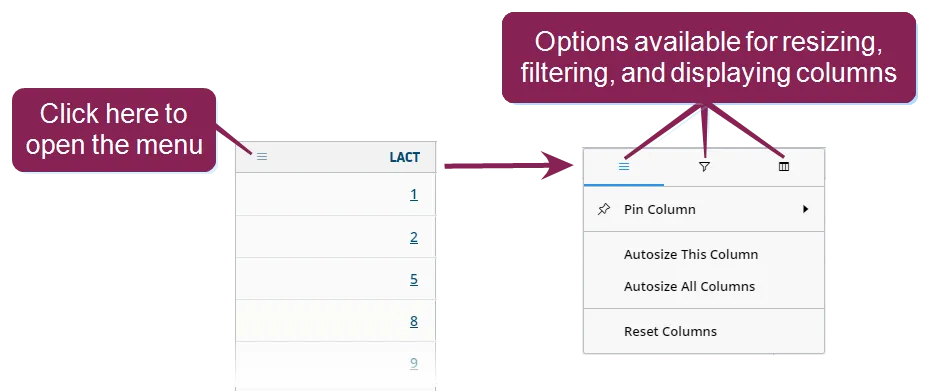
The top menu can contain three different options—one for resizing the column, one for filtering the data displayed in the column, and one for controlling which columns are displayed. Each menu contains various ways for manipulating what's shown on the page.
Expand the sections below to learn more:
Some columns that contain numeric values can be filtered to show only certain data. For example, to filter the Lactation column so that only animals with a lactation value of 3 display, click the filter option, and then use the fields to create your filter.
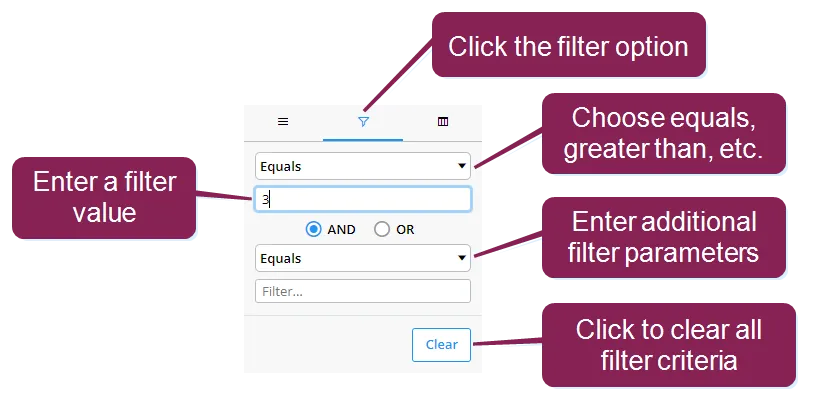
You can reorder the way columns display by clicking in the header of the column you want to move and dragging it to its new location.
To add or remove columns from the page, click the columns option and then check or uncheck the boxes to select which columns to display.
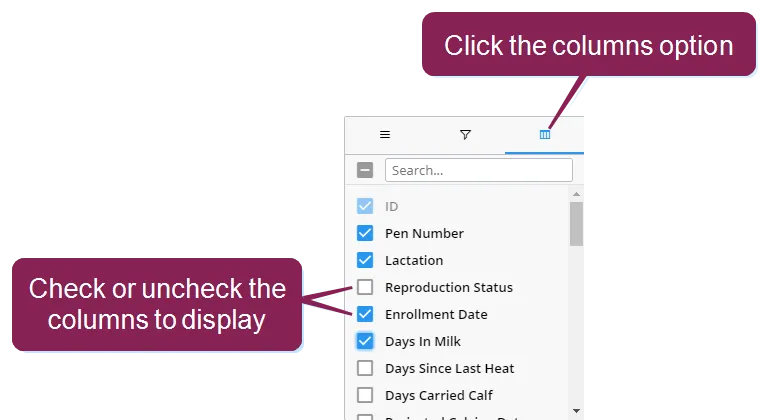
You can also remove columns by clicking on the header of the column you want to remove, holding down the mouse key, and dragging the column up and out of the table.
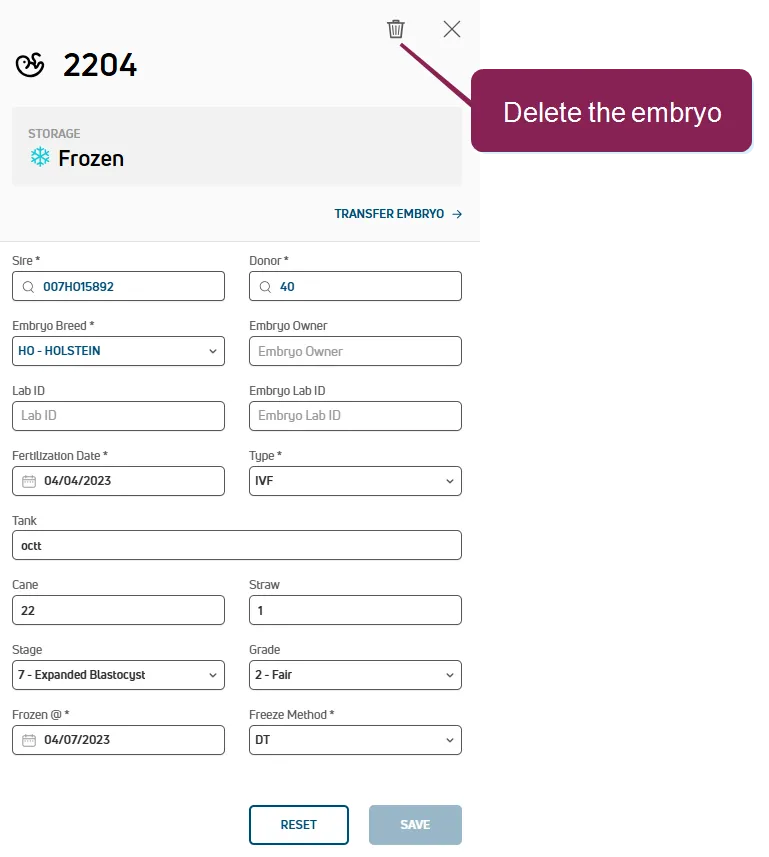
Click the embryo's ID to edit its details, or click the Delete icon  to remove it from inventory.
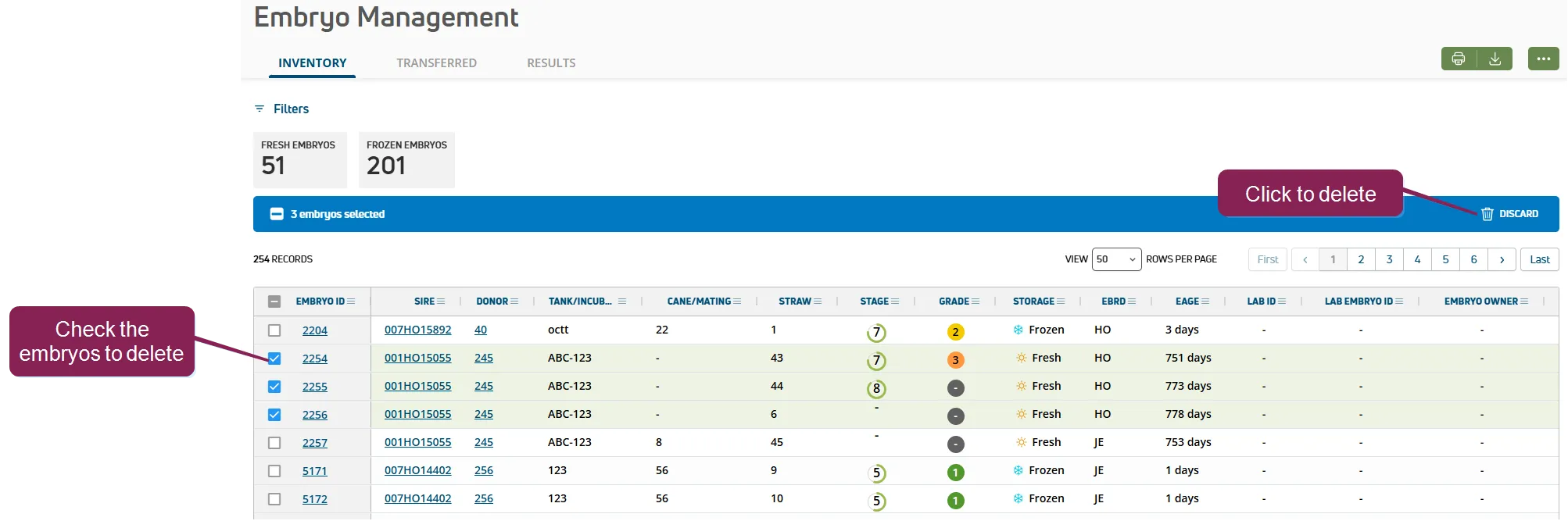
To delete multiple embryos as once, check the boxes for the embryos and select Delete.
You will be required to select the reason for discarding the embryo/deleting it from inventory.
Select an embryo from the Inventory tab to open its side panel. Then use the Transfer Embryo shortcut to add a TRANSFER event.
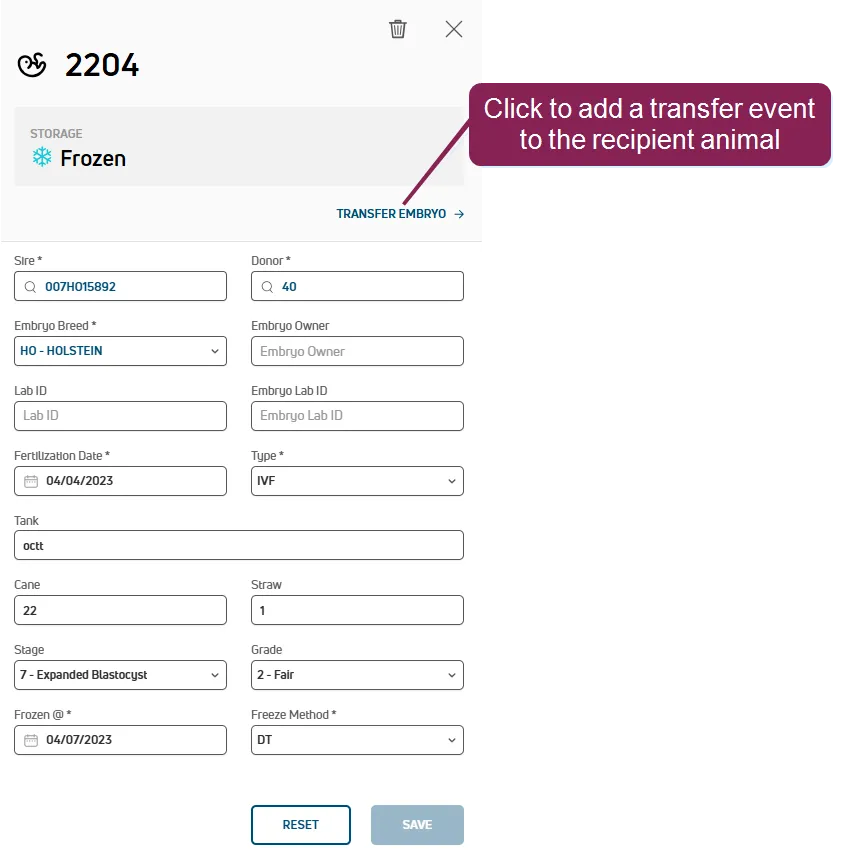
IMPORTANT: If the embryo does not meet the requirements for transfer, the option is not available from the side panel. See Embryo Requirements for TransferEmbryo Requirements for Transfer to learn more.
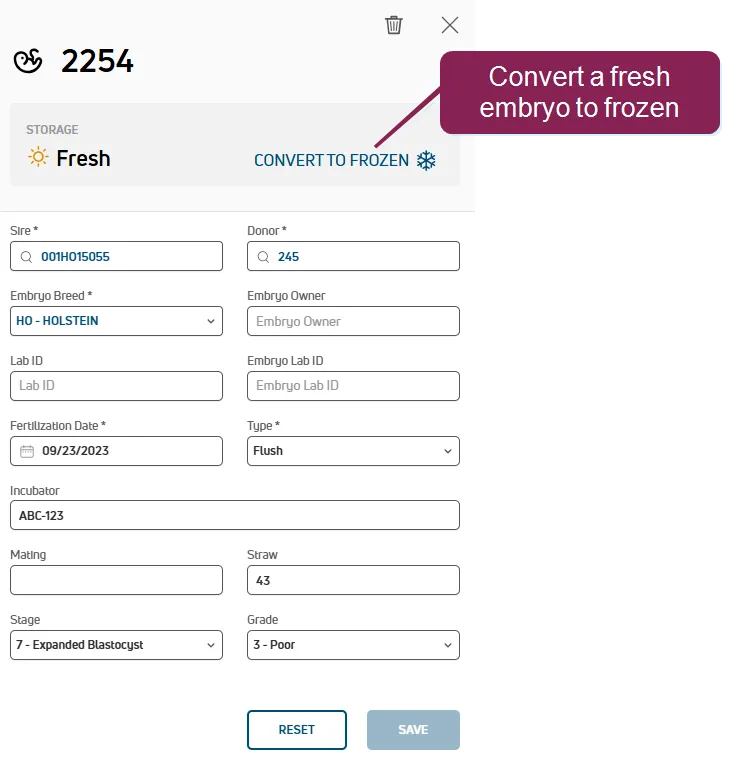
Convert a fresh embryo to frozen from the embryo side panel. Click Convert to Frozen and add the required details: Frozen Date and Freeze Method.
Use the green buttons  on the top right of the page to print or export the list in one of two formats: PDF and CSV. The list will print/export with the current filters applied.