Wrong Pen Animals Report
2 min
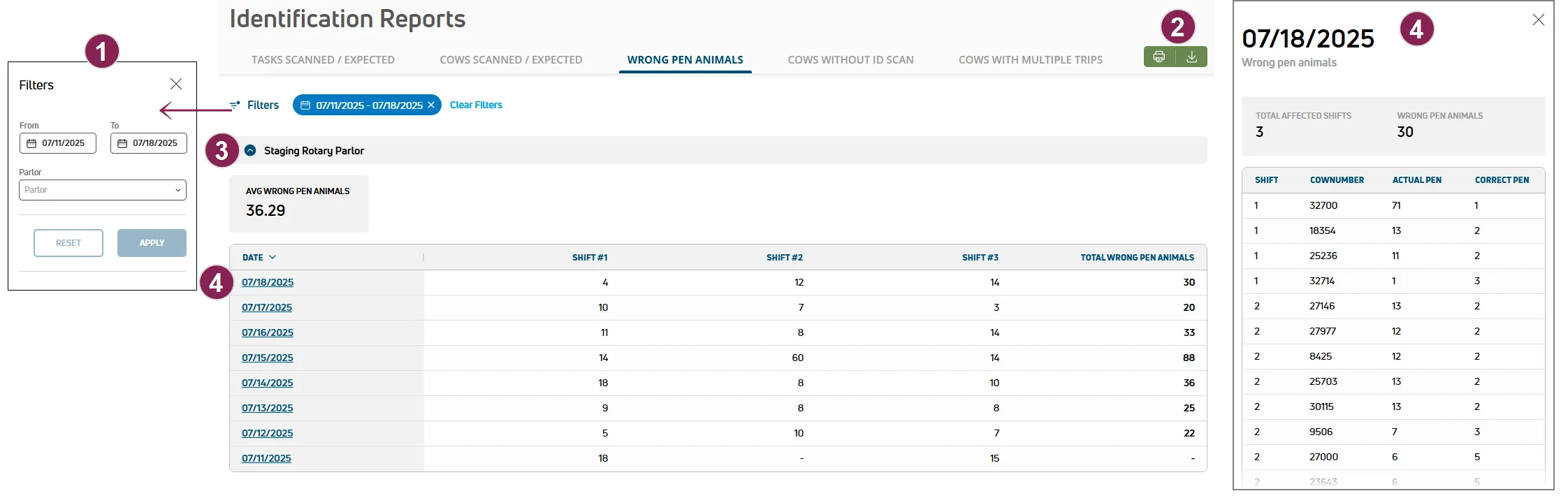
use the wrong pen animals report to identify animals that were milked in the wrong pen pen number by parlor, date, and shift the report details can help you make corrections in pulse or dc305 dairycomp 305 vas dairy management software (for dc unlimited dairies) to ensure animal data is accurate and up to date note parlorboss identifies animals that are in the wrong pen if an animal's pen is different from other animals in the parlor however, if a milking shift is transitioning from one pen to the next, parlorboss expects to have animals from both pens in the parlor at the same time in this case, animals are not flagged as being in the wrong pen expand the sections below to learn more search and filter the wrong pen animals report options to search and filter the wrong pen animals report are available at the top of the page follow the guidelines below when working with the wrong pen animals report click filters at the top left of the page to limit the data that is displayed the filters side panel opens use the date from and date to filters to only view data from that range select a parlor to limit the report to a specific parlor click the clear filters option to clear all of the filters currently applied print or export the report click the green export as csv button at the top right of the page to save the data as a csv file or, click print to send your parlor data to the printer if you applied filter(s), the data will print or export with the current filter(s) applied view report details if your dairy has multiple parlors, click the down arrow to expand a row and view details for a specific parlor follow the guidelines below when viewing report details \<font color="#2166ae">summary\</font> an overall summary is displayed in a gray bar at the top left of the page based on the current filters \<font color="#2166ae">date\</font> the date of the report click on a date in the table to open the side panel and view its details see view details for a specific date to learn more \<font color="#2166ae">shifts\</font> the total number of animals that entered the parlor during aspecific parlor shift a column is displayed for each milking shift configured for your dairy see configure milking shifts docid aenckjpyojitprhmi63z to learn more \<font color="#2166ae">total wrong pen animals\</font> the total number of animals identified in the wrong pen on a specific day view details for a specific date click on a date in the table to open the side panel and view its details follow the guidelines below when viewing date details \<font color="#2166ae">date\</font> the date of the report is displayed at the top left of the side panel \<font color="#2166ae">summary\</font> an overall summary is displayed in a gray bar at the top left of the side panel \<font color="#15803d">total affected shifts \</font> the total number of parlor shifts that had animals in the wrong pen on that day \<font color="#15803d">wrong pen animals \</font> the total number of animals identified in the wrong pen on the day \<font color="#2166ae">shift\</font> the shift number \<font color="#2166ae">animal id \</font> the identifier of the animal that entered the parlor \<font color="#2166ae">actual pen \</font> the pen number that the animal was in when scanned \<font color="#2166ae">correct pen \</font> the pen number on the animal's record see move event docid\ qht0tn st7qgr2khn jx to learn more about correcting the animal's pen if needed