Tips for Using the Command Line
Expand the topics below to learn more:
Any information entered into DairyComp, whether selected from a menu or entered in the command line, is passed through a "command parser," which interprets what you entered and executes the necessary parts of the program to perform that function.
The parser takes the commands you enter, makes any substitutions of commands or expands partial command abbreviations you may have created through ALTER, and checks each part of the command for proper syntax. It then uses the major command word LIST, SHOW, etc. to execute that command.
When entering commands, the parser is not case sensitive. This means that you can type commands in uppercase, lowercase, or combinations. The following commands are all interpreted the same way, and you are free to use whatever case you feel comfortable using:
- SHOWID LACT FDAT
- show id lact fdat
- Show ID Lact FDat
Certain "control characters" or "unprintable characters" can be useful in modifying program performance. The "escape" or [Esc] key is used to abort entries or commands and return to command mode.
All commands and inputs to the program are expected to be ended by hitting the Enter or Return key. This includes entering commands, cow ID numbers, and other prompted responses. Menus are an exception to this, they can be optionally defined to accept single character responses without pressing Enter. Also, control characters such as Escape to abort a listing do not need to be ended with Enter.
If you make a mistake, you can use the backspace and arrow keys to correct your mistake, or press [Esc] to clear the command. If you enter a command that the parser does not recognize, you will get an error message. If you spelled an item name wrong, the parser will attempt to help out by bringing up the item list (and a "best guess" of what you meant), from which you can select the proper item.
You can retrieve recent commands by using the following keyboard shortcuts:
- Press the up or down arrow keys to retrieve any of the previous 32 commands.
- Press F4 to display all recent commands in a pick list.
Once retrieved, you can edit the command by adding new items, switches, or use the Insert key to insert new text into the command.
Use the Switch Manager to see all the available switches for all commands. Click Command? at the left side of the command line or navigate to the Help menu to open the Switch Manager, then browse the list of commands and switches.
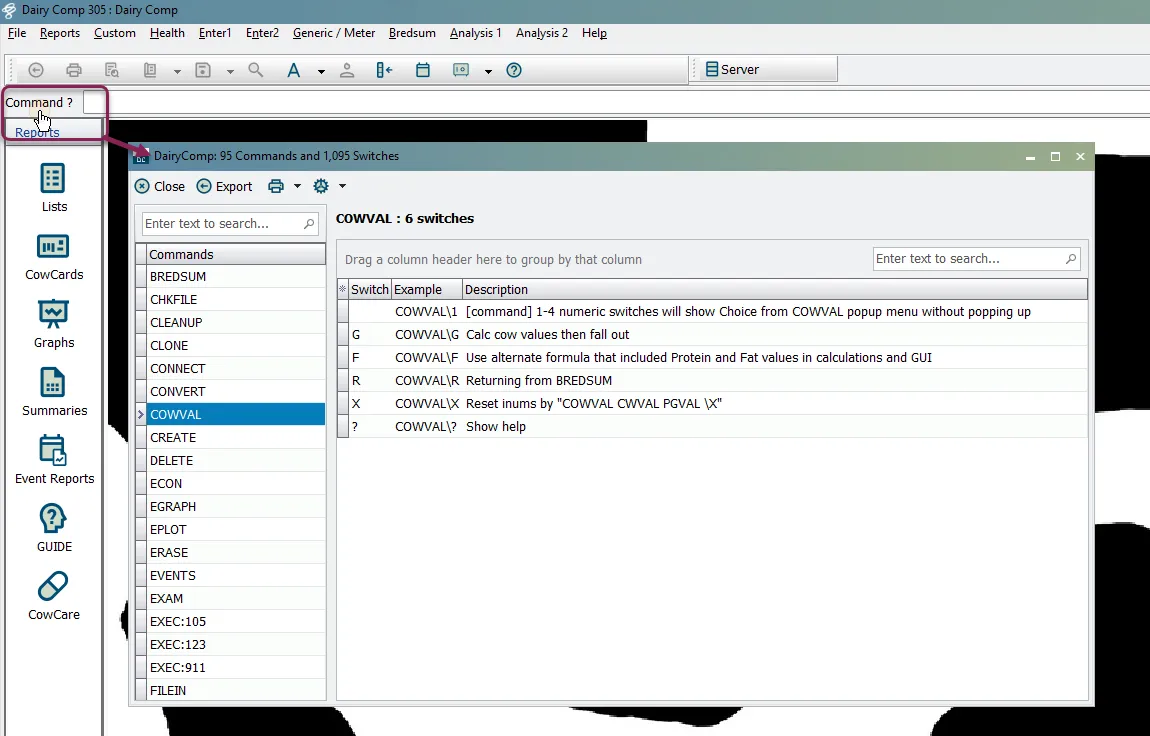
For a comprehensive list of commands and switches you can download, see Command Line Quick Reference Sheets.
If you are new to using the command line, or just want assistance with it, try AssistAssist. This enhancement to the command line helps you find the command components you need (such as items and events) without having to memorize exact names.
If a command is not working, you can start by breaking it apart. Ask yourself these questions and see the illustration below to make sure your command has all the necessary parts:
- First, does it start with a command word like SHOW, LIST, or SUM?
- Next, ask WHAT you want to see on your report (ID PEN DIM RPRO).
- Next, ask WHO you want to see on your report. These are the items you typically use in a FOR statement. Remember that you can use multiple constraints within your FOR statement.
- Last, ask HOW you want to view your list. You can use a BY or DOWNBY statement to sort your report.
EXAMPLES:
Make a list of all animals that are less than 30 days in milk:
SHOW ``ID PEN DIM`` FOR``DIM<30
Make a list of all animals more than 30 days in milk in pen 4, sorted by reproductive status:
SHOWID PEN DIM RPRO FOR DIM>30 PEN=4 BY
Common Errors if a Command is Broken:
- "Unknown item” error: Try selecting your command items from the picklist instead of typing them manually. Simply press F1 on your keyboard for a picklist of available items you can use.
- Your list is blank or doesn't contain any animals: Check your FOR statement to make sure you pull some animal‑specific data into your list.
Need More Help? See Command LineCommand Line to learn more about the structure of a command, easily break commands apart, and build new commands!
- Troubleshoot the Command LineTroubleshoot the Command Line