Command Line
3 min
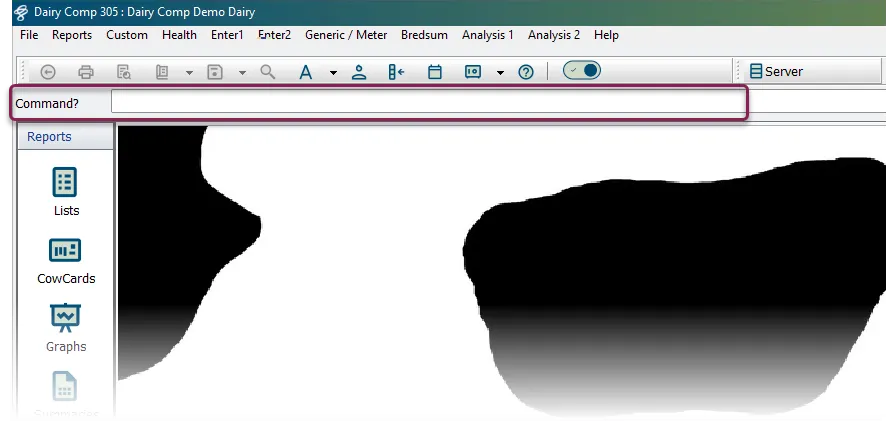
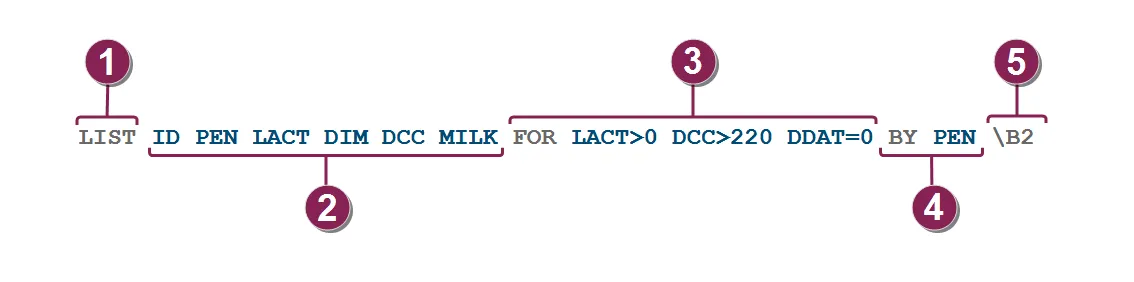
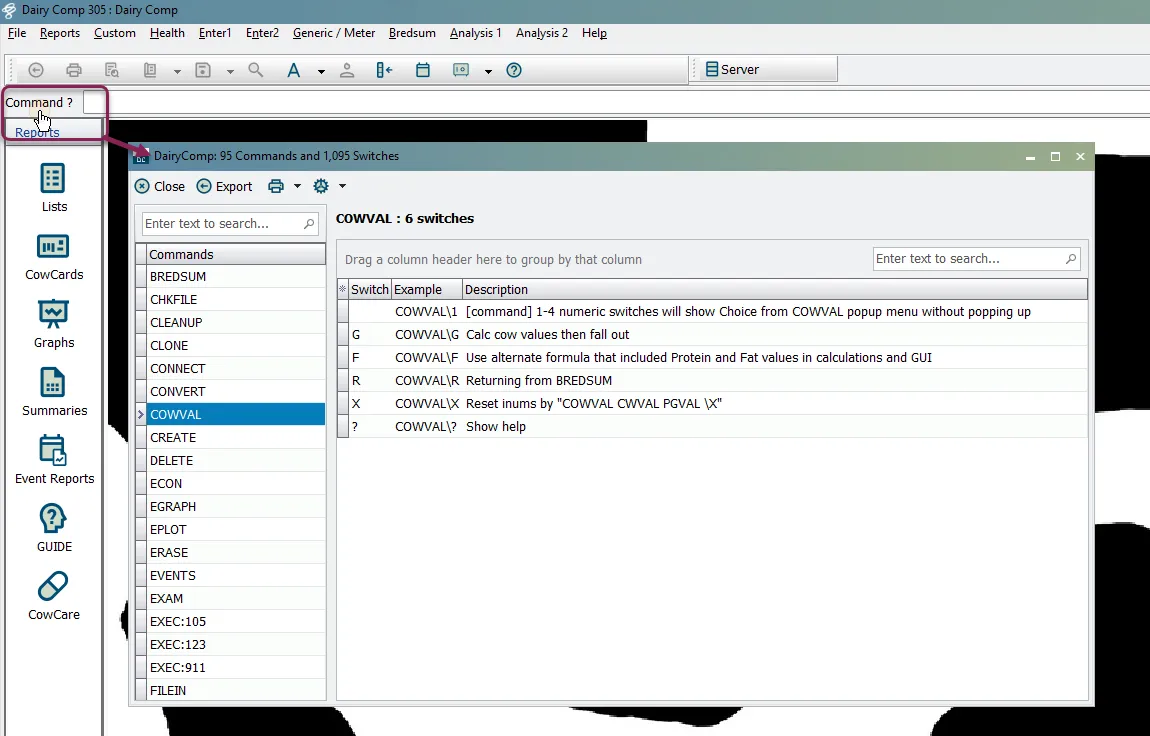
dairycomp allows you to look up data, enter information, and edit settings either through menu selections or through the command line as shown in the example below, the command line is located toward the top of the window, below the menu and toolbar you can press the escape key (esc) at any time to go straight to the command prompt, or you can click inside of the command line field and start typing a command the command line is commonly used to run reports, so we will use a report command to illustrate command structure a dairycomp report command is made up of the 5 parts defined below review the information below for help creating your report command command word start by typing a command word click here to learn more! the command word tells the system what kind of report you want to run the following commands are typical for report commands list/show/pct events count/sum plot graph/egraph econ bredsum guide items type the items you want to include in your report items define the columns of data you want to see in your report click here to learn more! follow these guidelines when including items in your command always include the id item on reports that need to list animals insert a space between each item tip when typing a command, you can press f1 on your keyboard to see a list of all available items you can use to build your command show me some examples! in the command example above, the items are id , pen , lact , dim , dcc , and milk \<font color="#6b7280">list\</font> \<font color="#eab308">id pen lact dim dcc milk\</font> \<font color="#6b7280">for lact\>0 dcc\>220 ddat=0 by pen \b2\</font> this tells the report to include columns for the animal id , pen number ( pen ), lactation number ( lact ), days in milk ( dim ), days carried calf ( dcc ), and last test day milk ( milk ) here are a few examples of items you can use \<font color="#f3f4f6">item\</font> \<font color="#f3f4f6">description\</font> id the animal's id number pen the animal's current pen number lact the animal's current lactation number dim the animal's current days in milk milk pounds of milk the animal last produced rpro the animal's current reproductive code dcc how many days the animal has carried its calf dslh how many days since the animal's last heat tip remember that you can press f1 to view all available items the list above only shows several examples conditions (optional) type any conditions you want to include in your report conditions limit your report to specific data click here to learn more! one of the most commonly used condition is the for condition to use it, insert the word for and follow it with instructions that customize (i e , filter) your report results, such as for pen=4 show me some examples! in the command example above, the condition includes the word for , followed by 3 different conditions to customize the report results — one for lactation number ( lact ), one for days carried calf ( dcc ), and one for dry date ( ddat ) \<font color="#6b7280">list id pen lact dim dcc milk\</font> \<font color="#eab308">for lact\>0 dcc\>220 ddat=0\</font> \<font color="#6b7280">by pen \b2\</font> adding these conditions to your command will narrow your report down to the following results \<font color="#67854e">lact\>0 \</font> tells the report to include only animals with a lactation number of 1 or higher \<font color="#67854e">dcc\>220\</font> tells the report to include only animals who have carried their calf for more than 220 days \<font color="#67854e">ddat=0\</font> tells the report to include only animals that are currently milking (i e , a fresh date exists, but ddat=0 means no dry date exists) when entering a condition, you can choose from the following operators = equal to > greater than >= greater than or equal to < less than <= less than or equal to <> not equal to sort (optional) type any sort words (by and downby) and criteria to sort how your report results are listed click here to learn more! the sort options are simple you can use either by or downby use by to sort lowest to highest use downby to sort highest to lowest show me some examples! the command example above includes the sort command by , followed by the column that will be sorted ( pen ) \<font color="#eab308">list id pen lact dim dcc milk for lact\>0 dcc\>220 ddat=0\</font> \<font color="#eab308">by pen\</font> \<font color="#6b7280">\b2\</font> this tells the report to sort the list by the pen column it puts the lowest pen number at the top and the highest pen number at the bottom if you used downby pen instead, it would sort the highest pen number at the top and the lowest pen number at the bottom switches (optional) insert switches at the end of your command to define special tasks and shortcuts switches can do a lot for the “look” of reports and the data that is in them click here to learn more! when including a switch in your command, observe these guidelines precede the list of switches with a backslash ( \ ) this is not the slash on the question mark ( ? ) key; it is typically located above the enter key you can include a series of switches together by listing them all after the backslash with no space between them ( \b2a ) use the switch manager to see all the available switches for all commands click command? at the left side of the command line or navigate to the help menu to open the switch manager, then browse the list of commands and switches for a comprehensive list of commands and switches you can download, see command line quick reference sheets docid\ ixz je7qebldjwchguofj switches work differently for each of the listed above switches are typically only a single letter or number switches are not required; rather, they are available to help you customize your reports show me some examples! in the command example above, the switches \b and \2 need to be included, so they are combined as \b2 at the end of the command \<font color="#6b7280">list id pen lact dim dcc milk for lact\>0 dcc\>220 ddat=0 by pen \</font> \<font color="#eab308">\b2\</font> adding these switches to your command customizes the results as follows the backslash \ indicates that one or more switches are included \<font color="#67854e">b\</font> tells the report to include both live and dead animals \<font color="#67854e">2\</font> tells the report to double‑space the results so that it's easier to read some of the most common switches for the list and show commands are shown below note that other commands have different switches \2 double space \a averages \b both live and dead \c compress print \d dead animals \e eject after each sort \i print descriptions \k prompts for cows to list \ln limit number printed on report \p print in columns \pn number of columns to use \q prints only total and average no individual info \t print totals \u print an underline at end of list \un print underline for a comprehensive list of commands and switches you can download, see command line quick reference sheets docid\ bcjoiprw ktwi75hwmjov tip are you new to running reports in the command line? see run a report in the command line docid\ htjsqn0tlfixvwx2cnmrk for an illustrated tutorial that walks you through creating your first report! note for help using the command line, try assist docid\ hvprxarwltdqtfjrxajai , a dairycomp enhancement to the command line that helps you find the command components you need, such as items, events, and more see the topics below to learn more summary of commands docid\ hqqi48yx3ejikxvi8hbmh tips for using the command line docid\ i0uelt2iq6ihct6lh7 mc assist docid\ hvprxarwltdqtfjrxajai advanced syntax options docid\ xpmsbmqgb64xtwgflwc2w related topics troubleshoot the command line docid\ ssof7vqpmqn8mhbhnwmhq