Backup DairyComp Data
In DairyComp, you can customize whether your backups are saved automatically or manually, how often your backups are saved, and where your backups are sent—you can send your backups to the VAS Support website or you can send your backups to any folder on your local machine. Also, find out more about how you can create daily backups for your cowfiles!
Expand the topics below to learn more:
You can configure your DairyComp system to back up its current configuration and setup data to the VAS Support website for storage. This process is sometimes referred to as "backing up to the cloud."
Note that having VAS PULSE Platform installed is not the same as having DairyComp backing up to the cloud. If you have VAS PULSE Platform, you still need to back up your on‑premise DairyComp data to the cloud.
To learn how to configure your system to send regular backups to the VAS Support website and test the process, follow the steps below:
IMPORTANT:
- An internet connection is required to back up DairyComp to the cloud.
- DairyComp must remain open during the backup process; although, you can minimize it.
- In the command line, enter ALTER, and then select option 6 to open the Task Scheduler window.
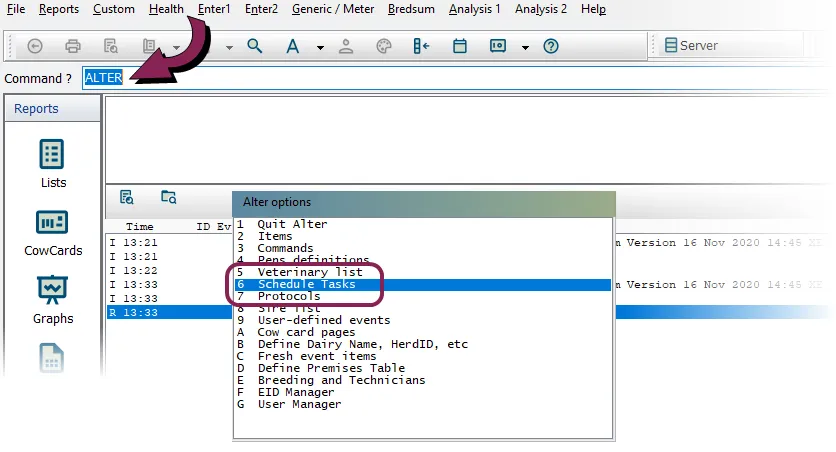
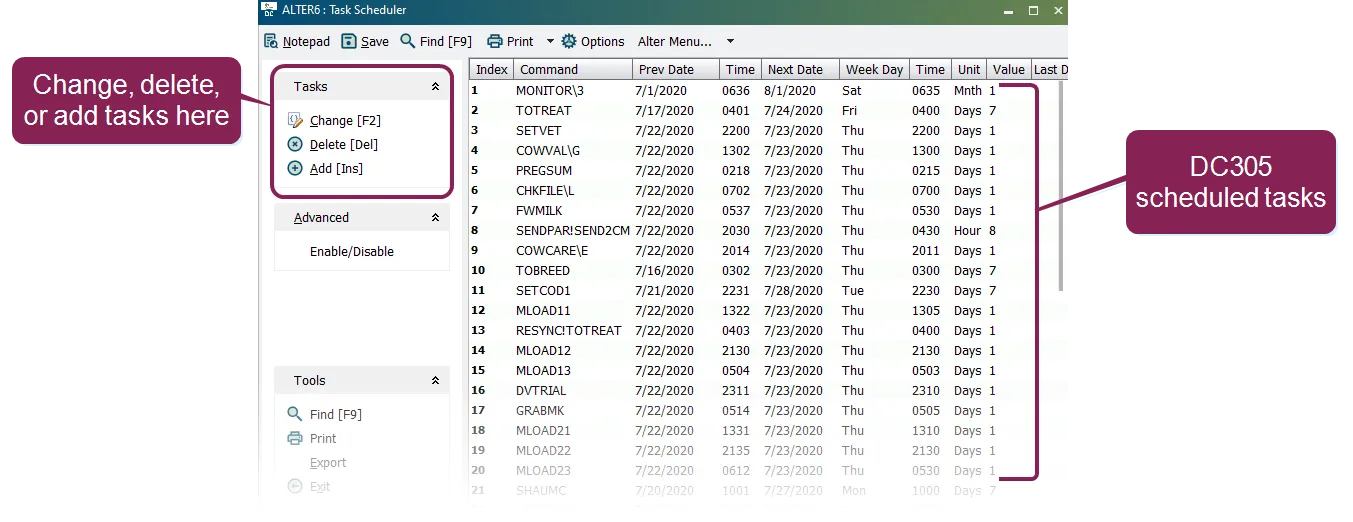
The Task Scheduler contains a list of all the commands currently scheduled to run for your DairyComp system. These scheduled commands are called "tasks." The Task Scheduler allows you to add, delete, and change tasks, and to see when they are scheduled to run.
- In the list of scheduled tasks, look for the command CONNECT\IU.
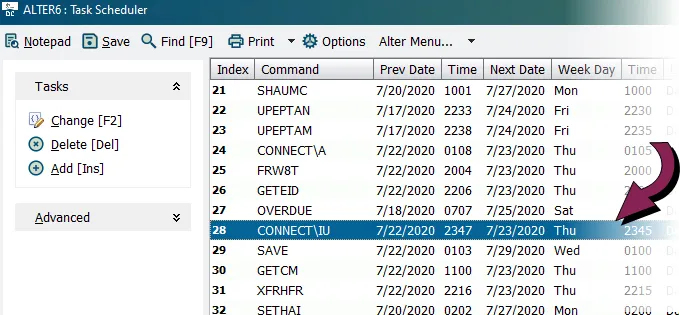
The CONNECT\IU command is used to back up DairyComp at regularly scheduled intervals.
If the CONNECT\IU command is not in your list of scheduled tasks, add it now:
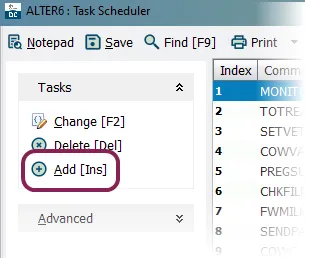
- From the Task Scheduler, click Add [Ins].
- In the task details window, enter the scheduling information for the command, and then click OK.
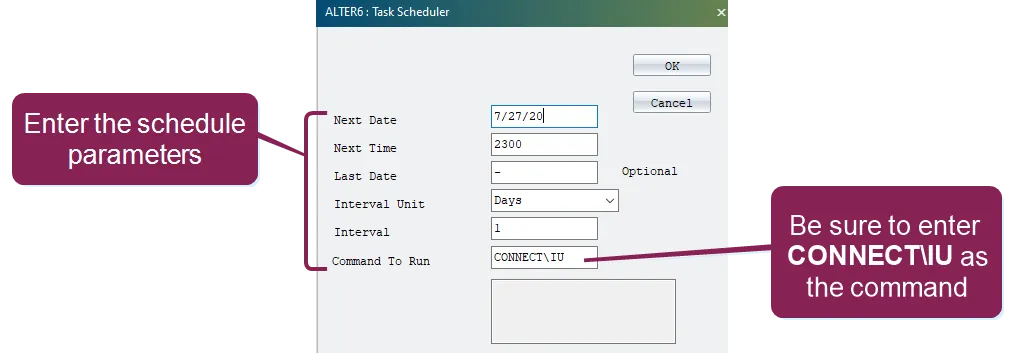
Follow these guidelines when entering data in the fields:
- Command to Run: Be sure to enter CONNECT\IU.
- Next Date: Enter the first available date that you want the command to run.
- Next Time: Enter the time for the command to run. This must be entered as military time.
- Last Date: The last date for the task to run. This field is optional.
- Interval Unit: Select Days.
- Interval: Enter 1 to run the command once a day.
Once you add the new command, the system displays it in the Task Scheduler.
- Press F2 or double-click the CONNECT\IU command to open it and check its schedule details.
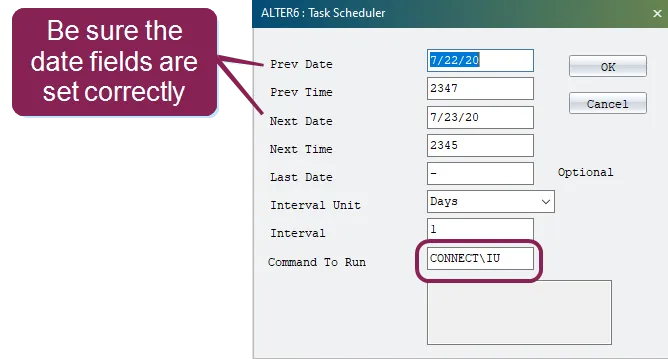
In particular, check the Prev Date and Next Date fields to make sure they are correct. The CONNECT\IU command should be configured to run once a day at a specific time.
- Edit the schedule as needed, and then click OK.
You can use the DairyComp SETUP tool to schedule automatic daily backups to a local drive:
- In the command line, enter SETUP to open the SETUP window, and then select the Backups tab.
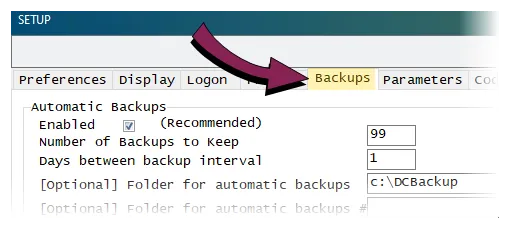
The Backups tab allows you to configure both automatic and manual backups. Continue to the next step to auto-backup your DairyComp data to a local drive. See Create a Manual Backup to learn how to do it manually.
- Define your auto-backup settings and click OK to save them.
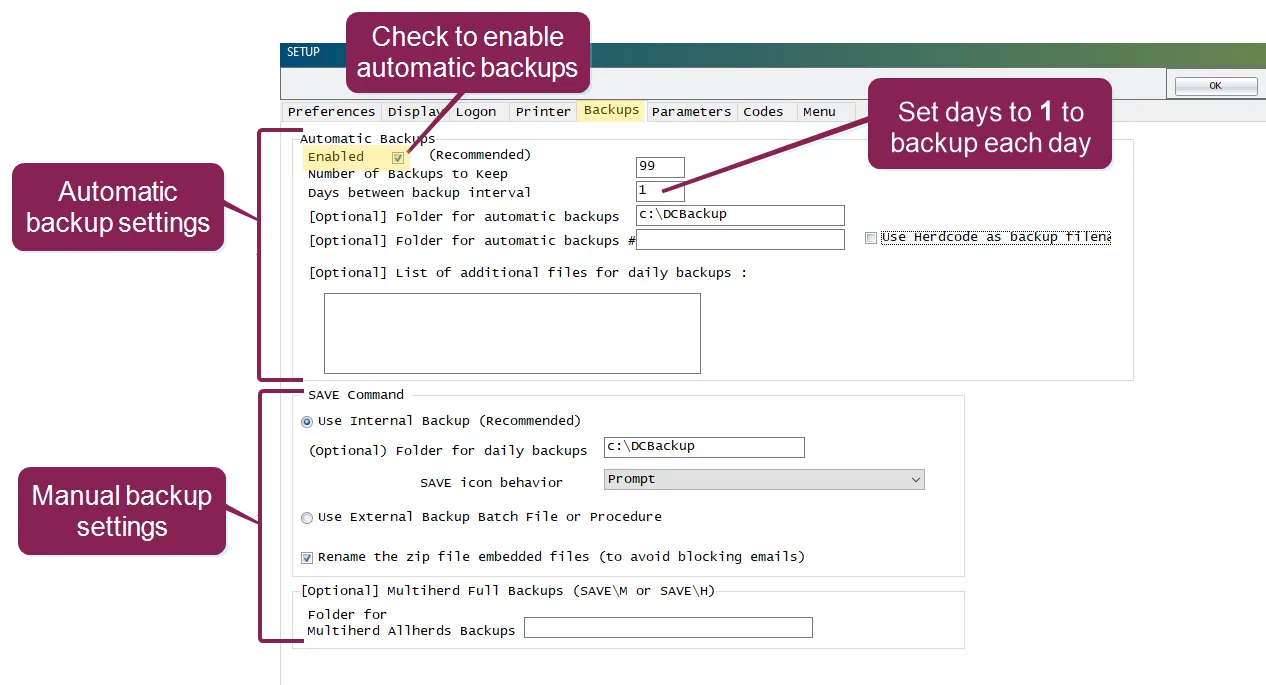
- Enabled: Check this box to enable automatic backups.
- Number of Backups to Keep: Enter the number of backup files to keep. When the number of backups reaches the limit, the oldest file will be deleted each time a new backup is created.
- Days between backup interval: Define how often DairyComp should create a backup. We recommend entering 1 in this field to create a new backup file each day.
- Folder for automatic backups [optional]: Enter the directory path and folder where you want the automatic backup files saved. This could be a local hard drive, a network drive, etc.
IMPORTANT: Specifying a destination folder in this field is optional. If you do not specify a folder, automatic backups will be saved to your DairyComp installation directory.
- Folder for automatic backups # [optional]: Use this field if you want to define a secondary directory path and folder where you want the automatic backup file saved. It is recommended that this be a different drive/system from your main backup folder. For example, if your main backup folder is on your machine's hard drive, your secondary backup folder could be on a network drive.
- Use Herdcode as backup filename: By default, the system includes your dairy name in your backup file name. If you check this box, it will include your herdcode instead.
- Go to your backup folder(s) to check for saved backup files. According to the schedule you configured, DairyComp will create the backups in a zip file and place them in the folder(s) you specified.
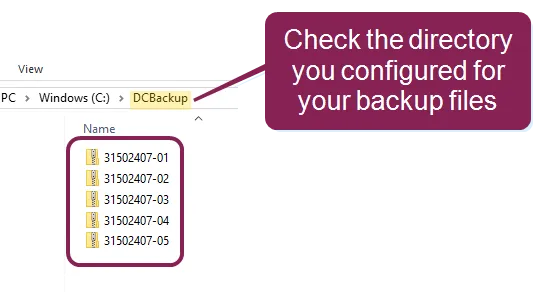
The number of backup files you see in the folder depends on when you began creating backups and how many you've specified to keep.
You can create a manual backup by using the DairyComp toolbar or command line. See the topics below for instructions, as well as information on how to customize your manual save options:
Click the drop-down arrow next to the SAVE command icon  on the toolbar and select your desired backup option.
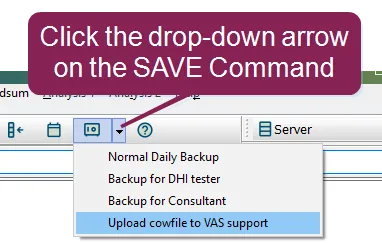
- Normal Daily Backup: Use this option to save your backup to a location that is already defined in your setup (for example, some dairies save their backup files to C:\DCBackup). Your backup will include all data, menu, setup, and log files. If you ever lose your data, it is recommended that you use this backup to restore your data.
- Backup for DHI tester: This option is used by only Dairy Herd Improvement (DHI) testers. If you are a DHI tester and select this option, you will be prompted to select a destination for the backup file.
- Backup for Consultant: This option is designed for consultants. If you select this option, you will need to designate where the backup file should be saved. The system will create a backup file that includes only data files. It does not include menu, setup, and log files.
- Upload cowfile to VAS support: This option will send a backup file to VAS Support. Use this option if VAS Support has requested it or if you would like an online backup file on the VAS Support website. Your backup will include all data, menu, setup, and log files. To determine if your backup file made it to the VAS Support website successfully, contact VAS Support for assistance. Please have your account number and herdcode ready so that we can assist you quickly.
You can manually create a backup of your DairyComp system at any time by entering one of the commands below and pressing Enter.
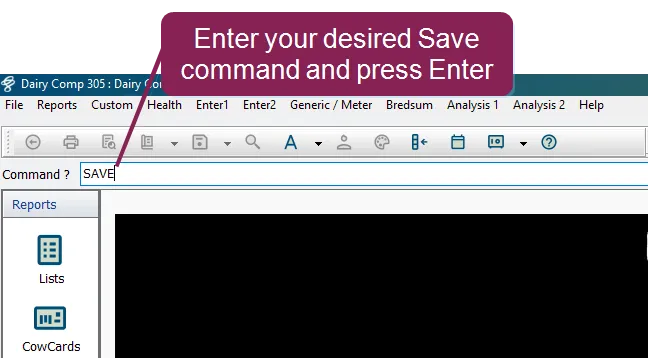
- SAVE command: Save your backup to a location that is already predetermined (for example, some dairies save their backup files to C:\DCBackup) or a location that you can customize. Your backup will include all data, menu, setup, and log files. If you ever lose your data, it is recommended that you use this backup to restore your data.
- SAVE\C: This save option is designed for consultants. If you enter this modification, the system will create a backup file that includes only data files. It does not include menu, setup, and log files.
- SAVE\H: The system will create a backup file for all the cowfiles in the HERDS folder and save it in the location for multi-herd backups, which can be edited in your SETUP window. The backup file will replace the most recent backups.
- SAVE\M>: Like the SAVE\H command, the system will create a backup file for all the cowfiles in the HERDS folder and save it in the location for multi-herd backups, which can be edited in your SETUP window. Unlike the SAVE\H command, the backup file will not replace old backups. Instead, the system will save the new backup file where all other backup files are housed. Each backup file is date-stamped.
- SAVE\T: This modification is used by only Dairy Herd Improvement (DHI) testers. If you are a DHI tester and enter this variation, you will be prompted to select a destination for the backup file.
- SAVE\F2: If you have created a secondary directory for your automatic backup files, you can use this command to save your backup file to the secondary directory.
In the Backups setup tab, you can change your SAVE command settings, like where you want to store your backups.
- To view the Setup window, enter SETUP in the command line and press Enter.
- In the Setup window, navigate to the Backups tab where you can set up the destination paths for your backup files.
- When you finish editing your settings, click OK in the upper right corner.
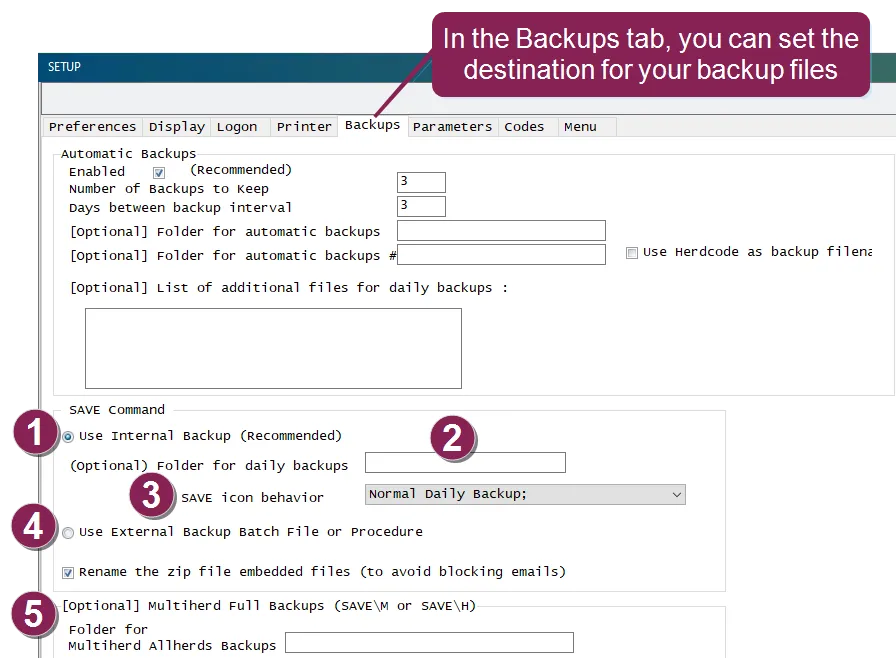
Use Internal Backup: Select this option to run the SAVE command internally and place the backup either within the DairyComp installation folder or a specific folder (i.e., the Folder for daily backups, explained below.
Folder for daily backups: Optional. Enter the directory path and folder where you want the backup file stored when you execute the SAVE command. This folder can be the one you use for automatic backups or a completely different one. If you do not specify a folder, the backup file will be stored in the DairyComp installation folder.
SAVE icon behavior: Select Prompt to have the system prompt you for a location to save the backup file. This setting will be over-ridden if you have specified a Folder for daily backups (above).
Use External Backup Batch File or Procedure: Select this option if you want to run an external batch file when you use the SAVE command. You'll need to specify the location of the batch file if you select this option.
Multiherd Full Backups: Optional. Enter the directory path and folder where you want the backup file stored when you execute the SAVE\M or SAVE\H command. This folder can be the one you use for automatic backups or a completely different one. If you do not specify a folder, the backup file will be stored in the DairyComp installation folder.